

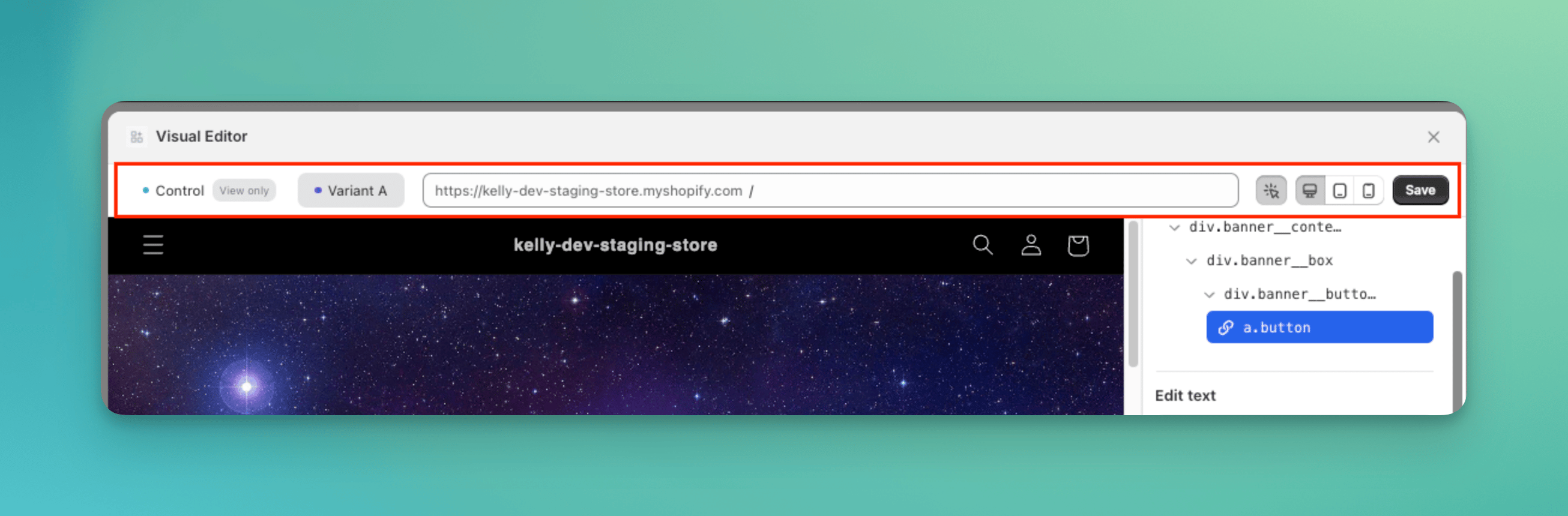
The in-app editor's top bar.
When to use it
- You want to stay in the admin. The page, the test groups and the change list sit in one window.
- The change is a word, a link, an image, or the order of a few elements. That is what the in-app editor does.
When NOT to use it
- Your theme’s scripts, menus or cart drawer behave differently inside a frame. Use the store editor, which runs on the real page.
- You want to duplicate an element, insert new markup, or let your AI make the changes. Use the store editor.
How it works
- Switch to the test group you want to change.
- Turn on Select element and click an element on the page.
- Right-click it, or use the side panel, to change it.
- Click Save.
What you can change
Select an element, then right-click it.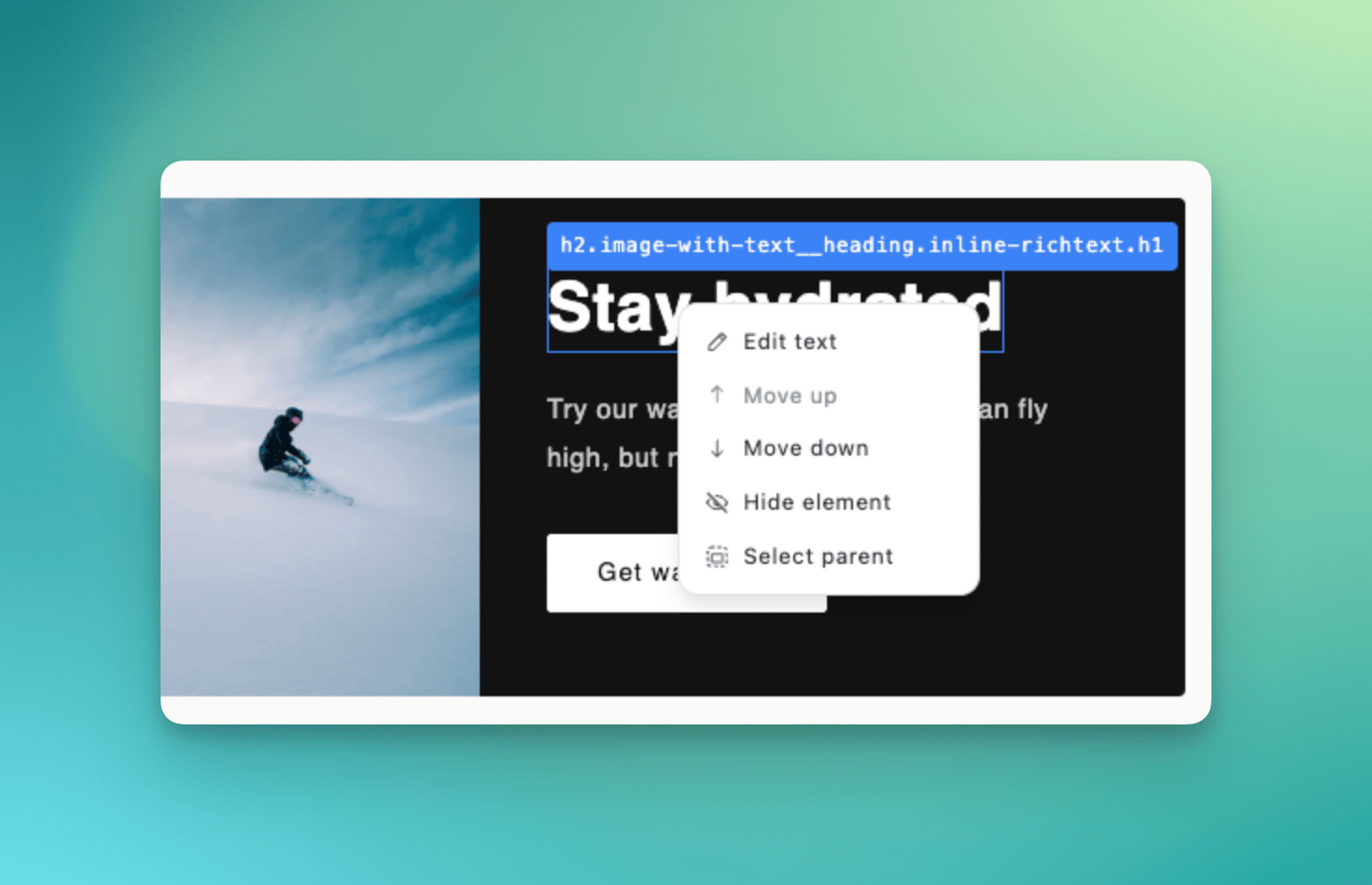
- Edit. The text, the link address, or the image (from your library, an upload, or an image URL).
- Move up and Move down. Reorder the element among its siblings, for example a product card to the first position in a grid. An element cannot leave its parent.
- Hide element. Remove it from the page for this test group. Nothing is deleted in Shopify.
- Select parent. Jump to the container when you want to change a larger section.
Common mistakes
- Clicking the page with Select element off. Turn it on to pick elements; turn it off to browse the store.
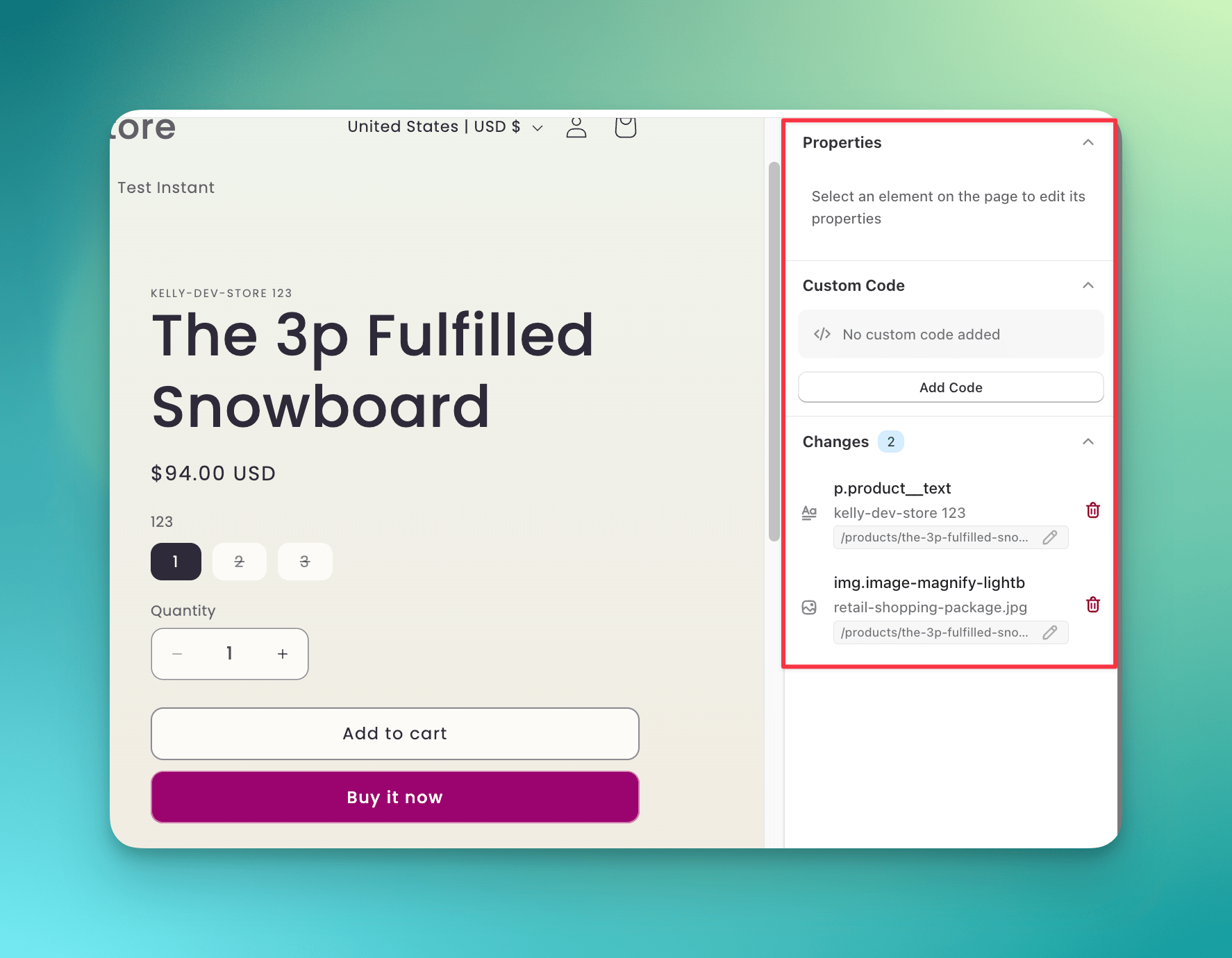
- Leaving without saving. The in-app editor keeps changes only when you click Save.
- Skipping the mobile view. Check the device switcher’s mobile view before you launch.
FAQ
Can I use the in-app editor and the store editor on the same test?
Can I use the in-app editor and the store editor on the same test?
Yes. Both write to the same change list, so a change made in one shows in the other.
Why can't I select an element?
Why can't I select an element?
Elements rendered by a script after the page loads, or by a third-party app, may not be selectable in the frame. Try the store editor, which runs on the real page.