

When to use it
- Storewide tests. See whether a theme or template test helped your hero collection, not just the whole store.
- Price tests across many products. Filter to the tested products, then open the per-product breakdown to see which products drove the lift.
- A recurring focus set. Build a “Best sellers” product group once and apply it to every test.
How it works
The test still splits visitors randomly between control and variants. A product group only filters which sessions and which products in each order count toward the dashboard numbers.- Apply a product group on a test’s Analytics dashboard.
- A session counts when the visitor viewed a product in the group; each step (product view, add to cart, checkout, purchase) counts when it involved a product in the group.
- Revenue and profit count only the product group’s products in each order, never the whole order. Discount metrics count only discounts on the product group’s items. See Discount metrics.
- Product groups built from a collection, tag, or product type stay in sync as your catalog changes in Shopify.
- A Product tab appears in the breakdown table with per-product rows.
The test splits visitors randomly, not products, and visitors choose what they view, so per-product results are noisier than the test’s overall result. Read them as signals of where the lift came from.
Setup
Price tests come with a built-in product group of the tested products, marked In this test in the Filters modal. No setup needed.
Create a product group
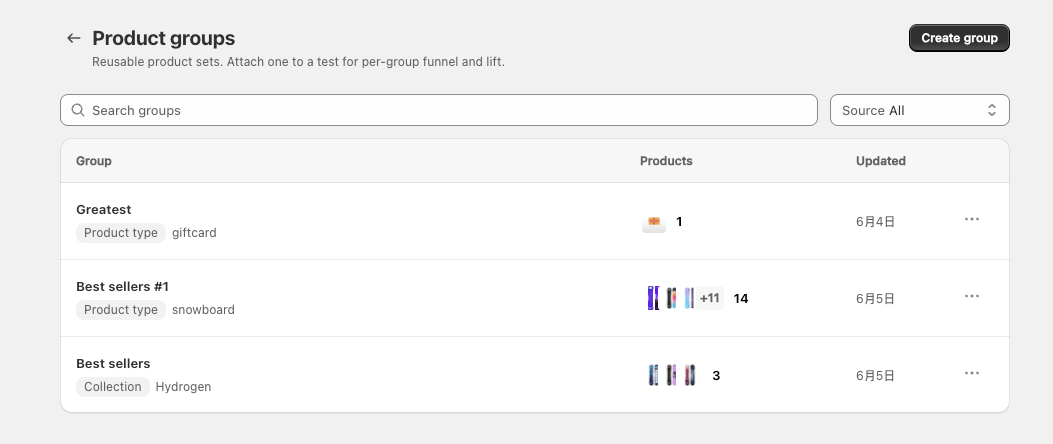
- In ABConvert, open Settings and find the Product Groups card.
- Click Manage Product Groups, then Create group.
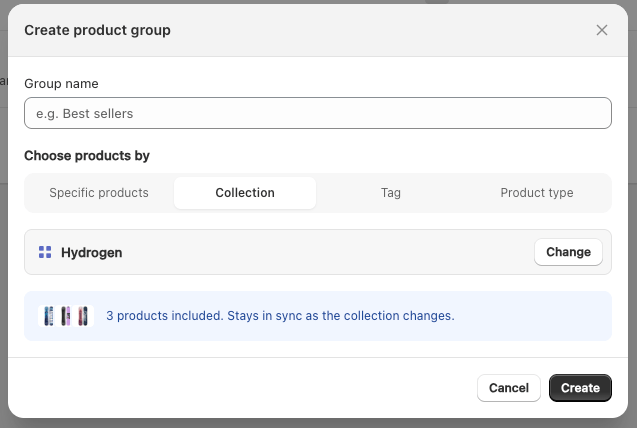
- Pick a source: Specific products, Collection, Tag, or Product type. The last three update automatically with your catalog; Specific products is a fixed list.
- Name the product group and save it.
Apply it on the Analytics dashboard
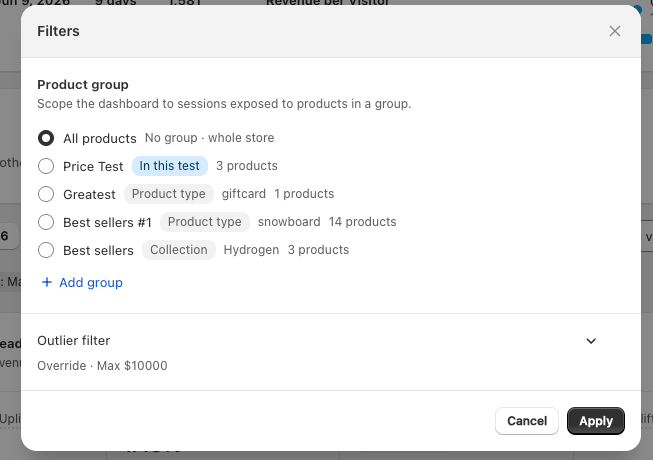
- Open the test’s Analytics dashboard and click the Filters icon.
- Under Product group, pick a group. All products means no filter; a price test also shows its built-in group marked In this test here.
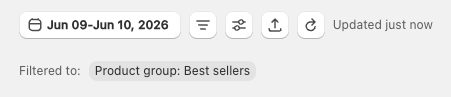
- Click Apply. A Filtered to: pill shows the active product group, and the selection is saved per test.
Break results down per product
While a product group is applied, a Product tab appears in the breakdown table next to Country and Device Type. Each row is one product in the group, so you can compare Control and each variant product by product.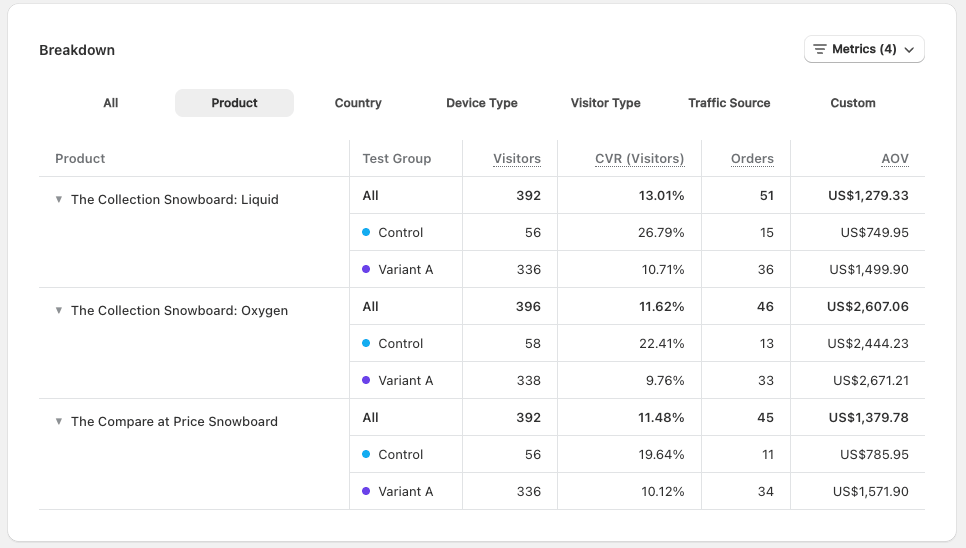
Common mistakes
- Trying one product group after another until one turns green. Scope to the products you decided to judge before you looked at the numbers. With enough groups, one always wins by chance.
- Expecting a product group to change who sees the test. It never does. Product groups are an analytics filter; targeting and product selection live in the test setup.
- Comparing filtered revenue with the test total. Only the product group’s products in qualifying sessions count, so filtered numbers won’t add up to the total. Compare filtered numbers with each other.
- Looking for the Product tab without a product group applied. The per-product breakdown only appears while a product group is applied.
- Hesitating to edit or delete a product group. Your test data isn’t affected. If you delete a product group a dashboard is filtered to, open Filters on that test and pick another product group or All products.
FAQ
Do product groups change which visitors enter my test?
Do product groups change which visitors enter my test?
No. Randomization, targeting, and traffic split are untouched. A product group only filters which sessions and order line items count toward the dashboard numbers.
What is the product group with the 'In this test' badge?
What is the product group with the 'In this test' badge?
Price tests (and offer tests that target specific products) automatically get a built-in group of exactly the tested products. It only appears in that test’s Filters modal and isn’t listed on the Product Groups page.
What happens when my collection changes?
What happens when my collection changes?
Product groups built from a collection, tag, or product type stay in sync automatically. There’s nothing to rebuild.
Why is filtered revenue lower than I expected?
Why is filtered revenue lower than I expected?
Only sessions that viewed a product in the group count, and revenue is counted per product: an order with one product from the group and three others contributes only that one line’s revenue.
Can I reuse a product group across tests?
Can I reuse a product group across tests?
Yes. Product groups are store-level: define one in Settings and apply it on any test’s Analytics dashboard.
How reliable are per-product results?
How reliable are per-product results?
Per-product comparisons aren’t randomized the way the test itself is, because visitors choose which products they view. Expect more noise than the test’s overall result and weigh them accordingly. See Statistical Significance.