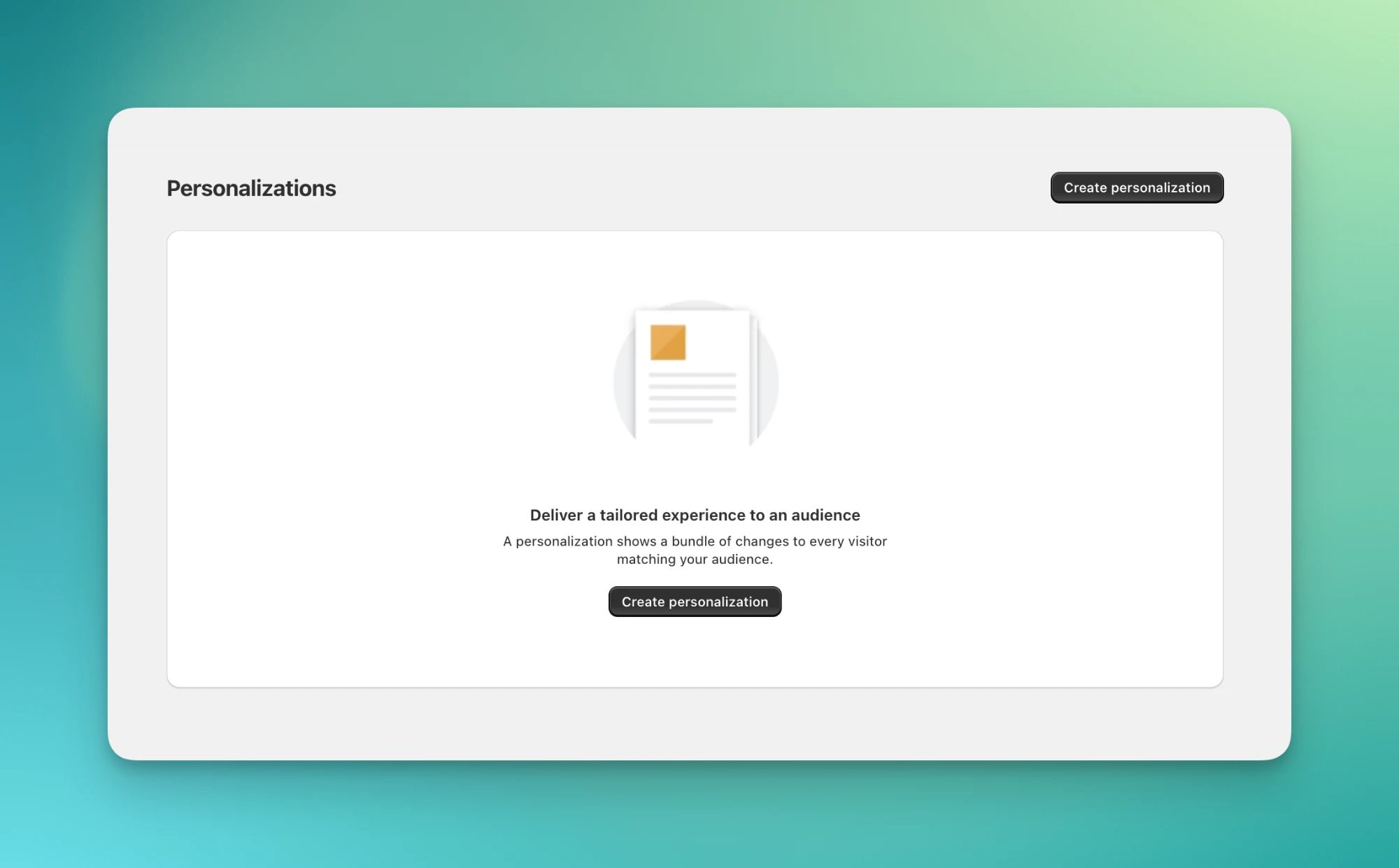
A personalization shows one proven experience to an audience you choose. Each audience gets the best version of your store.It is the second half of an optimization loop. A test tells you which version wins for which visitors. A personalization then shows that winner to the whole audience. From there, keep testing: pick another audience, find its winner, and roll it out too.
Think of a personalization as one experience attached to one audience. Visitors in the audience see it. Everyone else sees your original store. There is no random assignment and no Control.
You define the audience and the changes, then roll it out.
Visitors in the audience see the personalized version on every page and every visit.
You can edit anything while it’s live, including the audience and the changes. Edits apply right away.
When you end it, all visitors see the original store again.
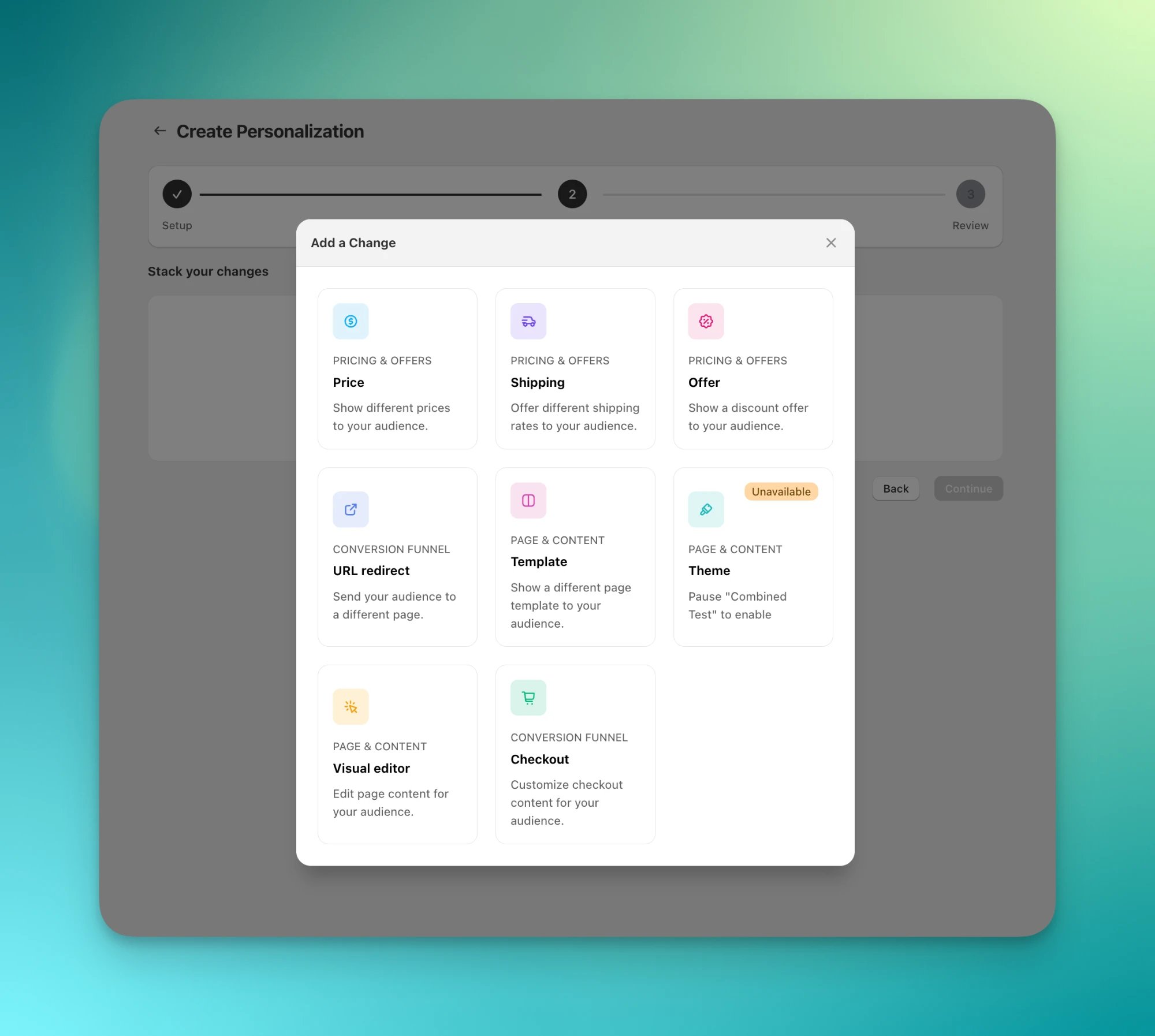
A personalization supports the same changes as a combined test: price, shipping, offer, URL redirect, template, theme, visual editor, and checkout.
The shortest path starts from a test’s Analytics dashboard. It works for a running test or an ended one.
1
Click Roll out
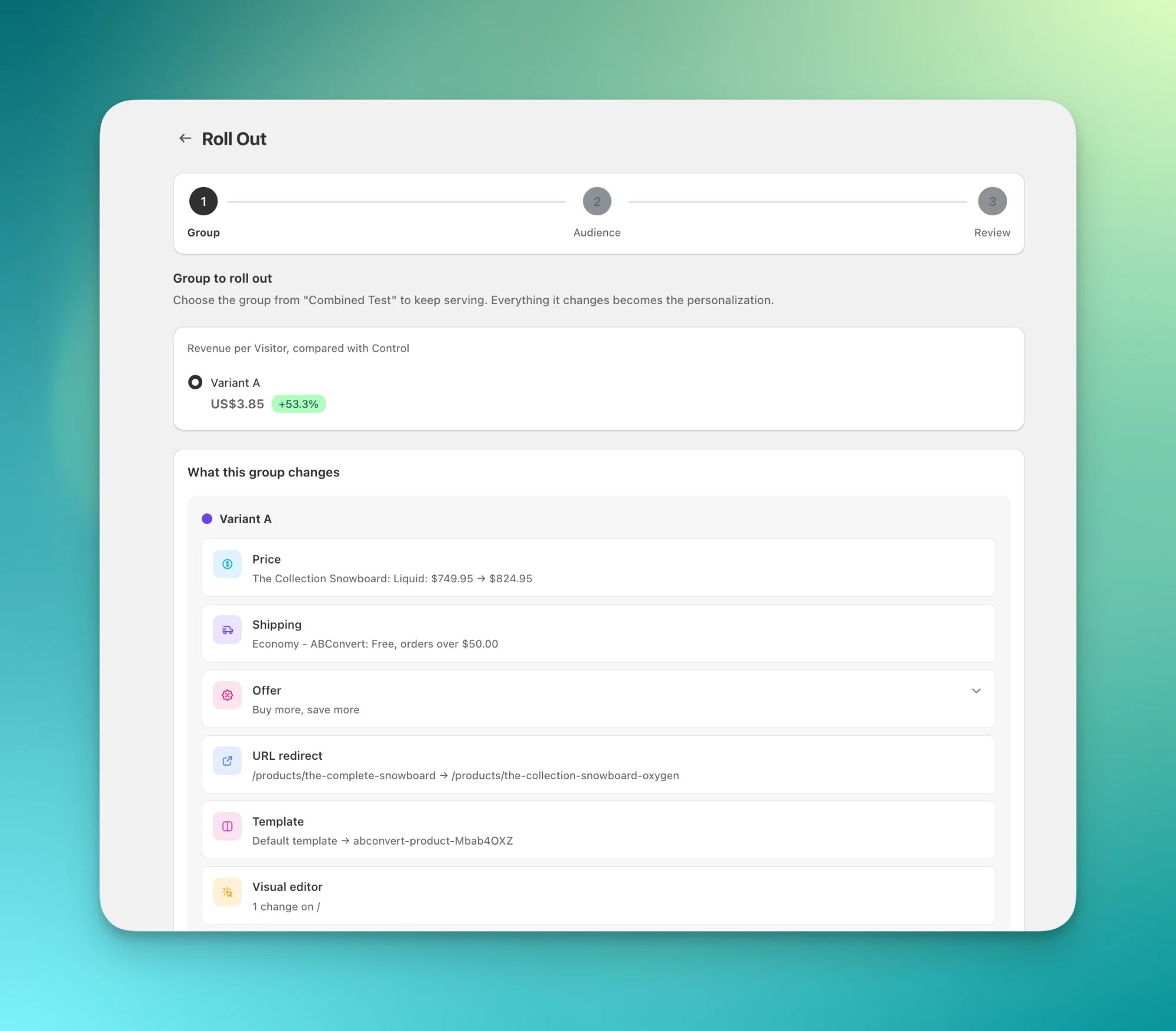
On the test’s Analytics dashboard, click Roll out and pick the test group you want to keep. ABConvert prefills a personalization draft with that test group’s exact changes.
Choosing the winning test group to roll out.
2
Choose the audience
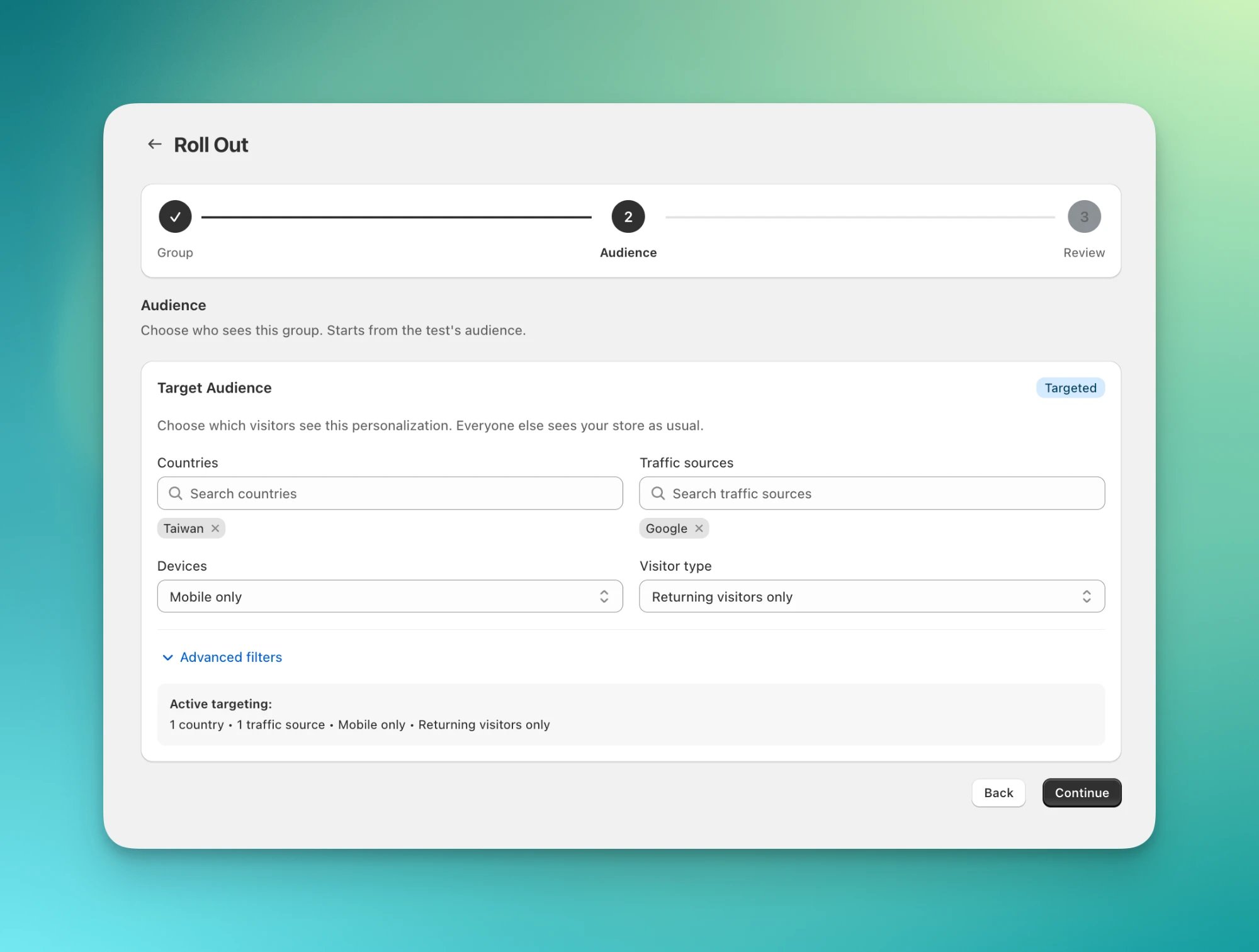
The audience starts from the test’s audience. Keep it, narrow it, or open it to all visitors.
The audience step, prefilled from the test's audience.
3
Review and roll out
Confirm the changes and roll out. If the test is still running, ABConvert ends it for you. The winner replaces the test in one step.
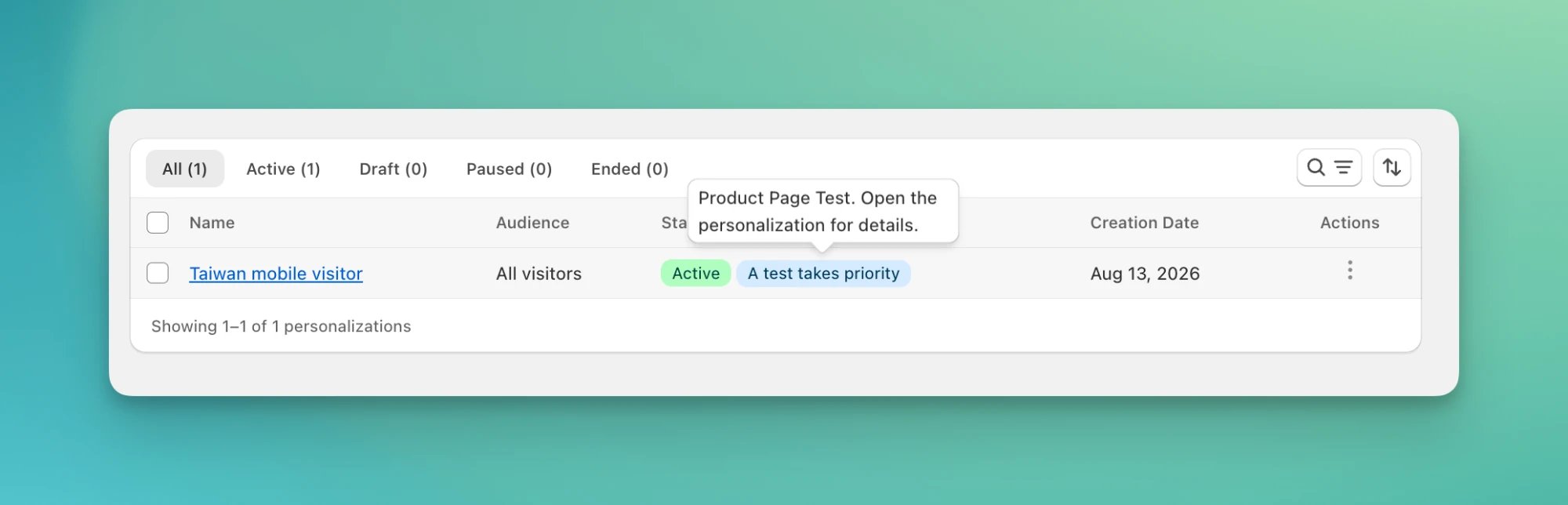
A test takes priority over a personalization wherever they touch the same thing. Everyone in the test sees the test’s version. That includes Control: Control sees your original store, not the personalization. Everywhere else, and for visitors outside the test, the personalization still applies.What “the same thing” means depends on the type:
Type
A test overrides a personalization when they share
Price
the same product
Shipping
the shipping rates at checkout
Checkout
the same checkout section
Offer
the offer (all or nothing)
Template, URL redirect, visual editor
the same page
Theme
the whole storefront. Only one theme test or theme personalization can be live at a time.
When you launch a test over a live personalization, ABConvert warns you and marks the personalization as overridden. Nothing changes silently. This rule keeps your test results clean: Control stays a true baseline.
A live personalization with a running test taking priority.
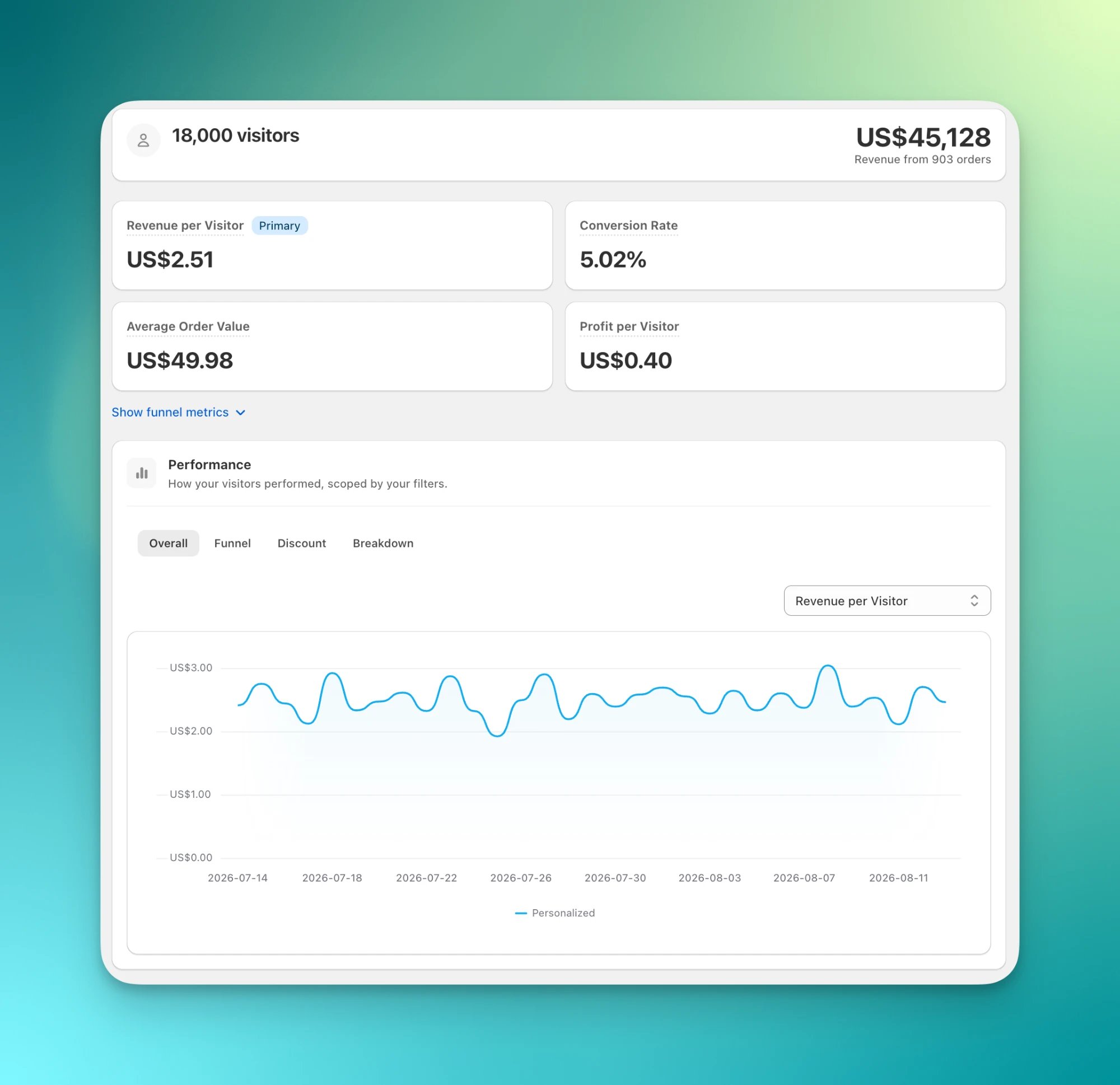
Personalization analytics covers the visitors who saw it. You get the same metrics as a test: revenue per visitor, conversion rate, average order value, and profit per visitor. Everyone in the audience sees the same version, so there is one line on the chart, no Control, and no lift number.To judge impact, compare with the result of the test that produced it.
Yes. Edit the name, audience, and changes while it’s live. Edits apply right away. A new audience changes who sees it from that point on.
Can I run multiple personalizations at once?
Yes. If two personalizations touch the same thing for the same visitor, the one rolled out most recently applies there.
Does a visitor keep seeing the same version?
Yes. A visitor in the audience sees the same version on every visit. If you edit the audience so they no longer match, they see the original store from then on.
What happens when I end a personalization?
All visitors see your original store again. Ending is one-way. To bring it back, duplicate it and roll out the copy.
⌘I
Assistant
Responses are generated using AI and may contain mistakes.