

What is a shipping test?
A shipping test lets you offer different shipping rates, free shipping thresholds, and delivery options to each test group. This helps you identify the shipping strategy that maximizes conversion rates while protecting your profit margins. ABConvert uses Shopify’s Carrier Service API and Delivery Customization (Shopify Functions) to apply shipping rate changes dynamically at checkout without changing your existing native Shopify rates.Shipping tests require the Shopify Carrier Service API. This is available by default on Shopify Advanced and Plus plans, or by request on Annual billing plans. (Source)
When to use it
- Optimize free shipping thresholds: Compare offering free shipping at $50 vs $75 to see which drives a higher average order value (AOV) without hurting conversion.
- Test flat rate shipping: See if a simplified $5 flat rate converts better than complex calculated rates.
- Test with premium shipping: Test offering expedited delivery options to see if customers are willing to pay for faster shipping.
- Test shipping rate names: Validate whether naming a rate “Standard Delivery” vs “Insured Tracked Shipping” impacts checkout completion.
When NOT to use it
- Your store cannot access the Shopify Carrier Service API. Shipping tests require that API before ABConvert can show calculated shipping rates.
- You need to modify rates from another shipping app or carrier. ABConvert can import and modify native Shopify shipping rates, but it cannot directly change third-party calculated rates.
- You want to test checkout content instead of rates. Use a checkout test for checkout blocks, banners, trust copy, or payment and delivery presentation.
- You need multiple active tests on the same shipping zone. You can run multiple shipping tests, but only one active test can target a given shipping zone.
Set up a shipping test
1
Create a new shipping test
In the ABConvert dashboard, click Create New Test and select Shipping Test.
Testing non-default shipping profilesYou do not need to add ABConvert rates manually before selecting a non-default profile. ABConvert checks the selected zones during setup and adds the ABConvert Shipping carrier rate where it is missing.
2
Add basic information and configure traffic split
Enter a descriptive name for your test, write a clear hypothesis, and select your primary success metric. By default, traffic is split evenly between Control and Variant A. You can adjust the traffic allocation or add more variants.
3
Set targeting
Decide who enters the test and how much traffic it gets. See Targeting.
4
Select shipping zones
Choose which Shopify shipping zones to include in the test. The test only applies to checkouts with shipping addresses matching the selected zones.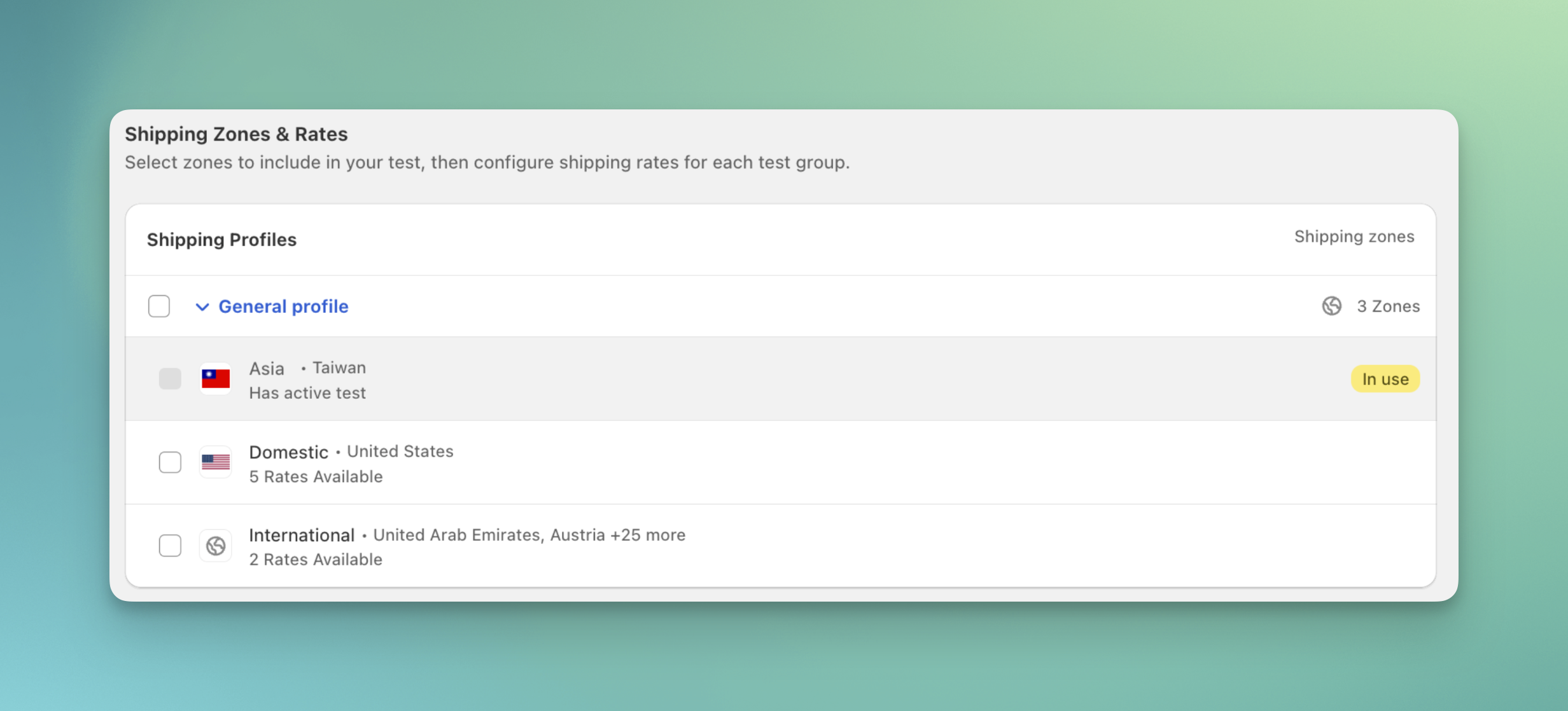
5
Configure variant shipping rates
Configure shipping rates for each test group. Control uses your original shipping settings by default. For each selected shipping zone, you can manage a test group’s rates: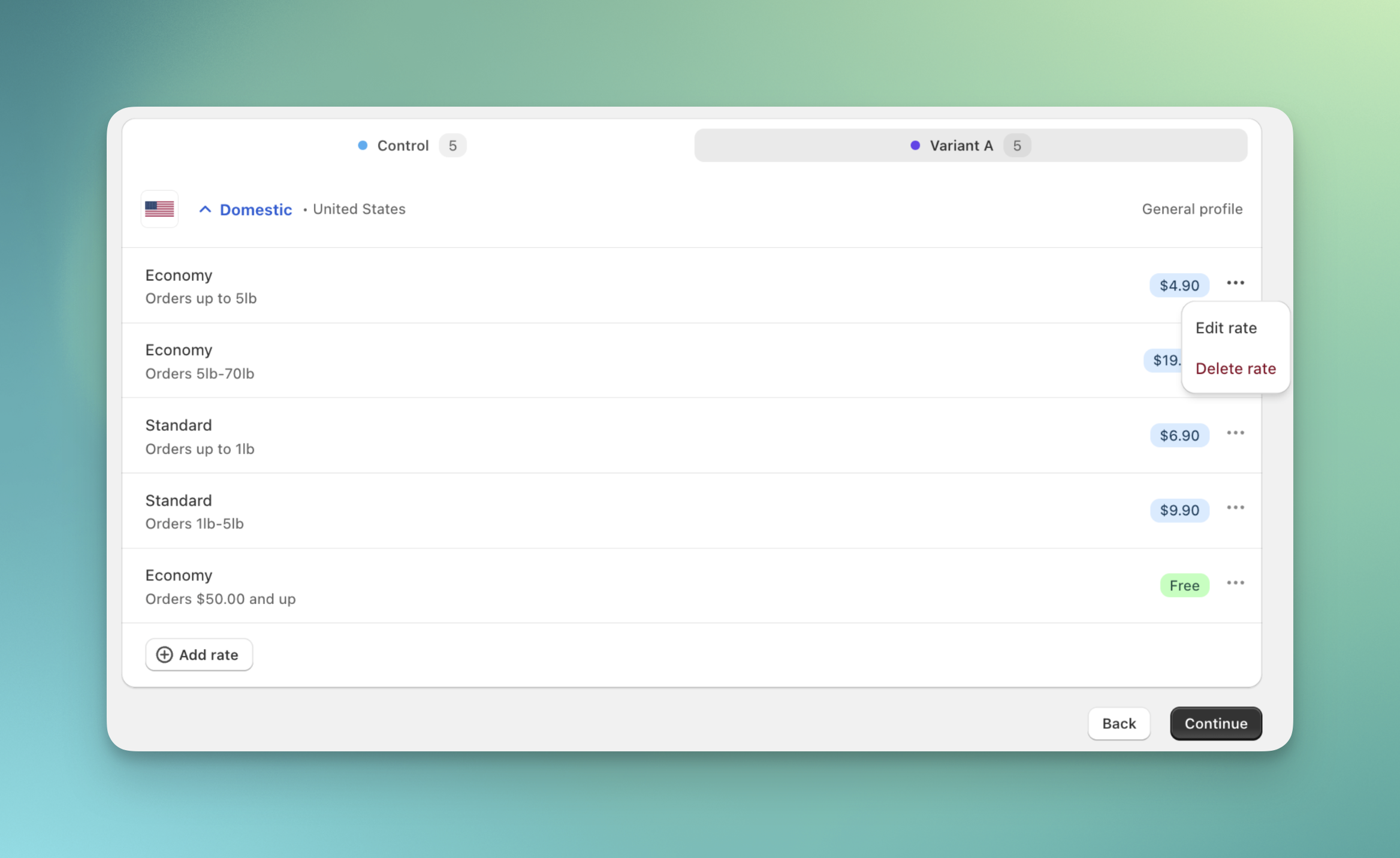
- Delete rate: Remove an existing rate from the test group.
- Edit rate: Update the name, description, or price of an existing rate.
- Add rate: Add a new shipping rate to the test group.
6
Review and launch
Review your full test configuration, including the visitor flow and shipping rate changes. We recommend using Preview test to check your changes in the checkout before launching. When everything looks correct, click Launch test.
Common mistakes
- Testing with an address outside the selected zones. Shipping tests only apply when the checkout shipping address matches a selected zone, so use a matching test address during QA.
- Targeting the same shipping zone in more than one live test. Keep one active shipping test per zone so visitors do not see conflicting rates.
- Expecting ABConvert to hide third-party calculated rates. Third-party rates can appear alongside ABConvert test rates, but ABConvert cannot directly modify or hide them.
- Judging only checkout conversion. A lower shipping fee can lift conversion while lowering margin. Compare conversion rate, average order value, and profit before choosing a winner.
Shipping test FAQs
Do I need to delete my existing Shopify shipping rates?
Do I need to delete my existing Shopify shipping rates?
No. ABConvert’s shipping tests use Shopify Functions (Delivery Customization) to automatically hide your native Shopify rates and replace them with your test rates during checkout. Your original shipping profiles remain intact.
Will visitors see the same rates if they refresh the checkout page?
Will visitors see the same rates if they refresh the checkout page?
Yes. ABConvert uses sticky bucketing. Once a visitor is assigned to a variant test group and a shipping rate is calculated, they will continue to see the same shipping rates for the duration of the test.
Can I test country-specific rates?
Can I test country-specific rates?
Yes. You can select specific shipping zones during setup, and you can also exclude specific countries with the Countries condition in audience targeting.
Can I run multiple shipping tests at the same time?
Can I run multiple shipping tests at the same time?
Yes, you can run multiple shipping tests concurrently. However, you can only have one active test per shipping zone. This ensures accurate data tracking and prevents conflicting rates from being shown to the same visitor.
What if I use third-party calculated rates (like USPS, FedEx) or another shipping app?
What if I use third-party calculated rates (like USPS, FedEx) or another shipping app?
ABConvert can only import and modify your native Shopify shipping rates. While our test rates can safely display alongside third-party calculated rates at checkout, we cannot directly modify or hide rates generated by other shipping apps or carriers.