

What is a template test?
A template test lets you assign a different Shopify theme template to each test group for the same product, collection, or page. This is the best test type for structural layout changes, reordering Shopify sections, or testing different third-party app block placements — all built natively within the Shopify Theme Editor.When to use it
- Test product page layouts: Compare a traditional two-column product layout against a modern long-form storytelling template.
- Test section order: See if moving customer reviews and trust badges higher on the page increases your add-to-cart rate.
- Test app block placements: Test whether placing an upsell app above the add-to-cart button performs better than placing it below the product description.
- Test distinct visual styles: Test a completely different color scheme, typography, or styling for a specific promotional collection page.
When NOT to use it
- You want to test an entire unpublished theme. Use a theme test when the change spans many page types or a full redesign.
- You only need to edit text, images, buttons, or page elements. Use a visual editor test for content edits that do not need a Shopify template.
- The template exists only in an unpublished theme. Template tests can assign templates from your current live theme.
- You need to apply a winning homepage template automatically. Shopify does not provide a direct home page template switch for that case, so you must apply the winning design manually.
Set up a template test
1
Create your alternative templates in Shopify
Before creating a test in ABConvert, open the Shopify Theme Editor for your live theme. Create the alternative templates (e.g., a new product template called
product.variant-b) and design the layout and sections for your test.2
Create a new template test
In the ABConvert dashboard, click Create New Test and select Template Test.
3
Add basic information and configure traffic split
Enter a descriptive name for your test, write a clear hypothesis, and select your primary success metric. By default, traffic is split evenly between Control and Variant A. You can adjust the traffic allocation or add additional variants.
4
Set targeting
Decide who enters the test and how much traffic it gets. See Targeting.
5
Select your control and variant templates
Choose the specific product, collection, or page templates you want to test. You can choose from all template types: Homepage, Collections, Products, Pages, Cart, Blogs, Articles, Search.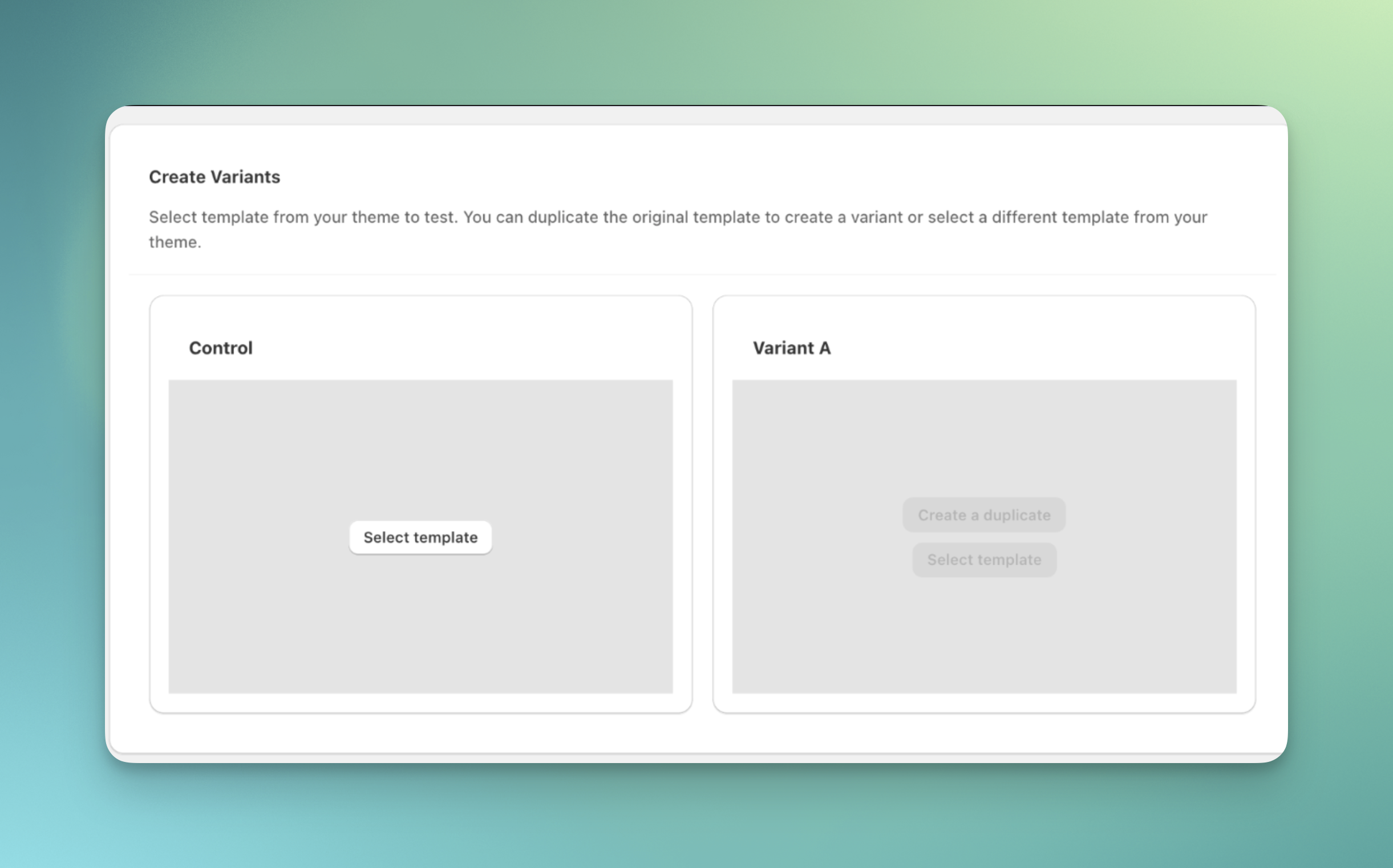
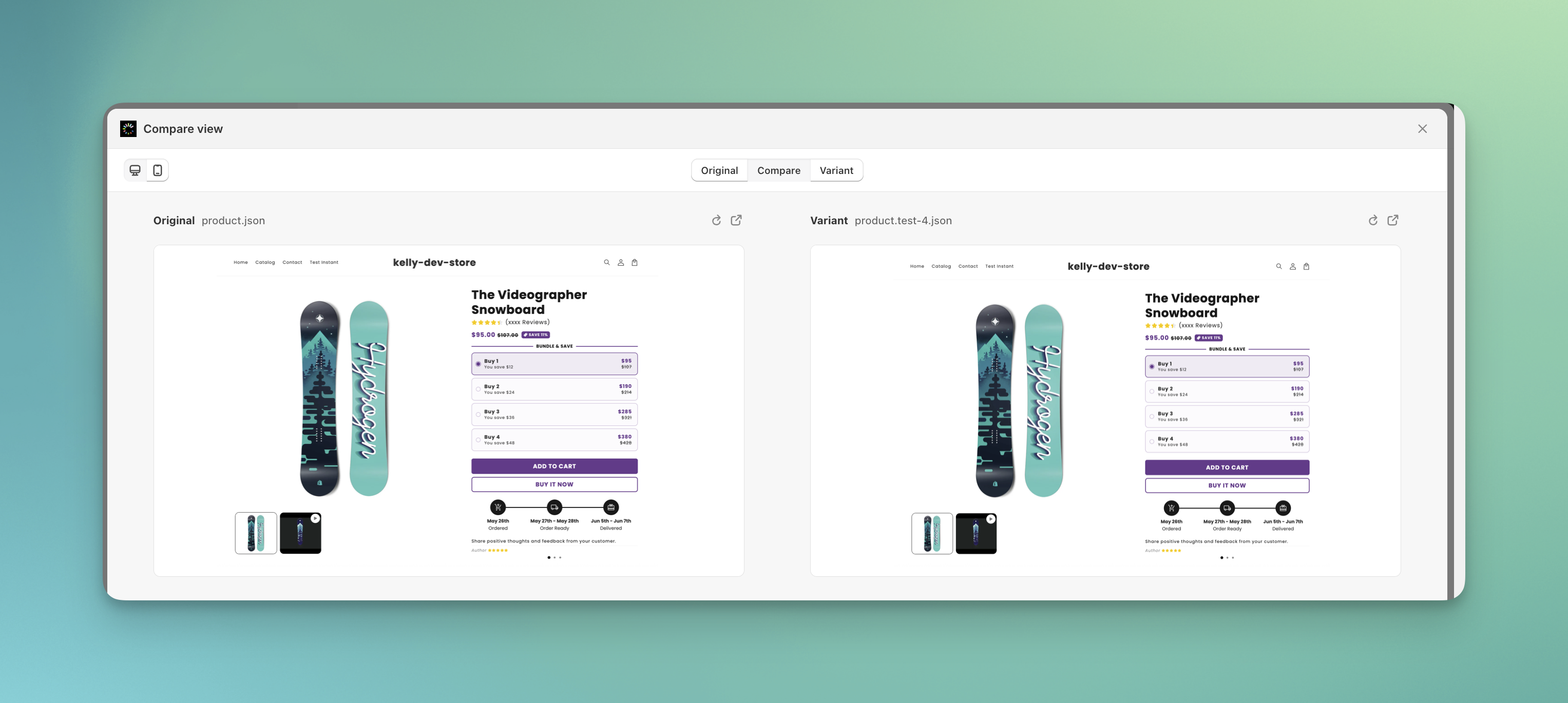
Use Compare variants to preview and compare each test group in desktop or mobile view.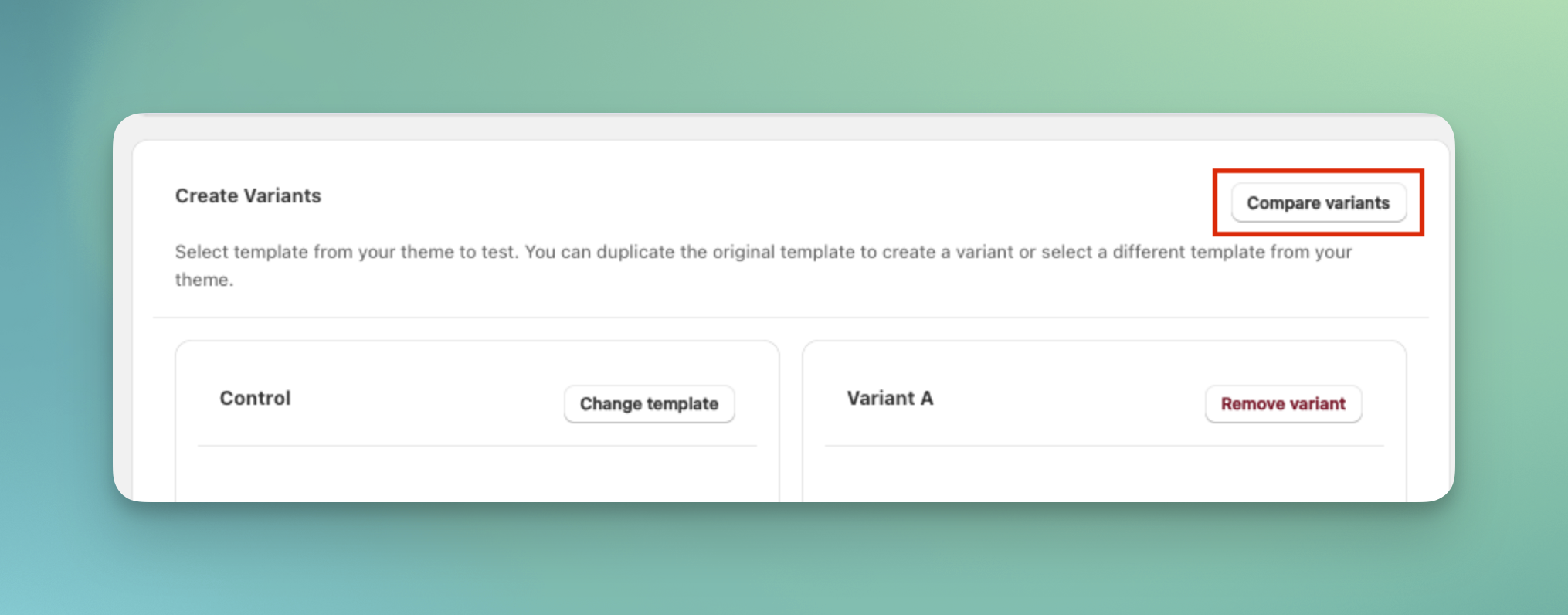
6
Review and launch
Review your full test configuration. We recommend using Preview test to verify that the correct template loads for each test group before launching. When everything looks correct, click Launch test.
Common mistakes
- Creating the alternate template in an unpublished theme. ABConvert pulls templates from your current live theme.
- Using a template test for a full redesign. If the change spans your whole store, run a theme test instead.
- Forgetting to assign product templates. For product-specific tests, make sure the products you want to include use the template selected in ABConvert.
- Judging a template by one page view. Use Preview test on desktop and mobile before launch, then read conversion and revenue metrics after enough visitors enter the test.
Template test FAQs
Do I need to duplicate my entire theme?
Do I need to duplicate my entire theme?
No. You only need to create a new template within your existing active theme (for example, a new product template called
product.test). You do not need to publish a completely separate theme.Why is my original template not showing up in the dropdown?
Why is my original template not showing up in the dropdown?
ABConvert pulls templates from your current live theme. Make sure the original template exists in your live theme, not in an unpublished draft theme. If you just created the template, try refreshing the ABConvert app to sync the latest templates from Shopify.
Can I test a template from an unpublished theme?
Can I test a template from an unpublished theme?
No. ABConvert can only assign templates that exist within your currently active Shopify theme. If you want to test an entirely different theme, run a Theme Test instead.
How do I test my homepage using a template test?
How do I test my homepage using a template test?
1. Create your alternate homepage templateShopify doesn’t allow you to add multiple homepage templates directly in the Theme Editor, but ABConvert makes it easy.
- In ABConvert, go to Create new test > Template test
- In the Create variants section:
- Set your current homepage template as the original
- Click Create a duplicate to generate a variant template
- Click Edit in Shopify next to the variant
- This opens the template inside Shopify’s Theme Editor
- Make your design changes, then click Save
How do I apply the winning homepage template?
How do I apply the winning homepage template?
Currently, there is no “select template” option for the home page. Due to a Shopify’s constraint, if you end a successful template test on the homepage, you cannot directly apply the winning template.To apply the winning design manually: open the Theme Editor, navigate to the Home page, and update the live template to match your winning variant.
How do I run a product template test on only certain products?
How do I run a product template test on only certain products?
Method 1: Use page targetingBest for a few specific products.In the test’s Targeting step, add one include rule per product with page targeting: Exactly matches
/products/my-cool-product. Only those product pages show the test template, and only visitors who open one of them enter the test.Method 2: Duplicate the original templateIf you want to run the test on many products, adding one rule per product is slow. Instead, use Shopify’s template assignment to cover whole sets of products.- In your Shopify theme editor, duplicate your current product template
- Name it something like product-template-a
- Assign this duplicated template to all the products you want included in the test (for example, all lamp products)
- In ABConvert, open your test setup and select:
- Original template: the duplicated product-template-a you just assigned
- Variant template: the new template you want to test
Will a template test affect my Google Ads or GA4 attribution?
Will a template test affect my Google Ads or GA4 attribution?
No. Like a redirect test, a template test keeps your full query string, so ad tracking parameters such as
gclid and utm_ reach the destination page and your attribution stays correct. See Attribution and ad tracking for the details and sources.