

What is a theme test?
A theme test lets you serve a completely different Shopify theme to a subset of your visitors while keeping your current live theme unchanged for everyone else. This is the best test type for validating a full theme migration, comparing two distinct design directions, or measuring the revenue impact of a major redesign before committing to a full launch.When to use it
- Validate a new theme before launching: Measure conversion rate, revenue per visitor, and bounce rate on your new theme against your existing one before making it live.
- Test a complete redesign: Compare a brand-new theme design against your current theme to quantify the business impact of the visual overhaul.
- Compare Shopify themes in your theme library: Test a custom Shopify theme, a new theme version, or another Online Store theme against your current theme before switching design direction.
- Test major UX changes: When changes are too broad or deeply structural for a template test, a theme test gives you a clean side-by-side comparison at the theme level.
When NOT to use it
- You only need to test one page template. Use a template test when the change is limited to a product, collection, page, or homepage template.
- You only need to edit page content. Use a visual editor test for headlines, images, buttons, or section-level edits.
- You need to test a headless storefront or a theme outside Shopify’s theme library. Theme tests rely on Shopify theme preview URLs, so the variant must be a Shopify theme saved in your theme library.
- Other active tests need to keep running on the same storefront area. Theme tests can conflict with other tests because they swap the whole theme.
- You need to change the tested theme after launch. To test another theme, create a new test.
Set up a theme test
1
Prepare your variant theme in Shopify
Before creating a test in ABConvert, go to Shopify Admin → Online Store → Themes and add or customize the theme you want to test as a variant. Fully configure and preview it to make sure it is ready. You do not need to publish it — ABConvert serves it to its test group while it remains unpublished.
2
Create a new theme test
In the ABConvert dashboard, click Create New Test and select Theme Test.
3
Add basic information and configure traffic split
Enter a descriptive name for your test, write a clear hypothesis, and select your primary success metric. By default, traffic is split evenly between Control and Variant A. You can adjust the traffic allocation or add additional variants.
4
Set targeting
Decide who enters the test and how much traffic it gets. See Targeting.
5
Assign themes to variants
For Control, your currently published (live) theme is assigned automatically. For Variant A, select the unpublished theme you prepared in Step 1 from the dropdown menu.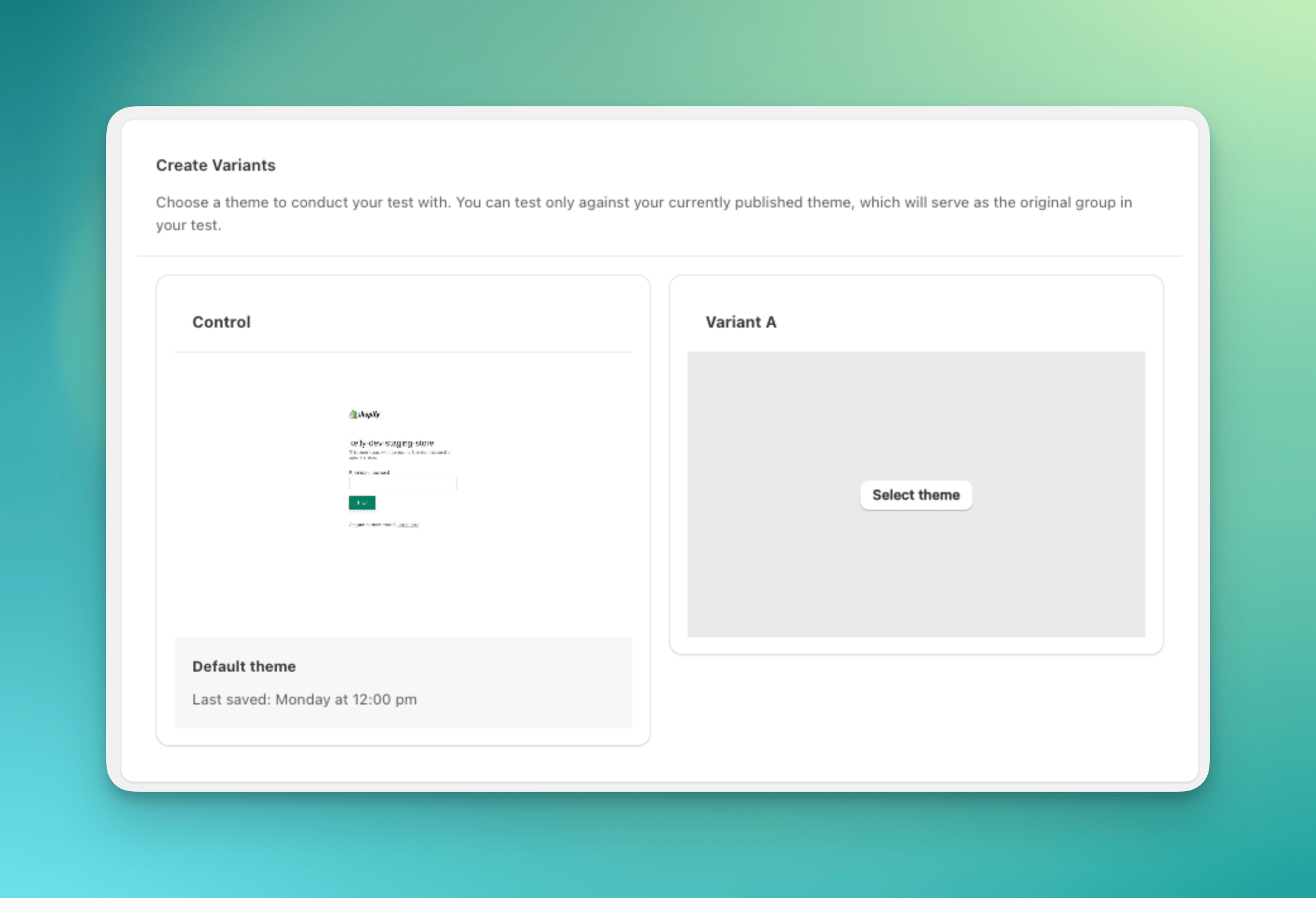
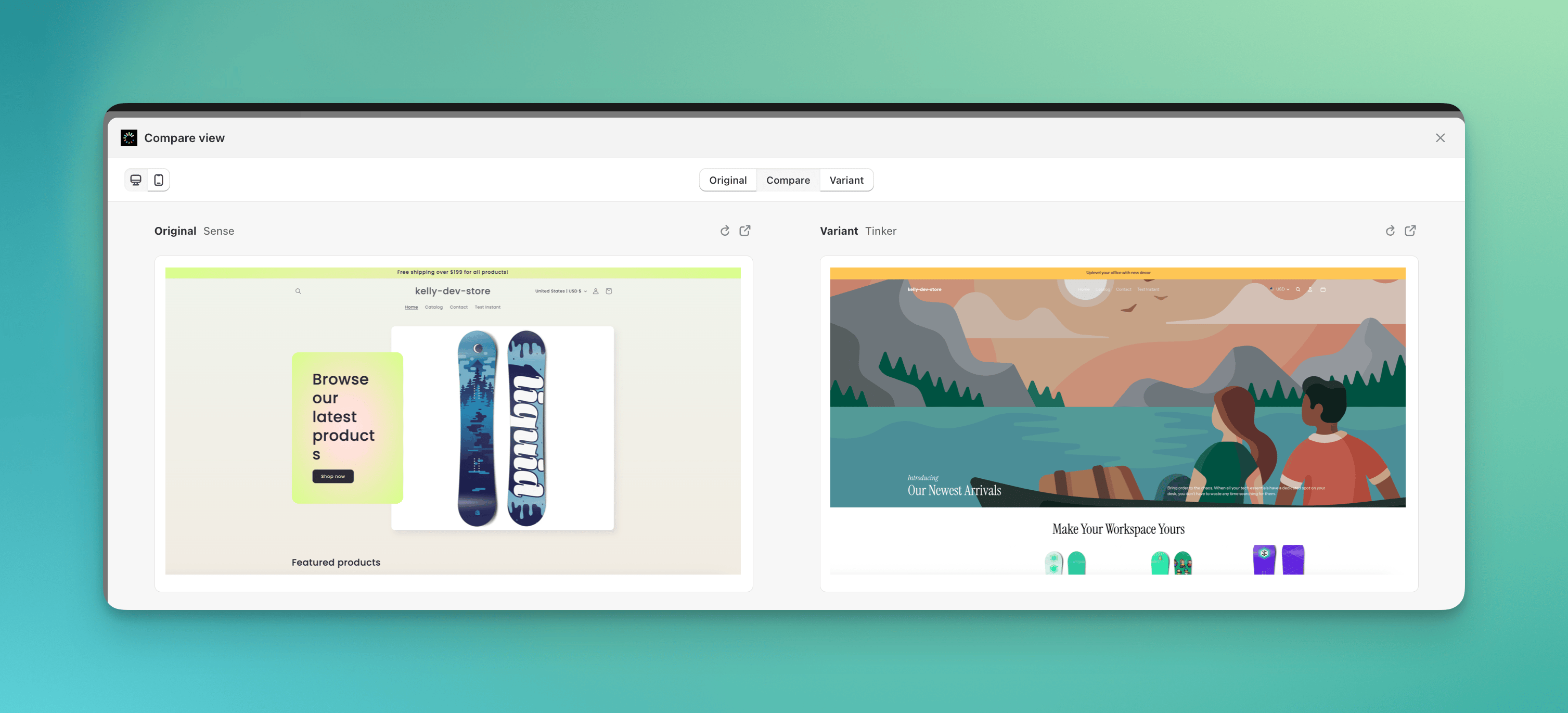
Use Compare variants to preview and compare each test group in desktop or mobile view.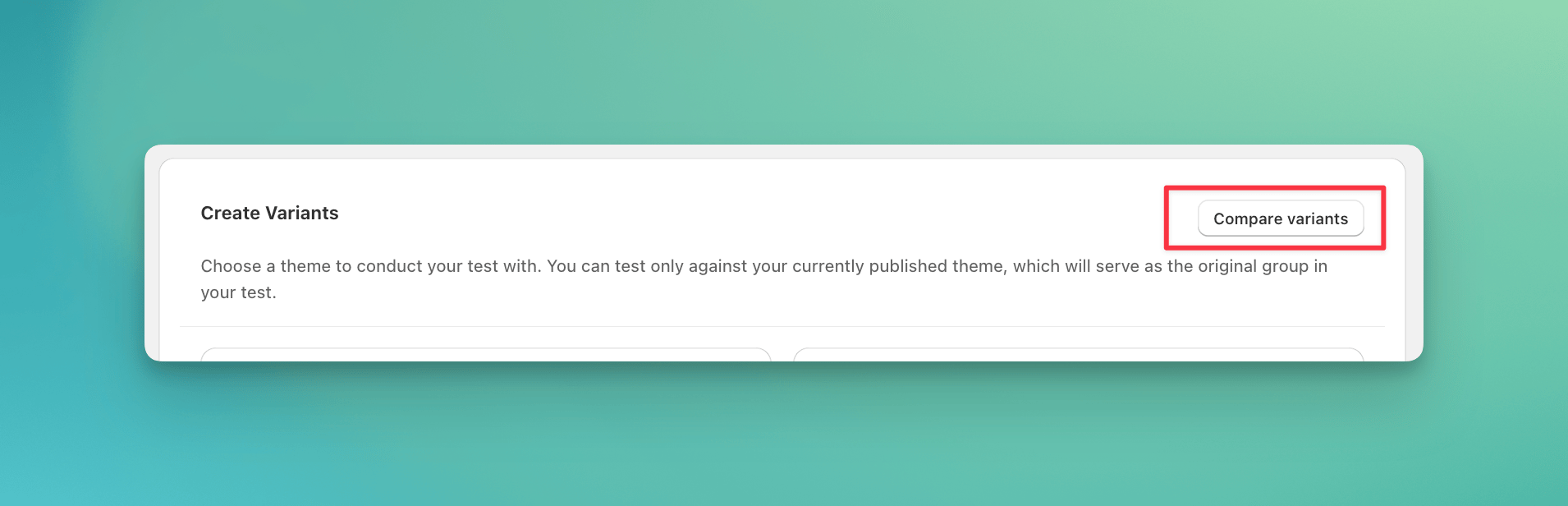
6
Review and launch
Review your full test configuration. We recommend using Preview test to verify that the correct theme is loading for each test group before launching. When everything looks correct, click Launch test.
Common mistakes
- Publishing the test theme before launch. Keep the theme in your Shopify theme library and let ABConvert serve it to assigned visitors.
- Treating a theme test like a template test. A theme test compares whole themes, so use it for broad changes rather than one section or page.
- Changing the tested theme mid-test. Major structural changes can make earlier and later results hard to compare. Start a new test for a new theme direction.
- Skipping conflict checks. If other tests are active, confirm the theme test can launch without overlapping the same storefront behavior.
Theme test FAQs
Do I need to publish the variant theme?
Do I need to publish the variant theme?
No. ABConvert serves the variant theme to assigned visitors using Shopify’s built-in theme preview system, so your live store continues to display your current published theme. The variant theme can remain unpublished in your theme library for the entire duration of the test.
What is the difference between a theme test and a template test?
What is the difference between a theme test and a template test?
A template test swaps individual page templates (e.g., a product template) within your single published theme, best for testing layout changes or section reordering. A theme test swaps the entire theme, making it the right choice when your changes span many page types or involve a complete design overhaul.
Can I test any theme in my Shopify theme library?
Can I test any theme in my Shopify theme library?
Yes, as long as the theme exists in your Shopify theme library (published or unpublished), ABConvert can assign it to a test group. Make sure the theme is saved to your library before setting up the test.
Why can't I run a theme test alongside other tests?
Why can't I run a theme test alongside other tests?
Reason: Compatibility issuesTheme tests split user traffic between your current live theme and the test theme to compare their performance. However, other tests are incompatible with the test theme, making it impossible to run them simultaneously with a theme test.What if other tests are active?You won’t be able to proceed with creating a theme test. When choosing test types, you can see a “ongoing test” badge next to the theme test option.
How do I test my cart drawer in ABConvert?
How do I test my cart drawer in ABConvert?
ABConvert does not edit your cart drawer directly. Instead, you test cart drawers by comparing two Shopify themes, each with a different cart drawer setup.
- Theme A uses cart drawer version A
- Theme B uses cart drawer version B
- Duplicate your theme in Online store > Themes
- Edit the cart drawer in your duplicated theme (add free-gift blocks, adjust upsells, etc.)
- Create a theme test in ABConvert
- Split traffic between your current theme and the new cart drawer setup
Can I edit my theme during a theme test?
Can I edit my theme during a theme test?
Yes. If you’re running a Theme Test, you’re free to edit the theme just like you normally would inside Shopify. Any changes you make (e.g., layout tweaks, styling updates, content edits) will apply directly to the version being tested.Will it affect my test?No, your test will continue to run as expected. ABConvert’s Theme Test simply directs visitors to different theme versions; it does not create copies or freeze versions. This means:
- Changes you make are live immediately on that theme
- There’s no need to pause or restart your test
- The experience remains seamless for your visitors
Can I change the theme while a theme test is running?
Can I change the theme while a theme test is running?
On the theme test edit page, you can update the following:
- Test info (name, hypothesis)
- Traffic distribution
Is it possible to A/B test by enabling or disabling a single app?
Is it possible to A/B test by enabling or disabling a single app?
Yes, you can achieve this using our theme tests.Set up two themes — one with the app enabled and one without — and run a split test between them to compare performance.
Will a theme test affect my Google Ads or GA4 attribution?
Will a theme test affect my Google Ads or GA4 attribution?
No. Like a redirect test, a theme test keeps your full query string, so ad tracking parameters such as
gclid and utm_ reach the destination page and your attribution stays correct. See Attribution and ad tracking for the details and sources.