

What is a visual editor test?
A visual editor test allows you to create A/B tests directly on your Shopify storefront without touching theme code. Using the built-in visual editor, you can modify text, images, buttons, links, and page elements for each test group. This helps you validate design and messaging changes before permanently updating your store. Visual editor tests are ideal for testing conversion-focused improvements quickly while keeping your original theme intact.When to use it
- Test homepage headlines: Compare different messaging to improve conversion rate.
- Test with CTA buttons: Test button text, links, or placement.
- Validate product page layouts: Hide or reorder sections to improve engagement.
- Test promotional banners or images: Compare creative assets during campaigns or seasonal promotions.
When NOT to use it
- You need to test pricing, shipping, discounts, checkout, templates, or whole themes. Use the dedicated test type for that change.
- The element loads after the page through custom JavaScript. Dynamically rendered elements may not be selectable or editable.
- A third-party app controls the element. Some app-rendered elements have limited editability depending on how the app injects them.
- You need a permanent theme redesign. Use Shopify’s theme editor after the test confirms the winning direction.
Set up a visual editor test
1
Create a new visual editor test
In the ABConvert dashboard, click Create New Test and select Visual Editor Test.
2
Add basic information and configure traffic split
Enter a descriptive name for your test, write a clear hypothesis, and select your primary success metric. By default, traffic is split evenly between Control and Variant A. You can adjust the traffic allocation or add additional variants.
3
Set targeting
Decide who enters the test and how much traffic it gets. See Targeting.
4
Open the visual editor
In Step 3 of the setup wizard, click the Edit button with the pencil icon to open the visual editor.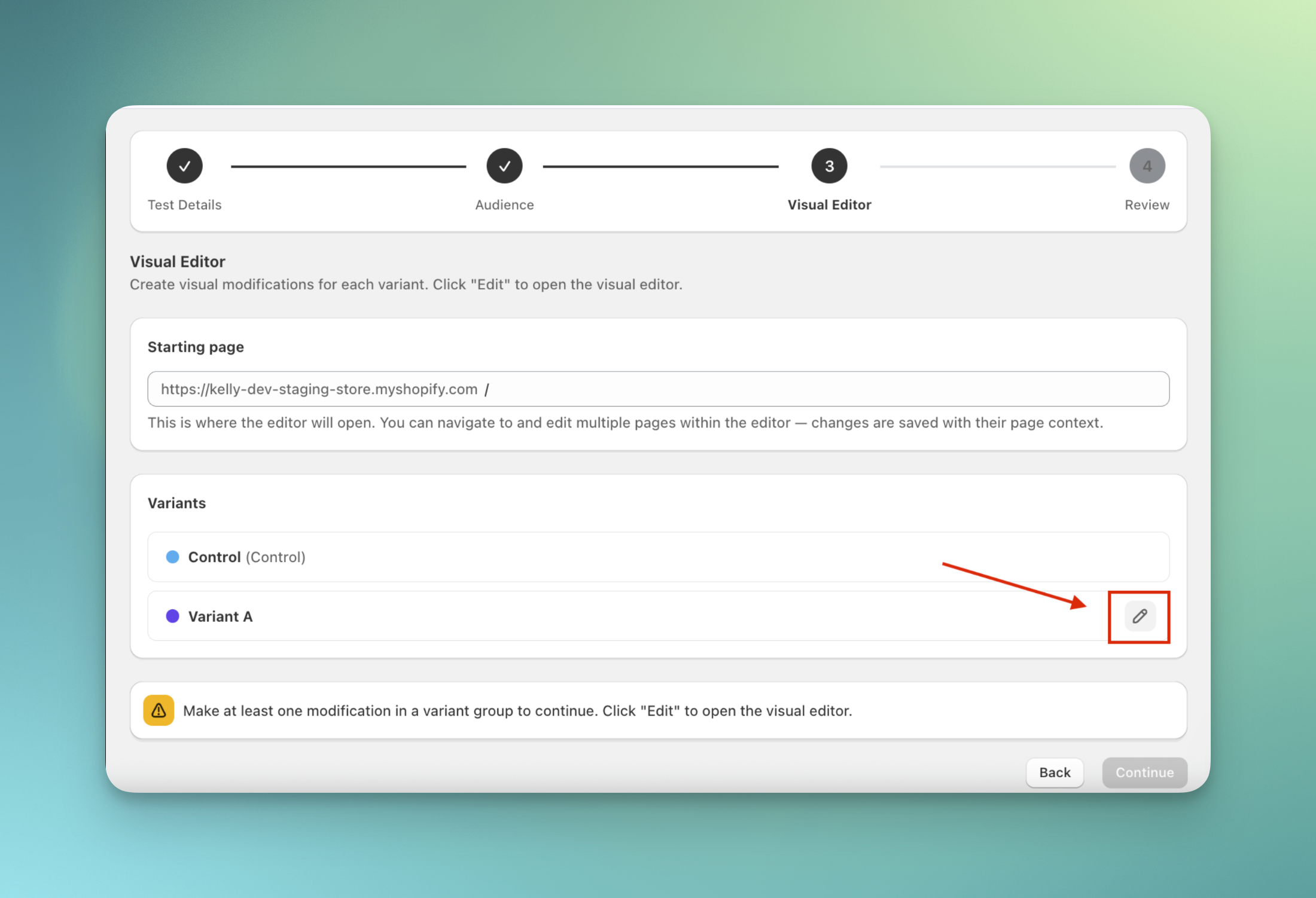
5
Edit your storefront
Update your variant in the visual editor, see the section Using the visual editor for more detailed guide.
6
Review and launch
Review your full test configuration, including the visitor flow and visual changes. We recommend using Preview test to check your changes on the storefront before launching. When everything looks correct, click Launch test.
Using the visual editor
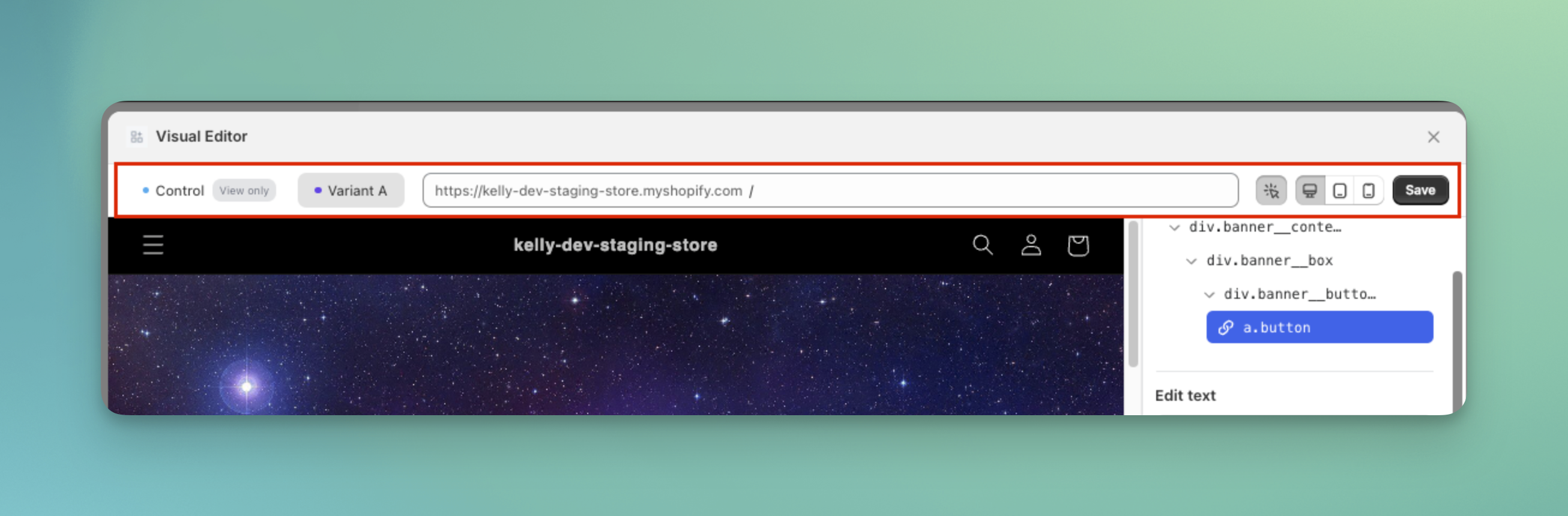
The top bar
At the top of the editor, you will see several controls. From left to right:- Variant switcher: Switch between Control and each variant
- URL bar: Type a URL to navigate to another page within your store
- Select element button: Turn this on to activate Select mode
- When enabled, you can click elements and edit them
- When disabled, you can browse your store normally
- Device switcher: Preview your store on desktop, tablet, or mobile screen sizes
- Save button: Click Save to keep your changes
Edit elements in select mode
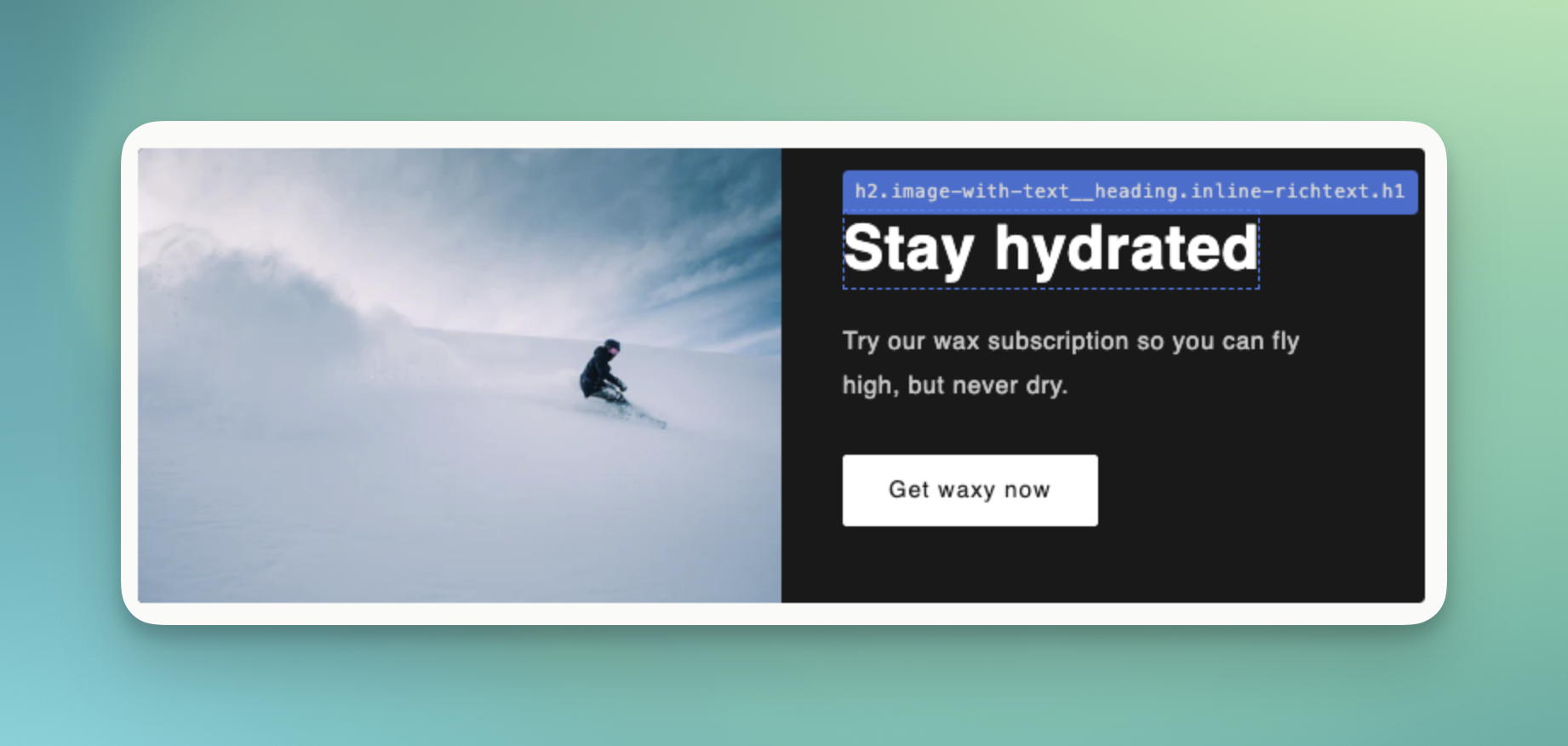
When Select mode is active:- Move your cursor over the page
- Elements will be outlined as you hover
- Click an element to select it
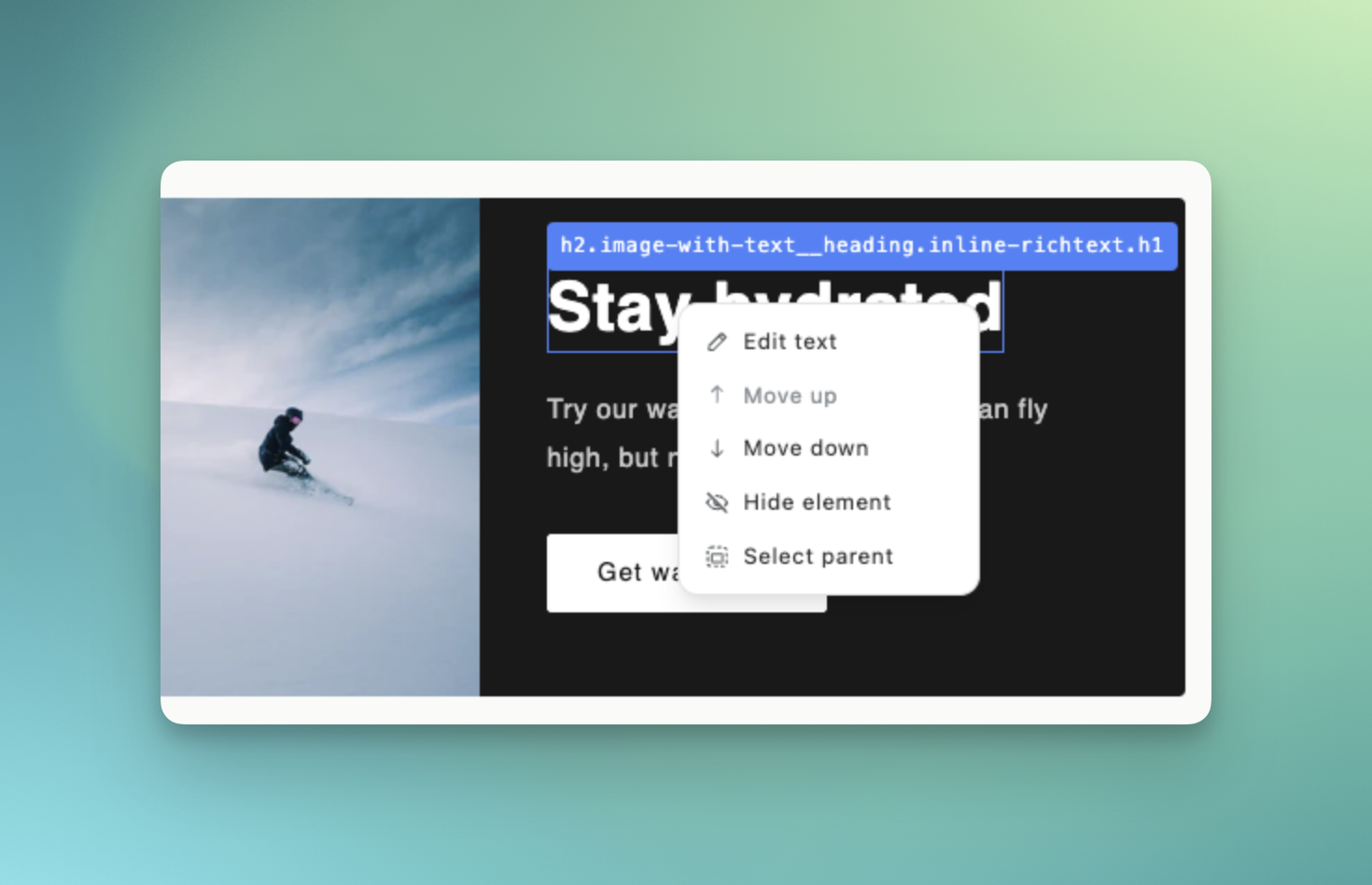
- Edit: Depending on the element type, you can:
- Edit text: Update the text in the input field, then click Save
- Change link: Enter a new URL for buttons or linked text
- Change image: Choose an image from your library, upload a new one, or paste an image URL
- Move up or move down
- Reorder the element within the same hierarchy level
- For example, move a product card to the first position in a grid
Note: You can only reorder elements within the same parent container - Hide element
- Hide the selected element from the page without deleting it in Shopify
- Select parent
- Quickly jump to the parent container if you need to edit a larger section
The right-side panel
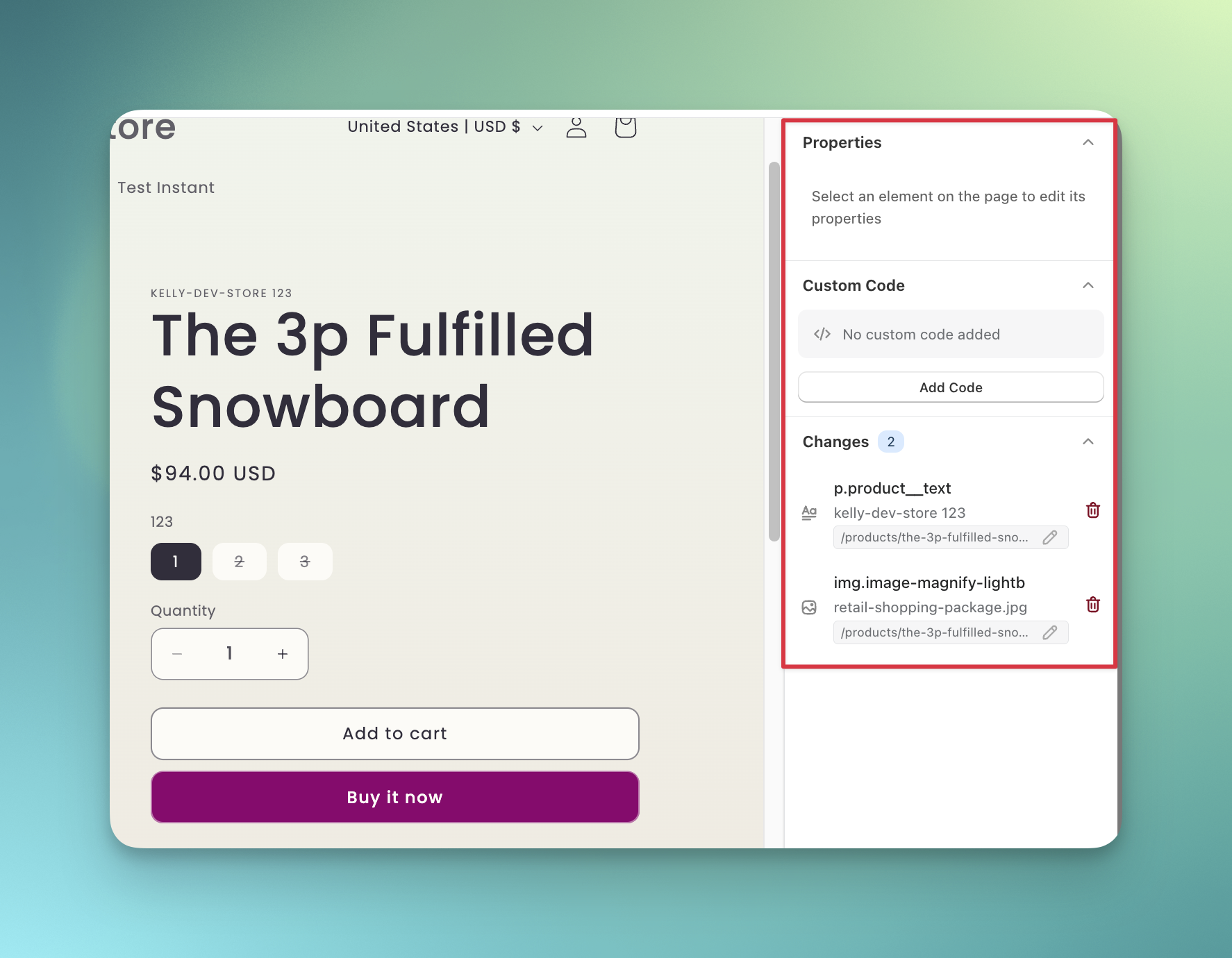
When an element is selected, the right panel gives you more controls.- Properties:
- View the element tree structure
- Note: You can see up to three levels above the selected element
- Edit options: You will see the same editing options here, this is useful if you prefer using the side panel instead of right-clicking
- Edit text
- Change link
- Change image
- Changes
- This section shows all edits made in each test group
- Click the trash icon to remove a specific change
For each change, you can click the edit icon to get more control over where the change appears in your store.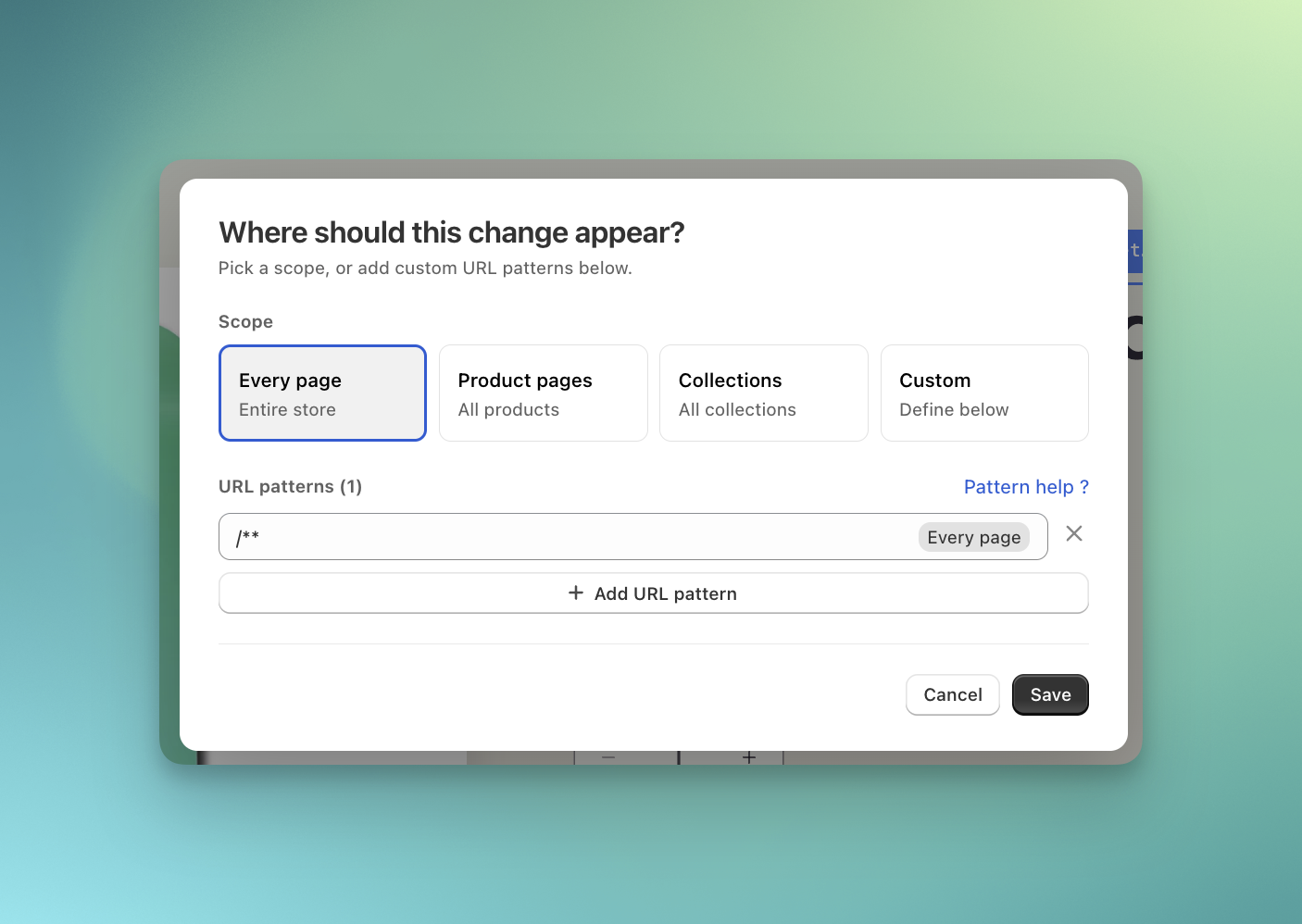
Common mistakes
- Editing while Select mode is off. Turn on Select element before clicking the storefront element you want to change.
- Writing CSS for a change the editor can make. Editor changes are scoped to the element and hidden until they land. Use custom code only for what the editor cannot do.
- Assuming hidden elements are deleted from Shopify. Hiding an element only changes what the assigned visitor sees during the test.
- Skipping mobile preview. Check desktop, tablet, and mobile before launch so the edited version works across screen sizes.
Visual editor test FAQs
Do I need coding knowledge to use the visual editor?
Do I need coding knowledge to use the visual editor?
No. The visual editor is designed for non-technical Shopify merchants. Most changes can be made directly through the editor interface without touching code.
Can I test mobile-specific changes?
Can I test mobile-specific changes?
Yes. You can preview your storefront on desktop, tablet, and mobile devices while building your test.
Will visual editor tests affect my Shopify theme files?
Will visual editor tests affect my Shopify theme files?
No. Your original Shopify theme files remain unchanged.
Can I use custom CSS or JavaScript in visual editor tests?
Can I use custom CSS or JavaScript in visual editor tests?
Yes. See custom code.
Can I undo changes inside the editor?
Can I undo changes inside the editor?
Yes. The Changes panel shows all edits made in the current variant. You can remove individual changes at any time before launch.
Are there any limitations for the visual editor?
Are there any limitations for the visual editor?
The visual editor works with most standard Shopify themes. However, there are a few things to keep in mind:
- Dynamically rendered elements (e.g., content loaded via JavaScript after page load) may not be selectable or editable.
- Third-party app elements may have limited editability depending on how they are rendered.