

What gets tracked
When the integration is active, ABConvert sends aabconvert_experience_impression event to your GA4 property each time a visitor enters a test. The event includes:
These parameters are available as event parameters in GA4 and can be used to create custom dimensions, apply them to explorations, or build audience segments.
Set up GA4
Your storefront must already load the GA4 web tag (gtag) for the web data stream you want to use. ABConvert does not install that tag. ABConvert sends the event when a visitor enters a test, so visitors who enter a test after you save the ID report to GA4. Visitors who entered before that do not.
1
Find your GA4 Measurement ID
In Google Analytics, go to Admin → Data Streams → select your web data stream. Your Measurement ID appears at the top right of the stream details panel. It follows the format
G-XXXXXXXXXX.2
Copy the Measurement ID
Click the copy icon next to the Measurement ID or select the full string (including the
G- prefix).3
Save the ID in ABConvert
Open Integrations → Google Analytics 4. Paste your Measurement ID and click Save.
4
Verify the connection
Visit an eligible page of a running test in a fresh browser session with analytics consent. Open GA4 → Reports → Realtime in the same property as the configured web data stream. Look for
abconvert_experience_impression and inspect its test ID and test group. A saved ID alone does not confirm that GA4 received an event.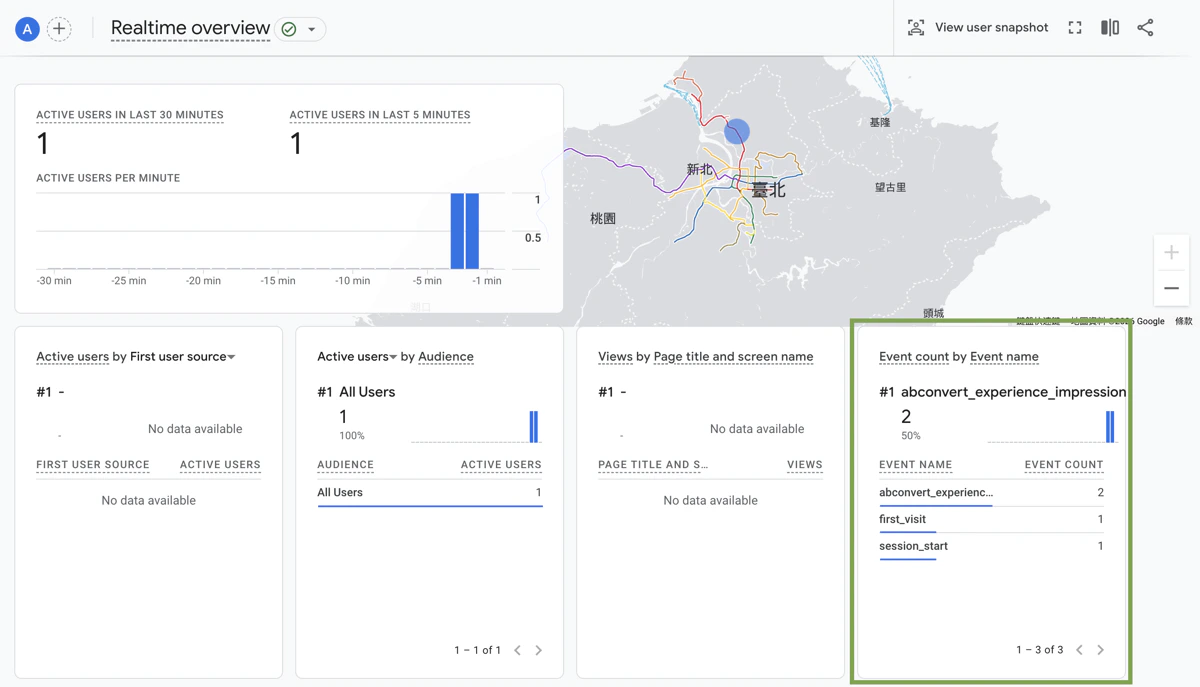
Verify impression events in GA4 Realtime
Your Measurement ID must follow the format
G-XXXXXXXXXX (the letter G followed by a hyphen and alphanumeric characters). ABConvert validates the format when you save — if the field shows an error, double-check that you’ve copied the full ID from GA4.Building reports in GA4
Once the integration is running and impression events are flowing into GA4, you can analyze test data in several ways. Custom dimensions To use ABConvert event parameters in standard GA4 reports, register them as custom dimensions:- Go to Admin → Custom definitions → Custom dimensions
- Click Create custom dimension
- Set the scope to Event
- Set Event parameter to one ABConvert parameter (for example
abconvert_experiment_nameorabconvert_variant_name) - Repeat for other parameters you want to report on
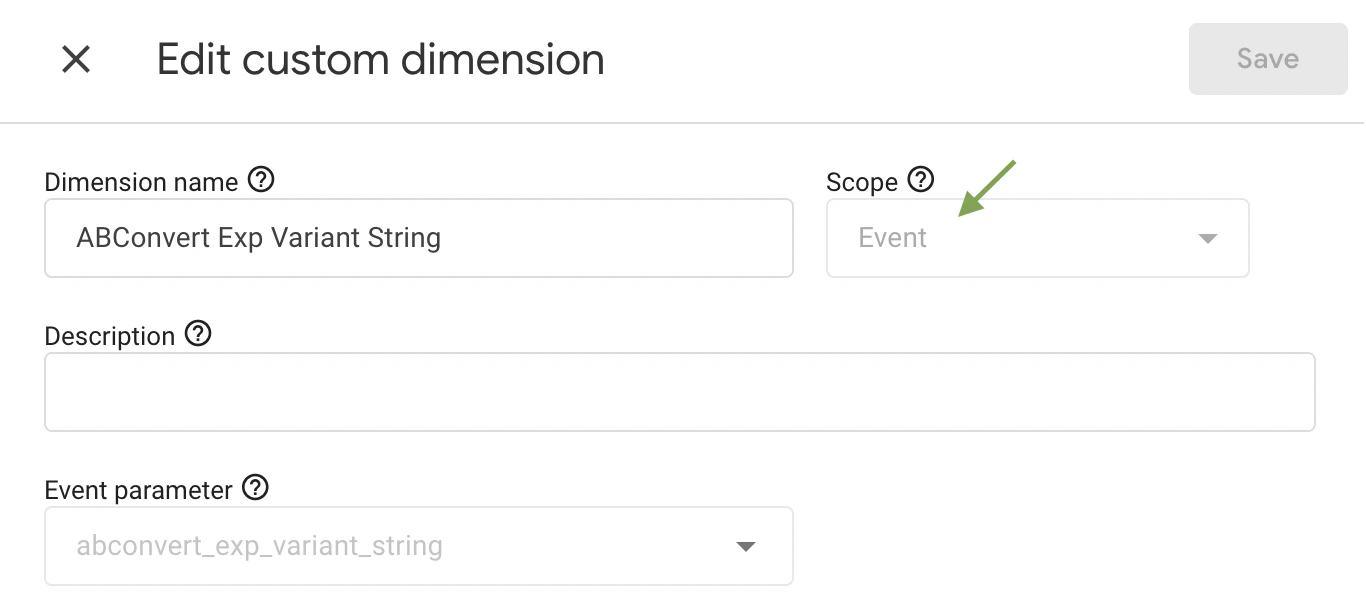
Set custom dimension scope to Event when registering ABConvert parameters
1
Open Segment overlap in Explorations
In GA4, go to Explore and choose Segment overlap.
2
Create a user segment for Control
Add a User segment with an event condition where event name equals
abconvert_experience_impression, then filter the same event by:abconvert_experiment_id = <your experiment id>abconvert_group_index = 03
Create a user segment for each other test group
Duplicate the Control segment and change
abconvert_group_index to 1, 2, or another index used in your test.4
Compare outcomes
Add business metrics like purchases, revenue, or engagement and compare segments side by side.
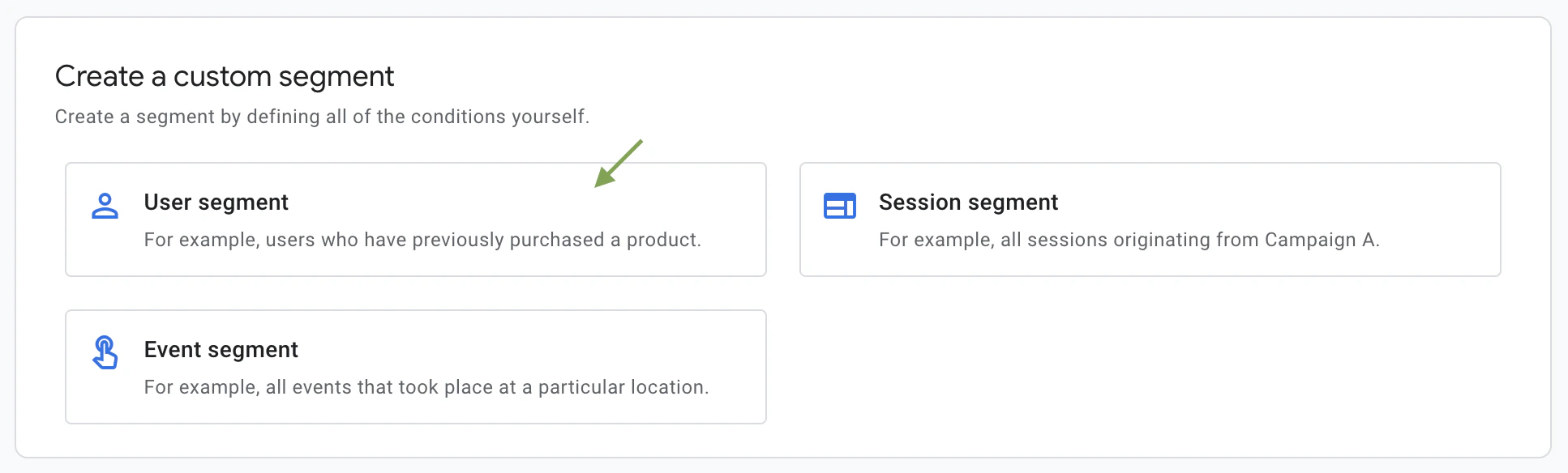
Choose User segment in GA4 Explorations
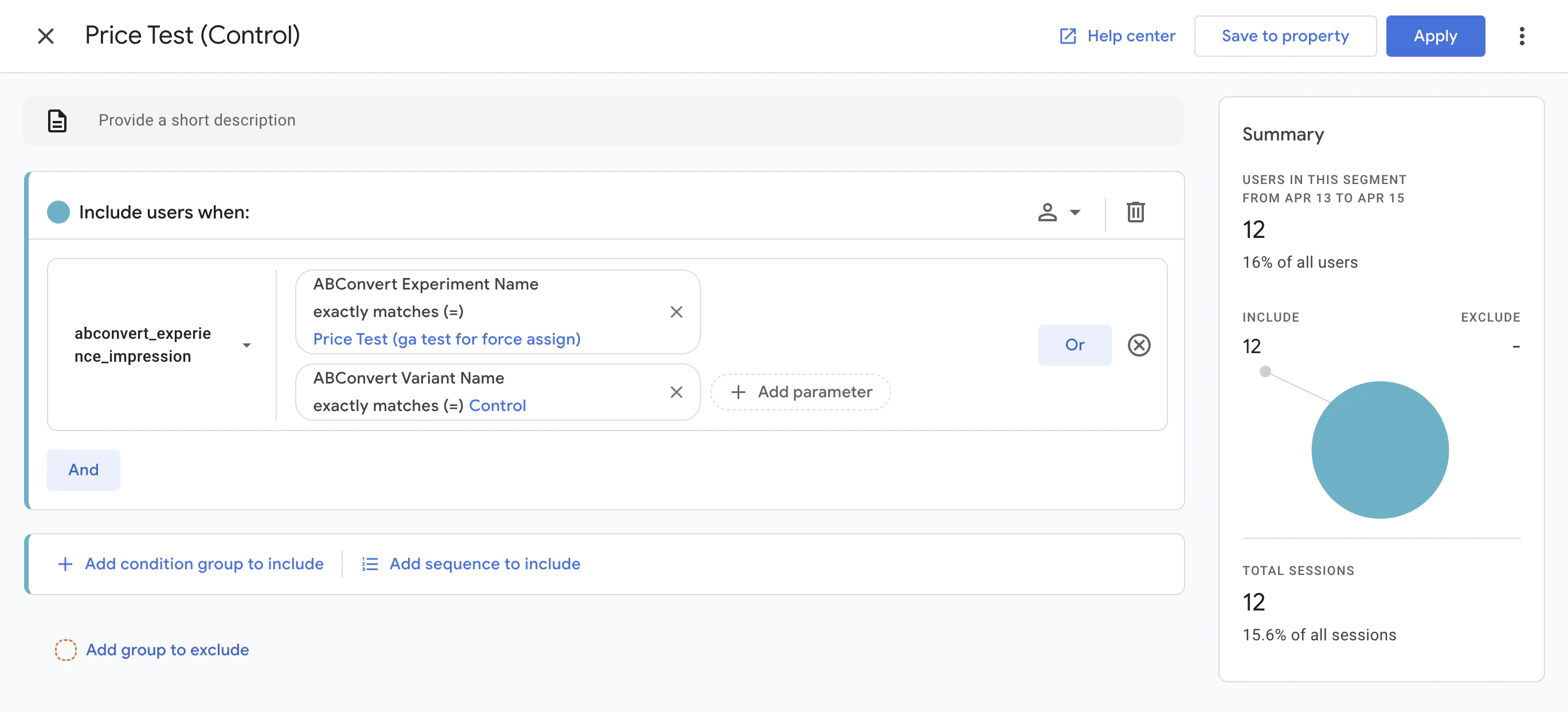
Build a user segment using ABConvert impression event parameters
Things to know
- GA4 impression events are sent from the visitor’s browser. A missing storefront GA4 tag, declined analytics consent, or a content blocker can prevent delivery.
- Saving a Measurement ID does not add GA4 reporting to tests created before that save. Create a new test to verify the integration.
- The integration supplements ABConvert’s own analytics — it does not replace them. Use ABConvert’s dashboard for statistical significance calculations and conversion metrics; use GA4 for deeper behavioral and cross-channel analysis.
- There is no additional cost in ABConvert or GA4 for enabling this integration. GA4’s standard event limits apply.