The states a test moves through, and the key actions at each one.
A test’s state decides what you can do with it. Most tests follow one path: draft → preview → active → closed. While a test is active, you can pause and resume it.You can put the launch and the end on a timer instead of clicking the buttons yourself. See Schedule a test.
Preview shows a variant on your live storefront, scoped to your session only. Real shoppers keep seeing the original, so you can walk the buyer journey and confirm everything looks right before a single visitor enters the test.
1
Open the test
Start a new test or open an existing draft, then go to the final review step.
2
Click Preview
Click Preview. ABConvert opens your storefront in a new tab with the variant applied to your session.
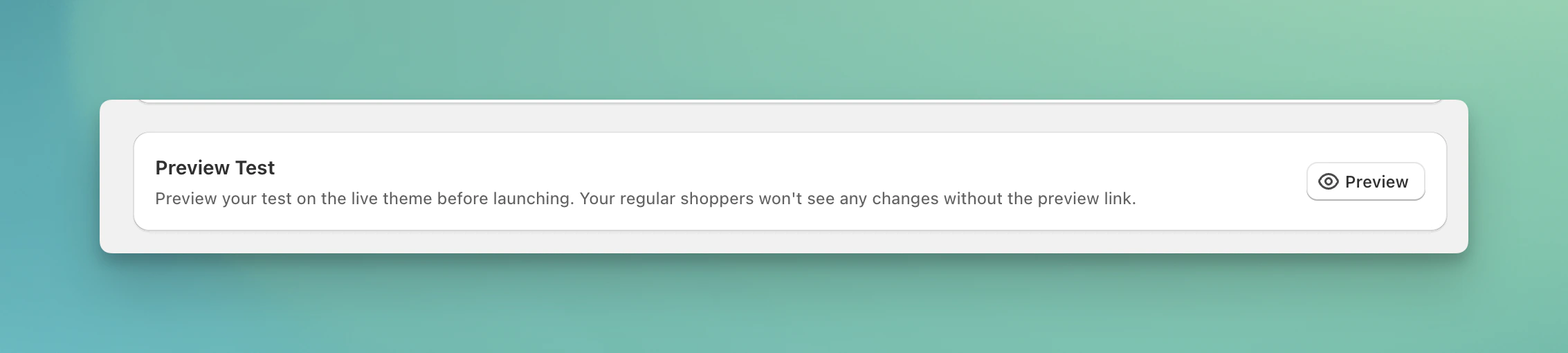
The Preview button on the final review step.
3
Walk through the buyer journey
Browse as a shopper would. Visit the affected pages, add to cart, and step through checkout. Confirm the change displays the way you designed it.
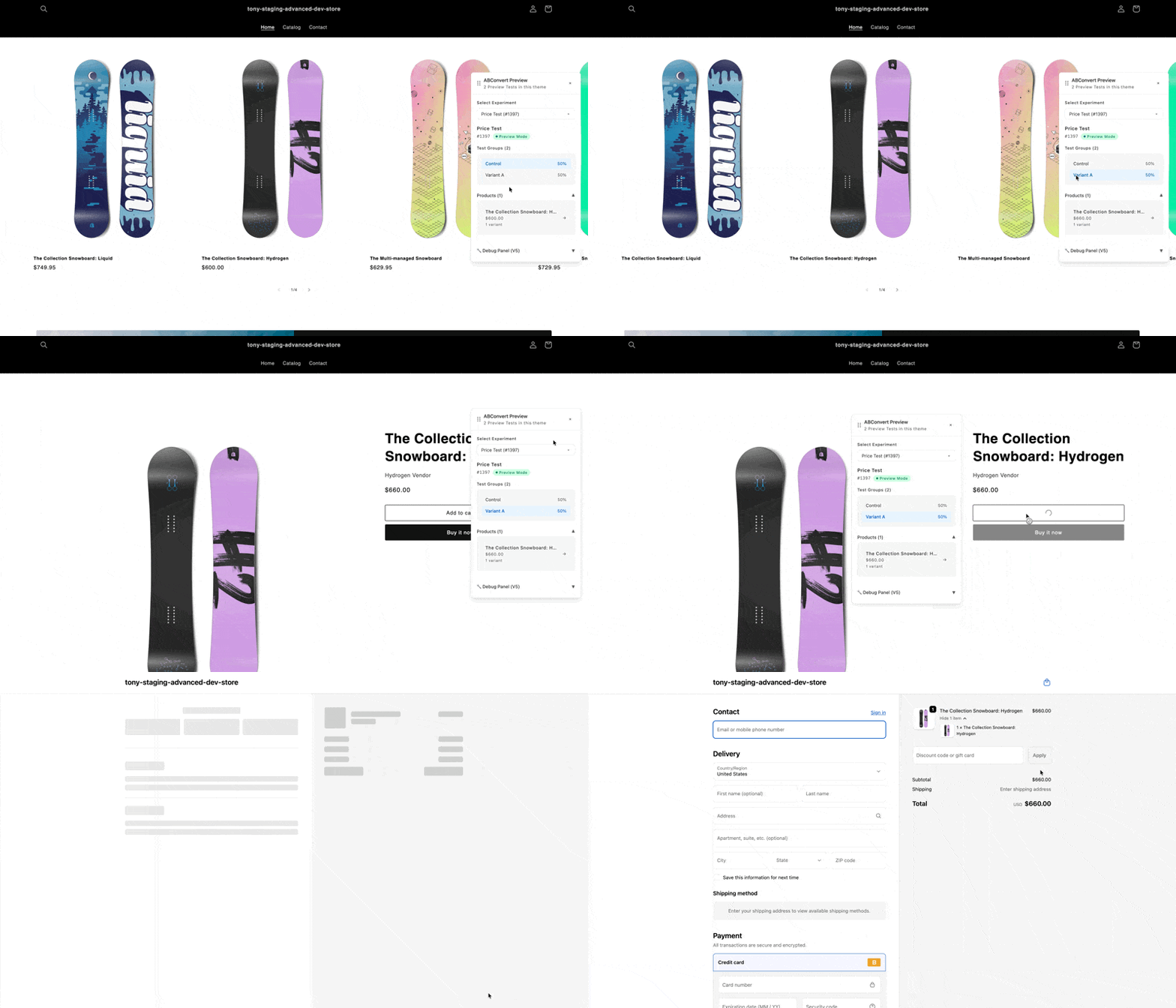
Browsing the storefront in preview mode, with the ABConvert preview widget showing the active variant.
4
Check each variant
Switch between variants from the preview widget and confirm each one looks right.
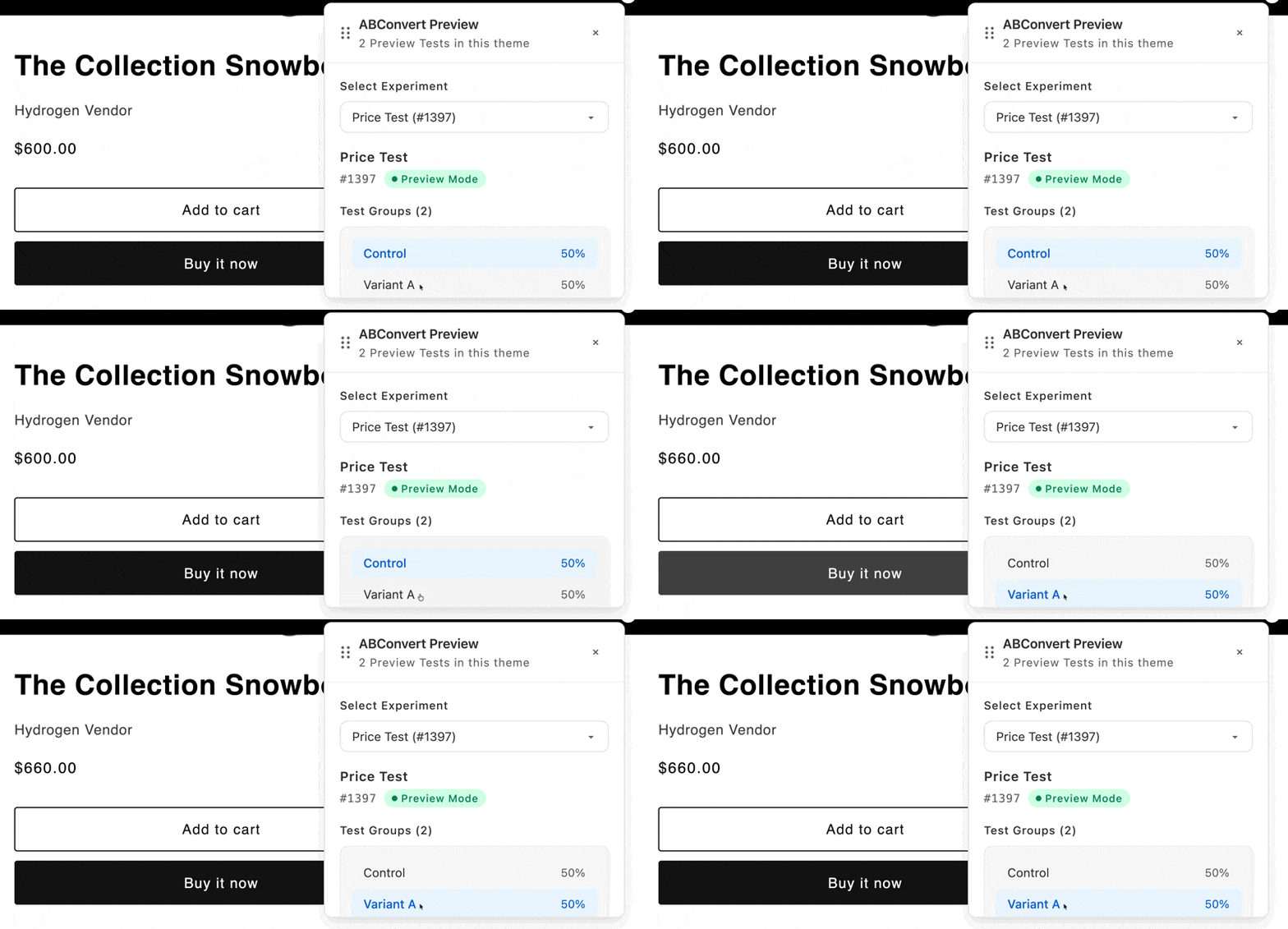
Switching between variants in the ABConvert preview widget.
5
Decide what's next
When everything looks right, click Launch to go live. To change something first, edit the test and click Update preview to re-check.
Preview before every launch. No two storefronts are identical, so a preview is the best way to confirm your variant looks and works the way you intended on your store.
Display. The change renders the way you designed it.
App conflicts. No other app overwrites the same part of your storefront (price, shipping, checkout, or theme).
Preview does not verify analytics. Tracking starts only when the test is Active and real visitors are assigned, so confirm your numbers in the Analytics dashboard once data begins arriving.
While a test is Active, you can change its name, hypothesis, variant names, and traffic split.
You can’t change the variant configuration (the price, shipping rate, theme, content, or offer you’re testing) or the targeting while a test is running.
This restriction is deliberate. Changing what you test partway through mixes two setups into one result set, and the numbers stop meaning anything. To test a different change, end this test and start a new one.
To see a test group on your storefront, or send someone a link to it, add abconvert_force to any page URL where the test runs. The value is the test ID from the ABConvert admin, a colon, and the test group’s position counting from 0, so Control is 0 and Variant A is 1:
The link works on a live test as well as a preview, and you can share it or paste it into a screenshot tool. A forced visit stays with the browser tab until you close it and is left out of results. To force several tests, open a link for each in the same tab.
Pause is your emergency stop. If a live test looks wrong, pause it right away. Common reasons: a display bug, a conflict with another app, or results you don’t trust.When you pause, ABConvert removes the test’s changes from your storefront. Every shopper sees your original store again and no new visitors are assigned. The data you’ve collected so far is kept. Resume puts the variant back and starts assigning visitors again.
Pause stops your test from gathering results, so use it to fix problems rather than to take a healthy test offline for a long time.
File a support ticket
Paused because the variant isn’t behaving the way you expected? In the app, go to Help > Support > Open ticket. Include your store and the test, and we’ll look into it.
Duplicate as draft copies a test’s setup into a new draft so you can adjust it without rebuilding it from scratch. It’s available from any test, in any state, and the copy always starts as a fresh draft with no data of its own.Use it to try a tweaked version of a test: duplicate it, adjust the draft, then launch. It also lets you branch a new idea off an existing test or recover the setup from an archived one.
⌘I
Assistant
Responses are generated using AI and may contain mistakes.