

What is an offer test?
An offer test lets you test with discounts so you can measure how each one affects revenue, average order value, and conversion. See Offer types for the discounts you can test. ABConvert builds every offer as a Shopify automatic discount applied through Shopify Functions. Your existing discounts stay untouched, and an offer only applies to the visitors in the test group it is set for.Offer types
You choose one offer type per test group. The same five types are available to every test group.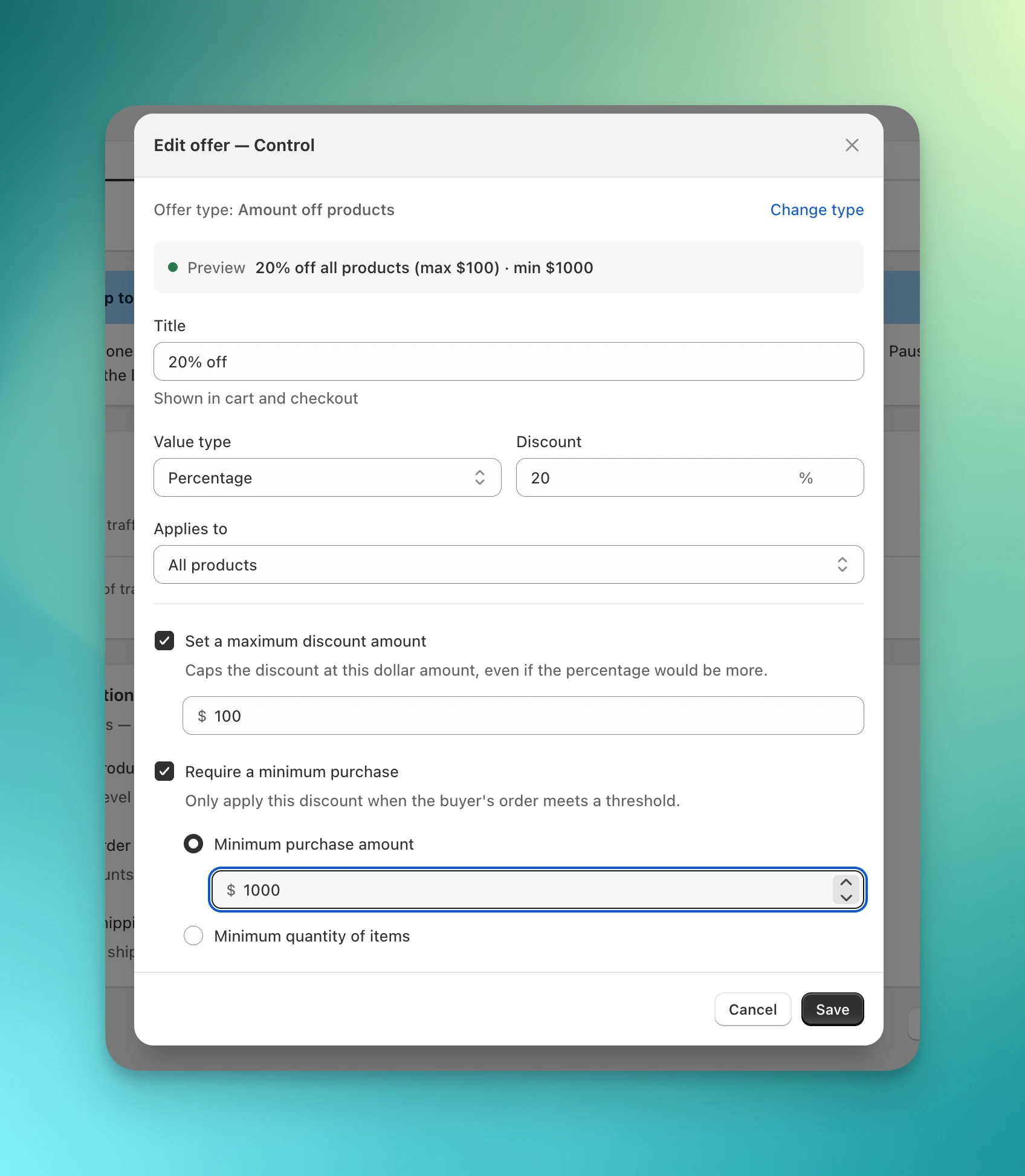
Amount off products: set a percentage or fixed amount, choose the scope, and optionally cap the discount or require a minimum.
When to use it
- Find the discount that pays for itself: Compare a test group with a discount against Control with no offer to see whether the lift in conversion makes up for the lower margin.
- Increase average order value: Test a threshold discount (“spend $75, save $10”) to nudge cart size upward.
- Move more units: Test a volume discount to encourage multi-unit purchases on the products you want to sell through.
- Test free shipping: Compare free shipping against your standard rates to see which drives more completed orders.
- Compare two offers head to head: Set up a different offer in each test group to learn which promotion your shoppers respond to.
When NOT to use it
- You are not testing the offer. If every visitor should receive the same permanent discount, create a standard Shopify discount instead.
- You need a manual discount code flow. Offer tests use Shopify automatic discounts, not codes shoppers type at checkout.
- You need to edit the offer after launch. You cannot change a test group’s offer once the test is live. Close the test and start a new one instead.
- You want to test storefront copy without changing the discount. Use a visual editor test for headlines, banners, images, or buttons.
Set up an offer test
Create a new offer test
Add basic information and configure traffic split
Set targeting
Configure an offer for each test group
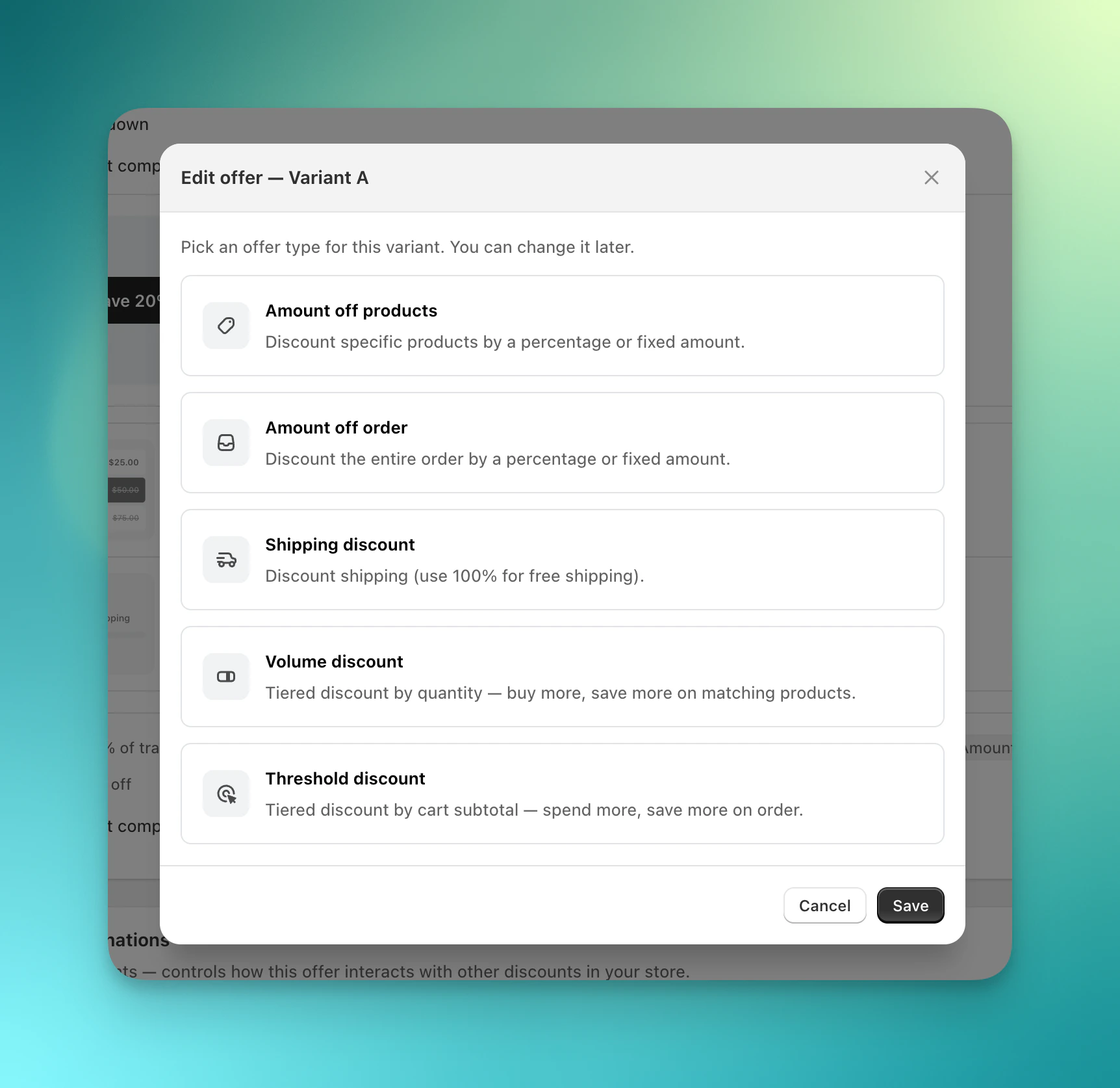
Pick an offer type for this variant.
Review and launch
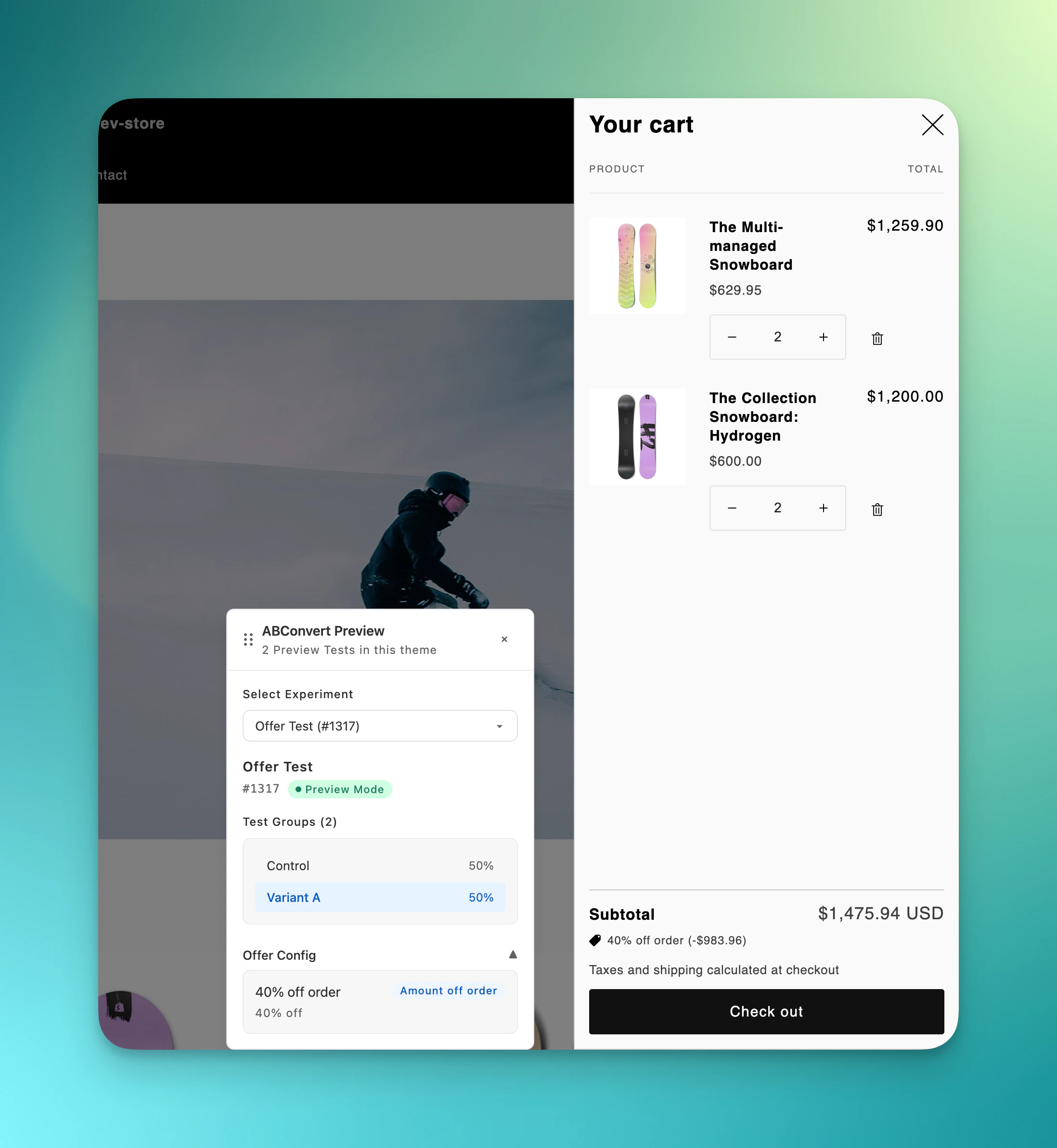
Preview test: browse as a visitor in a chosen test group and confirm the discount applies in the cart and checkout.
Storefront widgets
You can attach an optional offer message to any test group to promote the discount on your storefront. To add one, open the offer message component in the offer step and click Set up. The offer message renders as a badge anchored to a page corner, or as a banner. You can set its text, colors, and corner style, and choose whether shoppers can dismiss it. The text supports dynamic tokens such as the discount value, the cart subtotal, and the amount remaining to reach a threshold, so the same message updates as the cart changes.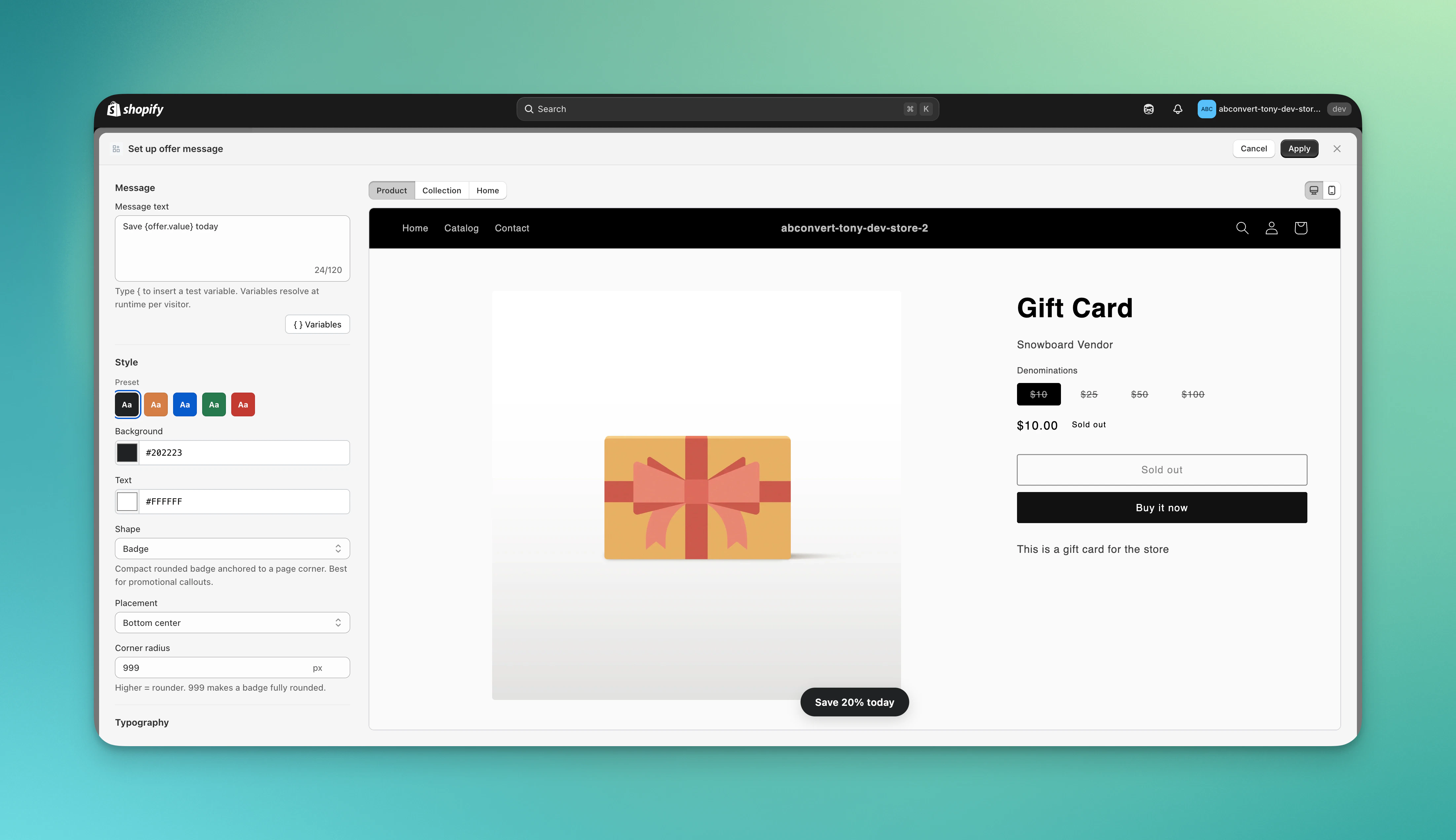
The offer message editor: set the text, colors, shape, placement, and corner radius, with a live preview on your storefront.
Discount combinations
ABConvert builds the whole test as one Shopify automatic discount. The Discount combinations controls decide whether it stacks with the other product, order, and shipping discounts in your store. Because it is a single discount, these settings apply to the whole test, not test group by test group. See Shopify’s discount combinations guide for which discounts can stack.How visitors experience an offer test
- A visitor browses your store. ABConvert runs targeting and assigns the visitor to a test group. The assignment is sticky, so the visitor stays in the same test group on later visits.
- Shopify applies the discount for the visitor’s test group at the cart and checkout.
- The visitor completes checkout. ABConvert credits the order to that test group so you can compare performance across test groups.
Reading your results
ABConvert tracks every test group across all metrics in the Analytics dashboard, not just the primary metric you chose. For an offer test, read two sides together: how much the offer lifted sales, and how much margin it gave away. How much did the offer lift sales?Common mistakes
- Editing the Shopify automatic discount manually. ABConvert creates and manages the automatic discount for the test. Do not edit or delete it in Shopify while the test is running.
- Forgetting discount combinations. Decide whether the offer should stack with your other product, order, and shipping discounts before launch.
- Reading lift without reading discount cost. A promotion can increase orders while lowering revenue per visitor or profit. Compare the lift against the discount metrics.
- Using one test to answer too many questions. If you need to know whether the discount or the message drove the result, test the offer and the storefront message separately.
Offer test FAQs
Will visitors keep the same offer if they come back later?
Will visitors keep the same offer if they come back later?
How do I check an offer before launching?
How do I check an offer before launching?
Where does the discount appear in my Shopify admin?
Where does the discount appear in my Shopify admin?
ABConvert Offer #1234: Summer free shipping), listed under Discounts in your Shopify admin. ABConvert manages it for you: it activates when you launch and stops applying when you pause or close the test. Do not edit or delete it manually while the test is running.Can my offer stack with discounts I already run?
Can my offer stack with discounts I already run?
Can I run more than one offer test at the same time?
Can I run more than one offer test at the same time?
Can I change the offers after launching?
Can I change the offers after launching?