

Analytics showing 0 views or conversions
Your test is running but the analytics dashboard shows no data, or data stopped recording partway through.1
Check test health
Navigate to your analytics page and locate the Health label. A green dot confirms the test is running properly. Click the label to expand detailed health status for Traffic Split, Web Pixel, and Theme Connection.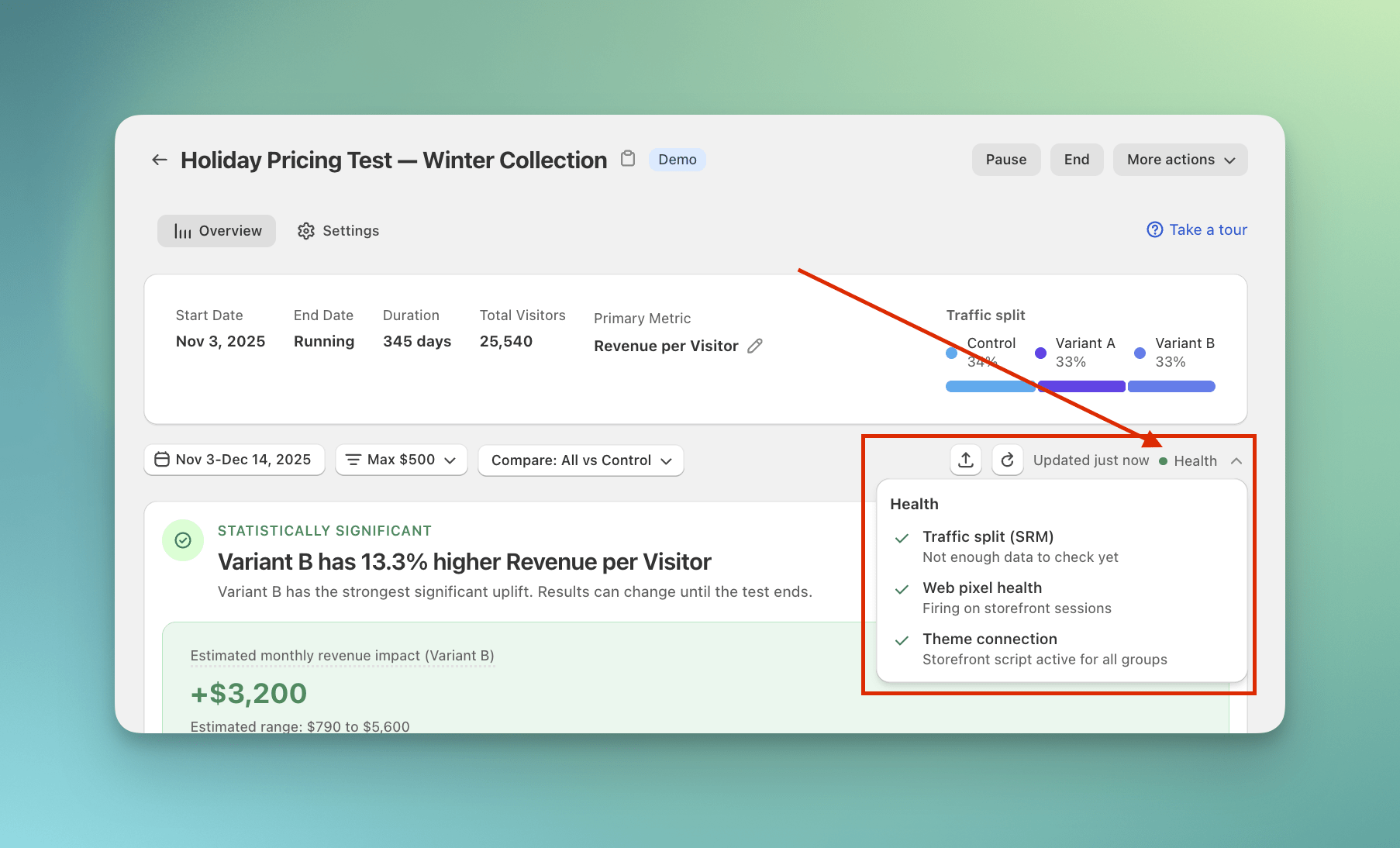
2
Try to refresh the data
Click the Refresh button on your analytics page to load the latest data.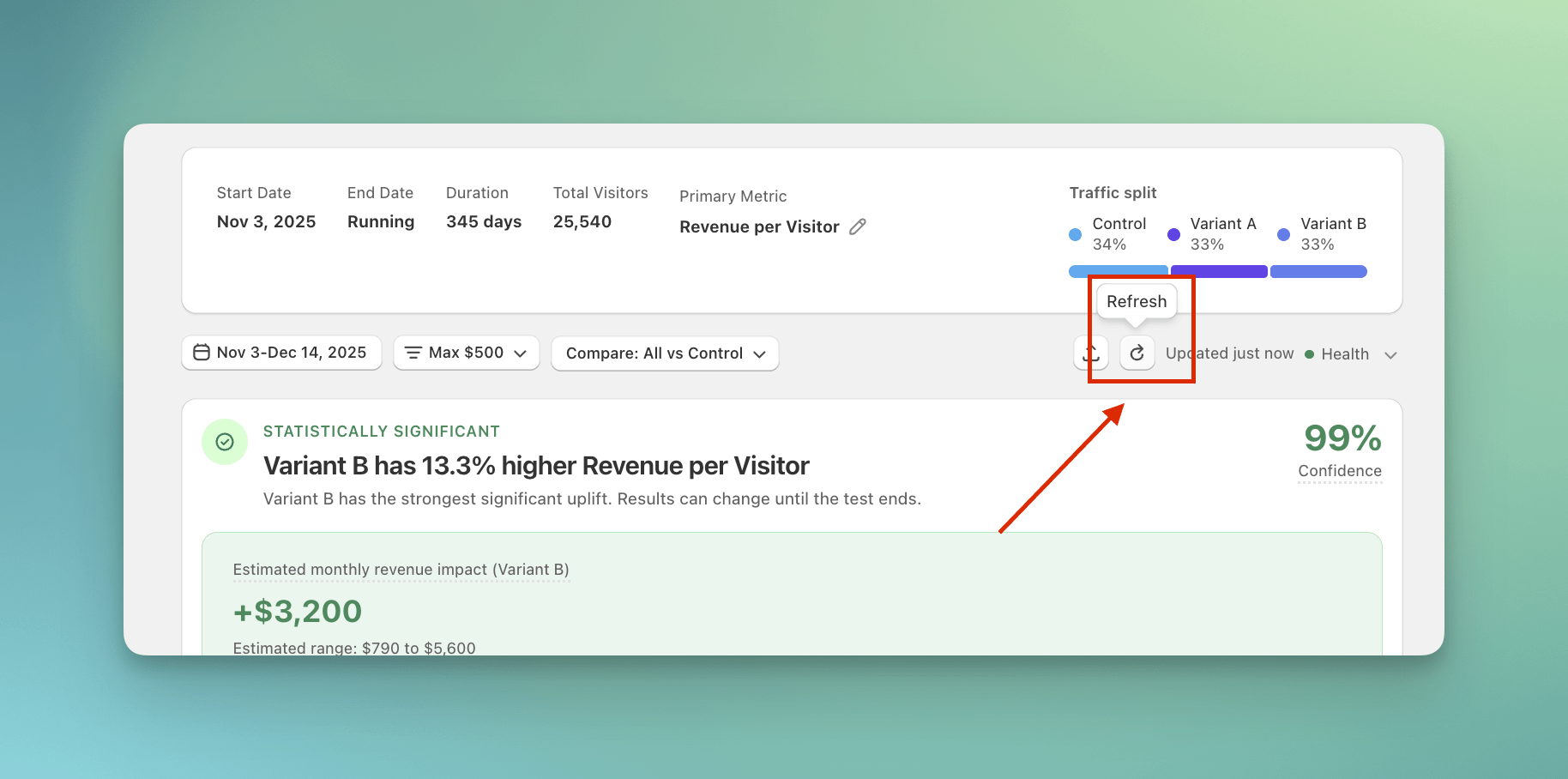
3
Wait for data propagation
Analytics data processes with a delay. Our system caches data to maintain fast dashboard performance, so new events can take up to 10–15 minutes to appear. If you just launched your test, wait at least 1–2 hours for meaningful traffic before checking results.
4
Verify traffic and targeting
Analytics only populate when real visitors interact with your test. Confirm that:
- Your store is receiving traffic to the test page
- Your targeting lets the visitors you expect into the test
5
Test in incognito mode
Open your store in an incognito or private window to bypass Shopify’s cache. Trigger a page view or add an item to your cart, then click Refresh on your dashboard to see updated data.
Test variant not showing on live store
The active test variant is failing to display for visitors on the live storefront.1
Check test health
Navigate to your analytics page and locate the Health label. A green dot confirms the test is running properly. Click the label to expand detailed health status for Traffic Split, Web Pixel, and Theme Connection.
2
Use preview links to verify the variant
With a 50/50 traffic split, you may randomly see the original page. Instead of guessing, use the preview links in your ABConvert dashboard’s Test Settings tab. These links bypass the traffic split and force the variant to load, letting you confirm it’s working.
3
Test in a fresh incognito window
Once you visit your store, our system assigns you to a variant and keeps showing you that version. To properly QA your test, always use a fresh incognito window so previous assignments don’t interfere.
Use Preview Mode before going liveWe recommend testing your variant in preview mode before launching the test live. This ensures everything works as expected without affecting real traffic.
Price not updating correctly in the store
Visitors are seeing the original price instead of the test price, or prices are displaying incorrectly across different pages or after adding items to the cart.1
Check test health
Navigate to your analytics page and locate the Health label. A green dot confirms the test is running properly. Click the label to expand detailed health status for Traffic Split, Web Pixel, and Theme Connection.
2
Confirm the product is included in the experiment
Open the test and verify that the product you’re testing is listed under the test’s products. If it isn’t, the script won’t update prices on that product’s page.
3
Check your theme compatibility
When you first start a price test, our team reviews your theme to ensure compatibility with our price tests. If you’ve recently updated your theme, this may prevent prices from updating correctly. Contact support to request a new theme review.
Shipping rates are not showing correctly in checkout
Visitors are seeing the original shipping rates instead of the expected test rates, or shipping costs are displaying incorrectly during the checkout process.1
Confirm the test includes the right shipping zones
ABConvert adds its carrier-service rate to selected zones automatically when a shipping test is set up. If rates are not showing, first confirm the test targets the profile and zone that match your checkout address.
- Open the shipping test in ABConvert.
- Confirm the expected shipping profile and zone are selected.
- Test checkout with a shipping address inside that zone.
2
Enable the "ABConvert" app embed
Verify the unified ABConvert app embed is enabled in your live theme before running shipping tests. This embed is required for the shipping script to calculate and display test rates correctly.
3
Test in the target zone
Shipping tests are zone-aware and only display test rates for visitors in your targeted shipping zone. If you’re testing from a different location, use a VPN to match your target zone during QA to see accurate test rates.
4
Ensure discounts are applied before checkout
If shipping rates calculate incorrectly when discount codes are applied at checkout, it’s because our script cannot run on Shopify’s checkout page due to platform limitations. Manually entered discount codes won’t be recognized by our shipping script.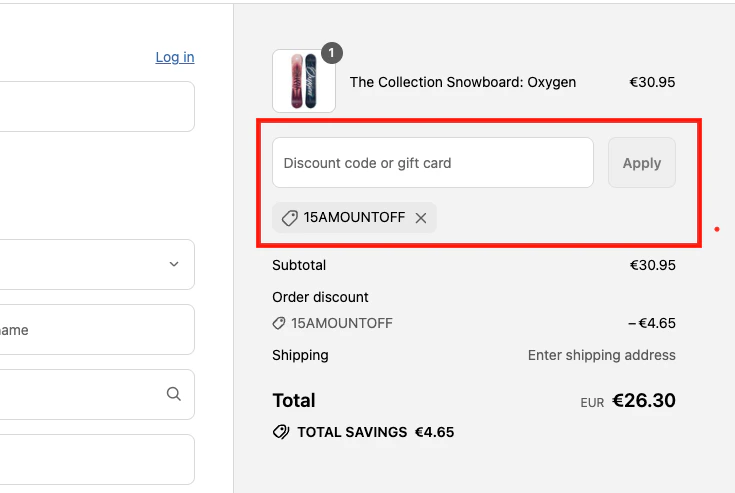
Another app is delaying ABConvert’s scripts
Some apps raise speed scores by delaying JavaScript they don’t recognize. When ABConvert is delayed, visitors see the original page before their test group applies. Symptoms:- Preview links load the page, but the preview widget appears late or not at all
- Theme tests redirect, then land back on the original theme
- Switching test groups in the preview widget doesn’t change the page
1
Rule out the usual causes first
Work through Test variant not showing on live store above. Delayed scripts look the same as a misconfigured test, so confirm the test is healthy and your preview link loads the right test group before going further.
2
Check whether another app defers scripts
In your Shopify admin, open Apps and look for anything that speeds up your storefront, defers or lazy-loads JavaScript, or advertises a better PageSpeed score.To confirm one is the cause, disable it on a test basis, then reload a preview link. If the preview widget appears right away with the app off, that app is delaying ABConvert.
3
Ask that app's support to exclude ABConvert
Most of these apps support an exclusion or allowlist rule. Every ABConvert script carries markers they can match on, so send their support this:
“Please exclude ABConvert’s A/B testing scripts from any delay, deferral, or lazy loading. Every ABConvert script tag carriesOnce the exclusion is live, reload a preview link. The preview widget should appear within a second or two of page load.class="abconvert", and every inline ABConvert script contains the textabconvert. These scripts have to run in their original position, because they decide which version of a page each visitor sees. Delaying them shows the wrong version first.”
Still using the older separate ABConvert app embeds, such as shipping script, visitor label, clear cache, or custom event? Switch to the single ABConvert app embed. It’s the setup we keep current, and a few scripts in the older embeds are loaded by Shopify in a way that can’t carry the markers above, so an exclusion rule won’t reach them. See Theme connection.