Create and preview a Recharge, Stay.AI, or SKIO subscription test with a step-by-step screenshot guide.
Follow this tutorial to compare one-time purchases with a monthly subscription across two products. The screenshots use demo products and example plans.
Choose Create new test → Subscription. In Base info, name the comparison and choose your primary metric. For this example, use Revenue per visitor and a 50/50 split between Control and Variant A. Choose the eligible visitors in Targeting.
3
Select both products
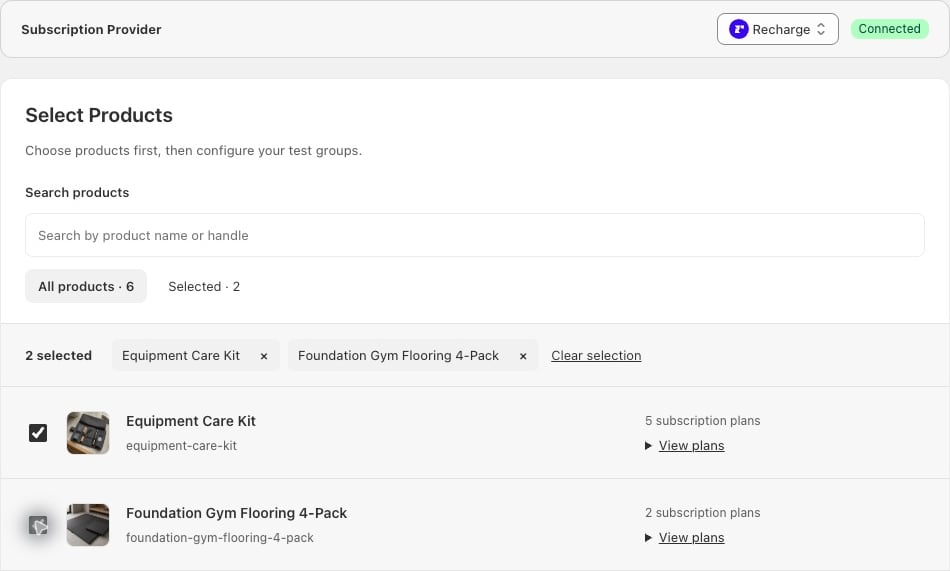
In Subscription offer, choose your provider and select both products. All test groups use the same products. Select Continue to plans.
Select the products before choosing the test group offers.
4
Compare one-time purchase with a subscription
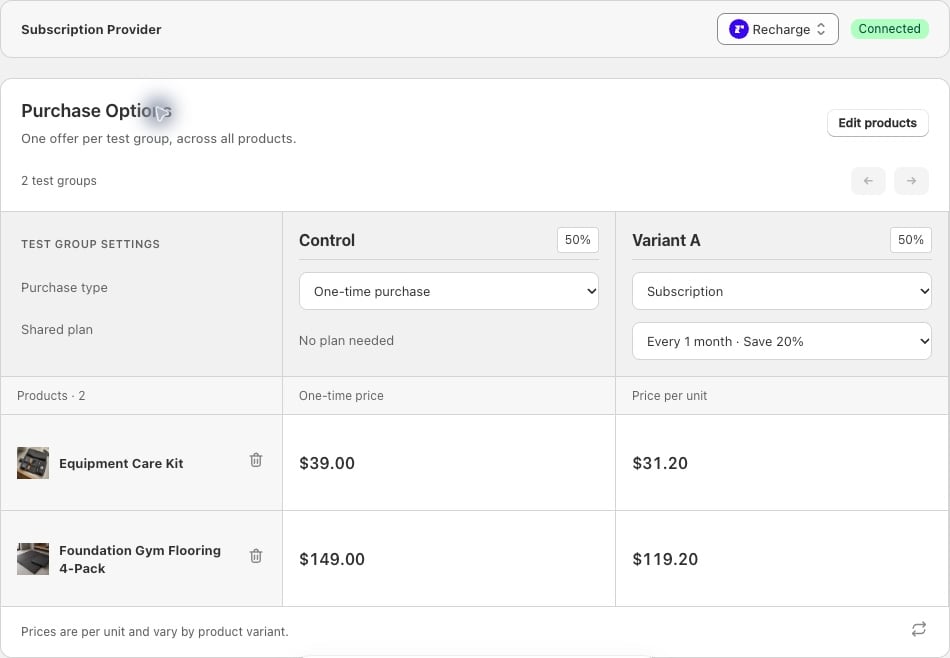
Set Control’s Purchase type to One-time purchase. Set Variant A to Subscription and choose the monthly 20% Shared plan. A shared plan applies matching offer terms across the selected products. Each product keeps its own price.
Control offers one-time purchases. Variant A offers monthly subscriptions at 20% off.
To compare two subscription offers instead, choose Subscription for both test groups and assign a different shared plan to each. See the subscription test setup guide for examples.
5
Preview before launch
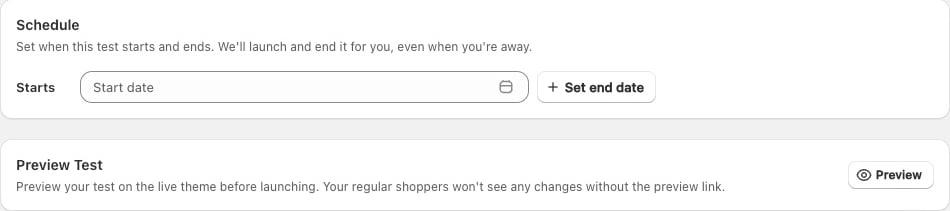
Continue to Review and select Preview. Inspect every selected product and test group. Confirm that the expected purchase option, selling plan, product variant, price, and delivery interval carry through to the cart and checkout. Save the draft until you are ready to launch.
Preview the storefront purchase flow before launching.
Compare conversion rate and revenue per visitor for the first purchase. Use Subscription Metrics for the initial subscription orders and Subscription Lifecycle for later renewals, retention, and cancellations with Recharge or SKIO. See subscription metrics for definitions.
Preview checks the purchase experience. Complete a checkout and confirm attributed provider events before using lifecycle results. Allow subscribers to reach the retention period you want to measure.
Add a subscription change to a combined test when you want to measure a plan together with compatible storefront changes.
Use personalization to show a selected subscription offer to an audience without a randomized Control.
Create a subscription-test draft through the REST API or MCP.
⌘I
{"docsConfig":{"theme":"almond","$schema":"https://mintlify.com/docs.json","name":"ABConvert","colors":{"primary":"#82C621","light":"#ACFF17","dark":"#217BD1"},"logo":{"light":"https://mintcdn.com/abconvert/4yA52tsrkGprYEUg/images/ABConvert_docs_lightmode.svg?fit=max\u0026auto=format\u0026n=4yA52tsrkGprYEUg\u0026q=85\u0026s=4d993486a7a067b38b467aeffa07de01","dark":"https://mintcdn.com/abconvert/TfodKqLthDlOcMjW/images/ABConvert_docs_darkmode.svg?fit=max\u0026auto=format\u0026n=TfodKqLthDlOcMjW\u0026q=85\u0026s=40441b20987188f17066bbe227d4f4ca"},"favicon":"https://mintcdn.com/abconvert/f09IwWgWVmHpcZJi/images/favicon.svg?fit=max\u0026auto=format\u0026n=f09IwWgWVmHpcZJi\u0026q=85\u0026s=167ae8c0ca36d4d2c9a730a7f16c1fd4","navbar":{"primary":{"type":"github","href":"https://github.com/ABConvert"}},"styling":{"latex":false},"navigation":{"pages":[]}},"deployment":{"deploymentMetadataValue":{"subdomain":"abconvert","hasAudioNarration":false,"actualSubdomain":"abconvert","customDomains":["docs.abconvert.io"],"gitSource":{"type":"github","owner":"abconvert","repo":"ab-test-app","deployBranch":"main","contentDirectory":"external-docs","isPrivate":true,"mountPath":"","label":""},"chroma":{"liveDeploymentHistoryId":"6ae94fe9535d15408a24222e","collectionId":"d0991fa9-0981-4eda-8c84-013771794c07","schemaVersion":"v3","latestBuiltDeploymentHistoryId":"6ae94fe9535d15408a24222e"},"entitlements":{"AI_CHAT":{"status":"DISABLED"},"WEB_MCP":{"status":"DISABLED"},"NARRATION":{"status":"DISABLED"}},"buildId":"6ae999125a00c3a5615c2cd7","clientVersion":"0.0.4045","searchFilterCounts":[{"language":"default","tag":"Documentation","count":64},{"language":"default","tag":"REST API","count":21},{"language":"default","tag":"Experiments","count":16},{"language":"default","tag":"Headless SDK","count":16},{"language":"default","tag":"Integrations","count":15},{"language":"default","tag":"Analytics","count":11},{"language":"default","tag":"Lifecycle","count":7},{"language":"default","tag":"JavaScript API","count":6},{"language":"default","tag":"AI integration (MCP)","count":6},{"language":"default","tag":"Build","count":5}]},"assistantConfig":{"enableAskAiButton":false,"enableStarterQuestions":false,"enableContextualStarterQuestions":false,"enableAskAiSearchBar":true},"basePath":"","hasChatPermissions":false,"hasWebMcpPermissions":false,"toggles":[{"name":"kill-isr","enabled":true,"variant":{"name":"disabled","enabled":false,"feature_enabled":true},"impressionData":false},{"name":"agent-mintlify-slack","enabled":true,"variant":{"name":"disabled","enabled":false,"feature_enabled":true},"impressionData":false},{"name":"agent-integrations-settings","enabled":true,"variant":{"name":"disabled","enabled":false,"feature_enabled":true},"impressionData":false},{"name":"automations-pr-grouping","enabled":true,"variant":{"name":"disabled","enabled":false,"feature_enabled":true},"impressionData":false},{"name":"custom-prefix","enabled":true,"variant":{"name":"disabled","enabled":false,"feature_enabled":true},"impressionData":false},{"name":"analytics-v7","enabled":true,"variant":{"name":"disabled","enabled":false,"feature_enabled":true},"impressionData":false},{"name":"user-flows-analytics","enabled":true,"variant":{"name":"disabled","enabled":false,"feature_enabled":true},"impressionData":false},{"name":"no-publish-flow","enabled":true,"variant":{"name":"disabled","enabled":false,"feature_enabled":true},"impressionData":false},{"name":"workos-onboarding","enabled":true,"variant":{"name":"disabled","enabled":false,"feature_enabled":true},"impressionData":false},{"name":"llms-txt-v2","enabled":true,"variant":{"name":"disabled","enabled":false,"feature_enabled":true},"impressionData":false},{"name":"snapshot-serving-live","enabled":true,"variant":{"name":"disabled","enabled":false,"feature_enabled":true},"impressionData":false},{"name":"stripTemperatureMiddleware","enabled":true,"variant":{"name":"disabled","enabled":false,"feature_enabled":true},"impressionData":false},{"name":"support-platform-pylon-zendesk","enabled":true,"variant":{"name":"disabled","enabled":false,"feature_enabled":true},"impressionData":false},{"name":"snapshot-serving","enabled":true,"variant":{"name":"disabled","enabled":false,"feature_enabled":true},"impressionData":false},{"name":"instant-rollback","enabled":true,"variant":{"name":"disabled","enabled":false,"feature_enabled":true},"impressionData":false},{"name":"granular-notifications-server","enabled":true,"variant":{"name":"disabled","enabled":false,"feature_enabled":true},"impressionData":false},{"name":"granular-notifications","enabled":true,"variant":{"name":"disabled","enabled":false,"feature_enabled":true},"impressionData":false},{"name":"automations-fable","enabled":true,"variant":{"name":"disabled","enabled":false,"feature_enabled":true},"impressionData":false},{"name":"fixed-ai-action-pricing","enabled":true,"variant":{"name":"disabled","enabled":false,"feature_enabled":true},"impressionData":false},{"name":"automation-resolve-merge-conflict","enabled":true,"variant":{"name":"disabled","enabled":false,"feature_enabled":true},"impressionData":false},{"name":"scoped-publishing","enabled":true,"variant":{"name":"disabled","enabled":false,"feature_enabled":true},"impressionData":false},{"name":"mintql","enabled":true,"variant":{"name":"disabled","enabled":false,"feature_enabled":true},"impressionData":false},{"name":"page-level-analytics","enabled":true,"variant":{"name":"disabled","enabled":false,"feature_enabled":true},"impressionData":false},{"name":"editor-version-history-v2","enabled":true,"variant":{"name":"disabled","enabled":false,"feature_enabled":true},"impressionData":false},{"name":"billing-page-v2","enabled":true,"variant":{"name":"disabled","enabled":false,"feature_enabled":true},"impressionData":false},{"name":"full-page-search","enabled":true,"variant":{"name":"disabled","enabled":false,"feature_enabled":true},"impressionData":false},{"name":"workspace-projects","enabled":true,"variant":{"name":"disabled","enabled":false,"feature_enabled":true},"impressionData":false},{"name":"assistant-v5","enabled":true,"variant":{"name":"disabled","enabled":false,"feature_enabled":true},"impressionData":false},{"name":"byok-sep-25","enabled":true,"variant":{"name":"disabled","enabled":false,"feature_enabled":true},"impressionData":false},{"name":"fork-pr-previews","enabled":true,"variant":{"name":"disabled","enabled":false,"feature_enabled":true},"impressionData":false},{"name":"revalidation-jwt","enabled":true,"variant":{"name":"disabled","enabled":false,"feature_enabled":true},"impressionData":false},{"name":"vite-origin","enabled":true,"variant":{"name":"disabled","enabled":false,"feature_enabled":true},"impressionData":false},{"name":"billing-updated-9-15","enabled":true,"variant":{"name":"disabled","enabled":false,"feature_enabled":true},"impressionData":false},{"name":"workos-sso-scim","enabled":true,"variant":{"name":"disabled","enabled":false,"feature_enabled":true},"impressionData":false},{"name":"hobby-abuse-scan","enabled":true,"variant":{"name":"disabled","enabled":false,"feature_enabled":true},"impressionData":false},{"name":"dashboard-inbox","enabled":true,"variant":{"name":"disabled","enabled":false,"feature_enabled":true},"impressionData":false},{"name":"workos-signup","enabled":true,"variant":{"name":"disabled","enabled":false,"feature_enabled":true},"impressionData":false},{"name":"turbopuffer-dual-write","enabled":true,"variant":{"name":"disabled","enabled":false,"feature_enabled":true},"impressionData":false},{"name":"workos-enabled","enabled":true,"variant":{"name":"disabled","enabled":false,"feature_enabled":true},"impressionData":false},{"name":"approve-review-flow","enabled":true,"variant":{"name":"disabled","enabled":false,"feature_enabled":true},"impressionData":false},{"name":"sso-setup-deadline-banner","enabled":true,"variant":{"name":"disabled","enabled":false,"feature_enabled":true},"impressionData":false}],"googleFontsInlined":true},"customCss":[{"filePath":"style.css","content":".nav-logo,.nav-logo img{height:40px!important;max-height:40px!important}html:not(.dark) svg[aria-roledescription=sequence] .note{fill:#eef8dc!important;stroke:#82c621!important}html:not(.dark) svg[aria-roledescription=sequence] .noteText,html:not(.dark) svg[aria-roledescription=sequence] .noteText>tspan{fill:#0f1a05!important}"}],"page":{"pagePath":"help/subscription-test-tutorial","slug":"/help/subscription-test-tutorial","pageMetadata":{"title":"Subscription test tutorial","sidebarTitle":"Subscription test tutorial","description":"Create and preview a Recharge, Stay.AI, or SKIO subscription test with a step-by-step screenshot guide.","href":"/help/subscription-test-tutorial"},"description":{"compiledSource":"\"use strict\";\nconst {jsx: _jsx} = arguments[0];\nconst {useMDXComponents: _provideComponents} = arguments[0];\nfunction _createMdxContent(props) {\n const _components = {\n p: \"p\",\n ..._provideComponents(),\n ...props.components\n };\n return _jsx(_components.p, {\n children: \"Create and preview a Recharge, Stay.AI, or SKIO subscription test with a step-by-step screenshot guide.\"\n });\n}\nfunction MDXContent(props = {}) {\n const {wrapper: MDXLayout} = {\n ..._provideComponents(),\n ...props.components\n };\n return MDXLayout ? _jsx(MDXLayout, {\n ...props,\n children: _jsx(_createMdxContent, {\n ...props\n })\n }) : _createMdxContent(props);\n}\nreturn {\n default: MDXContent\n};\n","frontmatter":{},"scope":{}},"pageType":"default","mdx":{"mdxSource":{"compiledSource":"\"use strict\";const{Fragment:_Fragment,jsx:_jsx,jsxs:_jsxs}=arguments[0];const{useMDXComponents:_provideComponents}=arguments[0];function _createMdxContent(props){const _components={a:`a`,li:`li`,p:`p`,strong:`strong`,ul:`ul`,..._provideComponents(),...props.components},{Frame,Heading,Note,OptimizedImage,Step,Steps}=_components;if(!Frame)_missingMdxReference(`Frame`,true);if(!Heading)_missingMdxReference(`Heading`,true);if(!Note)_missingMdxReference(`Note`,true);if(!OptimizedImage)_missingMdxReference(`OptimizedImage`,true);if(!Step)_missingMdxReference(`Step`,true);if(!Steps)_missingMdxReference(`Steps`,true);return _jsxs(_Fragment,{children:[_jsx(_components.p,{children:`Follow this tutorial to compare one-time purchases with a monthly subscription across two products. The screenshots use demo products and example plans.`}),`\n`,_jsx(Heading,{level:`2`,id:`create-a-draft-and-preview-the-offers`,children:`Create a draft and preview the offers`}),`\n`,_jsxs(Steps,{children:[_jsx(Step,{title:`Prepare the provider connection`,children:_jsxs(_components.p,{children:[`Connect `,_jsx(_components.a,{href:`/integrations/recharge`,children:`Recharge`}),`, `,_jsx(_components.a,{href:`/integrations/stay`,children:`Stay.AI`}),`, or `,_jsx(_components.a,{href:`/integrations/skio`,children:`SKIO`}),`. Prepare matching monthly plans for the two products in your provider, and `,_jsx(_components.a,{href:`/experiments/subscription-test#before-you-start`,children:`add its widget to your product page`}),`. This example uses a 20% subscription discount for both products.`]})}),_jsx(Step,{title:`Build the test as a draft`,children:_jsxs(_components.p,{children:[`Choose `,_jsx(_components.strong,{children:`Create new test → Subscription`}),`. In `,_jsx(_components.strong,{children:`Base info`}),`, name the comparison and choose your primary metric. For this example, use `,_jsx(_components.strong,{children:`Revenue per visitor`}),` and a 50/50 split between Control and Variant A. Choose the eligible visitors in `,_jsx(_components.a,{href:`/targeting/overview`,children:`Targeting`}),`.`]})}),_jsxs(Step,{title:`Select both products`,children:[_jsxs(_components.p,{children:[`In `,_jsx(_components.strong,{children:`Subscription offer`}),`, choose your provider and select both products. All test groups use the same products. Select `,_jsx(_components.strong,{children:`Continue to plans`}),`.`]}),_jsx(Frame,{caption:`Select the products before choosing the test group offers.`,children:_jsx(OptimizedImage,{src:`https://mintcdn.com/abconvert/tPVC8rqXBUirjRrj/images/guides/subscription-select-product.png?fit=max\u0026auto=format\u0026n=tPVC8rqXBUirjRrj\u0026q=85\u0026s=95d36db00cf13d8bd80a3022a4ada23c`,alt:`Recharge product picker with Equipment Care Kit and Foundation Gym Flooring 4-Pack selected.`,\"data-og-width\":`950`,width:`950`,\"data-og-height\":`571`,height:`571`,\"data-path\":`images/guides/subscription-select-product.png`,\"data-optimize\":`true`,\"data-opv\":`3`,srcset:`https://mintcdn.com/abconvert/tPVC8rqXBUirjRrj/images/guides/subscription-select-product.png?w=280\u0026fit=max\u0026auto=format\u0026n=tPVC8rqXBUirjRrj\u0026q=85\u0026s=34fe2d4fa791082c8a94405a32c5eff4 280w, https://mintcdn.com/abconvert/tPVC8rqXBUirjRrj/images/guides/subscription-select-product.png?w=560\u0026fit=max\u0026auto=format\u0026n=tPVC8rqXBUirjRrj\u0026q=85\u0026s=86b3a896350385e65b56ccb598c7e8df 560w, https://mintcdn.com/abconvert/tPVC8rqXBUirjRrj/images/guides/subscription-select-product.png?w=840\u0026fit=max\u0026auto=format\u0026n=tPVC8rqXBUirjRrj\u0026q=85\u0026s=94c1b4d0364fe639f2745a4c7e5f6d7c 840w, https://mintcdn.com/abconvert/tPVC8rqXBUirjRrj/images/guides/subscription-select-product.png?w=1100\u0026fit=max\u0026auto=format\u0026n=tPVC8rqXBUirjRrj\u0026q=85\u0026s=9ee2b4ba994ddfaf47c49b81e82ddf25 1100w, https://mintcdn.com/abconvert/tPVC8rqXBUirjRrj/images/guides/subscription-select-product.png?w=1650\u0026fit=max\u0026auto=format\u0026n=tPVC8rqXBUirjRrj\u0026q=85\u0026s=2d37a80c55ba496e8554d7d0c110ab11 1650w, https://mintcdn.com/abconvert/tPVC8rqXBUirjRrj/images/guides/subscription-select-product.png?w=2500\u0026fit=max\u0026auto=format\u0026n=tPVC8rqXBUirjRrj\u0026q=85\u0026s=373b8fa78f3b89e5b565e084e7c10007 2500w`})})]}),_jsxs(Step,{title:`Compare one-time purchase with a subscription`,children:[_jsxs(_components.p,{children:[`Set Control’s `,_jsx(_components.strong,{children:`Purchase type`}),` to `,_jsx(_components.strong,{children:`One-time purchase`}),`. Set Variant A to `,_jsx(_components.strong,{children:`Subscription`}),` and choose the monthly 20% `,_jsx(_components.strong,{children:`Shared plan`}),`. A shared plan applies matching offer terms across the selected products. Each product keeps its own price.`]}),_jsx(Frame,{caption:`Control offers one-time purchases. Variant A offers monthly subscriptions at 20% off.`,children:_jsx(OptimizedImage,{src:`https://mintcdn.com/abconvert/tPVC8rqXBUirjRrj/images/experiments/subscription-purchase-options.png?fit=max\u0026auto=format\u0026n=tPVC8rqXBUirjRrj\u0026q=85\u0026s=0197004fc84a457e4277a05ca7e47628`,alt:`Purchase options for two products showing one-time prices of USD 39 and USD 149 in Control and monthly subscription prices of USD 31.20 and USD 119.20 in Variant A.`,\"data-og-width\":`950`,width:`950`,\"data-og-height\":`658`,height:`658`,\"data-path\":`images/experiments/subscription-purchase-options.png`,\"data-optimize\":`true`,\"data-opv\":`3`,srcset:`https://mintcdn.com/abconvert/tPVC8rqXBUirjRrj/images/experiments/subscription-purchase-options.png?w=280\u0026fit=max\u0026auto=format\u0026n=tPVC8rqXBUirjRrj\u0026q=85\u0026s=1ad7bec286ee4074141e92fd068ba55f 280w, https://mintcdn.com/abconvert/tPVC8rqXBUirjRrj/images/experiments/subscription-purchase-options.png?w=560\u0026fit=max\u0026auto=format\u0026n=tPVC8rqXBUirjRrj\u0026q=85\u0026s=3bdd8381052562d25368a1ee1624afb0 560w, https://mintcdn.com/abconvert/tPVC8rqXBUirjRrj/images/experiments/subscription-purchase-options.png?w=840\u0026fit=max\u0026auto=format\u0026n=tPVC8rqXBUirjRrj\u0026q=85\u0026s=5c952d7bd0220564abfe57a872df3f7a 840w, https://mintcdn.com/abconvert/tPVC8rqXBUirjRrj/images/experiments/subscription-purchase-options.png?w=1100\u0026fit=max\u0026auto=format\u0026n=tPVC8rqXBUirjRrj\u0026q=85\u0026s=91f0efcfd80eb2103b3a036b531e9bd7 1100w, https://mintcdn.com/abconvert/tPVC8rqXBUirjRrj/images/experiments/subscription-purchase-options.png?w=1650\u0026fit=max\u0026auto=format\u0026n=tPVC8rqXBUirjRrj\u0026q=85\u0026s=58930d530337e41083667f8e041c42a3 1650w, https://mintcdn.com/abconvert/tPVC8rqXBUirjRrj/images/experiments/subscription-purchase-options.png?w=2500\u0026fit=max\u0026auto=format\u0026n=tPVC8rqXBUirjRrj\u0026q=85\u0026s=0642155ed840c58162082c8129aae76b 2500w`})}),_jsxs(_components.p,{children:[`To compare two subscription offers instead, choose `,_jsx(_components.strong,{children:`Subscription`}),` for both test groups and assign a different shared plan to each. See the `,_jsx(_components.a,{href:`/experiments/subscription-test#compare-one-time-purchases-and-subscription-offers`,children:`subscription test setup guide`}),` for examples.`]})]}),_jsxs(Step,{title:`Preview before launch`,children:[_jsxs(_components.p,{children:[`Continue to `,_jsx(_components.strong,{children:`Review`}),` and select `,_jsx(_components.strong,{children:`Preview`}),`. Inspect every selected product and test group. Confirm that the expected purchase option, selling plan, product variant, price, and delivery interval carry through to the cart and checkout. Save the draft until you are ready to launch.`]}),_jsx(Frame,{caption:`Preview the storefront purchase flow before launching.`,children:_jsx(OptimizedImage,{src:`https://mintcdn.com/abconvert/tPVC8rqXBUirjRrj/images/guides/subscription-review.png?fit=max\u0026auto=format\u0026n=tPVC8rqXBUirjRrj\u0026q=85\u0026s=bc1efa253c7b1a0769f7c15c34805ae4`,alt:`Subscription test Review step with optional scheduling and the Preview button.`,\"data-og-width\":`950`,width:`950`,\"data-og-height\":`211`,height:`211`,\"data-path\":`images/guides/subscription-review.png`,\"data-optimize\":`true`,\"data-opv\":`3`,srcset:`https://mintcdn.com/abconvert/tPVC8rqXBUirjRrj/images/guides/subscription-review.png?w=280\u0026fit=max\u0026auto=format\u0026n=tPVC8rqXBUirjRrj\u0026q=85\u0026s=80888003a6aade3a7953a175425dee5e 280w, https://mintcdn.com/abconvert/tPVC8rqXBUirjRrj/images/guides/subscription-review.png?w=560\u0026fit=max\u0026auto=format\u0026n=tPVC8rqXBUirjRrj\u0026q=85\u0026s=b2163e8937886ef5e33963d3545fc710 560w, https://mintcdn.com/abconvert/tPVC8rqXBUirjRrj/images/guides/subscription-review.png?w=840\u0026fit=max\u0026auto=format\u0026n=tPVC8rqXBUirjRrj\u0026q=85\u0026s=b94c14ade3c0d8d5de1c9f0a8db87760 840w, https://mintcdn.com/abconvert/tPVC8rqXBUirjRrj/images/guides/subscription-review.png?w=1100\u0026fit=max\u0026auto=format\u0026n=tPVC8rqXBUirjRrj\u0026q=85\u0026s=89c8c10d1bd333a23c352da294930f59 1100w, https://mintcdn.com/abconvert/tPVC8rqXBUirjRrj/images/guides/subscription-review.png?w=1650\u0026fit=max\u0026auto=format\u0026n=tPVC8rqXBUirjRrj\u0026q=85\u0026s=fc93cba4ebaf80f1f9ce3bb7c5f383a4 1650w, https://mintcdn.com/abconvert/tPVC8rqXBUirjRrj/images/guides/subscription-review.png?w=2500\u0026fit=max\u0026auto=format\u0026n=tPVC8rqXBUirjRrj\u0026q=85\u0026s=021bfbb00f35a371ffcb1247e7857d27 2500w`})})]})]}),`\n`,_jsx(Heading,{level:`2`,id:`evaluate-first-orders-and-later-outcomes`,children:`Evaluate first orders and later outcomes`}),`\n`,_jsxs(_components.p,{children:[`Compare `,_jsx(_components.strong,{children:`conversion rate`}),` and `,_jsx(_components.strong,{children:`revenue per visitor`}),` for the first purchase. Use `,_jsx(_components.strong,{children:`Subscription Metrics`}),` for the initial subscription orders and `,_jsx(_components.strong,{children:`Subscription Lifecycle`}),` for later renewals, retention, and cancellations with Recharge or SKIO. See `,_jsx(_components.a,{href:`/analytics/metrics#subscription-metrics`,children:`subscription metrics`}),` for definitions.`]}),`\n`,_jsx(Note,{children:_jsx(_components.p,{children:`Preview checks the purchase experience. Complete a checkout and confirm attributed provider events before using lifecycle results. Allow subscribers to reach the retention period you want to measure.`})}),`\n`,_jsx(Heading,{level:`2`,id:`related-workflows`,children:`Related workflows`}),`\n`,_jsxs(_components.ul,{children:[`\n`,_jsxs(_components.li,{children:[`Add a subscription change to a `,_jsx(_components.a,{href:`/experiments/combined-test`,children:`combined test`}),` when you want to measure a plan together with compatible storefront changes.`]}),`\n`,_jsxs(_components.li,{children:[`Use `,_jsx(_components.a,{href:`/personalization/overview`,children:`personalization`}),` to show a selected subscription offer to an audience without a randomized Control.`]}),`\n`,_jsxs(_components.li,{children:[`Create a subscription-test draft through the `,_jsx(_components.a,{href:`/api-reference/overview#create-a-subscription-draft`,children:`REST API`}),` or `,_jsx(_components.a,{href:`/mcp/tools#subscription-test`,children:`MCP`}),`.`]}),`\n`]})]})}function MDXContent(props={}){const{wrapper:MDXLayout}={..._provideComponents(),...props.components};return MDXLayout?_jsx(MDXLayout,{...props,children:_jsx(_createMdxContent,{...props})}):_createMdxContent(props)}return{default:MDXContent};function _missingMdxReference(id,component){throw new Error(`Expected `+(component?`component`:`object`)+\" `\"+id+\"` to be defined: you likely forgot to import, pass, or provide it.\")}","frontmatter":{},"scope":{"config":{},"pageMetadata":{"title":"Subscription test tutorial","sidebarTitle":"Subscription test tutorial","description":"Create and preview a Recharge, Stay.AI, or SKIO subscription test with a step-by-step screenshot guide.","href":"/help/subscription-test-tutorial"}}},"mdxSourceWithNoJs":null},"mdxExtracts":{"tableOfContents":[{"title":"Create a draft and preview the offers","slug":"create-a-draft-and-preview-the-offers","depth":2,"children":[]},{"title":"Evaluate first orders and later outcomes","slug":"evaluate-first-orders-and-later-outcomes","depth":2,"children":[]},{"title":"Related workflows","slug":"related-workflows","depth":2,"children":[]}],"codeExamples":{}},"jsLinks":[],"subdomain":"abconvert","siteName":"ABConvert","title":"Subscription test tutorial - ABConvert","navMaps":{"firstHrefInVersion":{},"firstHrefInLanguage":{}},"lastModified":"2026-11-03T08:19:44.857Z","originalFileLocation":"help/subscription-test-tutorial.mdx"},"headHtml":"\u003cscript data-mint-head>(function(){var d=document.documentElement,p=null;if(!p){try{p=localStorage.getItem(\"isDarkMode\")}catch(e){}if(p==='true')p='dark';else if(p==='false')p='light';if(p!=='light'\u0026\u0026p!=='dark'\u0026\u0026p!=='system')p=\"system\"}var r=p==='system'?(matchMedia(\"(prefers-color-scheme: dark)\").matches?'dark':'light'):p;d.classList.remove(r==='dark'?'light':'dark');d.classList.add(r);d.setAttribute(\"data-theme-preference\",p)})();\u003c/script>\u003cmeta data-mint-head name=\"description\" content=\"Create and preview a Recharge, Stay.AI, or SKIO subscription test with a step-by-step screenshot guide.\">\u003cmeta data-mint-head name=\"application-name\" content=\"ABConvert\">\u003cmeta data-mint-head name=\"generator\" content=\"Mintlify\">\u003clink data-mint-head rel=\"icon\" type=\"image/png\" sizes=\"192x192\" href=\"/mintlify-assets/_mintlify/favicons/abconvert/cj-fLemAa7_6ImHd/_generated/favicon/android-chrome-192x192.png\" media=\"(prefers-color-scheme: light)\">\u003clink data-mint-head rel=\"apple-touch-icon\" type=\"image/png\" sizes=\"180x180\" href=\"/mintlify-assets/_mintlify/favicons/abconvert/cj-fLemAa7_6ImHd/_generated/favicon/apple-touch-icon.png\">\u003clink data-mint-head rel=\"icon\" type=\"image/png\" sizes=\"16x16\" href=\"/mintlify-assets/_mintlify/favicons/abconvert/cj-fLemAa7_6ImHd/_generated/favicon/favicon-16x16.png\" media=\"(prefers-color-scheme: light)\">\u003clink data-mint-head rel=\"icon\" type=\"image/png\" sizes=\"32x32\" href=\"/mintlify-assets/_mintlify/favicons/abconvert/cj-fLemAa7_6ImHd/_generated/favicon/favicon-32x32.png\" media=\"(prefers-color-scheme: light)\">\u003clink data-mint-head rel=\"shortcut icon\" type=\"image/x-icon\" href=\"/mintlify-assets/_mintlify/favicons/abconvert/cj-fLemAa7_6ImHd/_generated/favicon/favicon.ico\" media=\"(prefers-color-scheme: light)\">\u003clink data-mint-head rel=\"icon\" type=\"image/png\" sizes=\"192x192\" href=\"/mintlify-assets/_mintlify/favicons/abconvert/cj-fLemAa7_6ImHd/_generated/favicon-dark/android-chrome-192x192.png\" media=\"(prefers-color-scheme: dark)\">\u003clink data-mint-head rel=\"icon\" type=\"image/png\" sizes=\"16x16\" href=\"/mintlify-assets/_mintlify/favicons/abconvert/cj-fLemAa7_6ImHd/_generated/favicon-dark/favicon-16x16.png\" media=\"(prefers-color-scheme: dark)\">\u003clink data-mint-head rel=\"icon\" type=\"image/png\" sizes=\"32x32\" href=\"/mintlify-assets/_mintlify/favicons/abconvert/cj-fLemAa7_6ImHd/_generated/favicon-dark/favicon-32x32.png\" media=\"(prefers-color-scheme: dark)\">\u003clink data-mint-head rel=\"shortcut icon\" type=\"image/x-icon\" href=\"/mintlify-assets/_mintlify/favicons/abconvert/cj-fLemAa7_6ImHd/_generated/favicon-dark/favicon.ico\" media=\"(prefers-color-scheme: dark)\">\u003cmeta data-mint-head property=\"og:title\" content=\"Subscription test tutorial - ABConvert\">\u003cmeta data-mint-head property=\"og:description\" content=\"Create and preview a Recharge, Stay.AI, or SKIO subscription test with a step-by-step screenshot guide.\">\u003cmeta data-mint-head property=\"og:site_name\" content=\"ABConvert\">\u003cmeta data-mint-head property=\"og:url\" content=\"https://docs.abconvert.io/help/subscription-test-tutorial\">\u003cmeta data-mint-head property=\"og:type\" content=\"website\">\u003cmeta data-mint-head property=\"og:image\" content=\"https://abconvert.mintlify.app/_mintlify/api/og/v2?division=Help\u0026amp;title=Subscription+test+tutorial\u0026amp;description=Create+and+preview+a+Recharge%2C+Stay.AI%2C+or+SKIO+subscription+test+with+a+step-by-step+screenshot+guide.\u0026amp;theme=90870b2bdb8393280a02f7d6\u0026amp;signature=a37cf24bcb4276eaa36ea7444666d895638476ce3bf44d94d2618217efe81691\">\u003cmeta data-mint-head property=\"og:image:width\" content=\"1200\">\u003cmeta data-mint-head property=\"og:image:height\" content=\"630\">\u003cmeta data-mint-head name=\"twitter:card\" content=\"summary_large_image\">\u003cmeta data-mint-head name=\"twitter:title\" content=\"Subscription test tutorial - ABConvert\">\u003cmeta data-mint-head name=\"twitter:description\" content=\"Create and preview a Recharge, Stay.AI, or SKIO subscription test with a step-by-step screenshot guide.\">\u003cmeta data-mint-head name=\"twitter:image\" content=\"https://abconvert.mintlify.app/_mintlify/api/og/v2?division=Help\u0026amp;title=Subscription+test+tutorial\u0026amp;description=Create+and+preview+a+Recharge%2C+Stay.AI%2C+or+SKIO+subscription+test+with+a+step-by-step+screenshot+guide.\u0026amp;theme=90870b2bdb8393280a02f7d6\u0026amp;signature=a37cf24bcb4276eaa36ea7444666d895638476ce3bf44d94d2618217efe81691\">\u003cmeta data-mint-head name=\"twitter:image:width\" content=\"1200\">\u003cmeta data-mint-head name=\"twitter:image:height\" content=\"630\">\u003cmeta data-mint-head name=\"msapplication-config\" content=\"/mintlify-assets/_mintlify/favicons/abconvert/cj-fLemAa7_6ImHd/_generated/favicon/browserconfig.xml\">\u003cmeta data-mint-head name=\"apple-mobile-web-app-title\" content=\"ABConvert\">\u003cmeta data-mint-head name=\"msapplication-TileColor\" content=\"#82C621\">\u003clink data-mint-head rel=\"canonical\" href=\"https://docs.abconvert.io/help/subscription-test-tutorial\">\u003clink data-mint-head rel=\"alternate\" type=\"application/xml\" href=\"/sitemap.xml\">\u003clink data-mint-head rel=\"alternate\" type=\"text/markdown\" href=\"/help/subscription-test-tutorial.md\">\u003cscript data-mint-head type=\"application/ld+json\">{\"@context\":\"https://schema.org\",\"@graph\":[{\"@type\":\"Organization\",\"@id\":\"https://docs.abconvert.io/#organization\",\"name\":\"ABConvert\",\"url\":\"https://docs.abconvert.io\",\"logo\":{\"@type\":\"ImageObject\",\"url\":\"https://mintcdn.com/abconvert/4yA52tsrkGprYEUg/images/ABConvert_docs_lightmode.svg?fit=max\u0026auto=format\u0026n=4yA52tsrkGprYEUg\u0026q=85\u0026s=4d993486a7a067b38b467aeffa07de01\"}},{\"@type\":\"WebSite\",\"@id\":\"https://docs.abconvert.io#website\",\"name\":\"ABConvert\",\"url\":\"https://docs.abconvert.io\",\"publisher\":{\"@id\":\"https://docs.abconvert.io/#organization\"}},{\"@type\":\"WebPage\",\"@id\":\"https://docs.abconvert.io/help/subscription-test-tutorial#webpage\",\"url\":\"https://docs.abconvert.io/help/subscription-test-tutorial\",\"name\":\"Subscription test tutorial\",\"description\":\"Create and preview a Recharge, Stay.AI, or SKIO subscription test with a step-by-step screenshot guide.\",\"dateModified\":\"2026-11-03T08:19:44.857Z\",\"isPartOf\":{\"@id\":\"https://docs.abconvert.io#website\"},\"breadcrumb\":{\"@id\":\"https://docs.abconvert.io/help/subscription-test-tutorial#breadcrumb\"}},{\"@type\":\"BreadcrumbList\",\"@id\":\"https://docs.abconvert.io/help/subscription-test-tutorial#breadcrumb\",\"itemListElement\":[{\"@type\":\"ListItem\",\"position\":1,\"name\":\"ABConvert\",\"item\":\"https://docs.abconvert.io\"},{\"@type\":\"ListItem\",\"position\":2,\"name\":\"Subscription test tutorial\",\"item\":\"https://docs.abconvert.io/help/subscription-test-tutorial\"}]},{\"@type\":[\"Article\",\"TechArticle\"],\"@id\":\"https://docs.abconvert.io/help/subscription-test-tutorial#article\",\"headline\":\"Subscription test tutorial\",\"name\":\"Subscription test tutorial\",\"description\":\"Create and preview a Recharge, Stay.AI, or SKIO subscription test with a step-by-step screenshot guide.\",\"url\":\"https://docs.abconvert.io/help/subscription-test-tutorial\",\"mainEntityOfPage\":{\"@id\":\"https://docs.abconvert.io/help/subscription-test-tutorial#webpage\"},\"dateModified\":\"2026-11-03T08:19:44.857Z\",\"publisher\":{\"@id\":\"https://docs.abconvert.io/#organization\"},\"isPartOf\":{\"@id\":\"https://docs.abconvert.io#website\"}}]}\u003c/script>\u003cscript data-mint-head type=\"application/ld+json\">{\"@context\":\"https://schema.org\",\"@type\":\"WebSite\",\"name\":\"ABConvert\",\"creator\":{\"@type\":\"Organization\",\"name\":\"Mintlify\",\"url\":\"https://mintlify.com\"}}\u003c/script>","siteName":"ABConvert","nav":{"global":null,"tabs":[{"tab":"Documentation","groups":[{"group":"Get Started","pages":[{"title":"ABConvert: Shopify A/B Testing Built for Revenue Growth","sidebarTitle":"Introduction","href":"/introduction"},{"title":"Onboarding ABConvert","sidebarTitle":"Onboarding","href":"/onboarding"},{"title":"Pricing Plans","sidebarTitle":"Pricing Plans","href":"/configuration/pricing-plans"},{"title":"Billing Usage and Overage","sidebarTitle":"Billing Usage and Overage","href":"/configuration/billing-usage"},{"title":"Annual Plans: Pay Yearly and Get Two Months Free","sidebarTitle":"Annual Plans","hidden":true,"href":"/configuration/annual-plans"},{"title":"Add Orders: Buy Extra Billable Orders","sidebarTitle":"Add Orders","hidden":true,"href":"/configuration/add-orders"}]},{"group":"Experiments","pages":[{"title":"Overview","sidebarTitle":"Overview","href":"/experiments/overview"},{"title":"Test lifecycle","sidebarTitle":"Lifecycle","href":"/experiments/lifecycle"},{"title":"Schedule a test","sidebarTitle":"Schedule","href":"/experiments/schedule"},{"title":"Price Test: Getting Started","sidebarTitle":"Price Test","href":"/experiments/price-test"},{"title":"Shipping Test: Getting Started","sidebarTitle":"Shipping Test","href":"/experiments/shipping-test"},{"title":"Offer Test: Getting Started","sidebarTitle":"Offer Test","href":"/experiments/offer-test"},{"title":"URL Redirect Test: Getting Started","sidebarTitle":"URL Redirect Test","href":"/experiments/url-redirect-test"},{"title":"Template Test: Getting Started","sidebarTitle":"Template Test","href":"/experiments/template-test"},{"title":"Theme Test: Getting Started","sidebarTitle":"Theme Test","href":"/experiments/theme-test"},{"group":"Visual Editor Test","pages":[{"title":"Visual Editor Test: Getting Started","sidebarTitle":"Getting Started","href":"/experiments/visual-editor-test"},{"title":"Store Editor","sidebarTitle":"Store Editor","href":"/experiments/visual-editor"},{"title":"In-App Editor","sidebarTitle":"In-App Editor","href":"/experiments/in-app-editor"}]},{"title":"Checkout test","sidebarTitle":"Checkout test","href":"/experiments/checkout-test"},{"title":"Subscription test","sidebarTitle":"Subscription test","href":"/experiments/subscription-test"},{"title":"Combined Test: Getting Started","sidebarTitle":"Combined Test","href":"/experiments/combined-test"},{"title":"Custom Code","sidebarTitle":"Custom Code","href":"/experiments/custom-code"}]},{"group":"Targeting","pages":[{"title":"Overview","sidebarTitle":"Overview","href":"/targeting/overview"},{"title":"Audience Targeting","sidebarTitle":"Audience Targeting","href":"/targeting/audience-targeting"},{"title":"Custom JavaScript","sidebarTitle":"Custom JavaScript","tag":"Beta","href":"/targeting/custom-javascript"},{"title":"Page Targeting","sidebarTitle":"Page Targeting","tag":"Beta","href":"/targeting/page-targeting"}]},{"group":"Personalization","pages":[{"title":"Personalization","sidebarTitle":"Overview","href":"/personalization/overview"}]},{"group":"Analytics","pages":[{"title":"Analytics Overview: Understanding Your A/B Test Results","sidebarTitle":"Analytics Overview","href":"/analytics/overview"},{"title":"How to Interpret Analytics Results and Choose a Next Action","sidebarTitle":"Interpret Results","href":"/analytics/interpret-results"},{"title":"Statistical Significance in A/B Testing Explained","sidebarTitle":"Statistical Significance","href":"/analytics/statistical-significance"},{"title":"Analytics Metrics: How ABConvert Groups and Calculates Them","sidebarTitle":"Metrics","href":"/analytics/metrics"},{"title":"Set Up Custom Events","sidebarTitle":"Custom events","href":"/analytics/custom-events"},{"title":"Traffic and Conversion Metrics","sidebarTitle":"Traffic \u0026 Conversion","href":"/analytics/metrics-traffic-conversion"},{"title":"Revenue and Profit Metrics","sidebarTitle":"Revenue \u0026 Profit","href":"/analytics/metrics-revenue-profit"},{"title":"Discount Metrics","sidebarTitle":"Discount","href":"/analytics/metrics-discount"},{"title":"Use Custom Events in Analytics","sidebarTitle":"Custom event results","href":"/analytics/custom-event-results"},{"title":"Engagement Metrics: Measure How a Variant Affects a Page","sidebarTitle":"Engagement","href":"/analytics/engagement-metrics"},{"title":"Product Groups: Analyze Test Results by Product","sidebarTitle":"Product Groups","href":"/analytics/product-groups"}]},{"group":"Configuration","pages":[{"title":"App Settings: Configure ABConvert for Your Store","sidebarTitle":"App Settings","href":"/configuration/settings"}]},{"group":"Integrations","pages":[{"title":"Integrations","sidebarTitle":"Overview","href":"/integrations/overview"},{"title":"Microsoft Clarity Integration","sidebarTitle":"Clarity","href":"/integrations/clarity"},{"title":"Hotjar Integration","sidebarTitle":"Hotjar","href":"/integrations/hotjar"},{"title":"Contentsquare Integration","sidebarTitle":"Contentsquare","href":"/integrations/contentsquare"},{"title":"Heatmap Integration: Filter Heatmaps and Recordings by Test Group","sidebarTitle":"Heatmap","href":"/integrations/heatmap"},{"title":"Heap integration","sidebarTitle":"Heap","href":"/integrations/heap"},{"title":"Amplitude Integration","sidebarTitle":"Amplitude","href":"/integrations/amplitude"},{"title":"Mixpanel Integration","sidebarTitle":"Mixpanel","href":"/integrations/mixpanel"},{"title":"Segment Integration: Send Test Assignments to Segment","sidebarTitle":"Segment","href":"/integrations/segment"},{"title":"Klaviyo Integration: Test Groups in Klaviyo and Segments as Audiences","sidebarTitle":"Klaviyo","href":"/integrations/klaviyo"},{"title":"BigQuery Export","sidebarTitle":"BigQuery","href":"/integrations/bigquery"},{"title":"Recharge integration","sidebarTitle":"Recharge","href":"/integrations/recharge"},{"title":"Stay.AI integration","sidebarTitle":"Stay.AI","href":"/integrations/stay"},{"title":"SKIO integration","sidebarTitle":"SKIO","href":"/integrations/skio"},{"title":"Third-party analytics integrations","sidebarTitle":"Analytics integrations","href":"/configuration/third-party-analytics"},{"title":"GA4 Integration: Track Tests in Google Analytics","sidebarTitle":"GA4 Integration","href":"/configuration/ga4-integration"}]},{"group":"Shopify Sidekick","tag":"Beta","pages":[{"title":"Shopify Sidekick data extension","sidebarTitle":"Data extension","tag":"Beta","href":"/sidekick/data-extension"}]},{"group":"AI integration (MCP)","tag":"Beta","pages":[{"title":"Drive ABConvert from Claude with MCP","sidebarTitle":"Overview","href":"/mcp/overview"},{"title":"Connect an AI assistant to ABConvert in 5 minutes","sidebarTitle":"Quickstart","href":"/mcp/quickstart"},{"title":"Connect ABConvert to Claude","sidebarTitle":"Claude connector","href":"/mcp/claude-connector"},{"title":"What Claude can do for you","sidebarTitle":"Available tools","href":"/mcp/tools"},{"title":"MCP troubleshooting","sidebarTitle":"Troubleshooting","href":"/mcp/troubleshooting"},{"title":"Security \u0026 token management","sidebarTitle":"Security","description":"How API tokens and URL-only OAuth connectors work, and what protects your store by default.","href":"/mcp/security"}]},{"group":"Help","pages":[{"title":"Subscription test tutorial","sidebarTitle":"Subscription test tutorial","href":"/help/subscription-test-tutorial"},{"title":"Frequently Asked Questions — ABConvert","sidebarTitle":"FAQ","description":"Answers to the most common questions about ABConvert: how tests work, plan requirements, traffic splitting, order attribution, and multi-market testing.","href":"/help/faq"},{"title":"Troubleshooting Common ABConvert Issues","sidebarTitle":"Troubleshooting","href":"/help/troubleshooting"},{"title":"Data and Privacy: How ABConvert Handles Your Shoppers' Data","sidebarTitle":"Data and privacy","href":"/help/data-and-privacy"}]},{"group":"Changelog","pages":[{"title":"Changelog","href":"/changelog/overview"}]}]},{"tab":"REST API","pages":[{"title":"REST API","href":"/api-reference/overview"}]},{"tab":"JavaScript API","pages":[{"title":"JavaScript API","href":"/api-reference/browser-api"}]},{"tab":"Headless SDK","pages":[{"title":"Headless SDK","href":"/headless-sdk/overview"}]}]},"basePath":"","title":"Subscription test tutorial - ABConvert","buildId":"dpl_36EDyZCDfRuoUD9af5CH4M1bqY2h","deploymentId":"dpl_36EDyZCDfRuoUD9af5CH4M1bqY2h","dynamics":["07c022d89b","a74be98ba7"],"chunks":["Frame-DW6UFrUy.js","DynamicMarkdown-B62XqCSI.js","zoom-image-lightbox-eHyQ0tlO.js","lightbox-handle-r17bVUz3.js"]}