The Thank you page and the Order status page are what buyers see after they place an order. In a checkout test, each test group can show different blocks there. One block, the next-order discount, gives buyers a code for their next order. These blocks work on every Shopify plan except Shopify Starter. See Shopify’s checkout technologies.

Thank you page

The Thank you page is the page a buyer sees right after placing the order. Add blocks there to test what a buyer reads after paying, such as a loyalty offer or a reason to order again. For example:
  • Control: Shopify’s default Thank you page
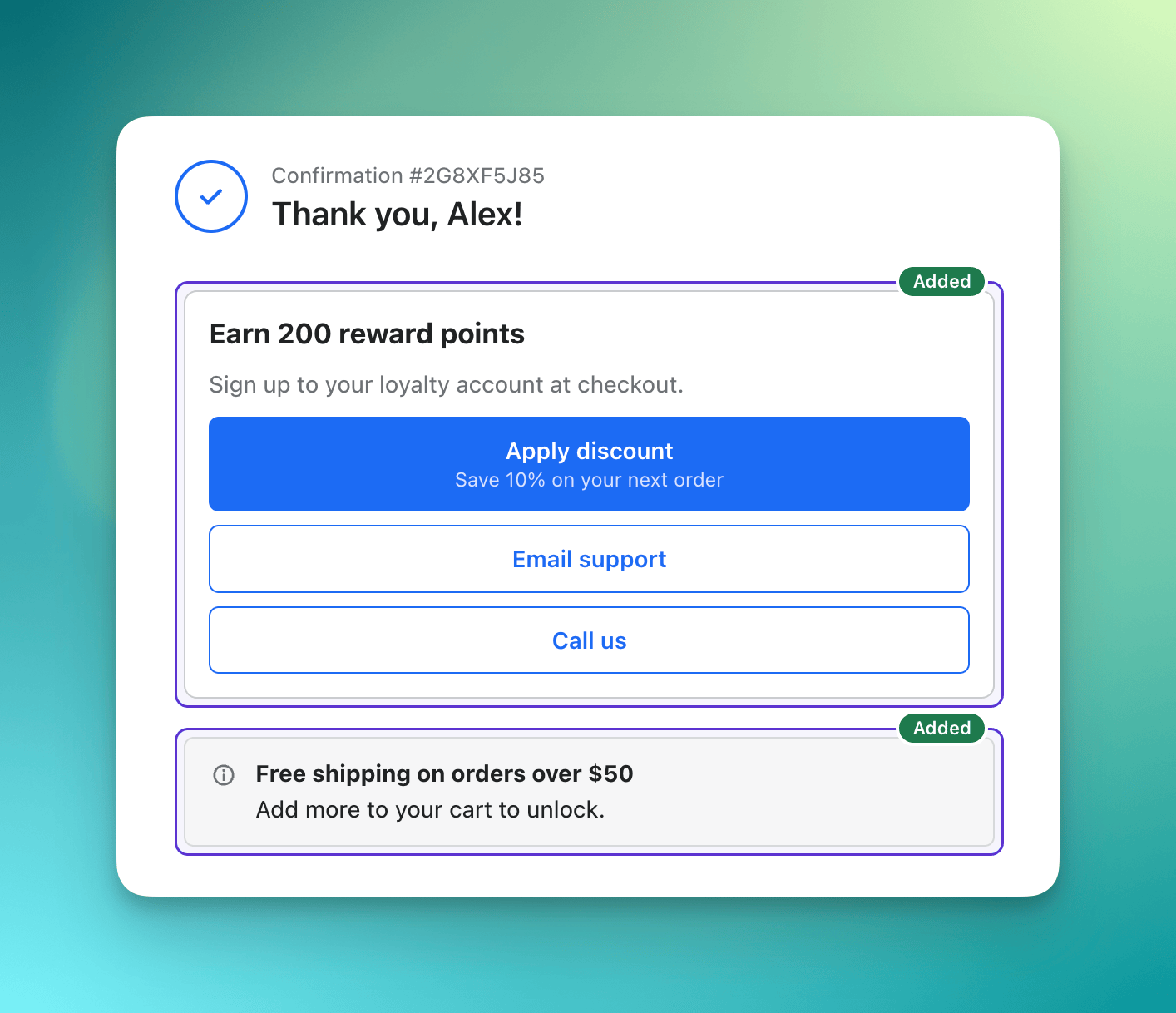
  • Variant A: a heading that says “Earn 200 reward points”, with buttons, and a banner that says “Free shipping on orders over $50”
Add the blocks on the Thank you page of Compose checkout.
Thank you page with added blocks: a reward points heading with buttons, and a free shipping banner

Thank you page blocks.

On the Thank you page, the picker offers Content blocks (Heading, Banner, Button, Benefit list, and Image) and one Upsell block, Next-order discount. To place a block, choose Thank you in the checkout editor’s page menu. Then follow Add your blocks. A Thank you block can change Revenue per Visitor only through later orders. So judge the test by Revenue per Visitor, and run it longer than a checkout change.

Next-order discount

Use a next-order discount to answer “does a reason to come back earn more revenue per visitor?” The block shows the buyer a discount code for their next order, with products to shop. The code works on any product, not just the ones shown. The products are there to prompt the buyer to come back. For example:
  • Control: Shopify’s default Thank you page
  • Variant A: code THANKS50 for 50% off the next order, with two snowboards to shop
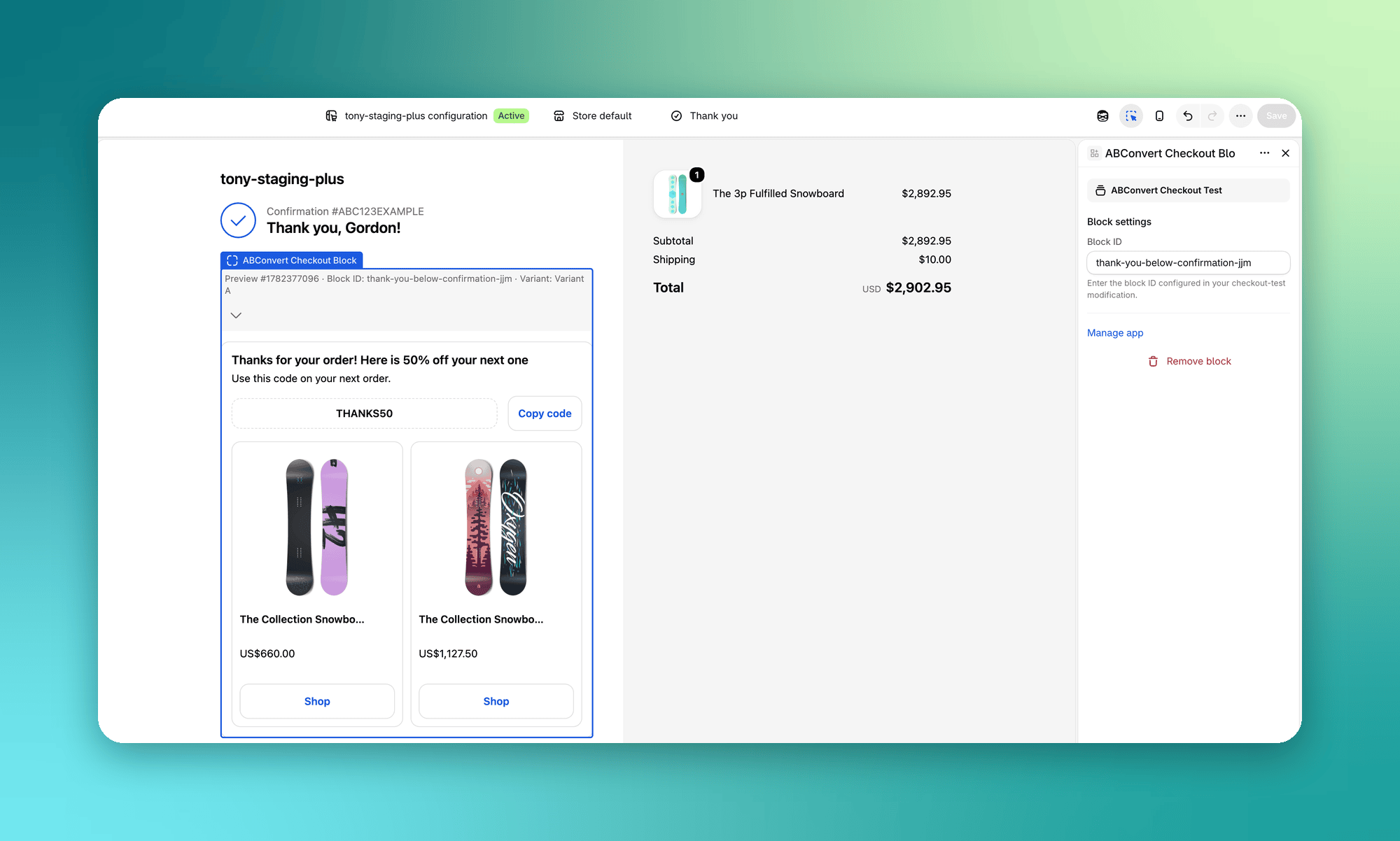
Shopify checkout editor on the Thank you page with an ABConvert Checkout Block showing a next-order discount code, Copy code, and two products, and its Block ID in the block settings
The code works only while the test is in Preview or running. Give buyers time to come back before you read the results.

Order status page

The Order status page is the page a buyer opens later to check on the order. They reach it from the confirmation email, a text, the Shop app, or their account. Add blocks there to test what a buyer reads while they wait for delivery. For example:
  • Control: Shopify’s default Order status page
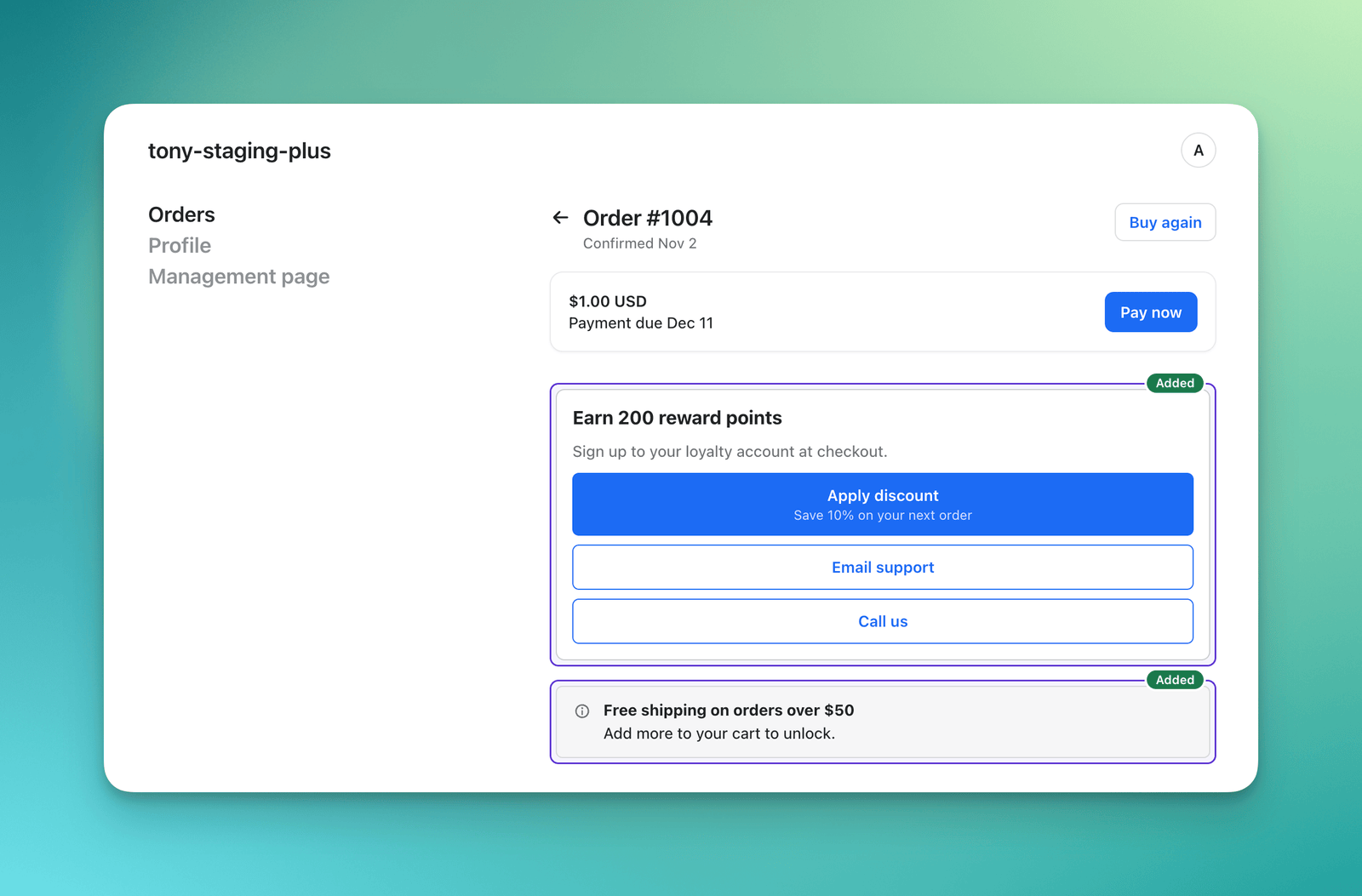
  • Variant A: the same reward points heading and free shipping banner as on the Thank you page
Add the blocks on the Order status page of Compose checkout.
Order status page for order #1004 with the same added reward points and free shipping blocks

Order status page blocks.

The Order status page supports the same blocks as the Thank you page. To place a block, choose Order status in the checkout editor’s page menu. Then follow Add your blocks.
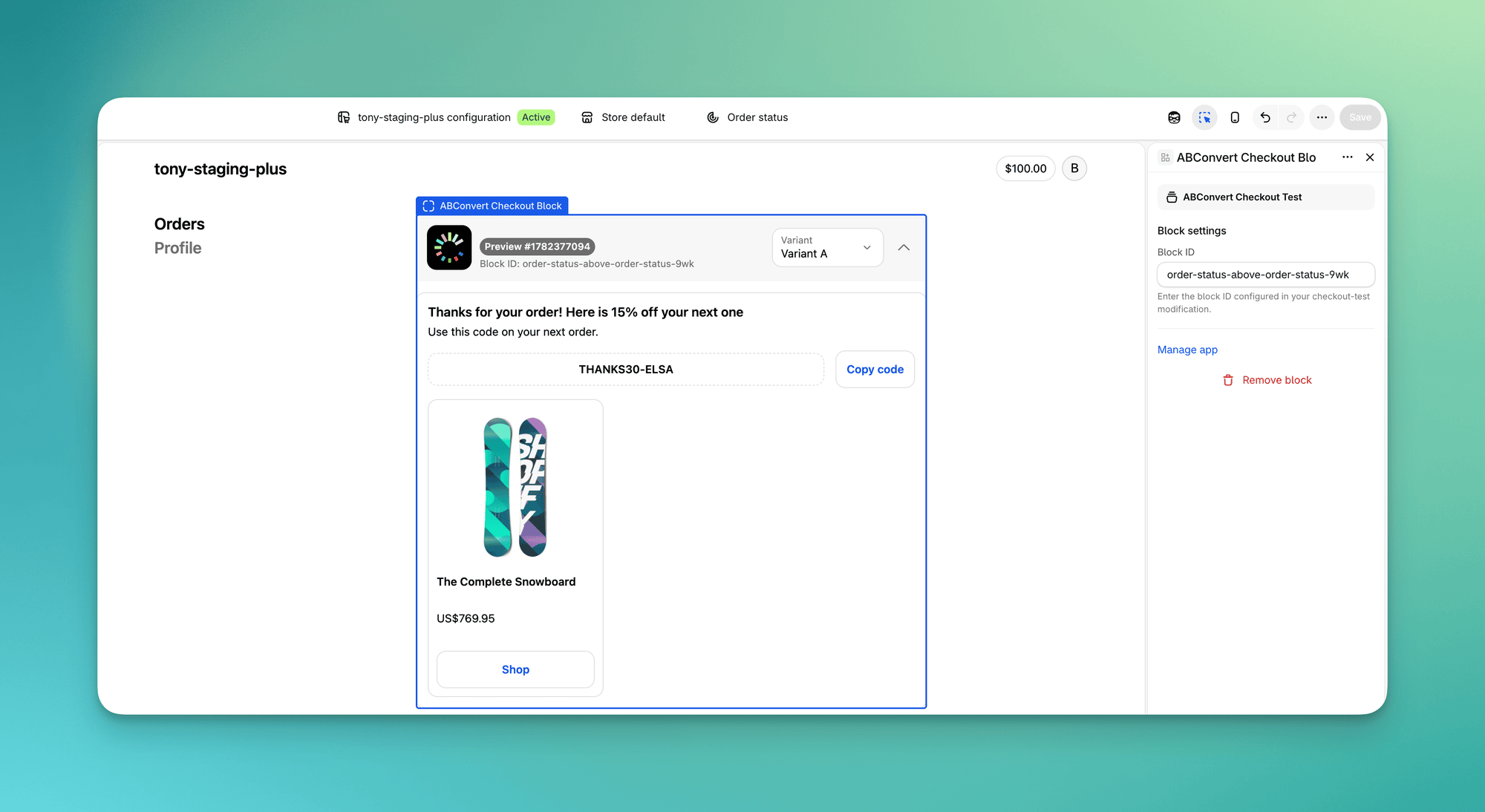
Shopify checkout editor on the Order status page with an ABConvert Checkout Block, its Variant dropdown, a next-order discount code, and its Block ID in the block settings