

Before you start
- Shopify Plus for blocks. Shipping and payment changes work on every Shopify plan except Shopify Starter. See Shopify’s checkout technologies.
- Product costs in COGS (cost of goods sold) settings, if you test upsells or rewards. Profit metrics need them.
What you can change
In Compose checkout, click Add modification. The picker opens By goal, such as Raise order value or Build trust. Click By type to see every change grouped by type: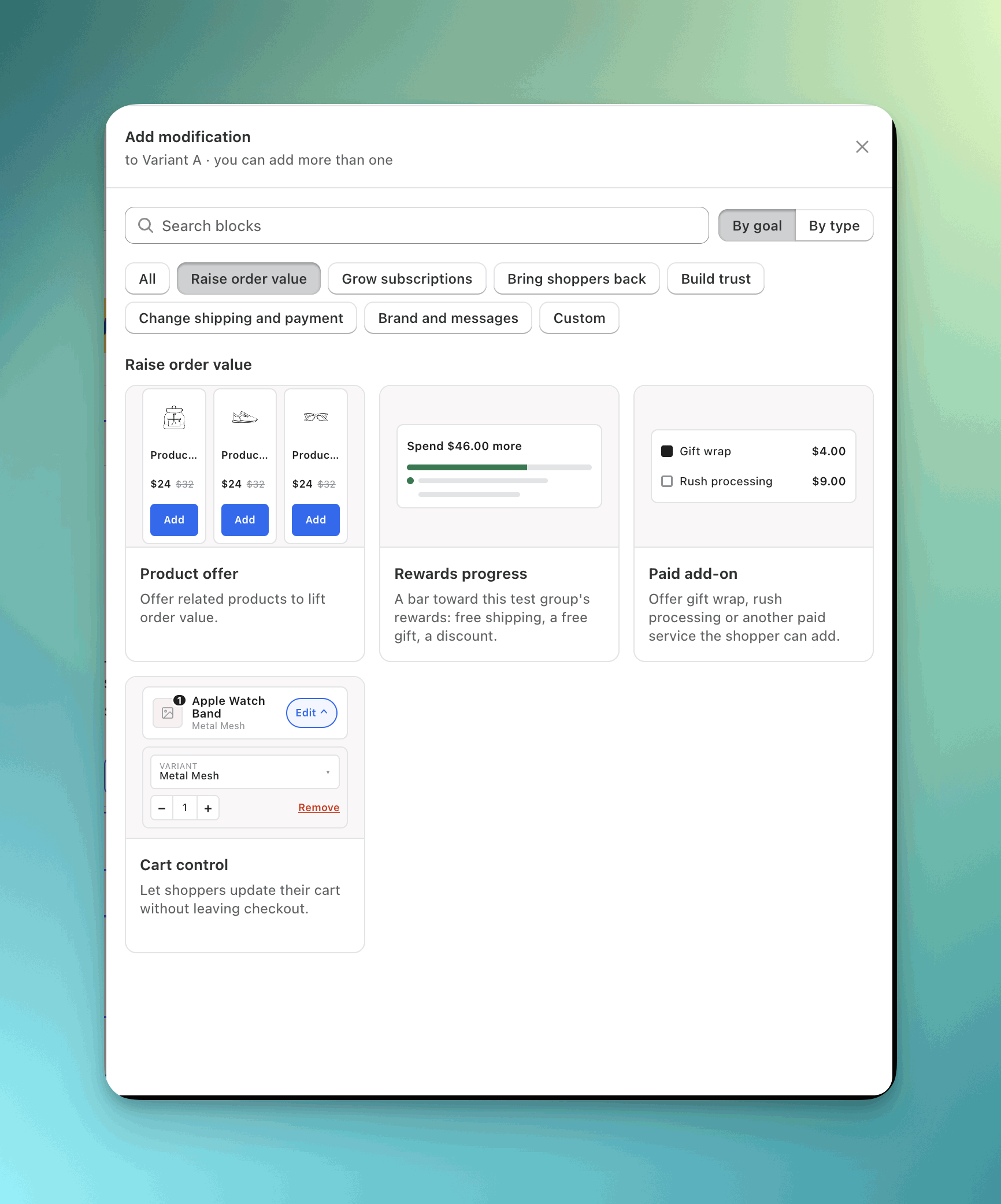
The Add modification picker, open on By goal.
Content blocks
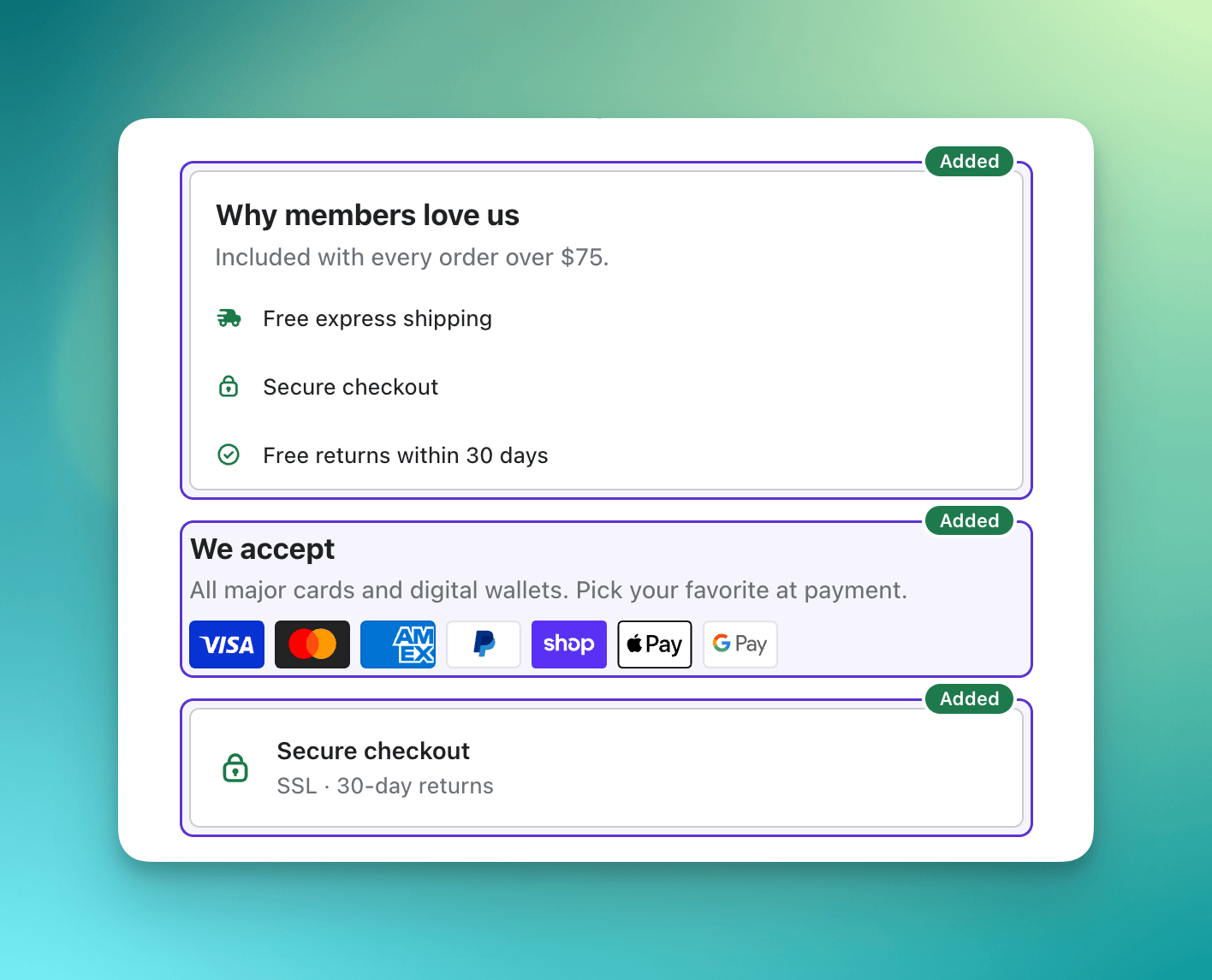
Content blocks at checkout.
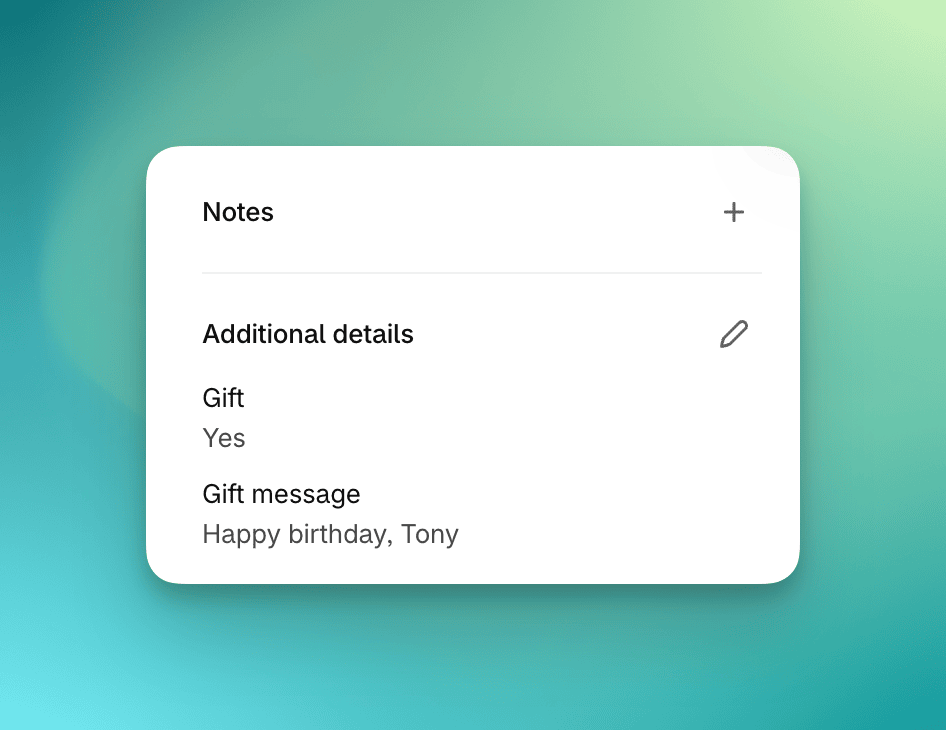
Custom block (Beta)
A Custom block is a checkout block your AI builds for you. Use it when no other block matches what you want to show, such as a free-shipping progress bar that uses the cart subtotal. This feature is in beta and may not be on every store yet. The block can show text, images, a progress bar, buttons, and cart items, and it can use live cart data such as the amount left for free shipping. It works on the Checkout page and needs Shopify Plus, like other Checkout page blocks. In Add modification, pick Custom block and set its Position. Under Block content, click Open your AI and pick your AI tool, or click Copy prompt and paste it into your AI. If your AI isn’t connected yet, click Save and connect AI first. See Connect your AI. Tell your AI what the block should show, then check the preview. To change the block later, open your AI again. Then place the block in the checkout editor.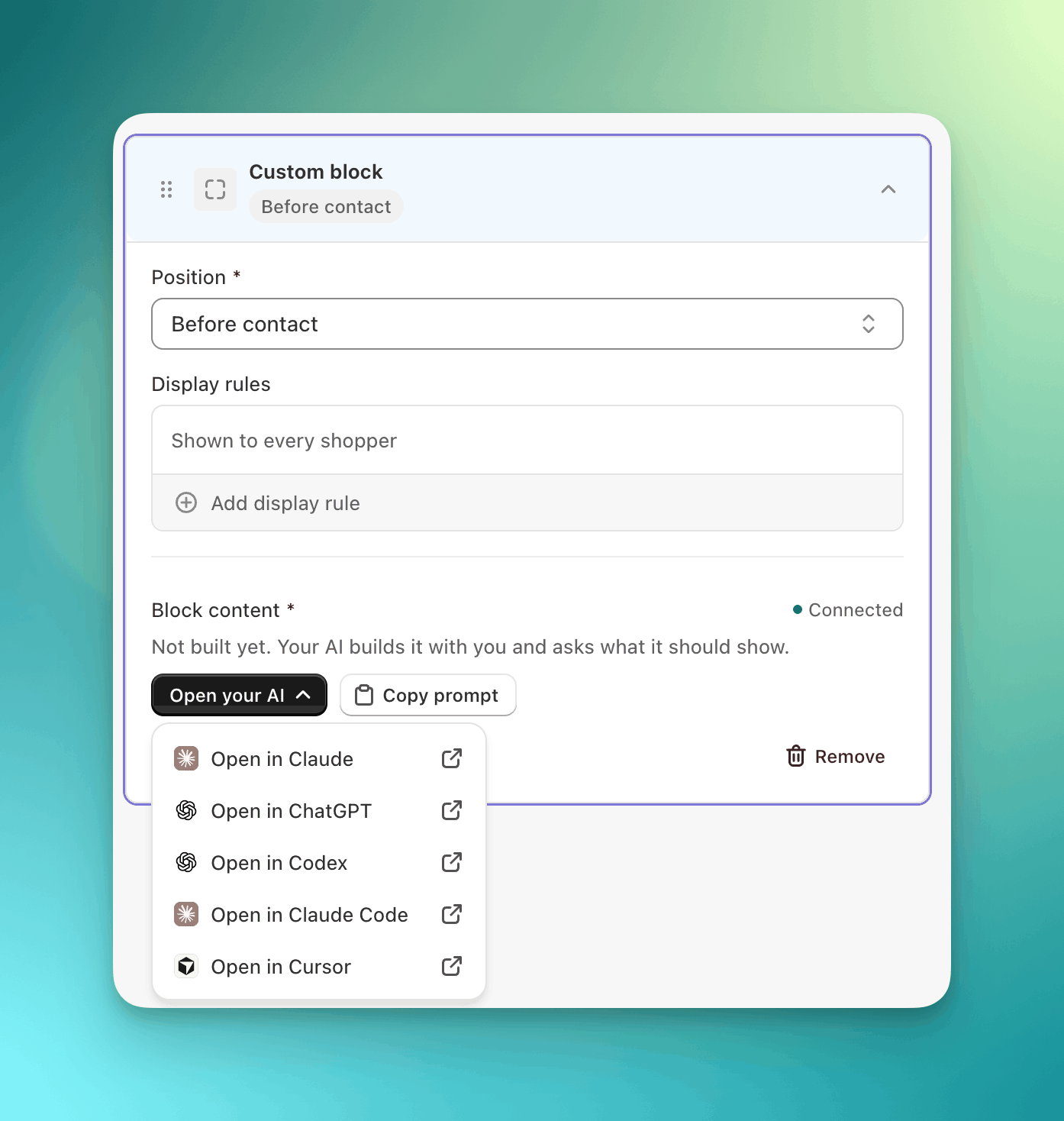
Upsell blocks
Upsell blocks add value to the order before the buyer pays.Product offer
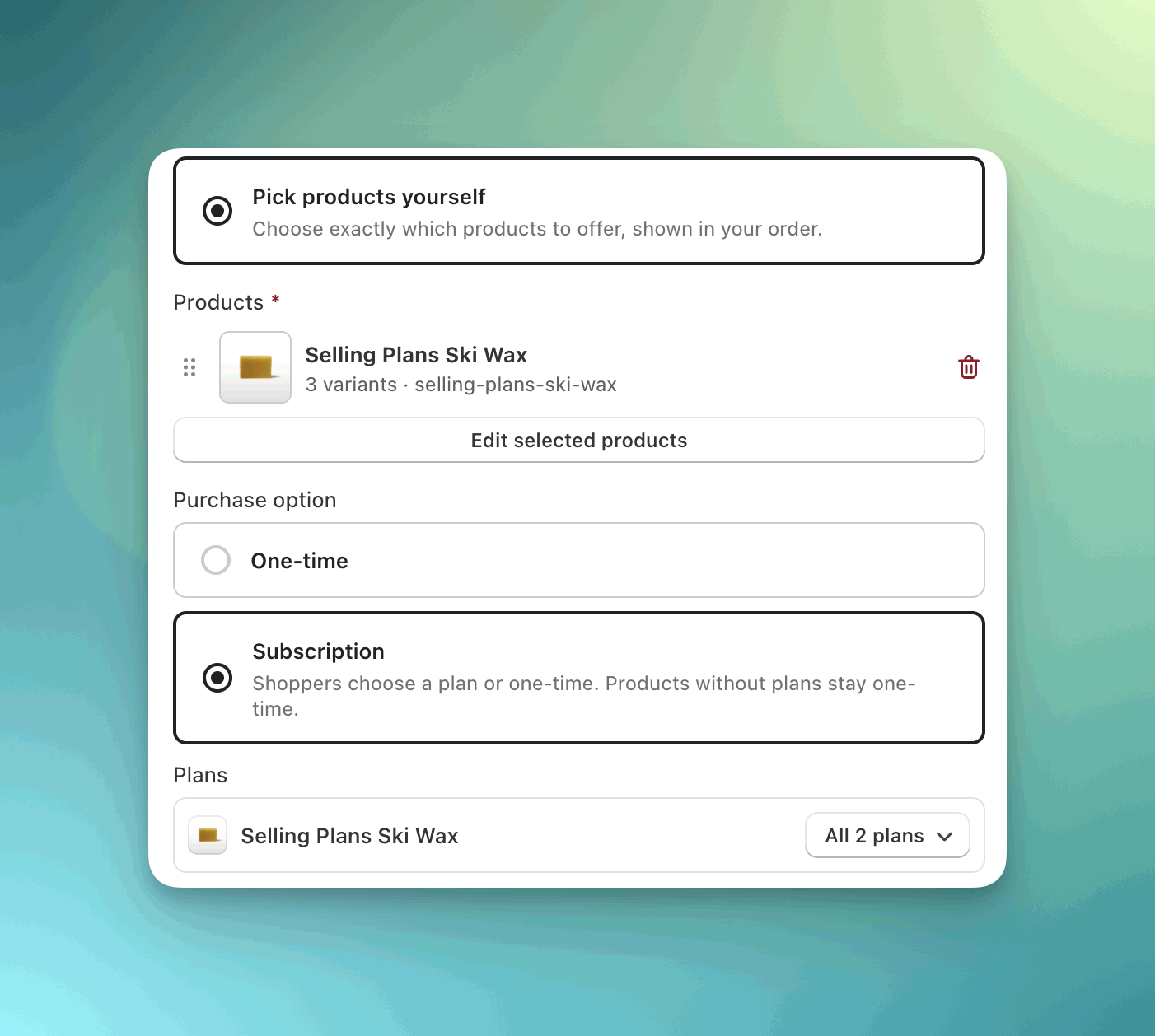
A Product offer shows products the shopper can add with one tap. In the example below, three snowboards show under You may also like.- Products: Pick them yourself, or choose Recommend automatically.
- Subscription: Under Purchase option, choose Subscription to let shoppers pick a subscription plan.
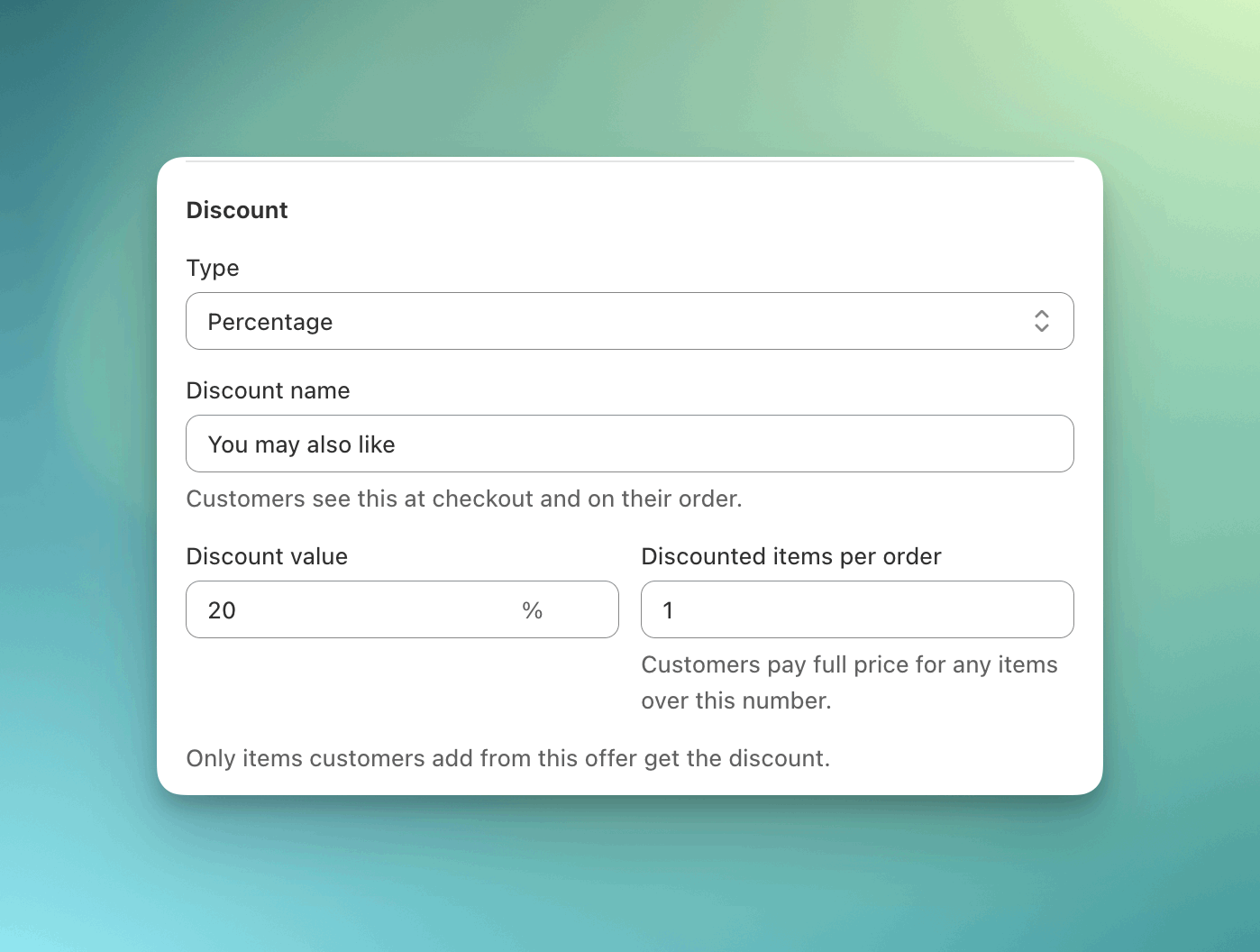
The first discounted offer creates one automatic discount in your Shopify admin, ABConvert checkout offers. Don’t delete it while a test is running.
Paid add-on
A Paid add-on is a paid extra the shopper can tick, such as gift wrap for $4.00. Clearing the box removes it.- Add-ons: Click Pick products and tick product variants. Each one becomes its own add-on, up to 5. Or click Create one for me. A created add-on stays out of your catalog.
- Shopper text: Tick Ask the shopper for text to add a text field, such as a gift message. It shows under the add-on on the order in your Shopify admin.
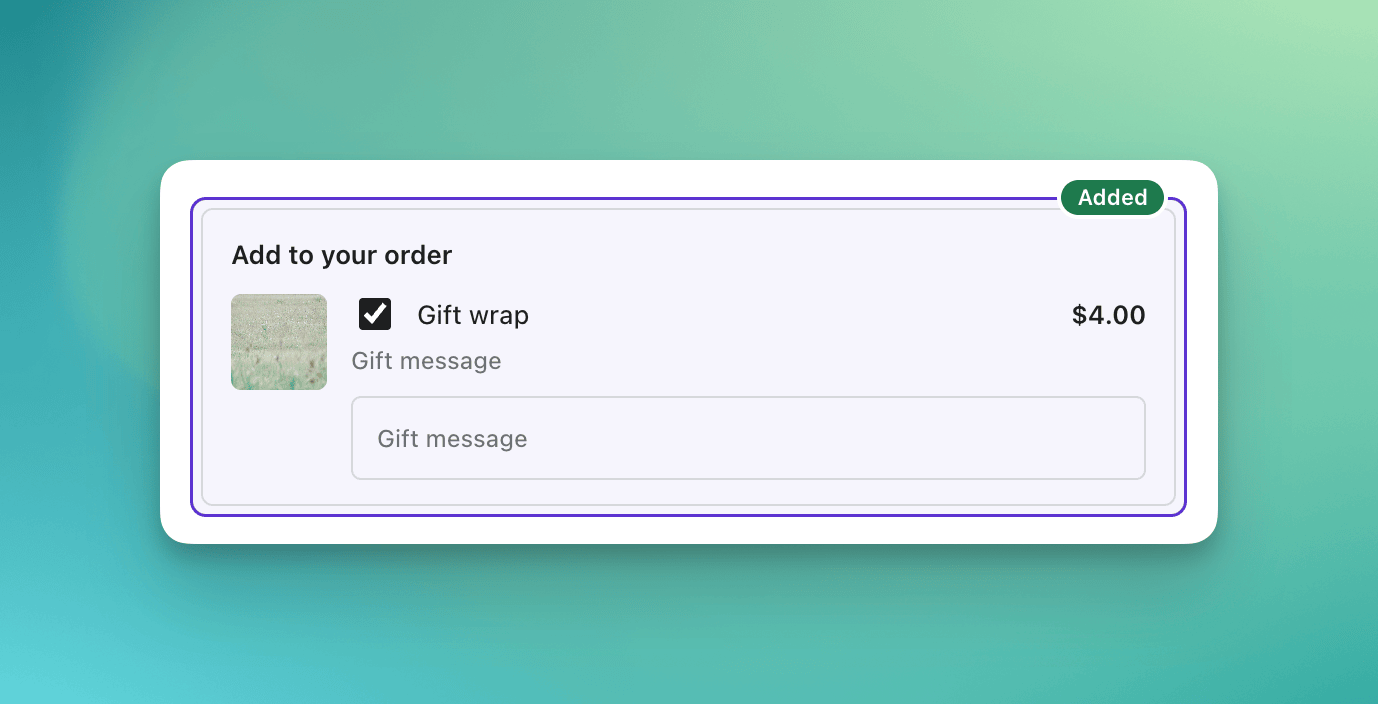
A Paid add-on at checkout.
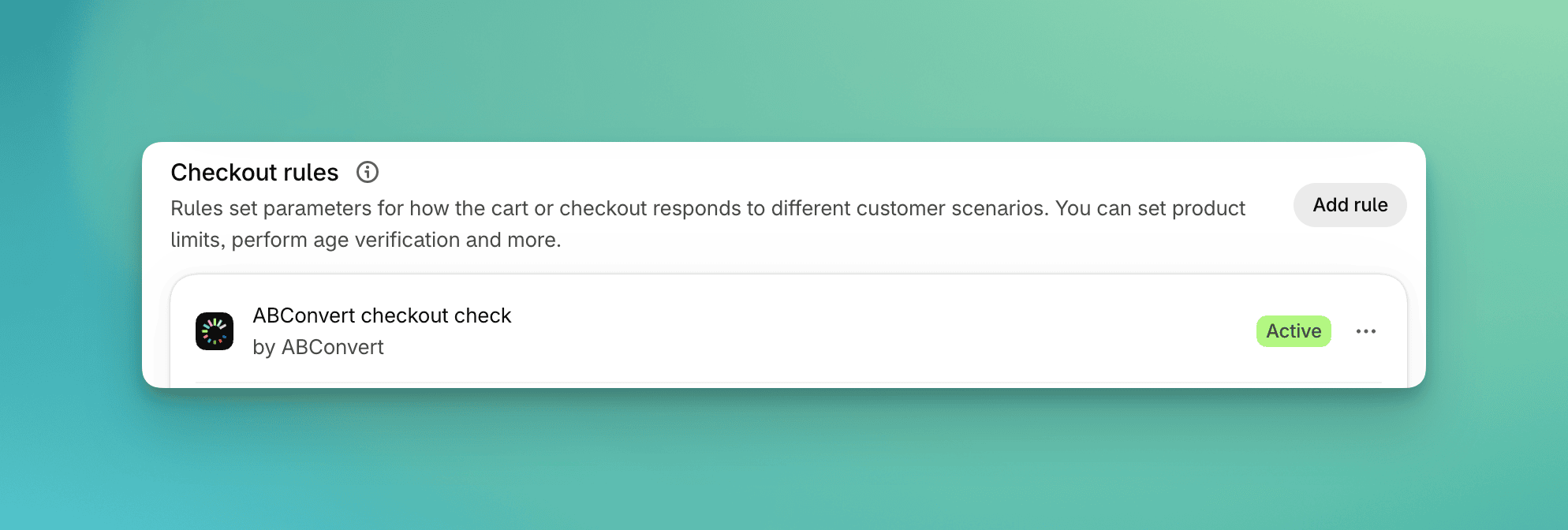
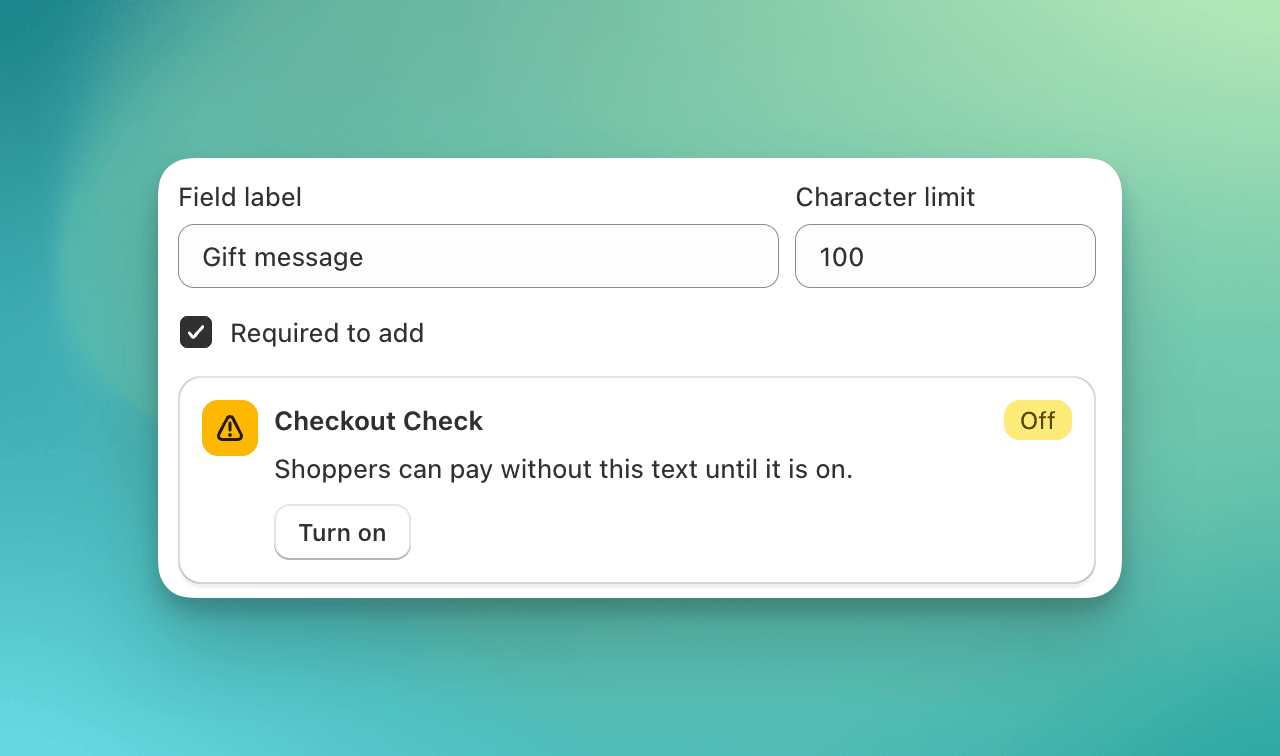
Required text needs the checkout rule on.
Cart control
Cart control lets shoppers change their cart without leaving checkout. On each line, they can change the product variant, edit the quantity, or remove the item. You turn each option on or off. In the checkout editor, add ABConvert Cart Control in Order summary.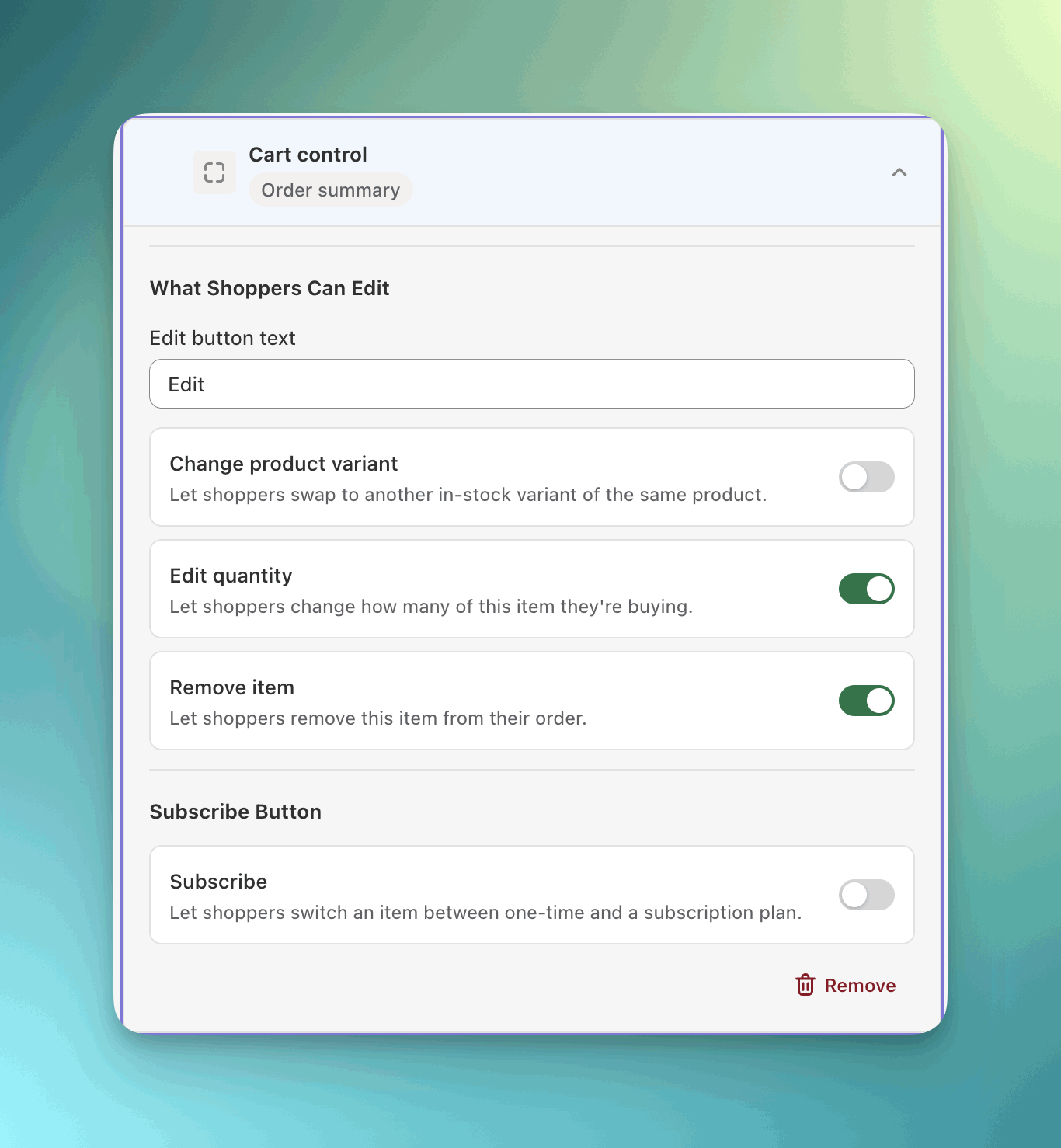
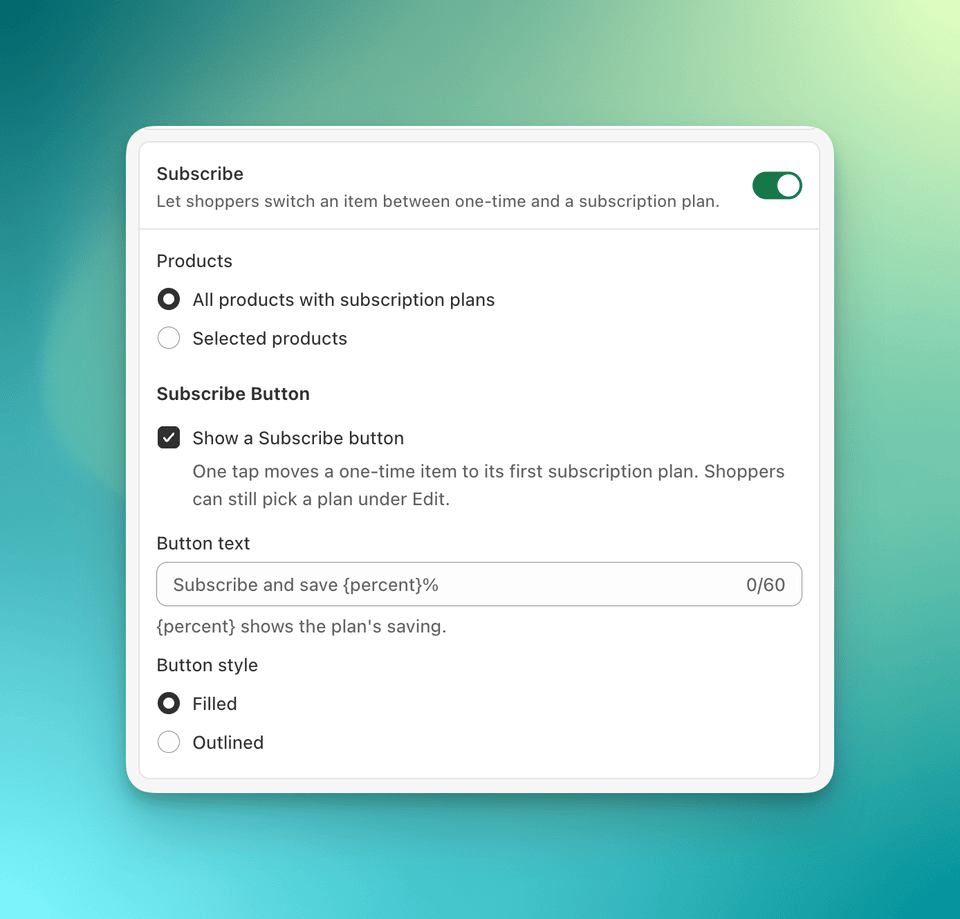
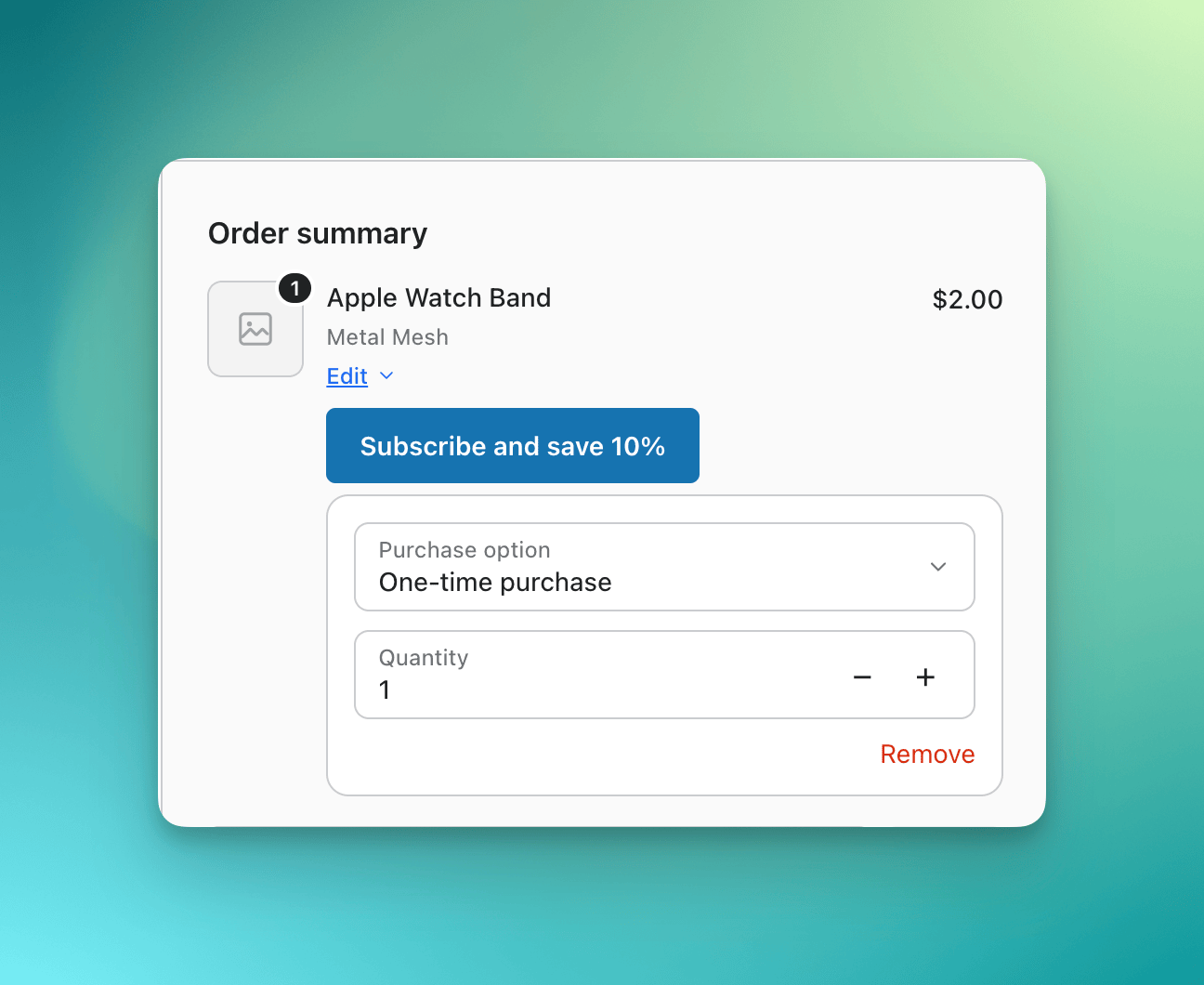
Cart control at checkout.
Rewards progress
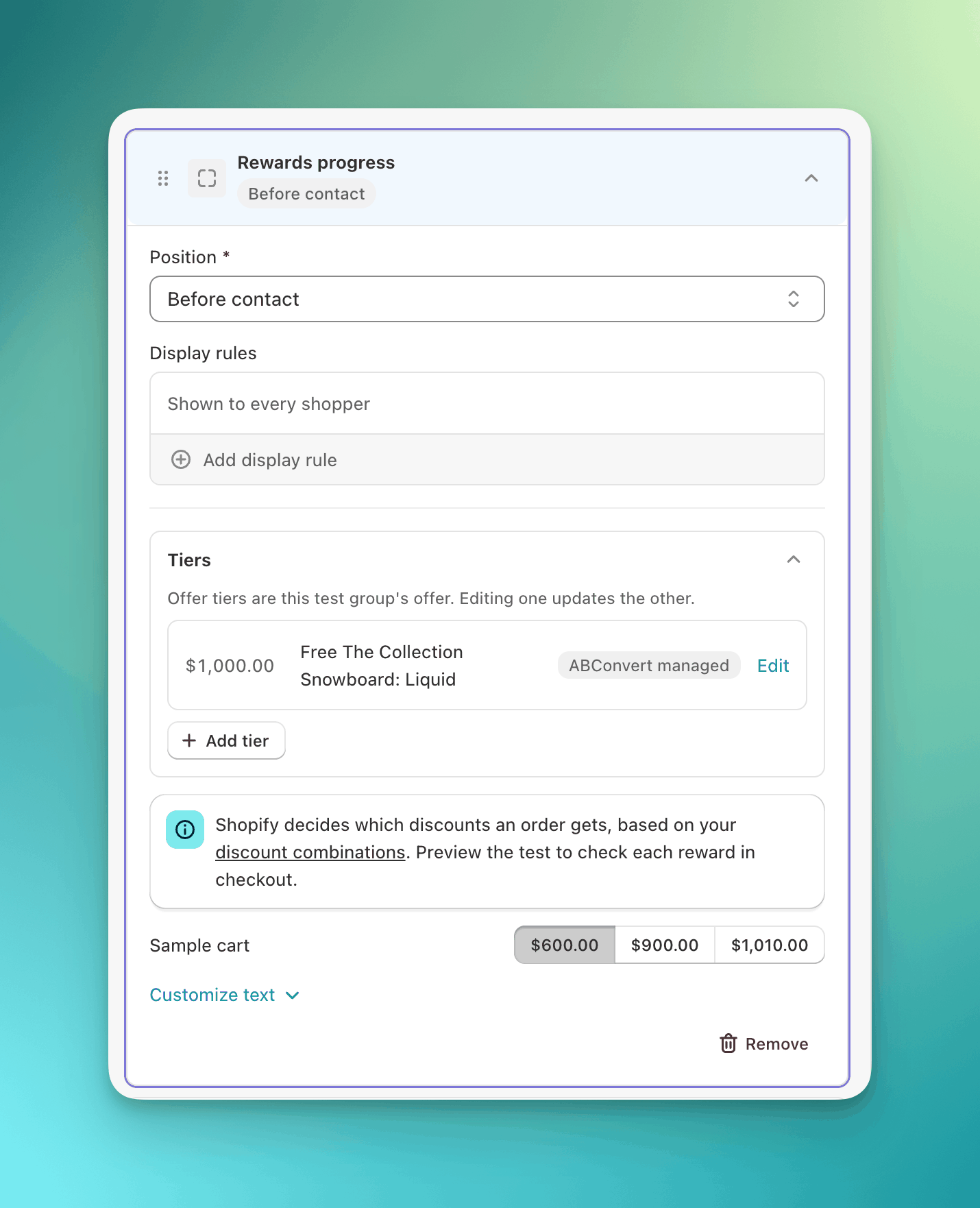
The Rewards progress bar shows shoppers how much more to spend to unlock a reward, such as free Gift wrap at $100. Each reward is a tier. With $60 in the cart, the bar reads **Spend $40.00 more to get free Gift wrap**. The bar checks off a tier once the cart subtotal meets its amount.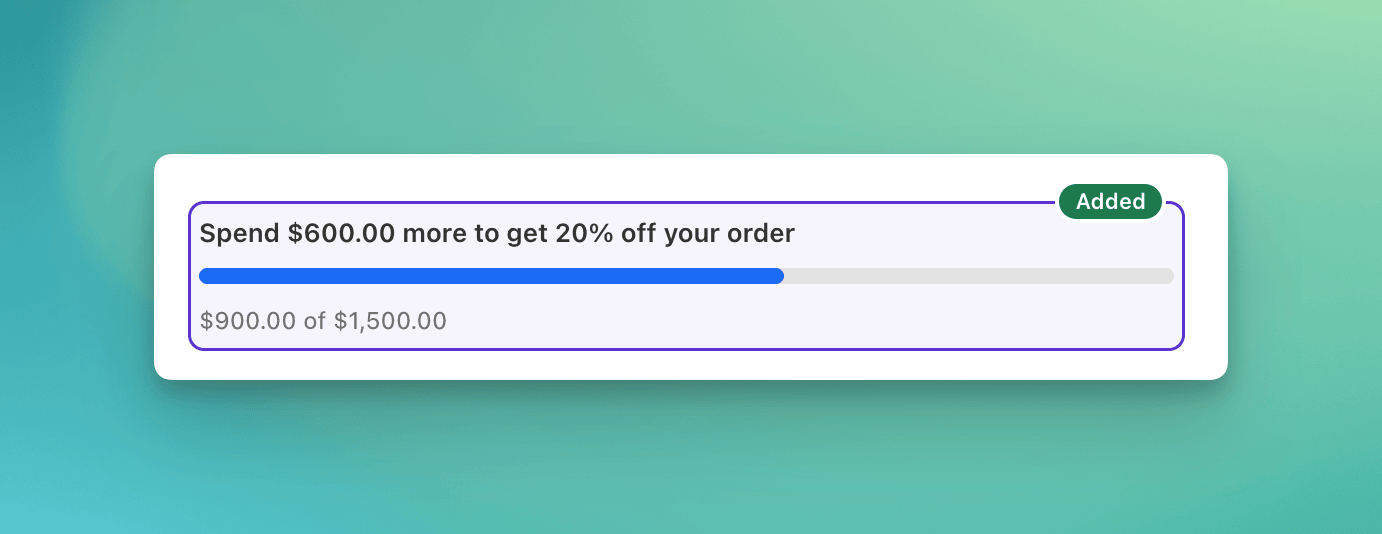
A 20% off tier at $1,500.
Rewards progress needs Shopify Plus, like other Checkout page blocks. Add offer also requires ABConvert Growth or higher, because it creates a combined test. On ABConvert Starter, you can run the offer test without the bar. On a plan without combined tests, Add offer is hidden, and you can still Add tier.
Set up the bar with an offer
- Start from an offer test
- Start from a checkout test
The Rewards progress bar is available only on Shopify Plus, like other Checkout page blocks.
1
Give each test group an offer with a minimum
In a draft offer test, set each test group’s offer with a minimum subtotal, such as a free snowboard over $1,000.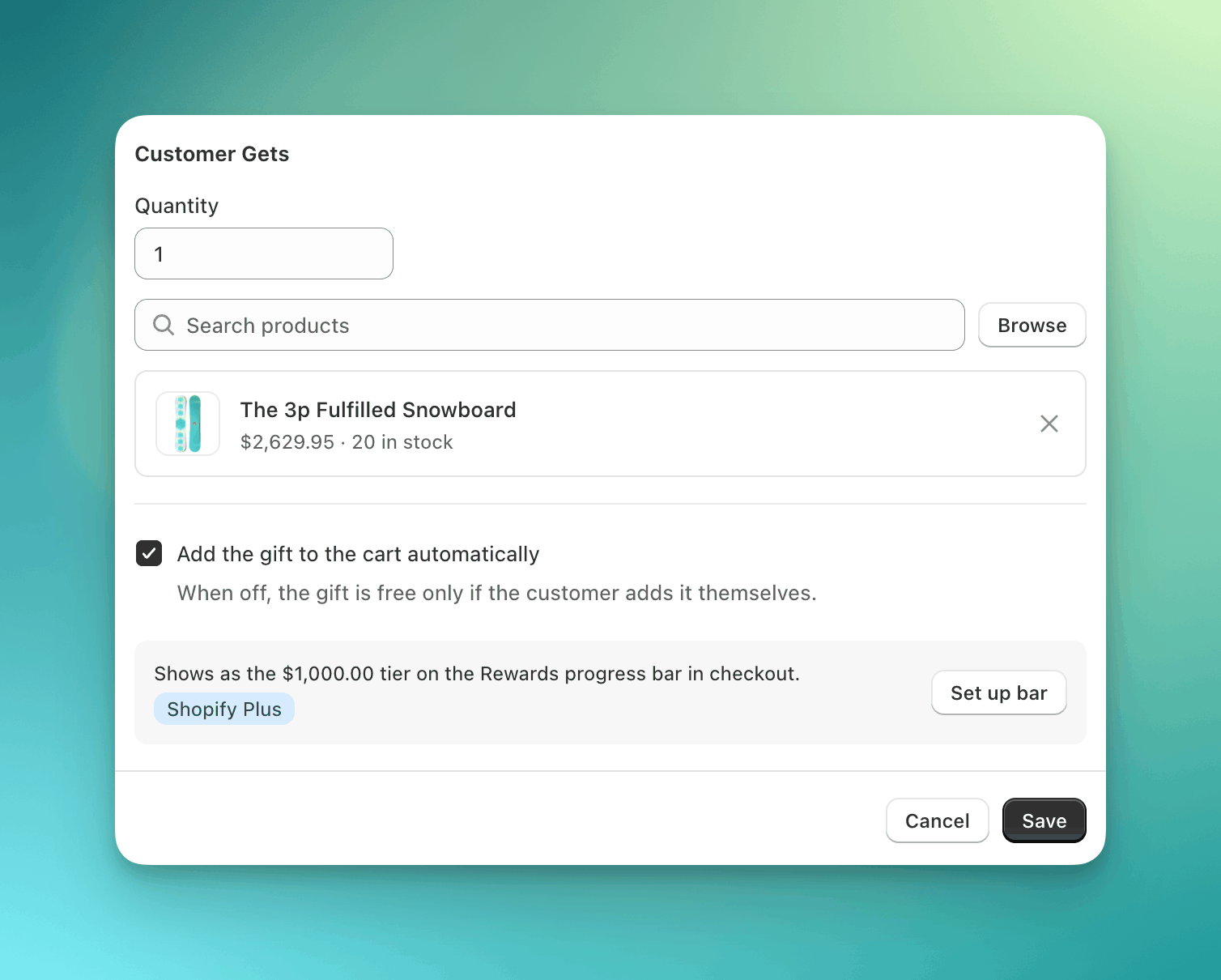
2
Set up the bar
Click Set up bar, or open Add checkout components and click Set up on Rewards progress bar.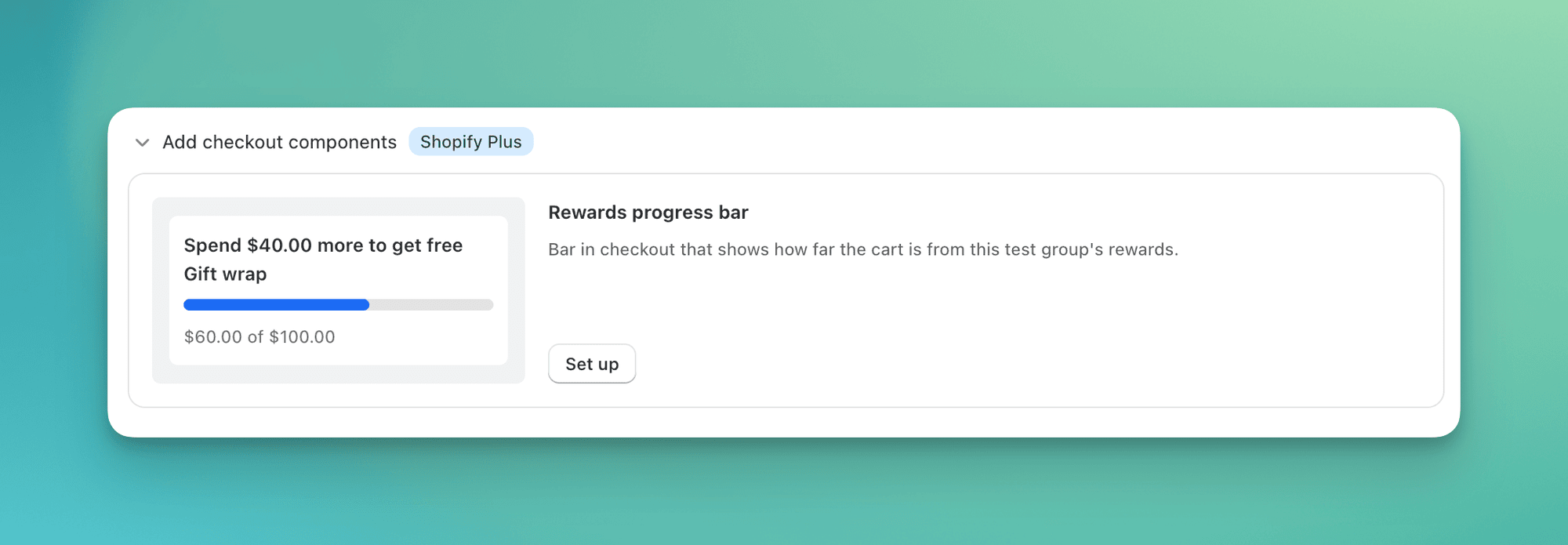
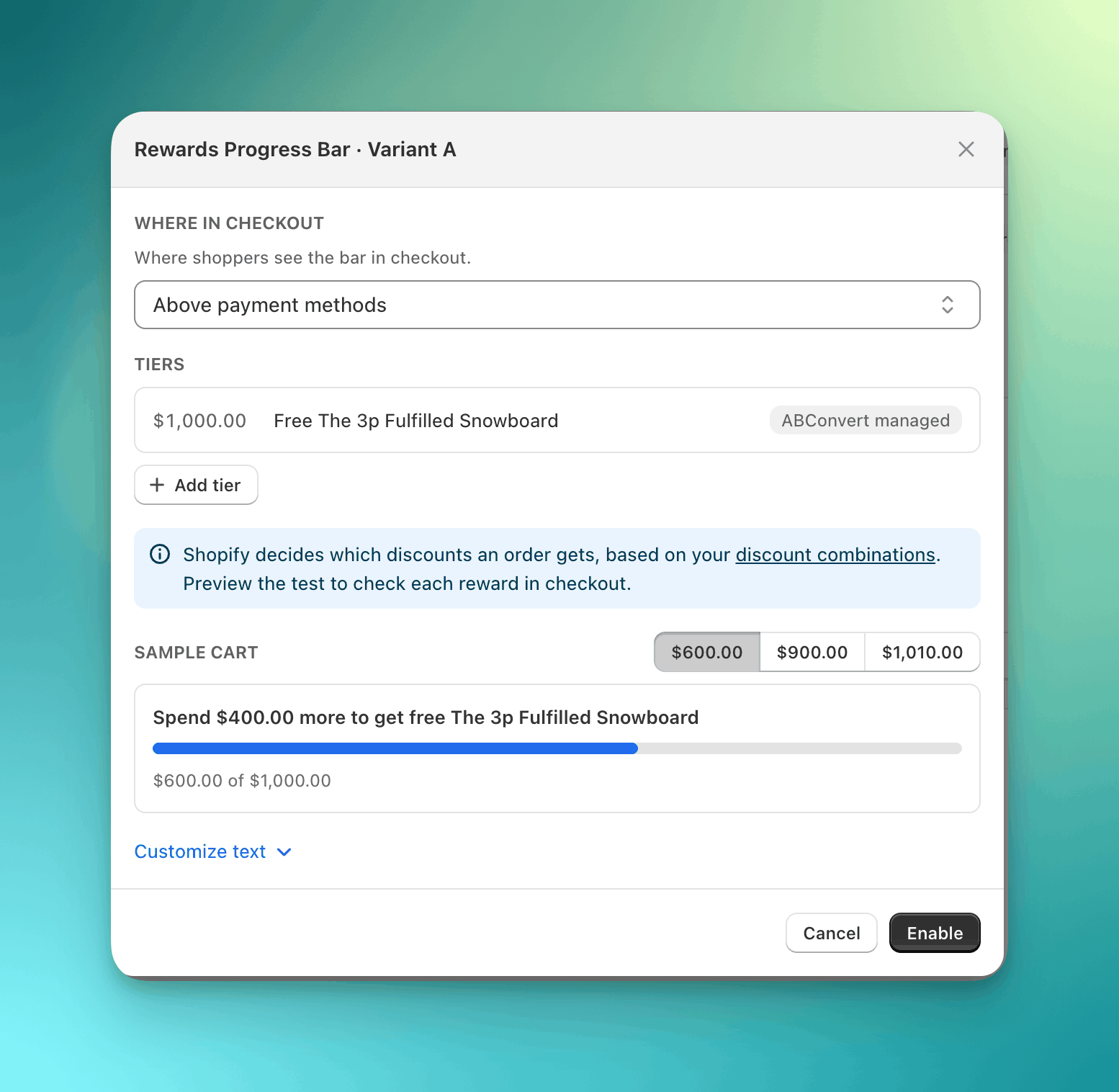
3
Place the block
The combined test opens on the Add your blocks card. Place the block.
Add a tier
A tier you add shows a reward that ABConvert doesn’t give, such as free standard shipping from your Shopify rates. You enter its Reward name and Threshold. The bar checks it off once the cart subtotal meets the threshold. Add one with Add tier, on its own or next to offer tiers.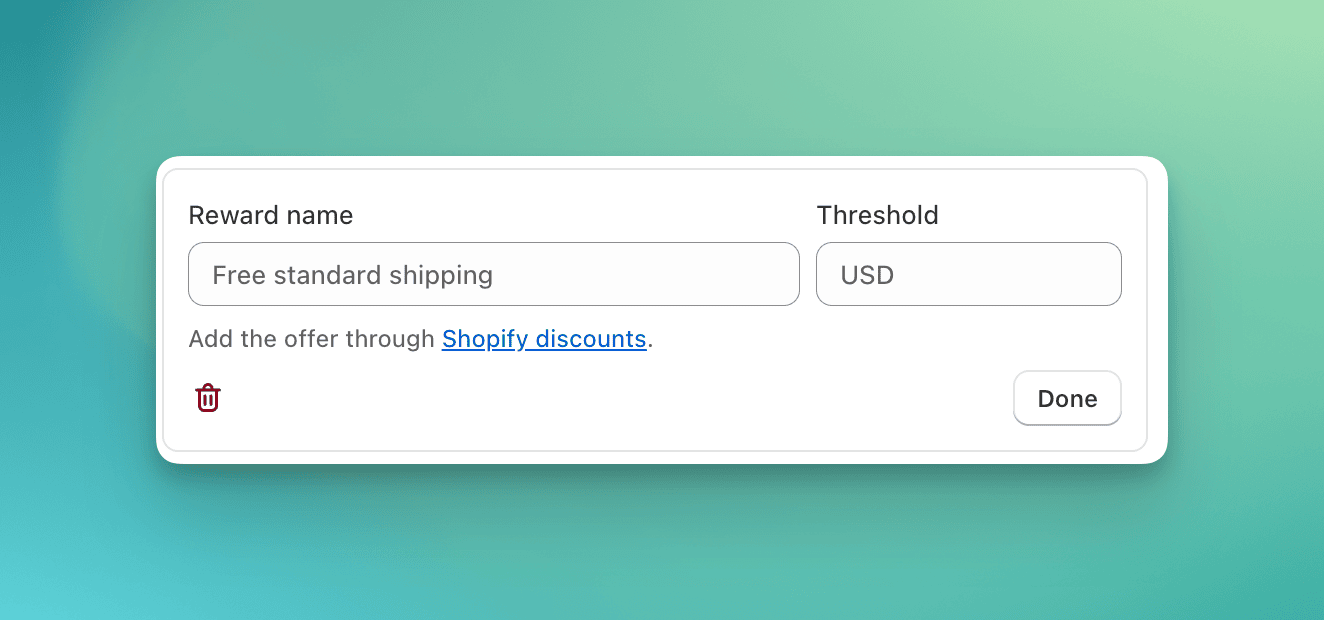
Shipping and payment changes
Each test group can use each rule once for shipping methods and once for payment methods.
For example, the rule below puts Express first and Standard second. A second rule renames Express to ABConvert Express.
These rules don’t change prices. To test the shipping price, use a shipping test.
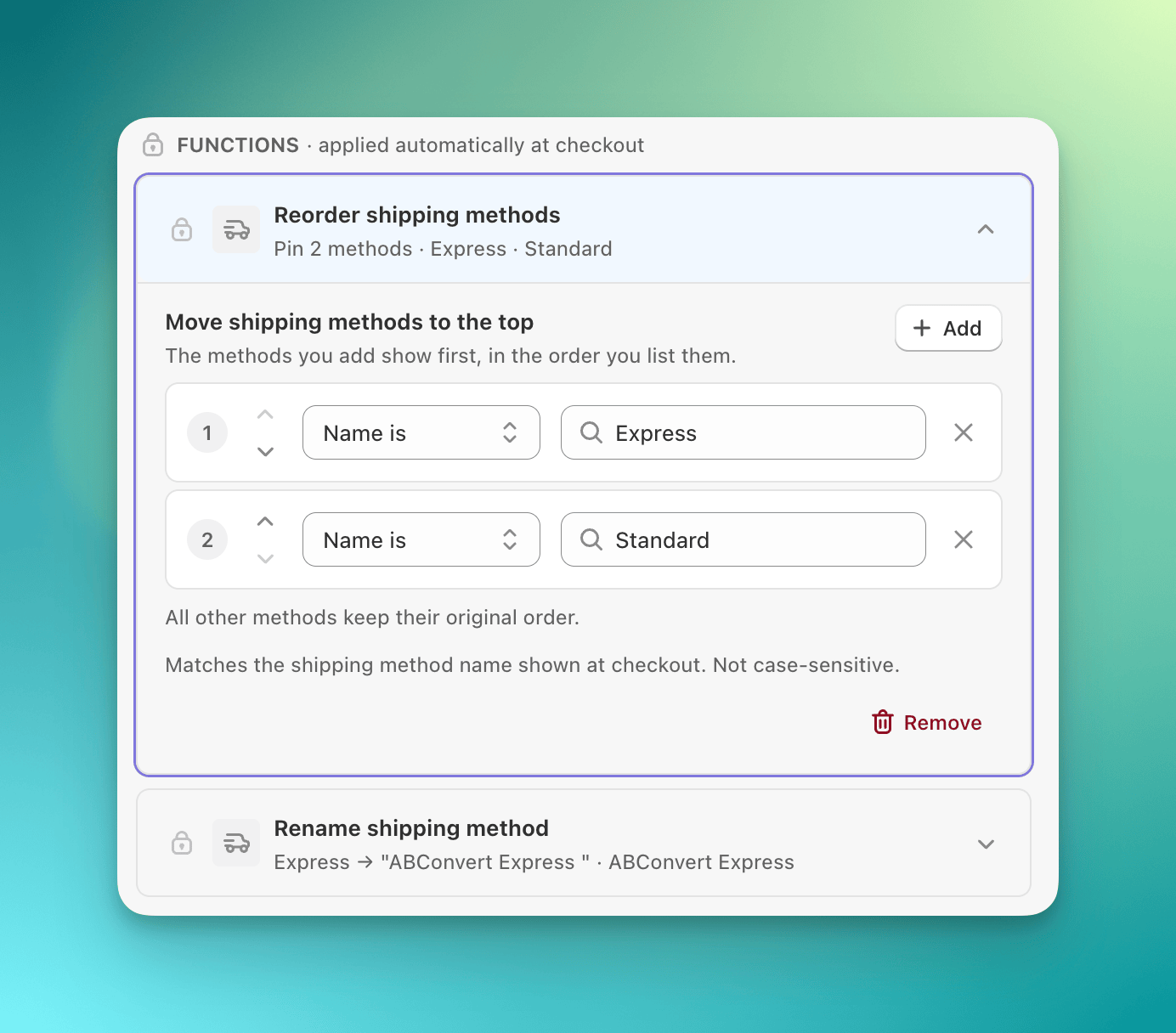
A delivery rule.
Show a block only for some carts
A display rule shows a block only for carts that match it. For example, show a block only when the cart has a snowboard from the Hydrogen collection. You group display rules into sets. A set matches when all its rules are true. The block shows when any set matches.
In the example below, the block shows when the cart has an item from the Hydrogen collection, or the item count is at least 2.
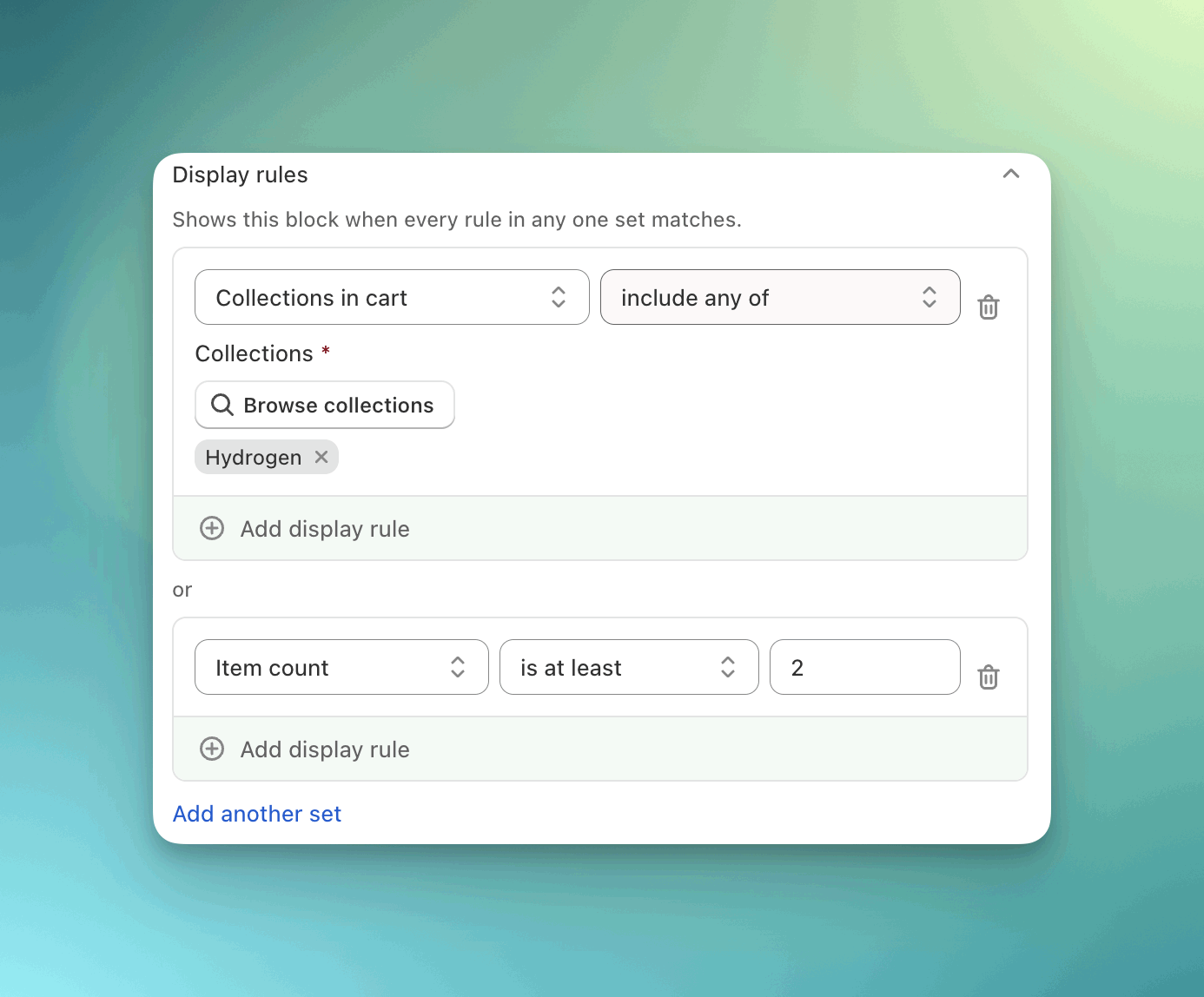
Display rules on a block.
Reading your results
See Reading your results for who counts.
Common mistakes
- Giving the bar no tier. The test can’t launch. Add a minimum subtotal to the offer, or add a tier.
- Offering a product that isn’t on the Online Store channel. The block doesn’t show it. ABConvert warns you before launch.