

- Send assignments to another tool, such as a tag manager or a data platform.
- Render a custom price element, such as a bundle block ABConvert does not change.
- Render a free shipping progress bar from the visitor’s shipping test.
- Render an offer banner from the visitor’s offer test.
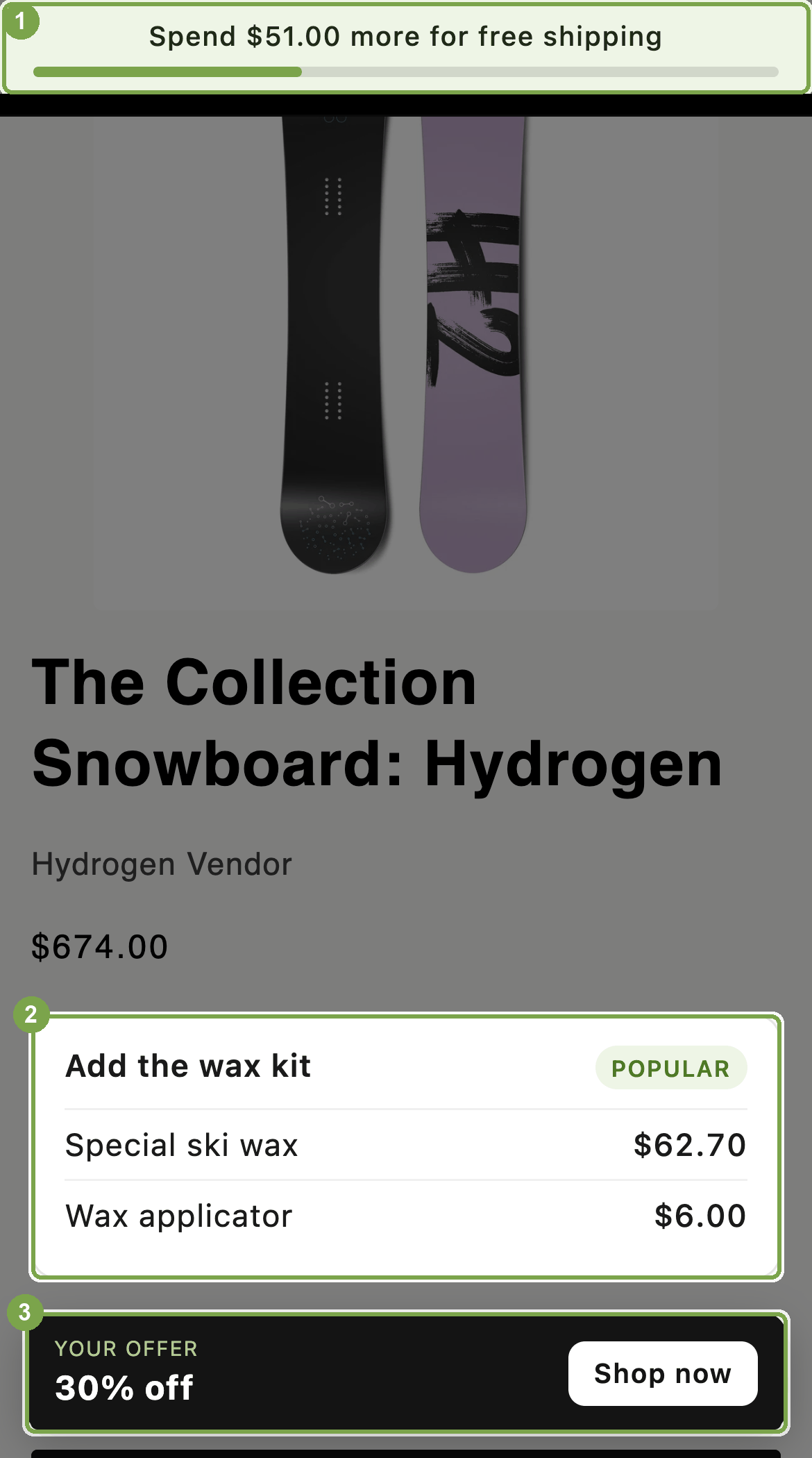
What the examples render: ① the free shipping bar, ② the bundle block, ③ the offer banner
These scripts do not have to live in your theme. Any test carries custom code per test group, so the script runs only for visitors in that test group and you end it from the ABConvert admin. One rule differs from a theme script: code that runs when the test group is assigned runs before the page has a
<body>, so build any elements your script renders into inside the window.ABConvertQueue callback, or choose After the page loads.Push the callback that builds the markup first; the queue runs callbacks in order.Send assignments to another tool
Check the Integrations page in the ABConvert admin first. The Google Analytics 4 (GA4), Segment, and Heatmap integrations there send assignments with no theme code. Write this only for a tool that is not on that page, or for a tag manager that readswindow.dataLayer.
Every destination is the same loop: wait for ABConvert, then send one event per test. Send testGroup.index as the identifier, because you can rename a test group while the test runs.
send for your destination:
Render a custom price element
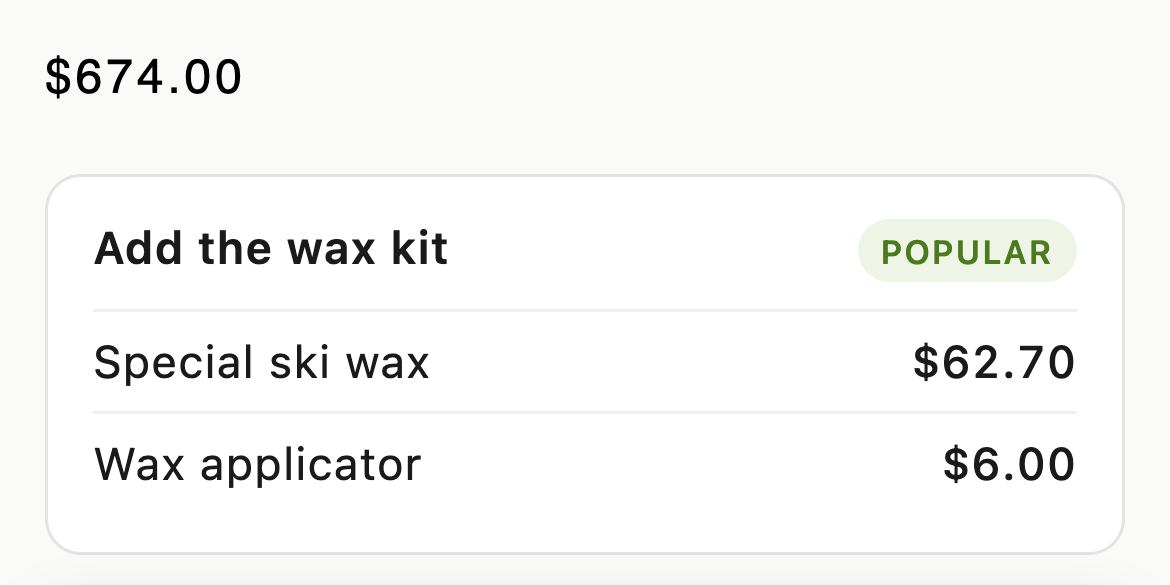
The bundle block, priced for this visitor's test group
class="custom-price" and the product variant’s ID. Leave the theme’s own price inside as the fallback for visitors who are not in the test:
getPriceByVariantId returns null for them.
This runs once per page load. The cookbook’s custom price example adds the compare-at price and a data-product-id form for “From $X” cards. It also re-runs when the page changes, so product variant switches, Ajax collection filters, cart drawers, and lazy-loaded cards get the right price.
Render a free shipping progress bar
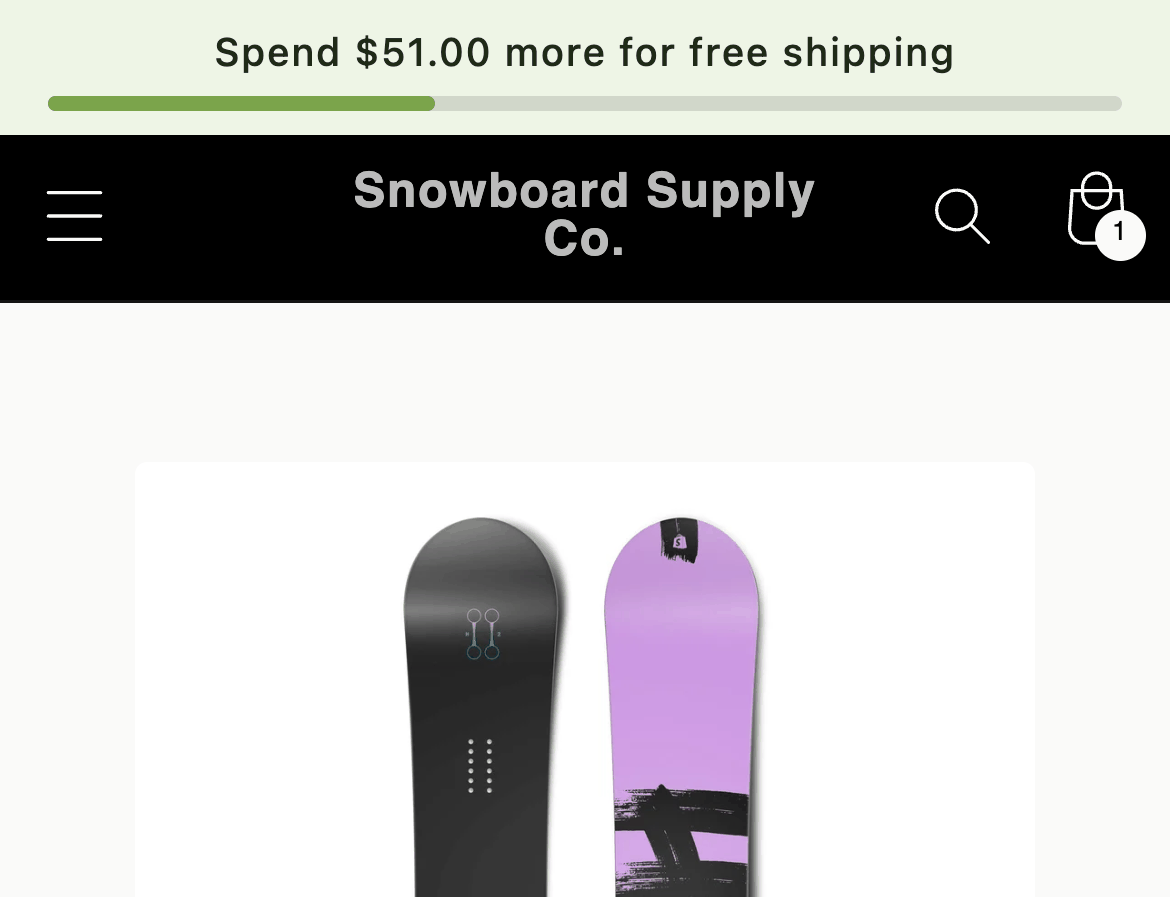
The gap to the visitor's own free shipping threshold
GET /cart.js returns items_subtotal_price in cents, in the cart’s currency.
Add the bar to your theme with a child element for the text, so the script never overwrites the progress track:
renderShippingBar when the cart changes. Shopify’s Storefront Events API dispatches shopify:cart:lines-update, which bubbles to document, when the visitor changes cart lines. The event fires when the update starts, so before you read the cart, wait for event.promise:
Shopify.actions.updateCart always fires that event. A theme that posts to /cart/add.js directly fires it only when the theme’s own code dispatches it.
If your theme does not, call renderShippingBar from the theme’s own cart event instead. Dawn publishes cart-update through the subscribe helper in assets/pubsub.js. That helper exists only after the theme’s scripts have run, so subscribe inside your queue callback, not at the top of your script. The cookbook’s free shipping bar example handles both, and covers a theme that fires neither.
Render an offer banner

The visitor's offer, pinned to the bottom