> ## Documentation Index
> Fetch the complete documentation index at: https://docs.abconvert.io/llms.txt
> Use this file to discover all available pages before exploring further.
# Onboarding ABConvert
> Install ABConvert, walk through tutorials, and launch your first A/B test
## Installation
Open the [ABConvert on the Shopify App Store](https://apps.shopify.com/a-b-convert-price-a-b-test). Click **Install** and review the permissions ABConvert needs to run experiments.
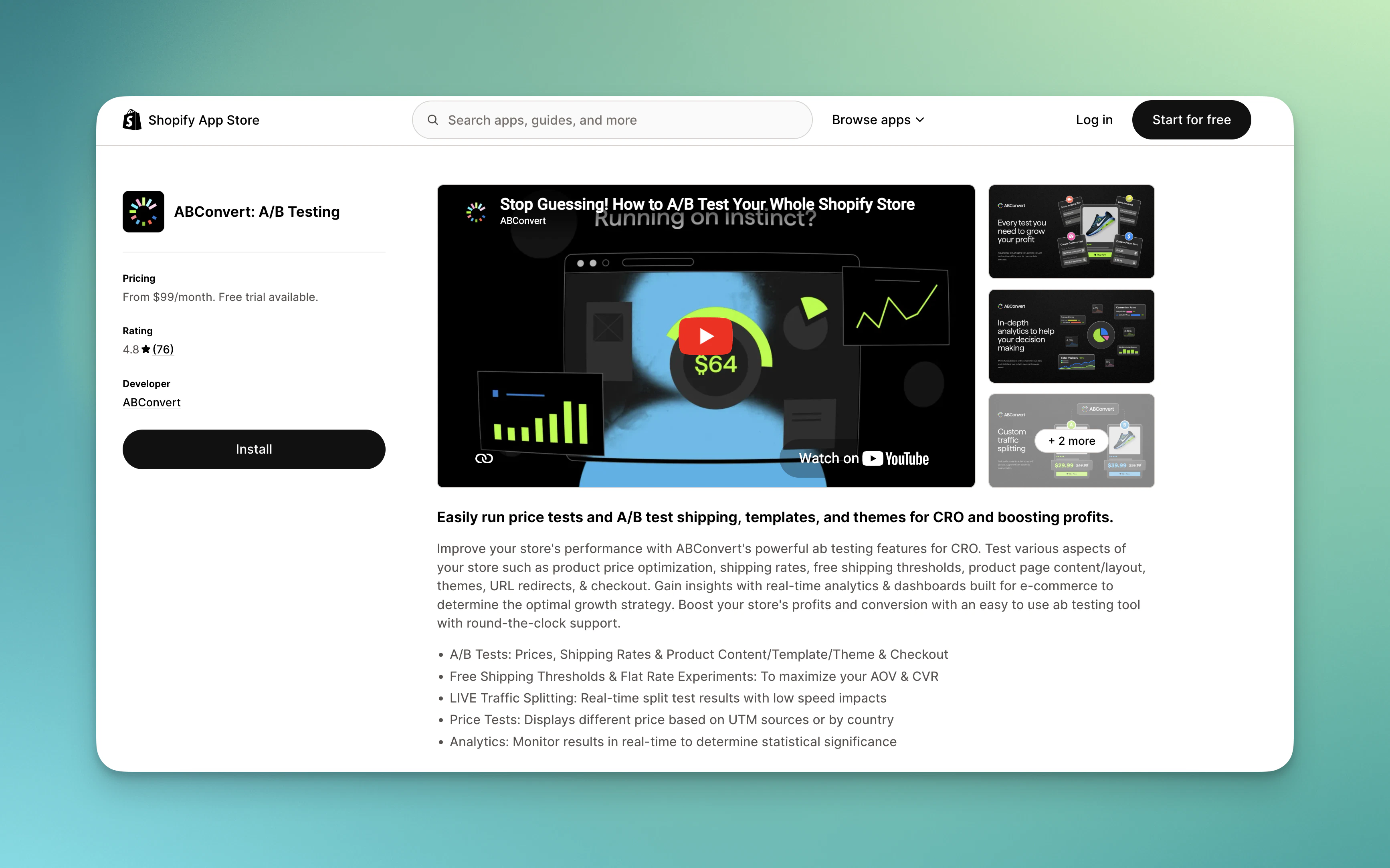 Shopify will show you an authorization screen listing the permissions ABConvert needs: access to products, orders, and theme files. Approve to continue, and you'll be redirected directly into the ABConvert dashboard inside your Shopify admin.
ABConvert requires these permissions to deploy experiments and track results. See [Terms of service](https://www.abconvert.io/terms-of-service) for complete details on what the app accesses and why.
After installation, ABConvert opens an onboarding survey. Answer a few questions about your store and testing goals—this helps ABConvert recommend the right experiment type for your situation.
Shopify will show you an authorization screen listing the permissions ABConvert needs: access to products, orders, and theme files. Approve to continue, and you'll be redirected directly into the ABConvert dashboard inside your Shopify admin.
ABConvert requires these permissions to deploy experiments and track results. See [Terms of service](https://www.abconvert.io/terms-of-service) for complete details on what the app accesses and why.
After installation, ABConvert opens an onboarding survey. Answer a few questions about your store and testing goals—this helps ABConvert recommend the right experiment type for your situation.
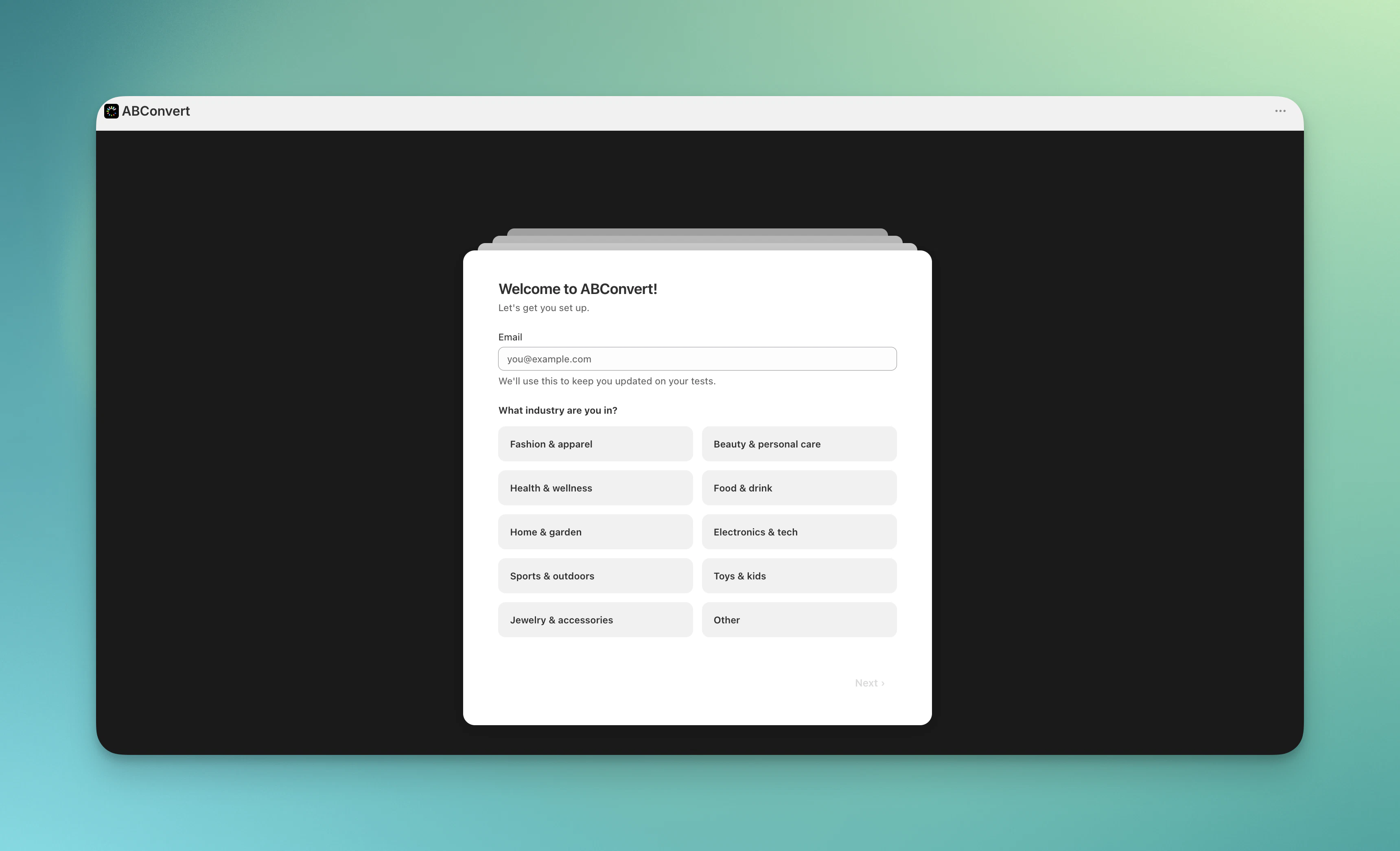 Based on your answers, ABConvert will suggest a test type and offer to walk you through creating your first experiment in guided mode, or let you explore the dashboard independently.
After finishing the survey, you have three options:
* **Tutorial mode** — Risk-free practice with mock data (recommended for first-timers)
* **Guided mode** — Create a real test with step-by-step help
* **Explore independently** — Dive in and create tests on your own
See the next section for details on tutorial and guided modes.
***
## Interactive tutorial and guided mode
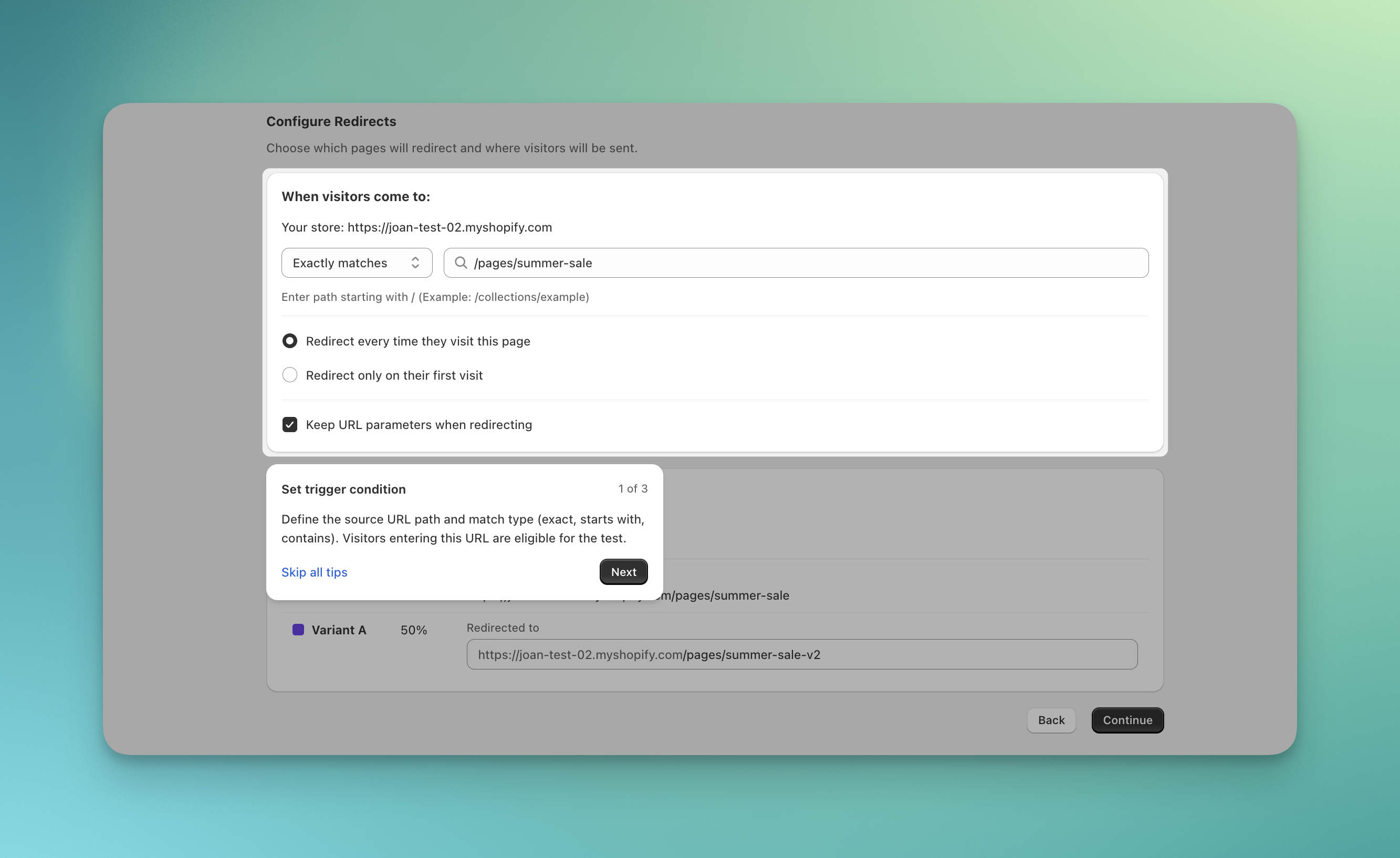
ABConvert offers two interactive learning modes to help you create your first experiment with confidence. Both provide step-by-step coaching with contextual tooltips explaining each field, but they differ in how your work is saved.
Based on your answers, ABConvert will suggest a test type and offer to walk you through creating your first experiment in guided mode, or let you explore the dashboard independently.
After finishing the survey, you have three options:
* **Tutorial mode** — Risk-free practice with mock data (recommended for first-timers)
* **Guided mode** — Create a real test with step-by-step help
* **Explore independently** — Dive in and create tests on your own
See the next section for details on tutorial and guided modes.
***
## Interactive tutorial and guided mode
ABConvert offers two interactive learning modes to help you create your first experiment with confidence. Both provide step-by-step coaching with contextual tooltips explaining each field, but they differ in how your work is saved.
 ### Tutorial mode (risk-free practice)
This is a practice environment that uses pre-filled mock products and sample data. You experience the complete test creation workflow without affecting your actual store.
**Use when:**
* You're new to A/B testing and want to explore without risk
* You want to understand the workflow before committing real products
* You're evaluating ABConvert and want to see how test creation works
**How to access tutorial mode:**
**For new users after onboarding:**
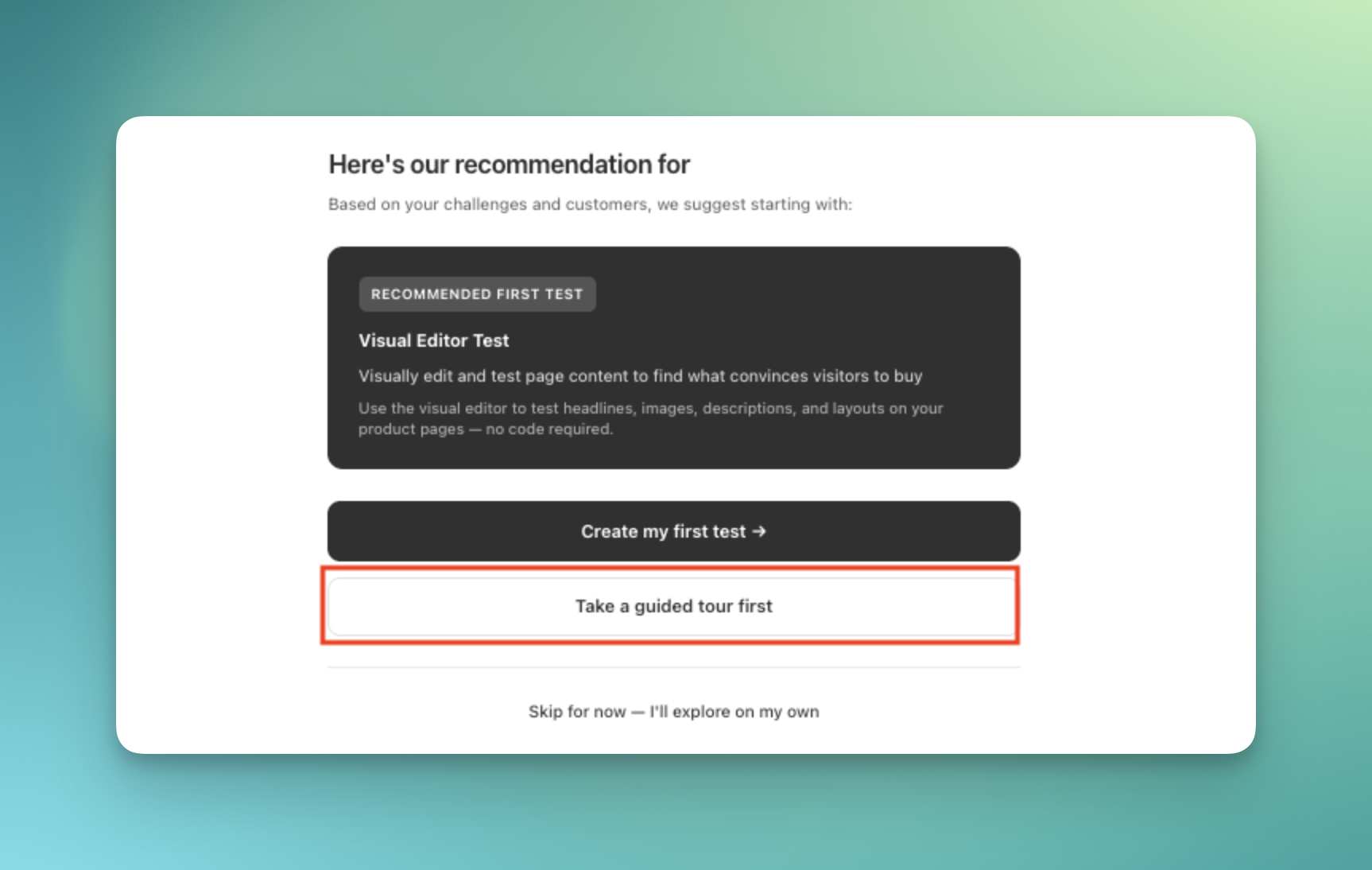
1. Choose **"Take a guided tour first"** when prompted
2. Select a test type to begin the tutorial
### Tutorial mode (risk-free practice)
This is a practice environment that uses pre-filled mock products and sample data. You experience the complete test creation workflow without affecting your actual store.
**Use when:**
* You're new to A/B testing and want to explore without risk
* You want to understand the workflow before committing real products
* You're evaluating ABConvert and want to see how test creation works
**How to access tutorial mode:**
**For new users after onboarding:**
1. Choose **"Take a guided tour first"** when prompted
2. Select a test type to begin the tutorial
 **For all users anytime:**
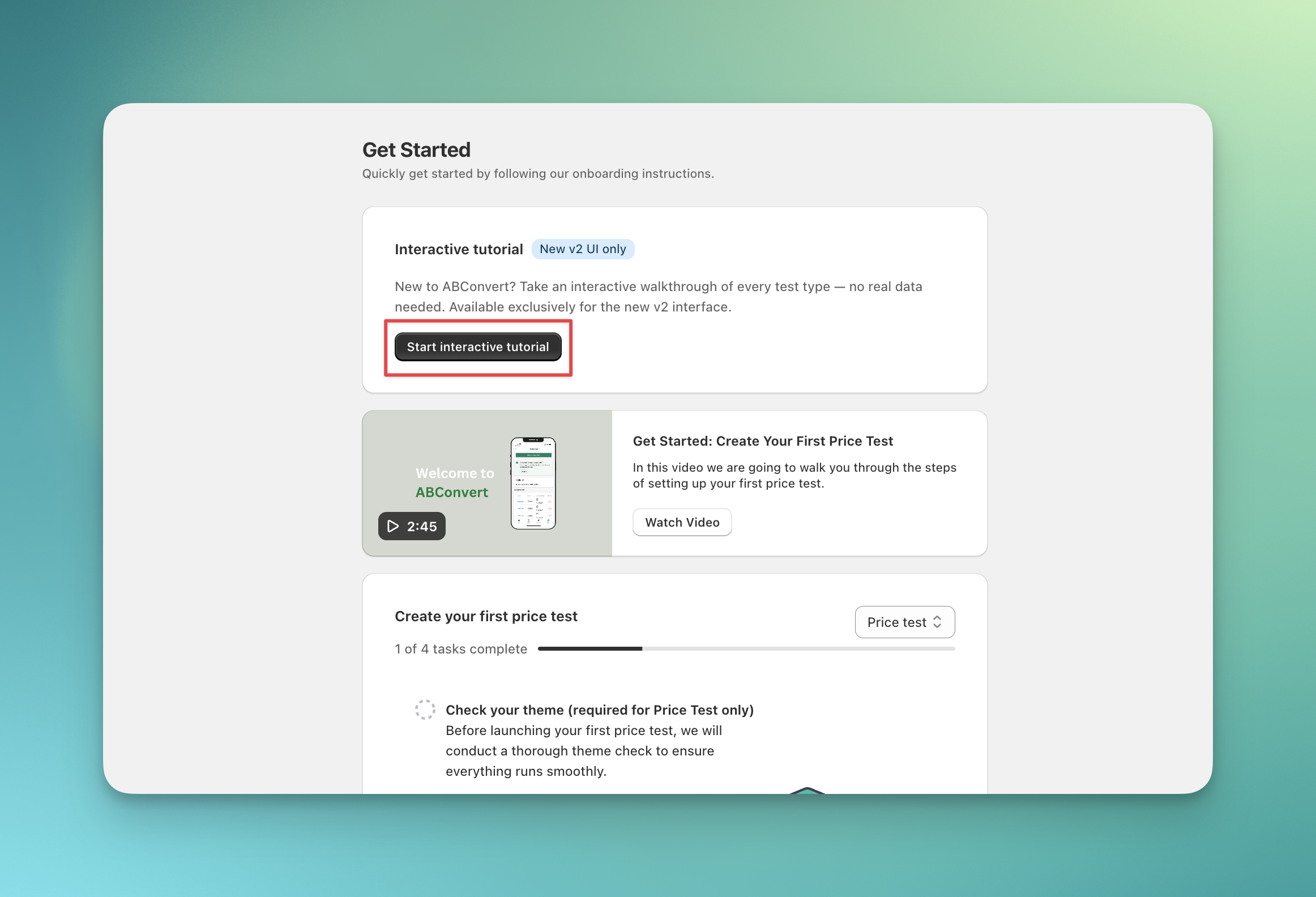
1. Navigate to **ABConvert dashboard → Get Started tab**
2. Click **"Start interactive tutorial"**
3. Select the test type you want to practice
**For all users anytime:**
1. Navigate to **ABConvert dashboard → Get Started tab**
2. Click **"Start interactive tutorial"**
3. Select the test type you want to practice
 ### Guided mode (real test creation with help)
This is step-by-step coaching while creating an actual experiment using your real store products and data. Everything you configure saves immediately and can be launched.
**Use when:**
* You're ready to create a real test but want guidance through the process
* You want contextual help explaining each configuration field
* You've completed the tutorial and are ready to launch your first experiment
**How to access guided mode:**
**For new users after onboarding:**
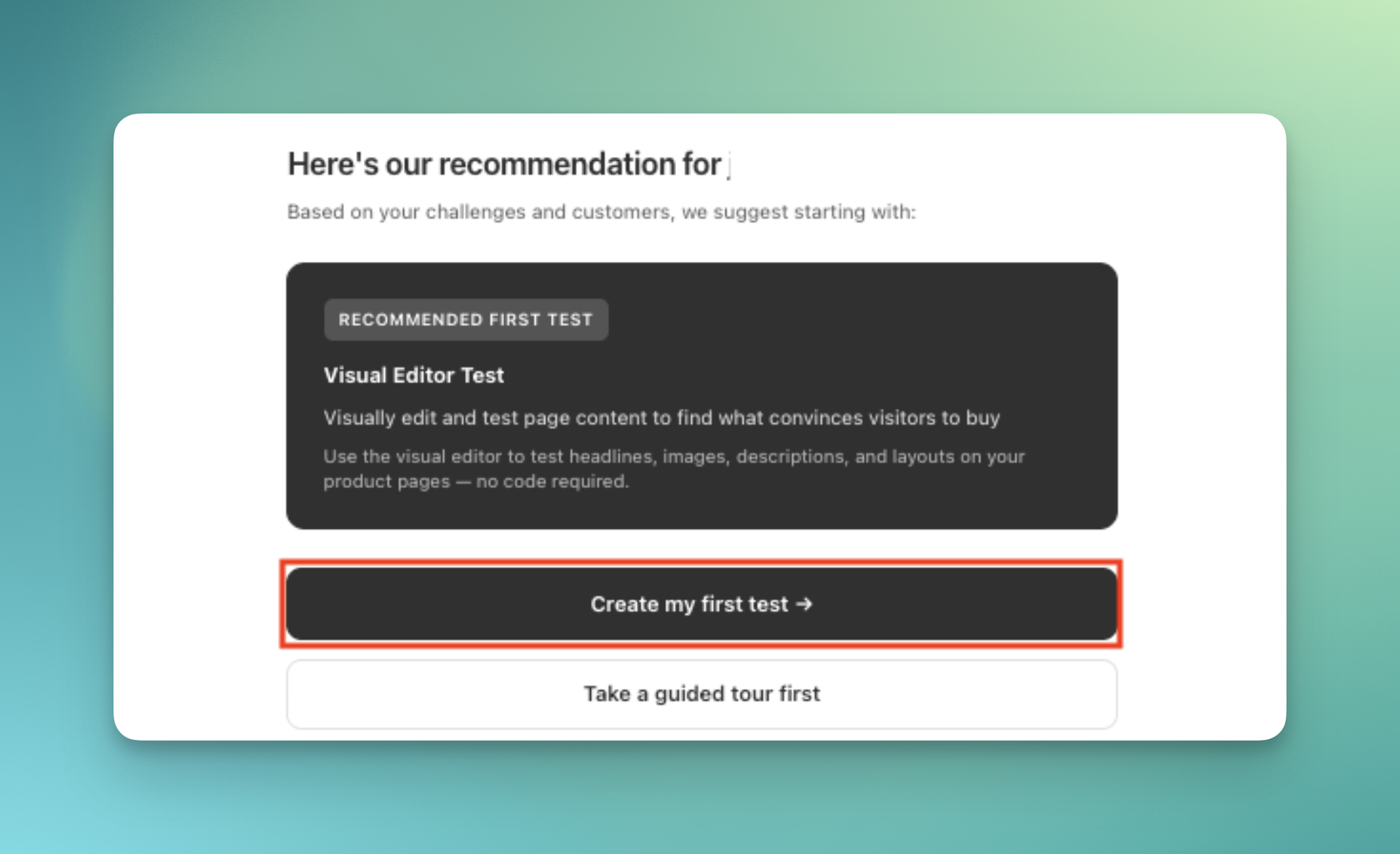
1. Choose **"Create my first test"** when prompted after the survey
2. Follow the guided flow to create your first experiment
### Guided mode (real test creation with help)
This is step-by-step coaching while creating an actual experiment using your real store products and data. Everything you configure saves immediately and can be launched.
**Use when:**
* You're ready to create a real test but want guidance through the process
* You want contextual help explaining each configuration field
* You've completed the tutorial and are ready to launch your first experiment
**How to access guided mode:**
**For new users after onboarding:**
1. Choose **"Create my first test"** when prompted after the survey
2. Follow the guided flow to create your first experiment
 **For all users during test creation:**
1. Start creating any new experiment
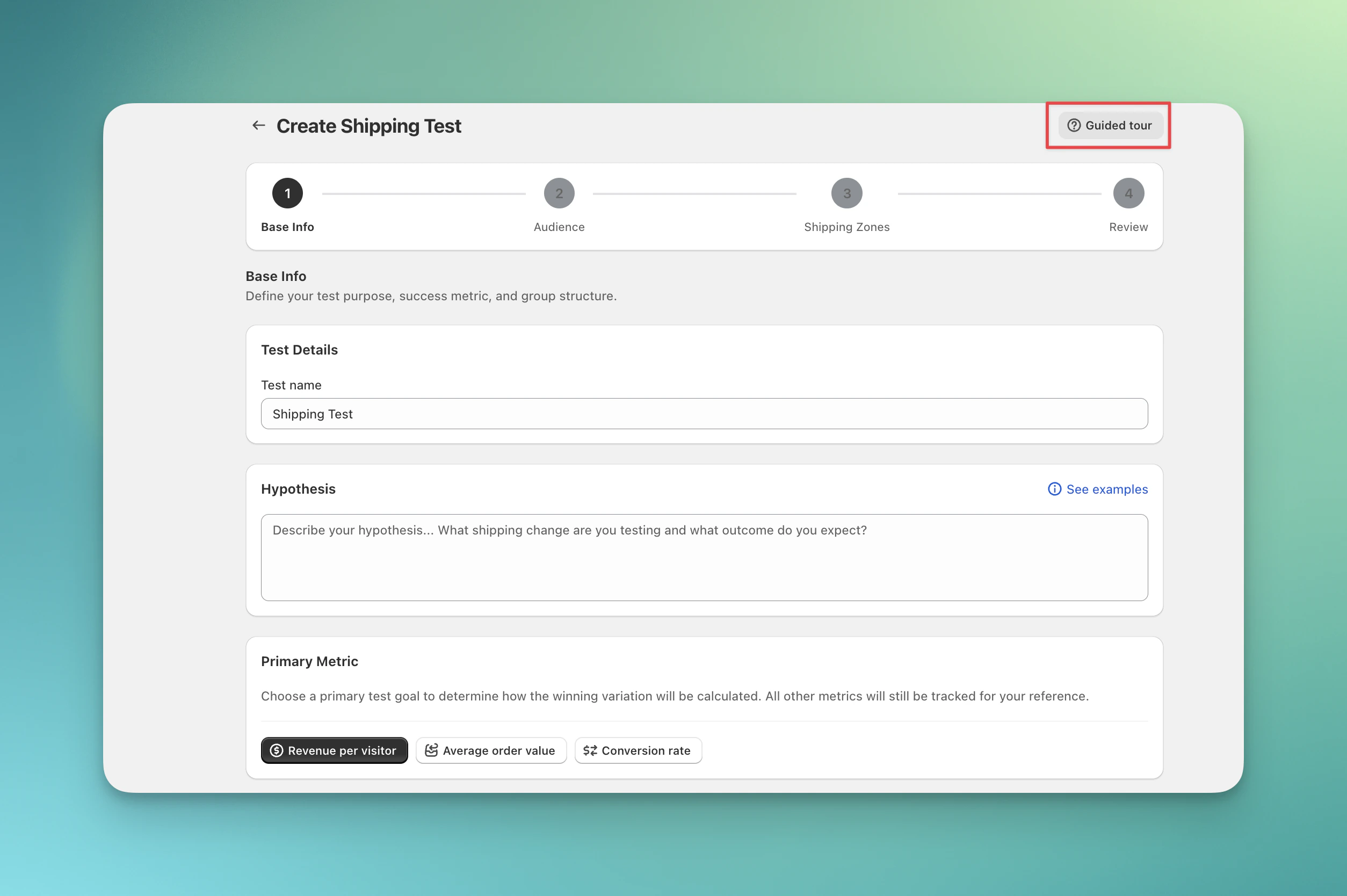
2. Click the **"Guided tour"** button in the test creation interface
3. Follow the step-by-step coaching through each configuration section
**For all users during test creation:**
1. Start creating any new experiment
2. Click the **"Guided tour"** button in the test creation interface
3. Follow the step-by-step coaching through each configuration section