> ## Documentation Index
> Fetch the complete documentation index at: https://docs.abconvert.io/llms.txt
> Use this file to discover all available pages before exploring further.
# Theme Test: Getting Started
> A/B test your entire Shopify theme to identify the design that drives the most revenue and conversions.
## What is a theme test?
A theme test lets you serve a completely different Shopify theme to a subset of your visitors while keeping your current live theme unchanged for everyone else.
This is the best test type for validating a full theme migration, comparing two distinct design directions, or measuring the revenue impact of a major redesign before committing to a full launch.
## Theme test use cases
* **Validate a new theme before launching:** Measure conversion rate, revenue per visitor, and bounce rate on your new theme against your existing one before making it live.
* **Test a complete redesign:** Compare a brand-new theme design against your current theme to quantify the business impact of the visual overhaul.
* **Benchmark theme frameworks:** Test a headless or custom-built theme against a standard Shopify theme to make a data-driven decision on infrastructure.
* **Test major UX changes:** When changes are too broad or deeply structural for a template test, a theme test gives you a clean side-by-side comparison at the theme level.
## Set up a theme test
Before creating a test in ABConvert, go to **Shopify Admin → Online Store → Themes** and add or customize the theme you want to test as a variant. Fully configure and preview it to make sure it is ready. You do not need to publish it — ABConvert will serve it to the variant group while it remains unpublished.
In the ABConvert dashboard, click **Create New Test** and select **Theme Test**.
Enter a descriptive name for your experiment, write a clear hypothesis, and select your primary success metric. By default, traffic is split evenly between the Control and Variant groups. You can adjust the traffic allocation or add additional variants.
Define which visitors should enter the experiment using audience targeting and traffic allocation rules. Read more in the [Audience targeting](/experiments/audience-targeting) guide.
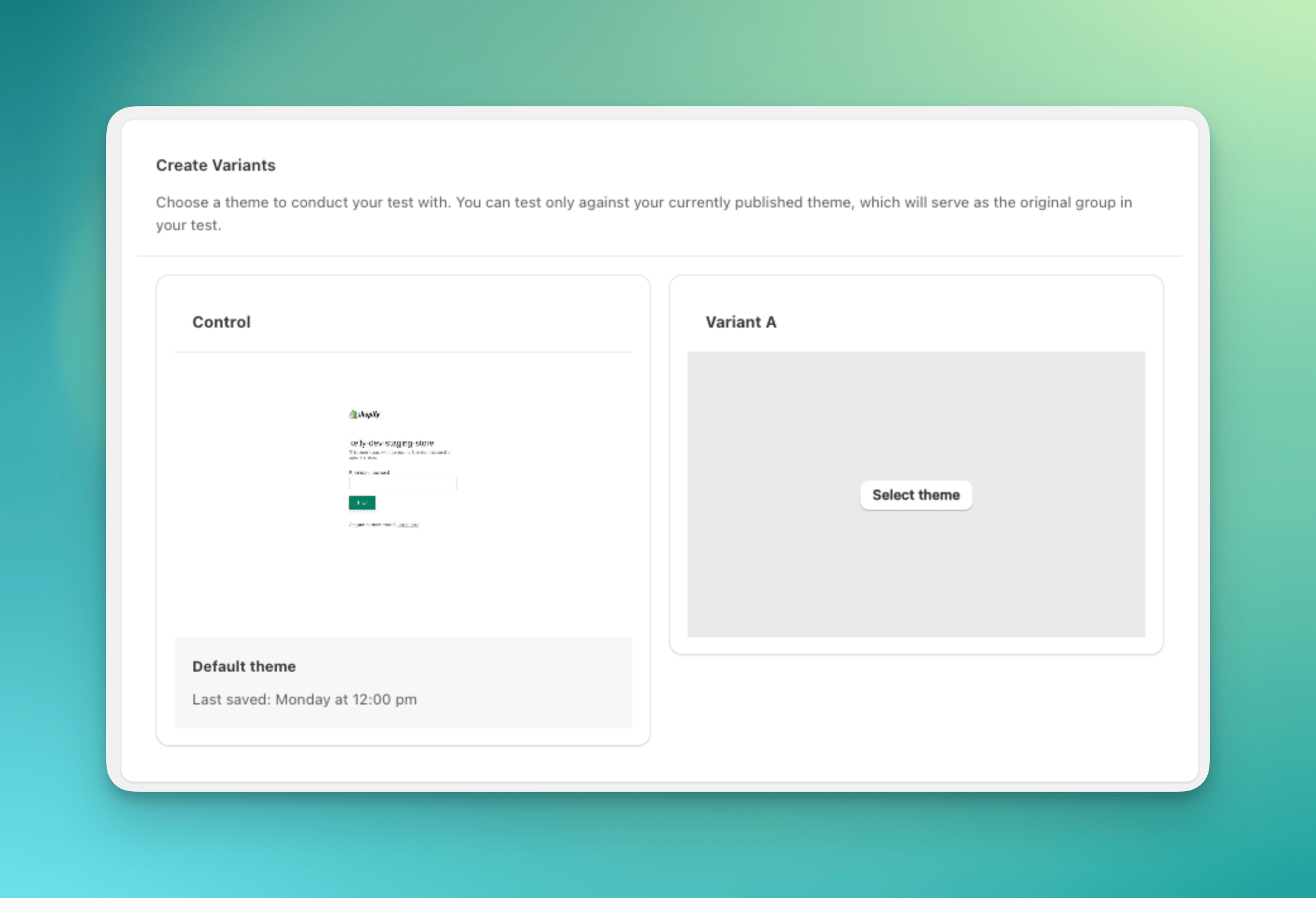
For the Control group, your currently published (live) theme is assigned automatically. For the Variant group, select the unpublished theme you prepared in Step 1 from the dropdown menu.
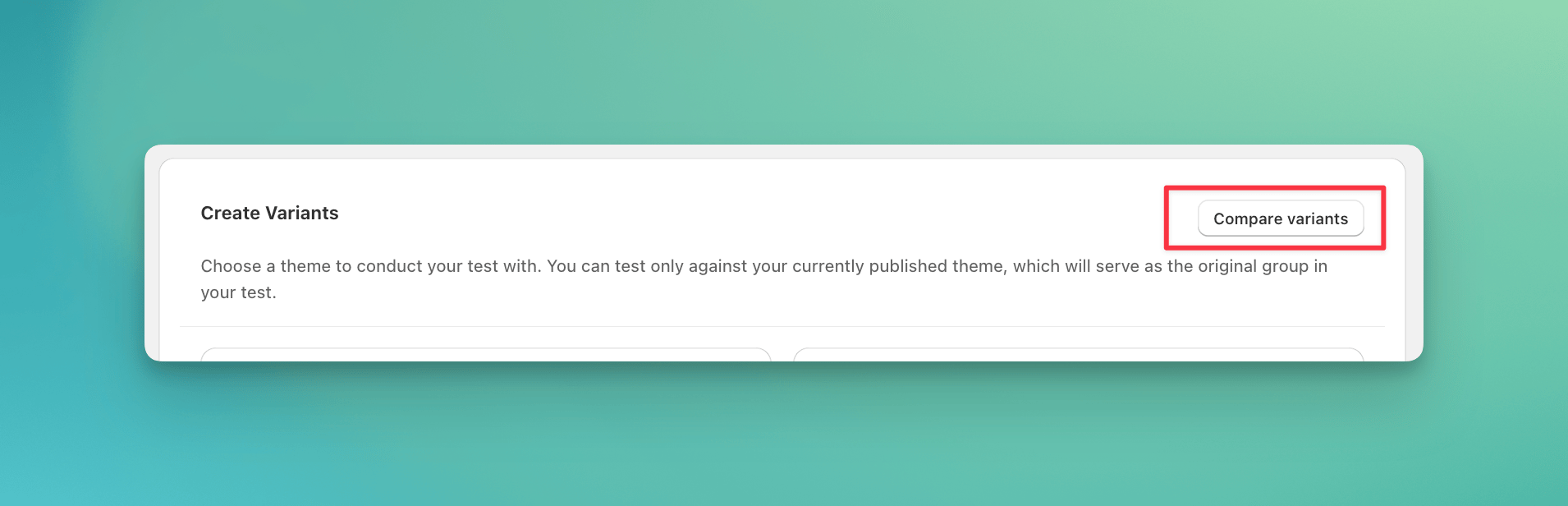
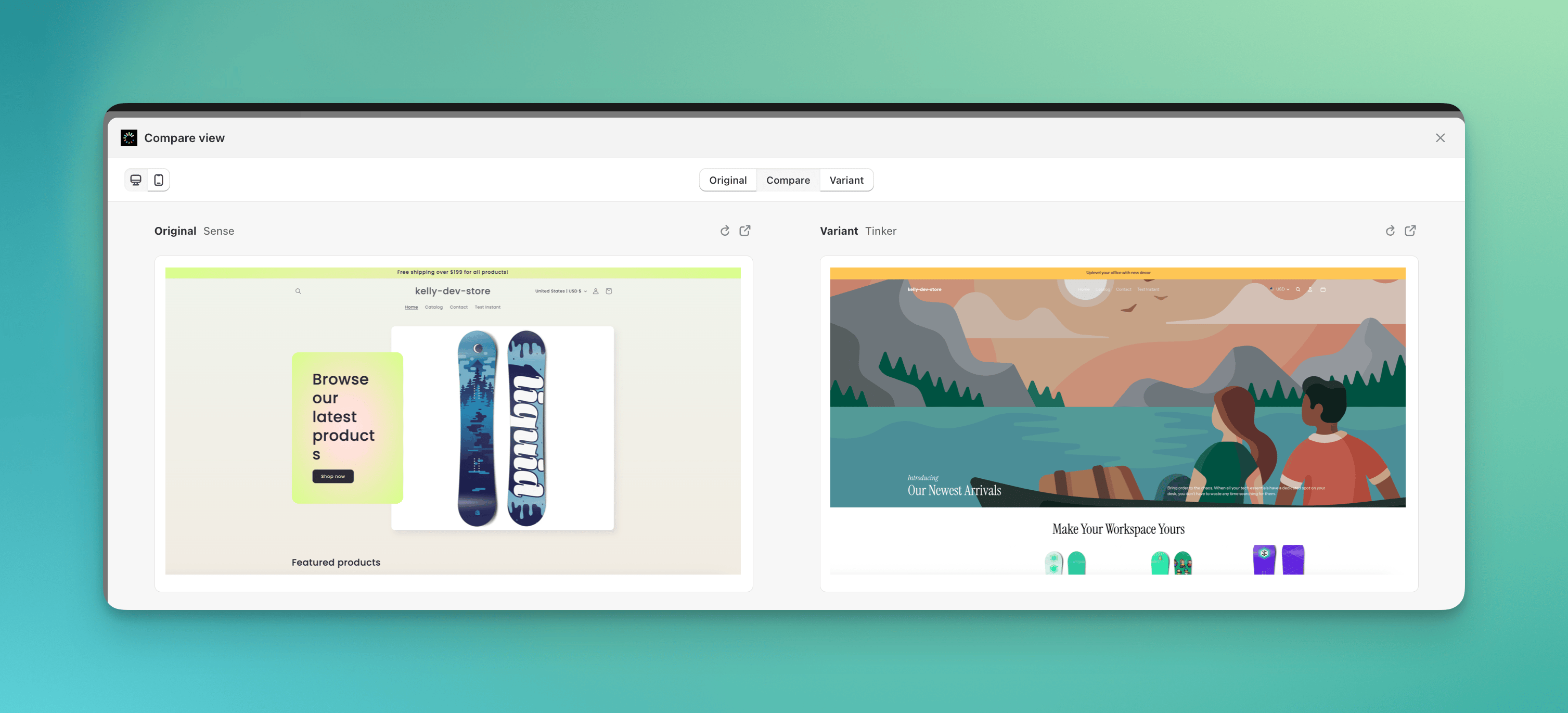
 Use **Compare variants** to preview and compare each group in desktop or mobile view.
 Review your full experiment configuration. We recommend using **Preview test** to verify that the correct theme is loading for each group before launching. When everything looks correct, click **Launch test**.
## Theme test FAQs
No. ABConvert serves the variant theme to assigned visitors using Shopify's built-in theme preview system, so your live store continues to display your current published theme. The variant theme can remain unpublished in your theme library for the entire duration of the test.
A template test swaps individual page templates (e.g., a product template) within your single published theme, best for testing layout changes or section reordering. A theme test swaps the entire theme, making it the right choice when your changes span many page types or involve a complete design overhaul.
Yes, as long as the theme exists in your Shopify theme library (published or unpublished), ABConvert can assign it to a variant group. Make sure the theme is saved to your library before setting up the test.
**Reason: Compatibility issues**
Theme tests split user traffic between your current live theme and the test theme to compare their performance. However, other tests are incompatible with the test theme, making it impossible to run them simultaneously with a theme test.
**What if other tests are active?**
You won’t be able to proceed with creating a theme test. When choosing test types, you can see a “ongoing test” badge next to the theme test option.
ABConvert does not edit your cart drawer directly. Instead, you test cart drawers by comparing **two Shopify themes**, each with a different cart drawer setup.
* **Theme A** uses cart drawer version A
* **Theme B** uses cart drawer version B
ABConvert splits traffic between the two themes and tracks performance.
**Steps to test your cart drawer with a theme test**
1. **Duplicate your theme** in Online store > Themes
2. **Edit the cart drawer** in your duplicated theme (add free-gift blocks, adjust upsells, etc.)
3. **Create a theme test** in ABConvert
4. **Split traffic** between your current theme and the new cart drawer setup
Yes. If you’re running a **Theme Test**, you’re free to edit the theme just like you normally would inside Shopify. Any changes you make (e.g., layout tweaks, styling updates, content edits) will apply directly to the version being tested.
**Will it affect my test?**
No, your test will continue to run as expected. ABConvert’s Theme Test simply directs visitors to different theme versions; it does **not** create copies or freeze versions. This means:
* Changes you make are live immediately on that theme
* There’s no need to pause or restart your test
* The experience remains seamless for your visitors
If you make **major structural changes**, we recommend starting a new test. This keeps your test data clean, since the testing environment is no longer consistent with when the test began.
On the theme test edit page, you can update the following:
1. Test info (name, hypothesis)
2. Traffic distribution
**What you cannot change:**
The theme itself. If you need to test another theme, you’ll need to **create a new test**.
**Best practice**: Treat each theme as its own experiment. This keeps results accurate and easy to compare.
Yes, you can achieve this using our theme tests.
Set up two themes — one with the app enabled and one without — and run a split test between them to compare performance.
No. Like a redirect test, a theme test keeps your full query string, so ad tracking parameters such as `gclid` and `utm_` reach the destination page and your attribution stays correct. See [Attribution and ad tracking](/experiments/url-redirect-test#attribution-and-ad-tracking) for the details and sources.
Review your full experiment configuration. We recommend using **Preview test** to verify that the correct theme is loading for each group before launching. When everything looks correct, click **Launch test**.
## Theme test FAQs
No. ABConvert serves the variant theme to assigned visitors using Shopify's built-in theme preview system, so your live store continues to display your current published theme. The variant theme can remain unpublished in your theme library for the entire duration of the test.
A template test swaps individual page templates (e.g., a product template) within your single published theme, best for testing layout changes or section reordering. A theme test swaps the entire theme, making it the right choice when your changes span many page types or involve a complete design overhaul.
Yes, as long as the theme exists in your Shopify theme library (published or unpublished), ABConvert can assign it to a variant group. Make sure the theme is saved to your library before setting up the test.
**Reason: Compatibility issues**
Theme tests split user traffic between your current live theme and the test theme to compare their performance. However, other tests are incompatible with the test theme, making it impossible to run them simultaneously with a theme test.
**What if other tests are active?**
You won’t be able to proceed with creating a theme test. When choosing test types, you can see a “ongoing test” badge next to the theme test option.
ABConvert does not edit your cart drawer directly. Instead, you test cart drawers by comparing **two Shopify themes**, each with a different cart drawer setup.
* **Theme A** uses cart drawer version A
* **Theme B** uses cart drawer version B
ABConvert splits traffic between the two themes and tracks performance.
**Steps to test your cart drawer with a theme test**
1. **Duplicate your theme** in Online store > Themes
2. **Edit the cart drawer** in your duplicated theme (add free-gift blocks, adjust upsells, etc.)
3. **Create a theme test** in ABConvert
4. **Split traffic** between your current theme and the new cart drawer setup
Yes. If you’re running a **Theme Test**, you’re free to edit the theme just like you normally would inside Shopify. Any changes you make (e.g., layout tweaks, styling updates, content edits) will apply directly to the version being tested.
**Will it affect my test?**
No, your test will continue to run as expected. ABConvert’s Theme Test simply directs visitors to different theme versions; it does **not** create copies or freeze versions. This means:
* Changes you make are live immediately on that theme
* There’s no need to pause or restart your test
* The experience remains seamless for your visitors
If you make **major structural changes**, we recommend starting a new test. This keeps your test data clean, since the testing environment is no longer consistent with when the test began.
On the theme test edit page, you can update the following:
1. Test info (name, hypothesis)
2. Traffic distribution
**What you cannot change:**
The theme itself. If you need to test another theme, you’ll need to **create a new test**.
**Best practice**: Treat each theme as its own experiment. This keeps results accurate and easy to compare.
Yes, you can achieve this using our theme tests.
Set up two themes — one with the app enabled and one without — and run a split test between them to compare performance.
No. Like a redirect test, a theme test keeps your full query string, so ad tracking parameters such as `gclid` and `utm_` reach the destination page and your attribution stays correct. See [Attribution and ad tracking](/experiments/url-redirect-test#attribution-and-ad-tracking) for the details and sources.