> ## Documentation Index
> Fetch the complete documentation index at: https://docs.abconvert.io/llms.txt
> Use this file to discover all available pages before exploring further.
# Template Test: Getting Started
> A/B test Shopify page templates to find the layout that drives the highest conversion rate.
## What is a template test?
A template test lets you assign different Shopify theme templates to different groups of visitors for the same product, collection, or page.
This is the best test type for structural layout changes, reordering Shopify sections, or testing different third-party app block placements — all built natively within the Shopify Theme Editor.
## Template test use cases
* **Test product page layouts:** Compare a traditional two-column product layout against a modern long-form storytelling template.
* **Test section order:** See if moving customer reviews and trust badges higher on the page increases your add-to-cart rate.
* **Test app block placements:** Test whether placing an upsell app above the add-to-cart button performs better than placing it below the product description.
* **Test distinct visual styles:** Test a completely different color scheme, typography, or styling for a specific promotional collection page.
## Set up a template test
Before creating a test in ABConvert, open the **Shopify Theme Editor** for your live theme. Create the alternative templates (e.g., a new product template called `product.variant-b`) and design the layout and sections for your test.
In the ABConvert dashboard, click **Create New Test** and select **Template Test**.
Enter a descriptive name for your experiment, write a clear hypothesis, and select your primary success metric. By default, traffic is split evenly between the Control and Variant groups. You can adjust the traffic allocation or add additional variants.
Define which visitors should enter the experiment using audience targeting and traffic allocation rules. Read more in the [Audience targeting](/experiments/audience-targeting) guide.
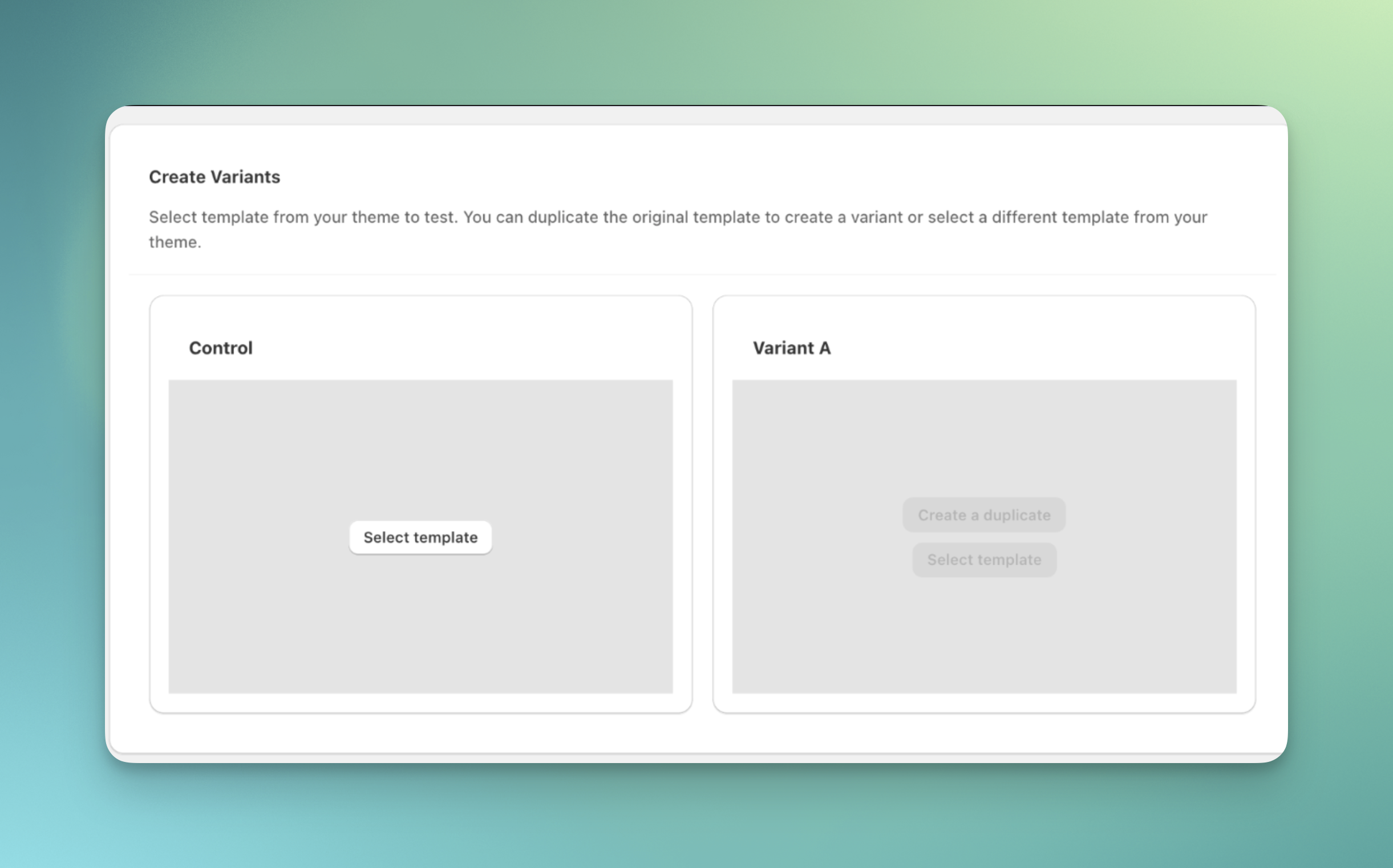
Choose the specific product, collection, or page templates you want to test. You can choose from all template types: Homepage, Collections, Products, Pages, Cart, Blogs, Articles, Search.
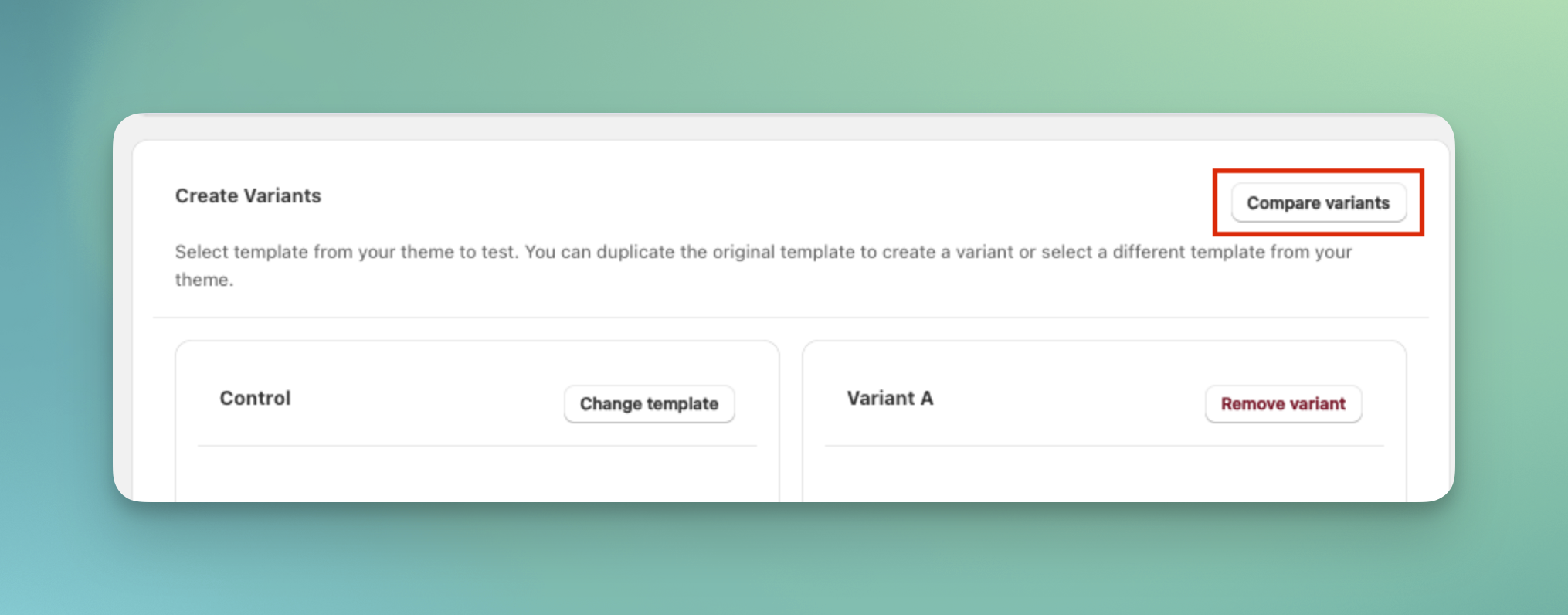
 Use **Compare variants** to preview and compare each group in desktop or mobile view.
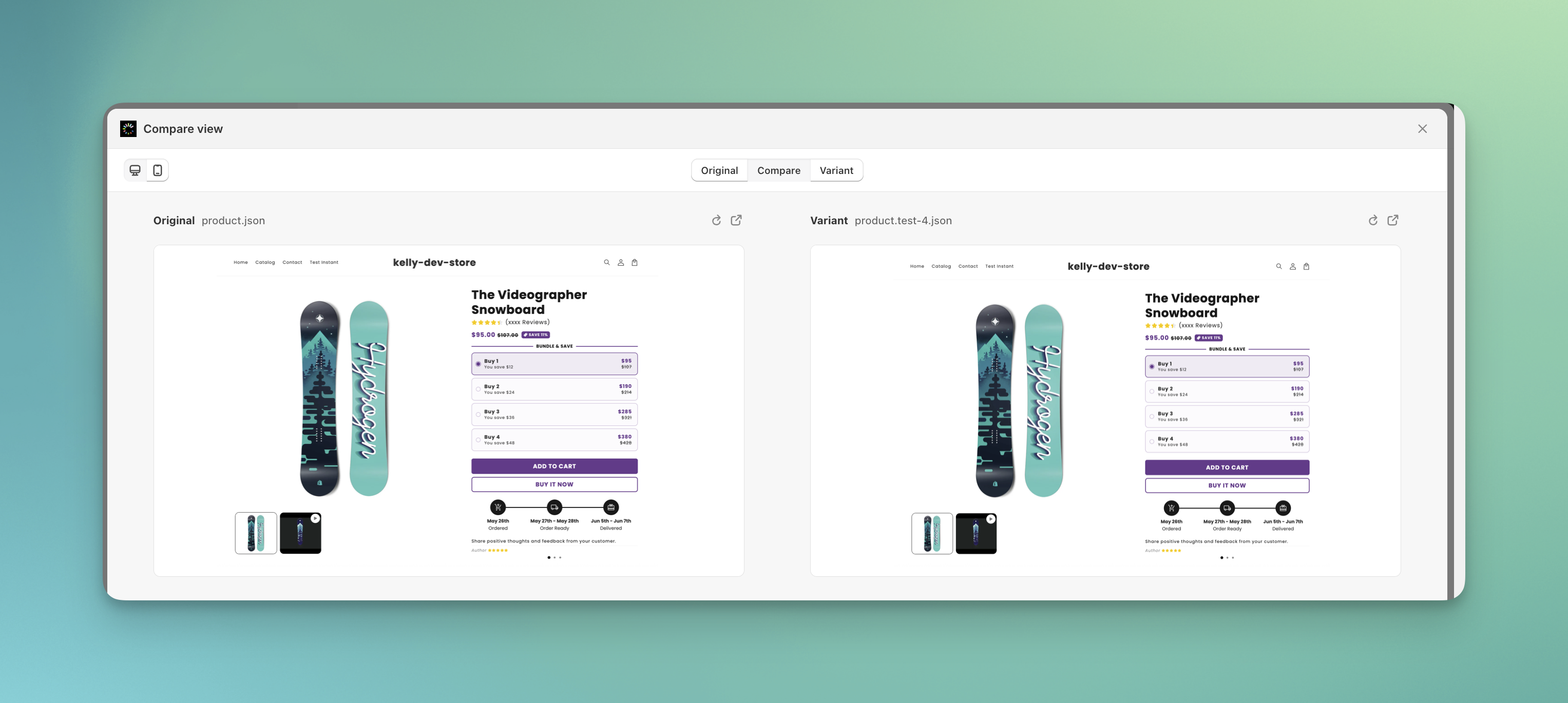 Review your full experiment configuration. We recommend using **Preview test** to verify that the correct template variations are loading for each group before launching. When everything looks correct, click **Launch test**.
## Template test FAQs
No. You only need to create a new template within your existing active theme (for example, a new product template called `product.test`). You do not need to publish a completely separate theme.
ABConvert pulls templates from your current **live theme**. Make sure the original template exists in your live theme, not in an unpublished draft theme. If you just created the template, try refreshing the ABConvert app to sync the latest templates from Shopify.
No. ABConvert can only assign templates that exist within your currently active Shopify theme. If you want to test an entirely different theme, run a **Theme Test** instead.
**1. Create your alternate homepage template**
Shopify doesn’t allow you to add multiple homepage templates directly in the Theme Editor, but ABConvert makes it easy.
1. In ABConvert, go to **Create new test > Template test**
2. In the **Create variants** section:
* Set your current homepage template as the **original**
* Click **Create a duplicate** to generate a **variant template**
**2. Edit your alternate homepage template**
Once the variant template is created:
1. Click **Edit in Shopify** next to the variant
2. This opens the template inside Shopify’s **Theme Editor**
3. Make your design changes, then click **Save**
**3. Review and launch**
Review your settings and click **Launch test** to start your homepage test.
Currently, there is no “select template” option for the home page. Due to a Shopify’s constraint, if you end a successful template test on the homepage, you cannot directly apply the winning template.
To apply the winning design manually: open the **Theme Editor**, navigate to the **Home page**, and update the live template to match your winning variant.
**Method 1: Use advanced conditions**
This method is ideal if you’re targeting only a few specific products.
1. Create a new template test
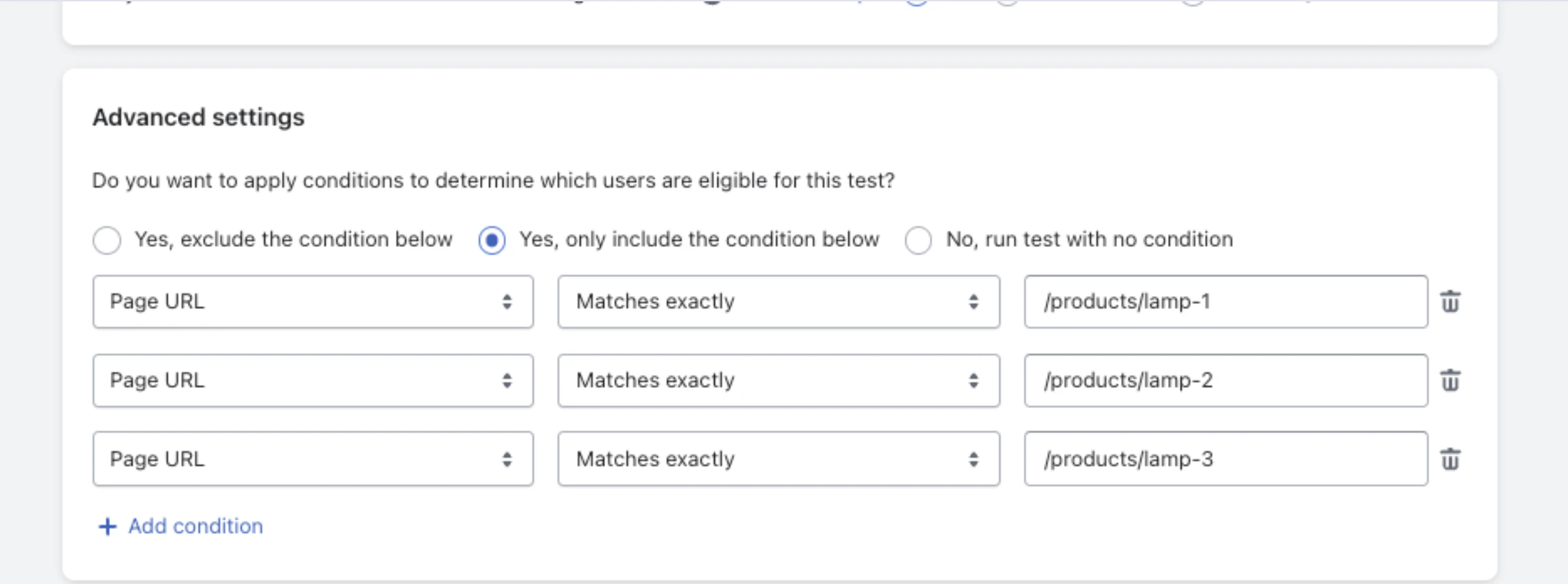
2. Go to **Advanced settings**
3. Select the second radio button: **Yes, only include the conditions below**
4. Add a condition:
* Choose **Page URL**
* Choose **matches exactly**
* Enter the product page relative path, for example `/products/my-cool-product`
5. Repeat for each additional product page you want to include
Review your full experiment configuration. We recommend using **Preview test** to verify that the correct template variations are loading for each group before launching. When everything looks correct, click **Launch test**.
## Template test FAQs
No. You only need to create a new template within your existing active theme (for example, a new product template called `product.test`). You do not need to publish a completely separate theme.
ABConvert pulls templates from your current **live theme**. Make sure the original template exists in your live theme, not in an unpublished draft theme. If you just created the template, try refreshing the ABConvert app to sync the latest templates from Shopify.
No. ABConvert can only assign templates that exist within your currently active Shopify theme. If you want to test an entirely different theme, run a **Theme Test** instead.
**1. Create your alternate homepage template**
Shopify doesn’t allow you to add multiple homepage templates directly in the Theme Editor, but ABConvert makes it easy.
1. In ABConvert, go to **Create new test > Template test**
2. In the **Create variants** section:
* Set your current homepage template as the **original**
* Click **Create a duplicate** to generate a **variant template**
**2. Edit your alternate homepage template**
Once the variant template is created:
1. Click **Edit in Shopify** next to the variant
2. This opens the template inside Shopify’s **Theme Editor**
3. Make your design changes, then click **Save**
**3. Review and launch**
Review your settings and click **Launch test** to start your homepage test.
Currently, there is no “select template” option for the home page. Due to a Shopify’s constraint, if you end a successful template test on the homepage, you cannot directly apply the winning template.
To apply the winning design manually: open the **Theme Editor**, navigate to the **Home page**, and update the live template to match your winning variant.
**Method 1: Use advanced conditions**
This method is ideal if you’re targeting only a few specific products.
1. Create a new template test
2. Go to **Advanced settings**
3. Select the second radio button: **Yes, only include the conditions below**
4. Add a condition:
* Choose **Page URL**
* Choose **matches exactly**
* Enter the product page relative path, for example `/products/my-cool-product`
5. Repeat for each additional product page you want to include
 **Method 2: Duplicate the original template**
If you want to run the test on a large group of products, adding URL conditions one by one is time-consuming. Instead, use Shopify’s template assignment to target entire product groups.
1. In your Shopify theme editor, duplicate your current product template
2. Name it something like **product-template-a**
3. Assign this duplicated template to all the products you want included in the test (for example, all lamp products)
4. In ABConvert, open your test setup and select:
* **Original template**: the duplicated **product-template-a** you just assigned
* **Variant template**: the new template you want to test
In this setup, only products using **product-template-a** will be included in the test.
No. Like a redirect test, a template test keeps your full query string, so ad tracking parameters such as `gclid` and `utm_` reach the destination page and your attribution stays correct. See [Attribution and ad tracking](/experiments/url-redirect-test#attribution-and-ad-tracking) for the details and sources.
**Method 2: Duplicate the original template**
If you want to run the test on a large group of products, adding URL conditions one by one is time-consuming. Instead, use Shopify’s template assignment to target entire product groups.
1. In your Shopify theme editor, duplicate your current product template
2. Name it something like **product-template-a**
3. Assign this duplicated template to all the products you want included in the test (for example, all lamp products)
4. In ABConvert, open your test setup and select:
* **Original template**: the duplicated **product-template-a** you just assigned
* **Variant template**: the new template you want to test
In this setup, only products using **product-template-a** will be included in the test.
No. Like a redirect test, a template test keeps your full query string, so ad tracking parameters such as `gclid` and `utm_` reach the destination page and your attribution stays correct. See [Attribution and ad tracking](/experiments/url-redirect-test#attribution-and-ad-tracking) for the details and sources.