> ## Documentation Index
> Fetch the complete documentation index at: https://docs.abconvert.io/llms.txt
> Use this file to discover all available pages before exploring further.
# Price Test: Getting Started
> A/B test product prices to identify the pricing strategy that drives the best business outcome.
## What is a price test?
A price test allows you to show different product prices to different groups of visitors so you can identify the pricing strategy that drives the best business outcome, whether that is a higher conversion rate, increased average order value, or improved profit margins.
ABConvert uses Shopify Functions to apply price changes dynamically at checkout without duplicating products or modifying your product catalog. Your existing products, variants, inventory, and integrations remain fully intact.
Price tests are available on the **Growth plan** and above.
## Price test use cases
* **Increase profit margins:** Test a higher price point to see whether increased margins offset any potential drop in conversion rate.
* **Increase conversion volume:** Test lower pricing to drive more purchases, customer acquisition, or inventory sell-through.
* **Optimize psychological pricing:** Compare pricing formats like `.99` vs `.00` or round numbers vs discounted-looking prices.
* **Test premium positioning:** Validate whether a higher price improves perceived product value and customer quality.
## Theme review
If you are running a price test for the first time, you will see a modal asking you to request a theme review before launching your experiment. Our team reviews your theme to confirm it is compatible with price tests.
Theme reviews are typically completed within **1–2 business days**.
## Set up a price test
In the ABConvert dashboard, click **Create New Test** and select **Price Test**.
Enter a descriptive name for your experiment, write a clear hypothesis, and select your primary success metric. By default, traffic is split evenly between the Control and Variant groups. You can adjust the traffic allocation or add additional variants.
Define which visitors should enter the experiment using audience targeting and traffic allocation rules. Read more in the [Audience targeting](/experiments/audience-targeting) guide.
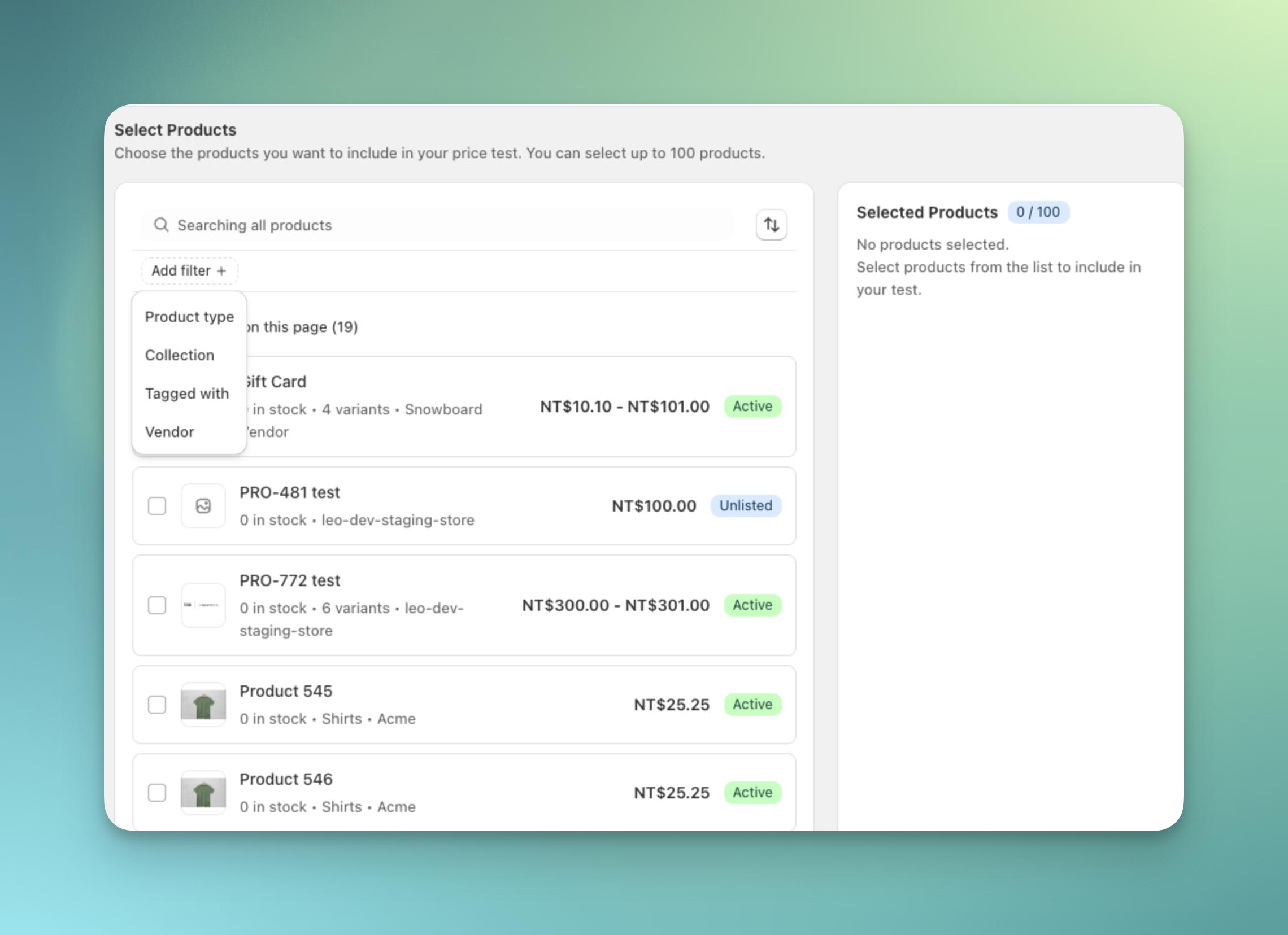
Choose the products you want to include in the experiment. You can filter products by collection, product type, vendor, or tags.
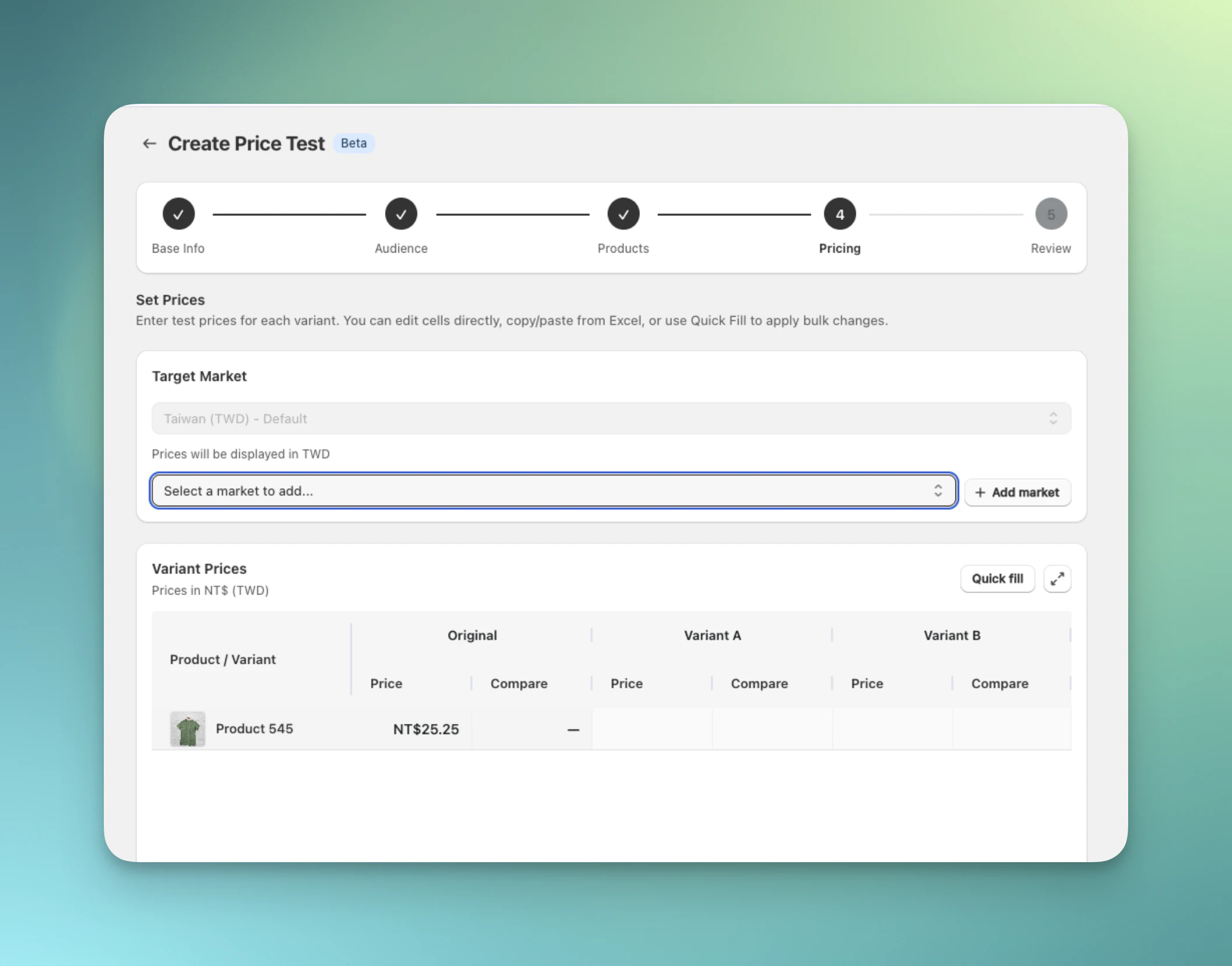
 Enter the prices you want to test for each variant directly in the pricing table. You can manually edit prices, use quick fill for bulk updates, or add additional markets for multi-currency pricing.
Multi-market price testing is available on the **Scale plan** and above.
Enter the prices you want to test for each variant directly in the pricing table. You can manually edit prices, use quick fill for bulk updates, or add additional markets for multi-currency pricing.
Multi-market price testing is available on the **Scale plan** and above.
 Price update tips:
* Use **Quick fill** to automatically populate prices in bulk.
* Use **Upload CSV** to update variant prices faster using a CSV file.
Review your full experiment configuration, including the visitor flow and pricing setup. We recommend using **Preview test** to check your prices on the storefront before launching. When everything looks correct, click **Launch test**.
## Analyze results by product
Every price test automatically gets a [product group](/analytics/product-groups) containing its tested products. On the Analytics dashboard, open **Filters** and select the group marked **In this test** to filter results to those products and see a per-product breakdown.
## Price test FAQs
No. ABConvert uses sticky bucketing stored locally in the visitor's browser. Once a visitor is assigned to a variant group, they continue to see the same price for the duration of the experiment.
You can use **Preview test** to navigate your store as if you were assigned to a specific variant group. This allows you to confirm prices display correctly across your product pages, cart, and checkout before visitors see them.
Our team reviews your theme during the theme review process and will let you know if we identify any compatibility issues before launch. Because ABConvert uses Shopify Functions and keeps your original variants intact, price testing is compatible with most third-party apps, inventory management systems, and page builders.
Running price tests while sending traffic from Google Ads or Meta Ads can sometimes cause price mismatch warnings if ad crawlers detect a different storefront price than the price shown in the ad. We recommend either **excluding experiment products from your ad feeds or always routing ad traffic to the control group.**
No. ABConvert price tests are not compatible with subscription products.
No. You cannot update products or pricing after launching the experiment. Make sure all settings are correct before you launch.
Price update tips:
* Use **Quick fill** to automatically populate prices in bulk.
* Use **Upload CSV** to update variant prices faster using a CSV file.
Review your full experiment configuration, including the visitor flow and pricing setup. We recommend using **Preview test** to check your prices on the storefront before launching. When everything looks correct, click **Launch test**.
## Analyze results by product
Every price test automatically gets a [product group](/analytics/product-groups) containing its tested products. On the Analytics dashboard, open **Filters** and select the group marked **In this test** to filter results to those products and see a per-product breakdown.
## Price test FAQs
No. ABConvert uses sticky bucketing stored locally in the visitor's browser. Once a visitor is assigned to a variant group, they continue to see the same price for the duration of the experiment.
You can use **Preview test** to navigate your store as if you were assigned to a specific variant group. This allows you to confirm prices display correctly across your product pages, cart, and checkout before visitors see them.
Our team reviews your theme during the theme review process and will let you know if we identify any compatibility issues before launch. Because ABConvert uses Shopify Functions and keeps your original variants intact, price testing is compatible with most third-party apps, inventory management systems, and page builders.
Running price tests while sending traffic from Google Ads or Meta Ads can sometimes cause price mismatch warnings if ad crawlers detect a different storefront price than the price shown in the ad. We recommend either **excluding experiment products from your ad feeds or always routing ad traffic to the control group.**
No. ABConvert price tests are not compatible with subscription products.
No. You cannot update products or pricing after launching the experiment. Make sure all settings are correct before you launch.