> ## Documentation Index
> Fetch the complete documentation index at: https://docs.abconvert.io/llms.txt
> Use this file to discover all available pages before exploring further.
# Test lifecycle
> The states a test moves through, and the key actions at each one.
A test's state decides what you can do with it. Most tests follow one path: draft → preview → active → closed. While a test is active, you can pause and resume it.
## What each state means
| State | What it means | What you can do |
| ------------ | ---------------------------------------------------------------------------------- | ----------------------------------------------------------------------------------------------- |
| **Draft** | Configured but not running. Nothing is live and no data is collected. | **Preview** to check it, **Launch** to go live |
| **Preview** | Live on your storefront, visible only to you. Shoppers still see the original. | **Launch** to go live, **Update preview** after edits, **Convert to draft** to stop the preview |
| **Active** | Live for all shoppers. ABConvert assigns visitors and collects data. | **Edit** the name and traffic split, **Pause**, **End** |
| **Paused** | Stopped. Every shopper sees your original storefront again, and your data is kept. | **Resume** to go live again, **End** |
| **Closed** | Finished. Results are final and it cannot be resumed. | **Archive** to hide it, **Duplicate as draft** to copy and adjust |
| **Archived** | Hidden from the default list, with analytics intact. | **Duplicate as draft** to copy and adjust |
## Preview before you launch
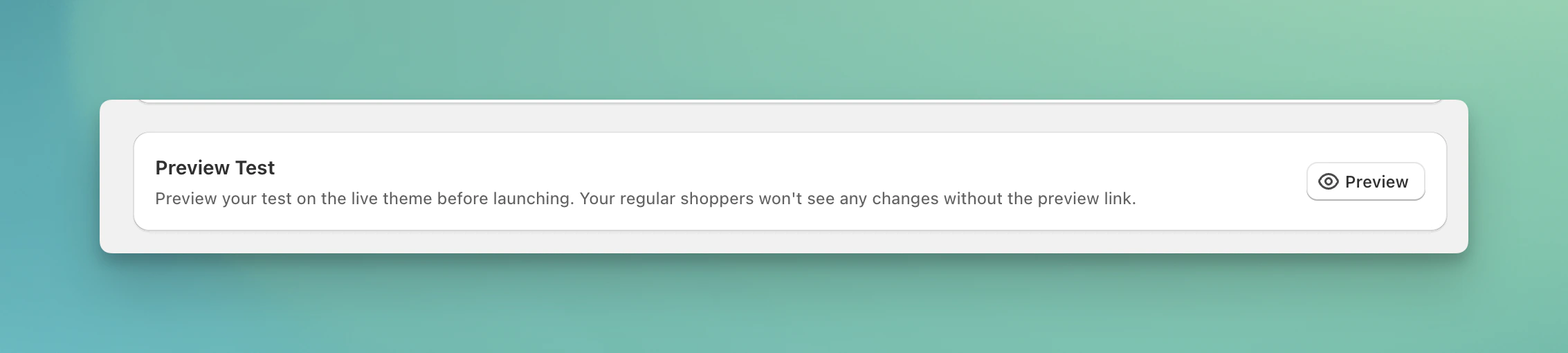
Preview shows a variant on your live storefront, scoped to your session only. Real shoppers keep seeing the original, so you can walk the buyer journey and confirm everything looks right before a single visitor enters the test.
Start a new test or open an existing draft, then go to the final review step.
Click **Preview**. ABConvert opens your storefront in a new tab with the variant applied to your session.
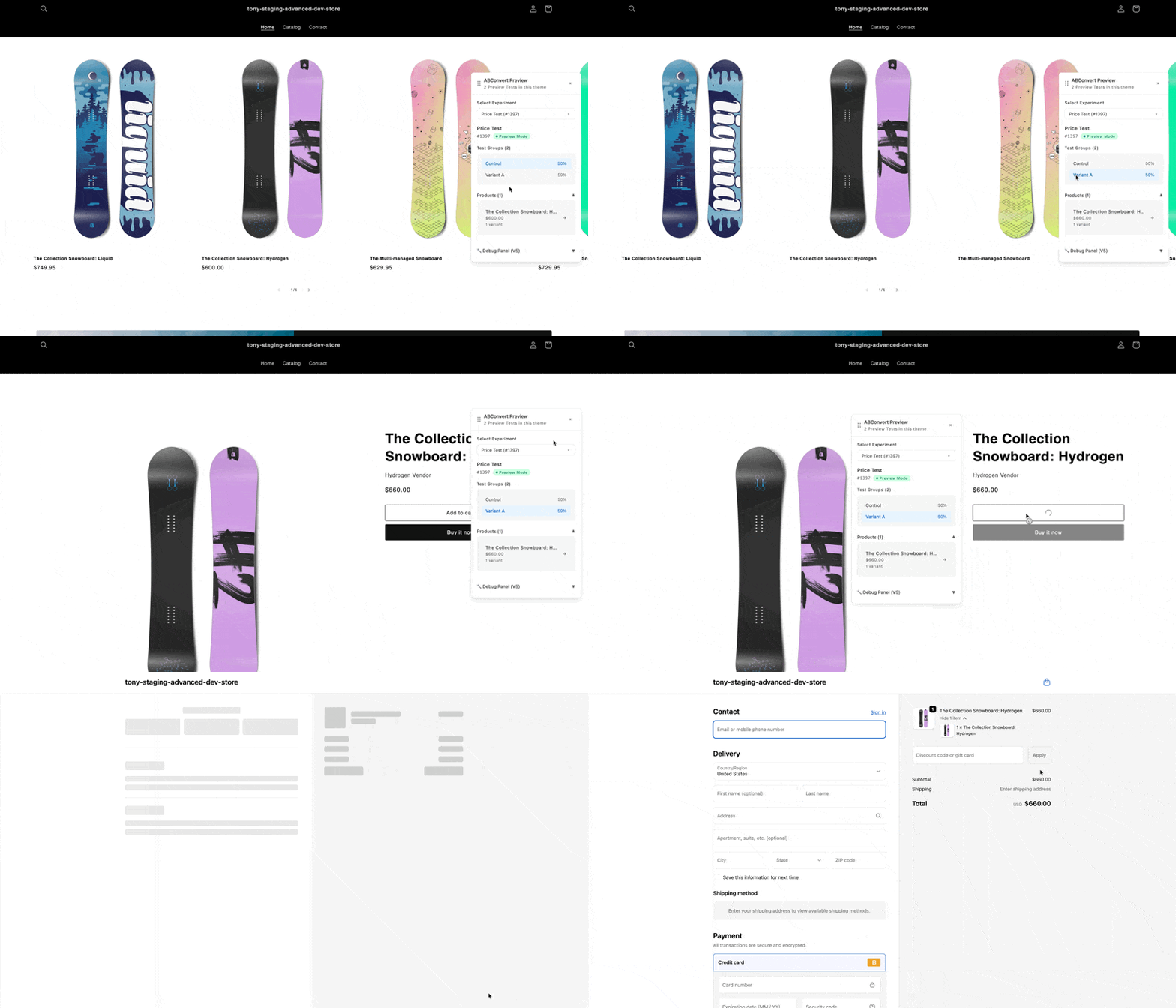
 Browse as a shopper would. Visit the affected pages, add to cart, and step through checkout. Confirm the modification displays the way you designed it.
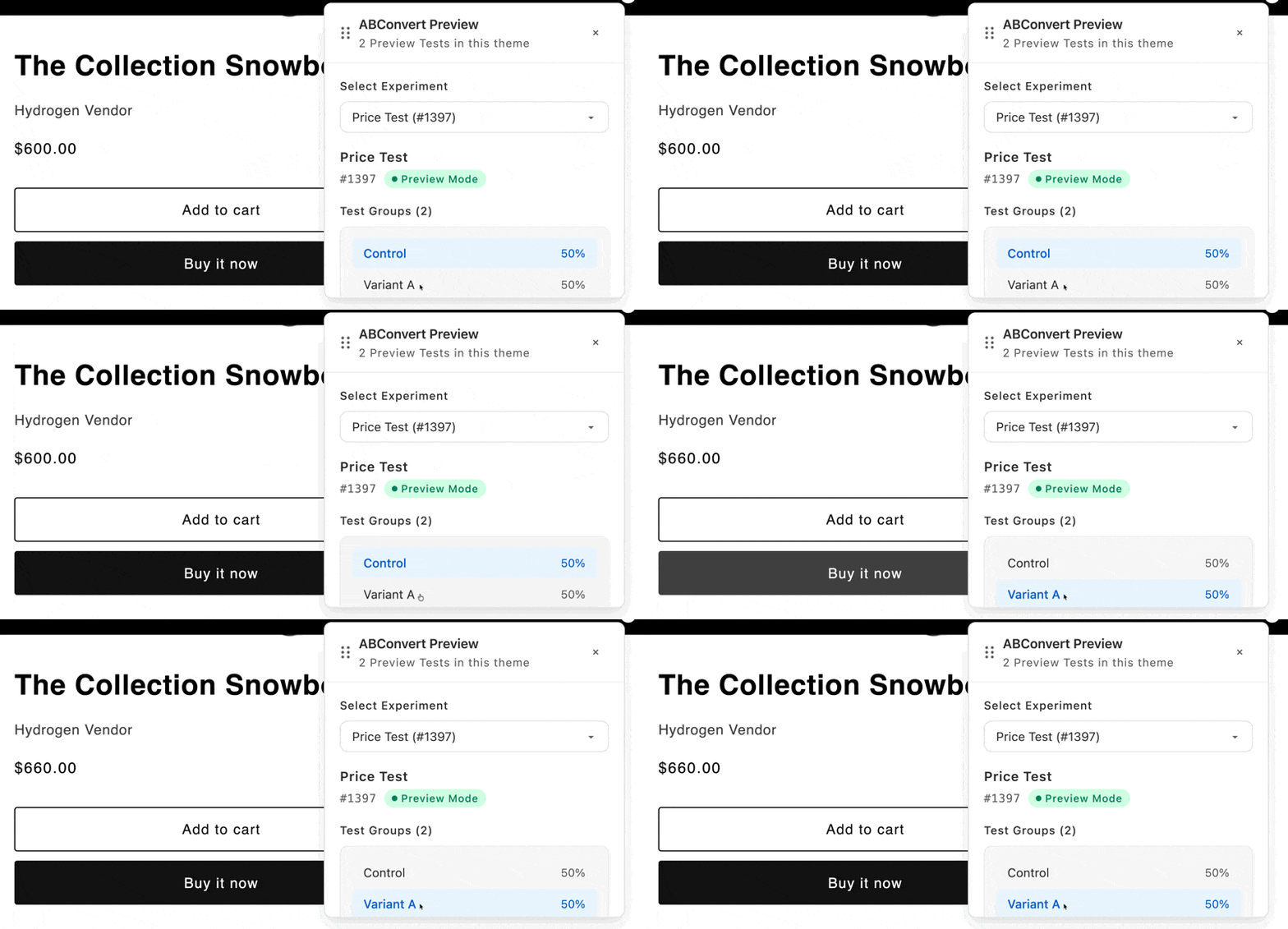
 Switch between variants from the preview widget and confirm each one looks right.
 When everything looks right, click **Launch** to go live. To change something first, edit the test and click **Update preview** to re-check.
Preview before every launch. No two storefronts are identical, so a preview is the best way to confirm your variant looks and works the way you intended on your store.
### What Preview confirms
Preview is your check on what shoppers see:
* **Display.** The modification renders the way you designed it.
* **App conflicts.** No other app overwrites the same part of your storefront (price, shipping, checkout, or theme).
Preview does not verify analytics. Tracking starts only when the test is **Active** and real visitors are assigned, so confirm your numbers in the [Analytics dashboard](/analytics/overview) once data begins arriving.
## Edit a live test
While a test is **Active**, you can change its name, hypothesis, variant names, and traffic split.
You can't change the variant configuration (the price, shipping rate, theme, content, or offer you're testing) or the [audience](/experiments/audience-targeting) while a test is running.
This restriction is deliberate. Changing what you test partway through mixes two setups into one result set, and the numbers stop meaning anything. To test a different change, end this test and start a new one.
## Pause a live test
Pause is your emergency stop. If a live test looks wrong, pause it right away. Common reasons: a display bug, a conflict with another app, or results you don't trust.
When you pause, ABConvert removes the test's changes from your storefront. Every shopper sees your original store again and no new visitors are assigned. The data you've collected so far is kept. **Resume** puts the variant back and starts assigning visitors again.
Pause stops your test from gathering results, so use it to fix problems rather than to take a healthy test offline for a long time.
Paused because the variant isn't behaving the way you expected? Send us your store and the test, and we'll help you find what's overriding it and get it working.
## Duplicate as draft
**Duplicate as draft** copies a test's setup into a new draft so you can adjust it without rebuilding it from scratch. It's available from any test, in any state, and the copy always starts as a fresh draft with no data of its own.
Use it to try a tweaked version of a test: duplicate it, adjust the draft, then launch. It also lets you branch a new idea off an existing test or recover the setup from an archived one.
When everything looks right, click **Launch** to go live. To change something first, edit the test and click **Update preview** to re-check.
Preview before every launch. No two storefronts are identical, so a preview is the best way to confirm your variant looks and works the way you intended on your store.
### What Preview confirms
Preview is your check on what shoppers see:
* **Display.** The modification renders the way you designed it.
* **App conflicts.** No other app overwrites the same part of your storefront (price, shipping, checkout, or theme).
Preview does not verify analytics. Tracking starts only when the test is **Active** and real visitors are assigned, so confirm your numbers in the [Analytics dashboard](/analytics/overview) once data begins arriving.
## Edit a live test
While a test is **Active**, you can change its name, hypothesis, variant names, and traffic split.
You can't change the variant configuration (the price, shipping rate, theme, content, or offer you're testing) or the [audience](/experiments/audience-targeting) while a test is running.
This restriction is deliberate. Changing what you test partway through mixes two setups into one result set, and the numbers stop meaning anything. To test a different change, end this test and start a new one.
## Pause a live test
Pause is your emergency stop. If a live test looks wrong, pause it right away. Common reasons: a display bug, a conflict with another app, or results you don't trust.
When you pause, ABConvert removes the test's changes from your storefront. Every shopper sees your original store again and no new visitors are assigned. The data you've collected so far is kept. **Resume** puts the variant back and starts assigning visitors again.
Pause stops your test from gathering results, so use it to fix problems rather than to take a healthy test offline for a long time.
Paused because the variant isn't behaving the way you expected? Send us your store and the test, and we'll help you find what's overriding it and get it working.
## Duplicate as draft
**Duplicate as draft** copies a test's setup into a new draft so you can adjust it without rebuilding it from scratch. It's available from any test, in any state, and the copy always starts as a fresh draft with no data of its own.
Use it to try a tweaked version of a test: duplicate it, adjust the draft, then launch. It also lets you branch a new idea off an existing test or recover the setup from an archived one.