> ## Documentation Index
> Fetch the complete documentation index at: https://docs.abconvert.io/llms.txt
> Use this file to discover all available pages before exploring further.
# Audience Targeting: Filter Who Sees Your Experiments
> Learn how the traffic system works in ABConvert, including traffic allocation, audience targeting, and group assignment rules
Before a visitor ever sees a variant, ABConvert determines exactly who qualifies. To ensure your analytics remain perfectly clean, every visitor goes through a deterministic evaluation flow before they see a final variant.
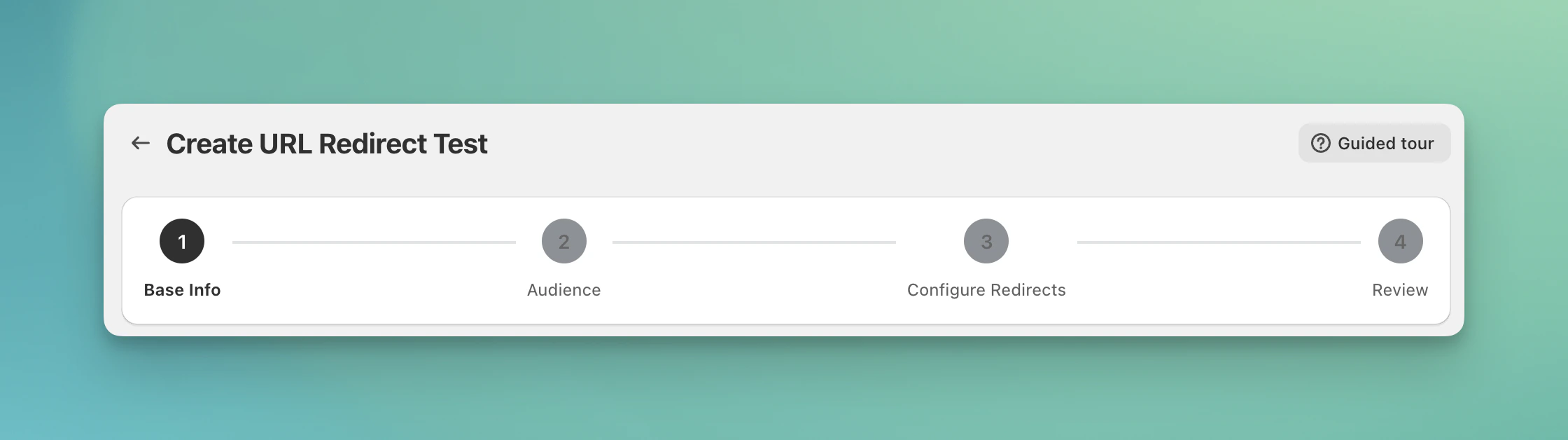
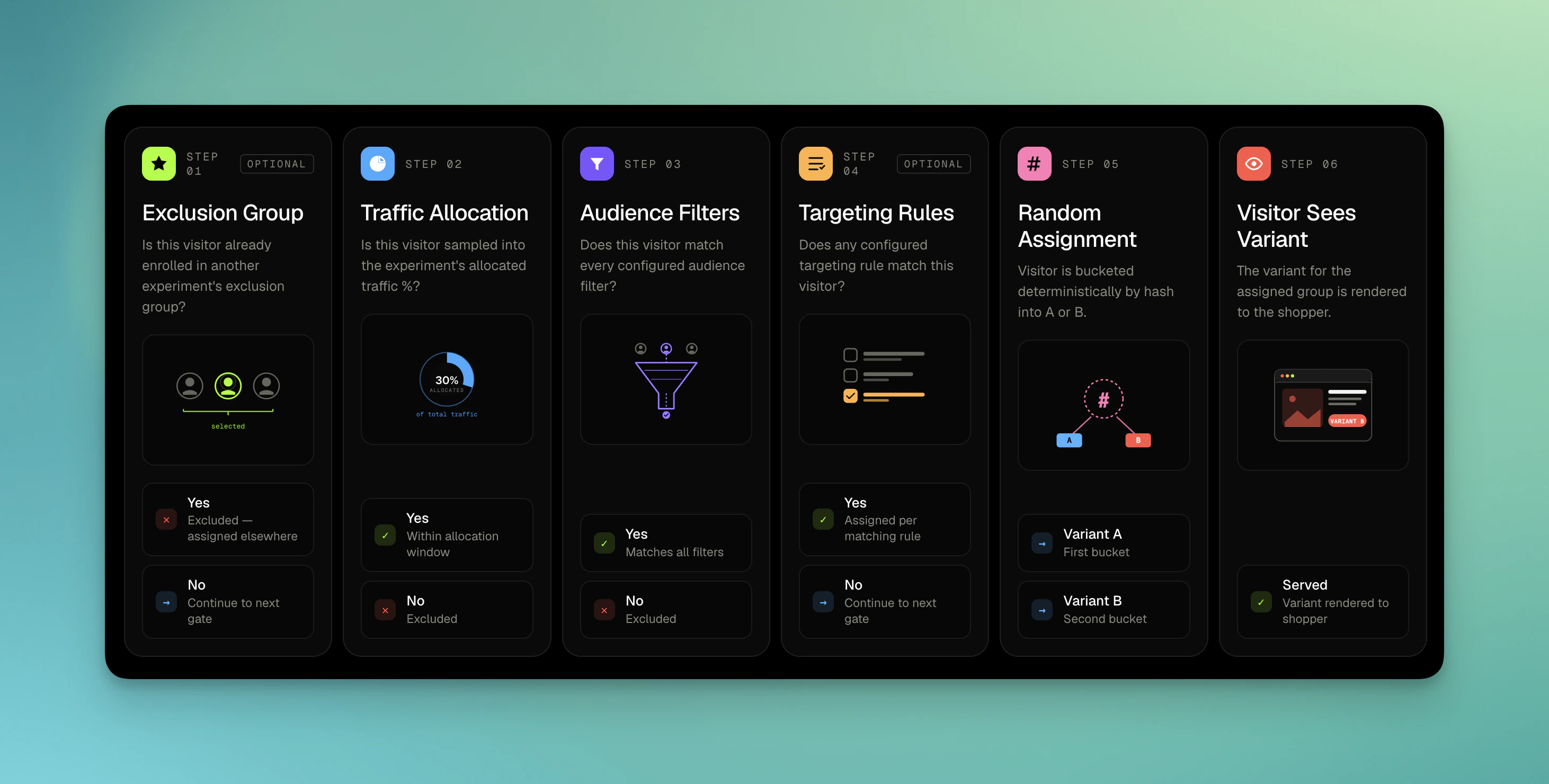 When creating a test, you can configure these rules in **Step 2: Audience**.
 ## Exclusion Group (optional)
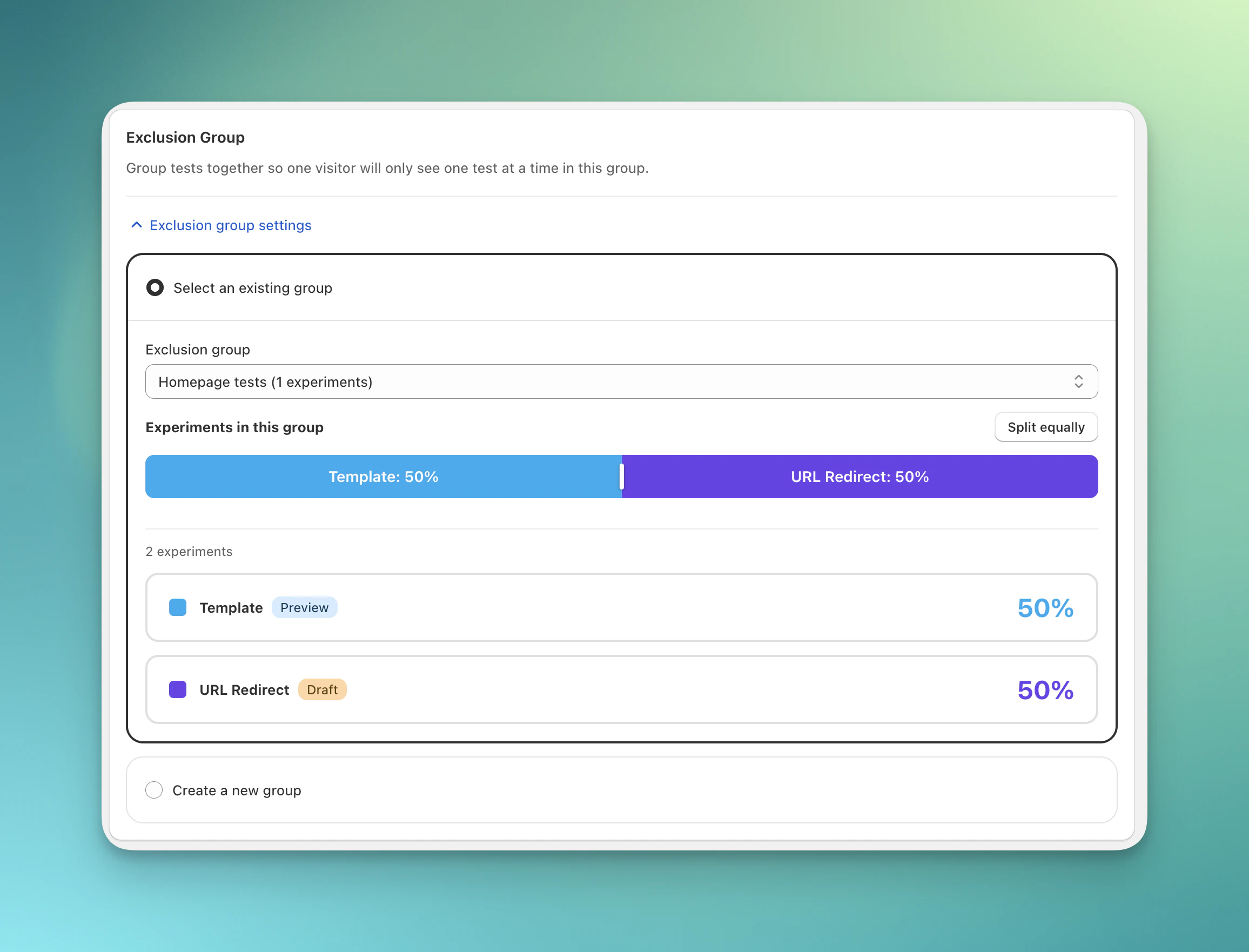
If you add an experiment to an **Exclusion Group**, ABConvert ensures each visitor can enter only one experiment in that group. This prevents experiment overlap from contaminating your results.
ABConvert uses a deterministic group-level hash and preconfigured ranges to decide which experiment a visitor can enter. Once assigned, that visitor stays in the same Exclusion Group assignment for consistency.
## Exclusion Group (optional)
If you add an experiment to an **Exclusion Group**, ABConvert ensures each visitor can enter only one experiment in that group. This prevents experiment overlap from contaminating your results.
ABConvert uses a deterministic group-level hash and preconfigured ranges to decide which experiment a visitor can enter. Once assigned, that visitor stays in the same Exclusion Group assignment for consistency.
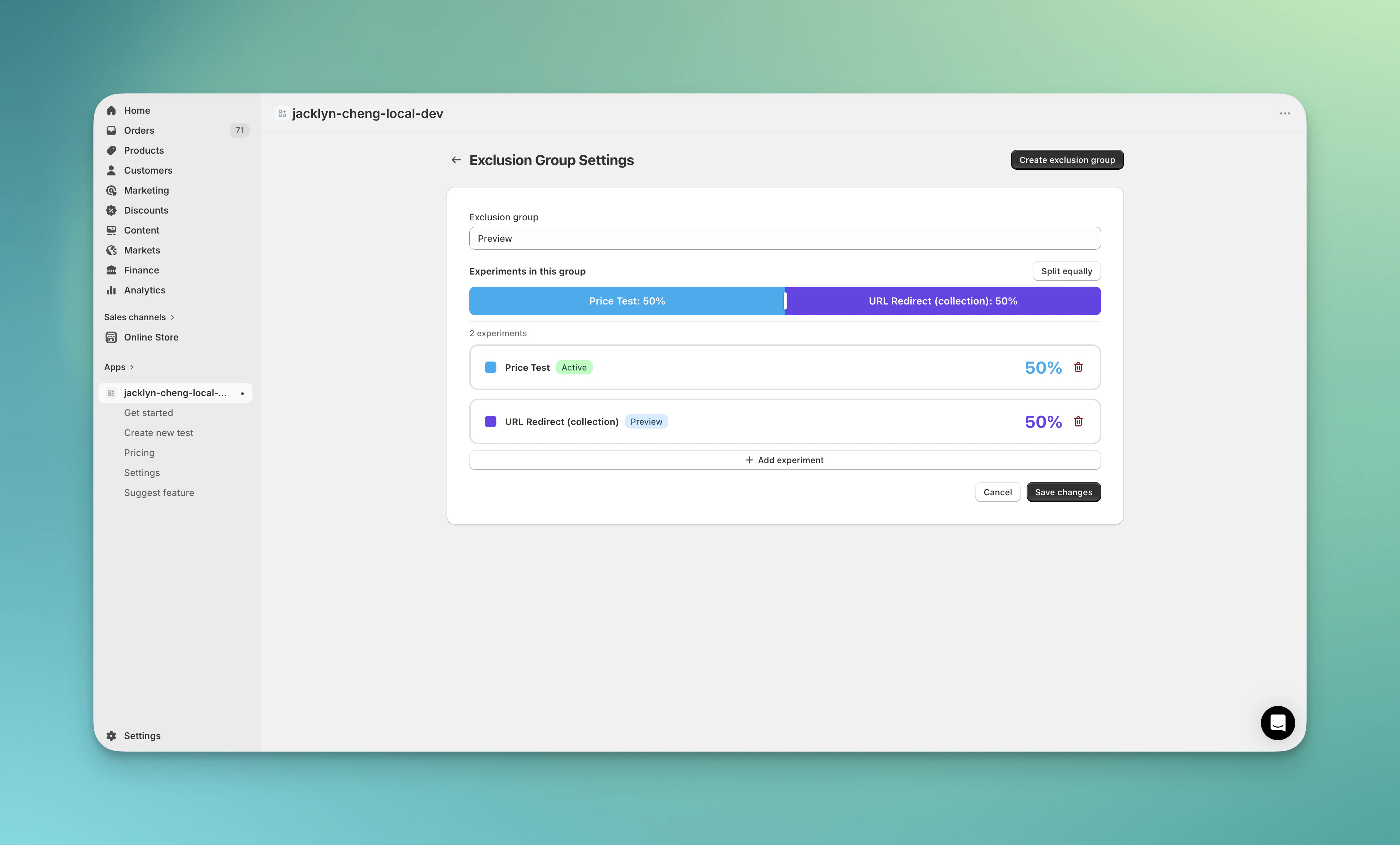
 You can create, edit, and delete Exclusion Groups in **Settings**.
 ## Traffic allocation
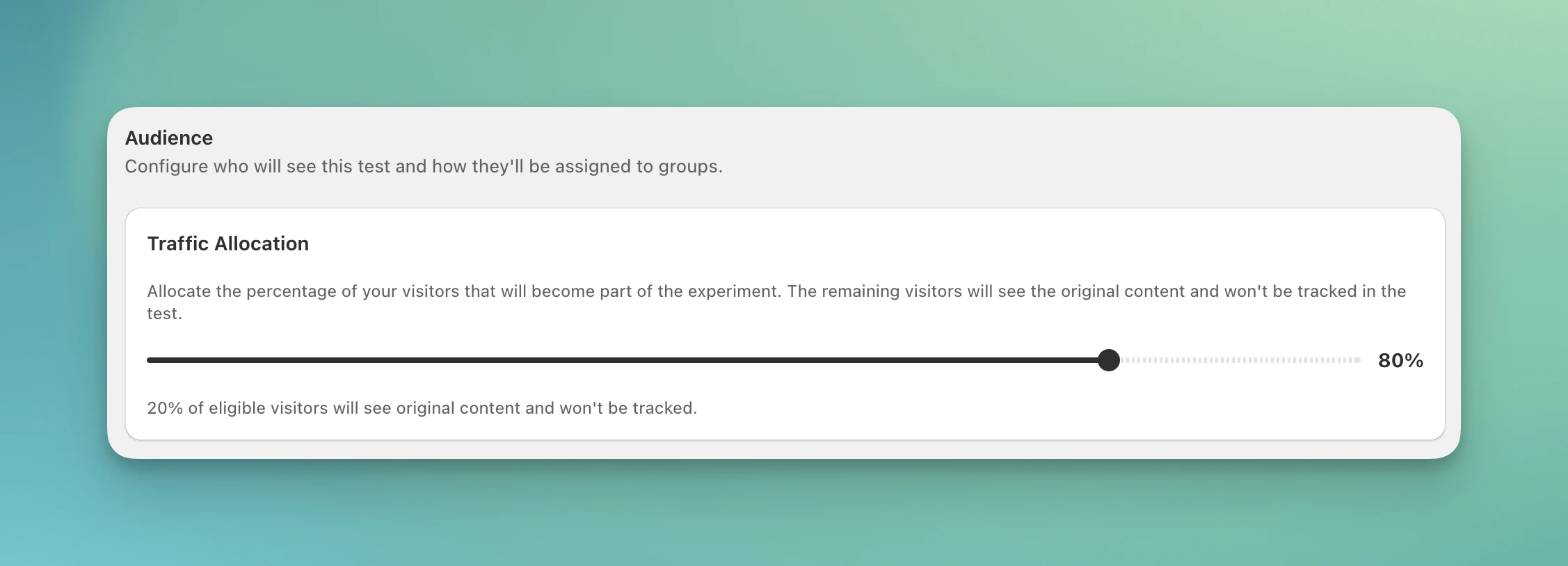
When a visitor arrives at your store, ABConvert first decides whether they should enter the test at all. You control this with the **Traffic allocation** percentage (1–100%).
* **100%** — All eligible visitors enter the test (recommended)
* **Lower percentages** — Useful for cautious rollouts or limited inventory
For example, if you set traffic allocation to 50%, half of your visitors will enter the test and half won't. This decision is **sticky** — once a visitor is included or excluded, they stay that way for the duration of the test.
## Traffic allocation
When a visitor arrives at your store, ABConvert first decides whether they should enter the test at all. You control this with the **Traffic allocation** percentage (1–100%).
* **100%** — All eligible visitors enter the test (recommended)
* **Lower percentages** — Useful for cautious rollouts or limited inventory
For example, if you set traffic allocation to 50%, half of your visitors will enter the test and half won't. This decision is **sticky** — once a visitor is included or excluded, they stay that way for the duration of the test.
 ## Audience filters (optional)
After passing traffic allocation, visitors go through audience filters. These let you narrow down exactly who sees your test. Filters only apply to visitors who haven't been assigned yet.
## Audience filters (optional)
After passing traffic allocation, visitors go through audience filters. These let you narrow down exactly who sees your test. Filters only apply to visitors who haven't been assigned yet.
 ### Basic filters
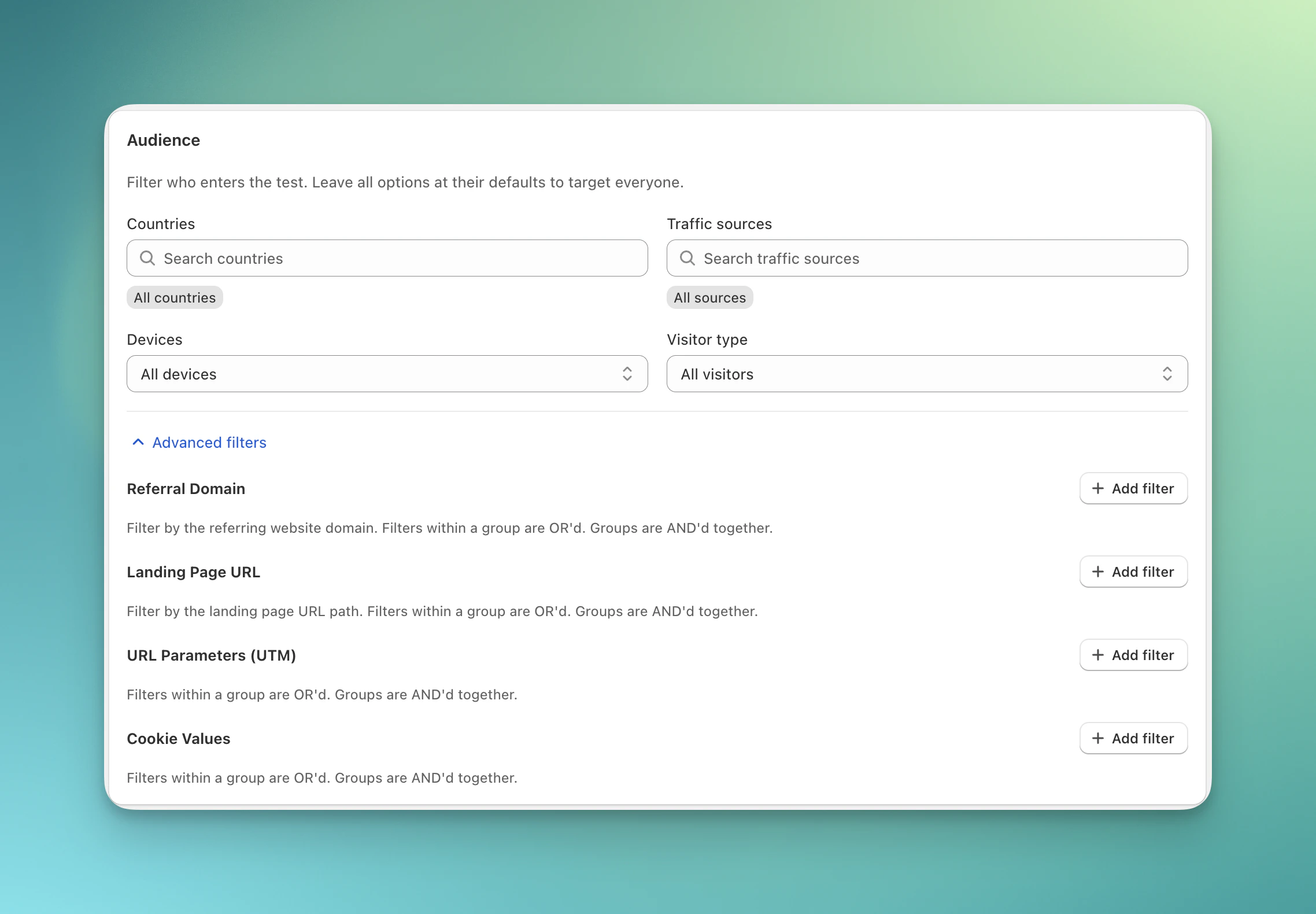
* **Countries** — Target specific geographic regions
* **Traffic Sources** — Filter by where visitors came from (paid ads, organic search, social, email, etc.). See *Understanding Traffic Sources* below for full details.
* **Devices** — Target desktop or mobile visitors
* **Visitor Type** — Target new visitors or returning visitors. **Note:** Enable ABConvert Visitor Label in your embedded apps at least 2 weeks before using this filter.
### Advanced filters
You can use **Advanced filters** to expand these options:
* **Referral Domain** — Filter by the referring website domain
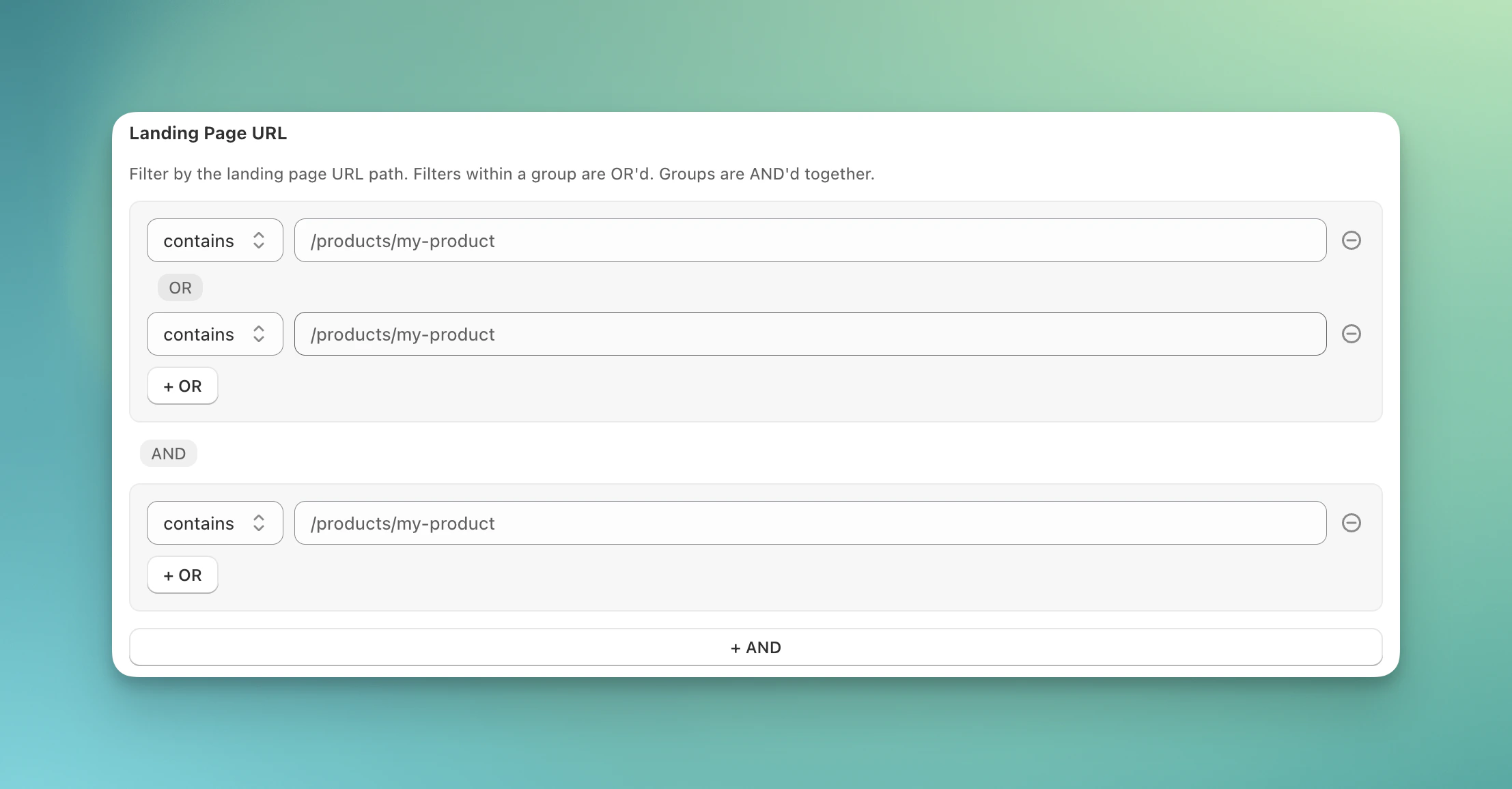
* **Landing Page URL** — Target visitors arriving at specific pages
* **URL Parameters (UTM)** — Target visitors with specific UTM parameters
* **Cookie Values** — Target based on existing cookie data
Advanced filters support complex logic, for example: Landing Page URL **starts with** /products **and contains** /A or /B or /C.
### Basic filters
* **Countries** — Target specific geographic regions
* **Traffic Sources** — Filter by where visitors came from (paid ads, organic search, social, email, etc.). See *Understanding Traffic Sources* below for full details.
* **Devices** — Target desktop or mobile visitors
* **Visitor Type** — Target new visitors or returning visitors. **Note:** Enable ABConvert Visitor Label in your embedded apps at least 2 weeks before using this filter.
### Advanced filters
You can use **Advanced filters** to expand these options:
* **Referral Domain** — Filter by the referring website domain
* **Landing Page URL** — Target visitors arriving at specific pages
* **URL Parameters (UTM)** — Target visitors with specific UTM parameters
* **Cookie Values** — Target based on existing cookie data
Advanced filters support complex logic, for example: Landing Page URL **starts with** /products **and contains** /A or /B or /C.
 ### Understanding traffic sources
ABConvert detects where a visitor came from using two signals on their first page load:
* **Click IDs in the URL** — When someone clicks a paid ad, the ad platform automatically appends a unique ID to the landing URL (e.g. `gclid` for Google Ads, `fbclid` for Facebook Ads, `ttclid` for TikTok Ads). ABConvert reads this to identify paid visitors reliably.
* **Referring page** — When a visitor clicks a link on another site, the browser passes along where they came from. ABConvert uses this to detect organic search, organic social, and referral traffic.
Once detected, the traffic source is saved for the entire session, so navigating to other pages won't change the visitor's classification.
### Channels
Channels group visitors by acquisition type:
* **Paid Search** — Clicked a Google Ads or Bing Ads link (detected by `gclid` or `msclkid` in the URL)
* **Organic Search** — Clicked an organic result from Google, Bing, Yahoo, DuckDuckGo, etc.
* **Paid Social** — Clicked a paid social ad on Facebook, TikTok, Instagram, etc. (detected by `fbclid`, `ttclid`, or `utm_medium=cpc/paid`)
* **Organic Social** — Clicked an organic post on Facebook, Instagram, TikTok, Twitter/X, or YouTube
* **Email** — URL contains `utm_source=email` or `utm_medium=email`
* **SMS** — URL contains `utm_source=sms` or `utm_medium=sms`
* **Affiliate** — URL contains `utm_medium=affiliate`
* **Referral** — Came from another website (not a search engine or social platform)
* **Direct** — No referrer and no UTM params (typed URL, bookmark, or unknown source)
### Platforms
Platforms let you target a specific source within a channel. For example, selecting **Google** captures all Google visitors, both paid (Google Ads) and organic (Google Search).
Available platforms: Google, Facebook, Instagram, TikTok, Twitter/X, YouTube, Bing.
### How filters work together
A visitor must pass **all** enabled filter groups to proceed to group assignment.
**Example configuration:**
* Country: United States OR Canada
* Device: Mobile
* Traffic source: Facebook OR Instagram
**Result:** Only mobile visitors from US/Canada arriving from Facebook or Instagram will enter the test.
## Targeting rules (optional)
Targeting rules let you force-assign specific visitors to a particular group, instead of random assignment. Rules are evaluated in order, the first matching rule wins.
1. **Add a rule**\
Click **+ Add rule** to create a condition
2. **Set conditions**\
Choose from: Country, Traffic Source, Referral Domain, Landing Page, Device, UTM parameter, Cookie
3. **Set the action**\
Choose what happens when the rule matches:
* **Assign to group** — Send matching visitors directly to Control or a Variant
* **Random split** — Pass to the normal random assignment step
* **Exclude** — Remove from the test entirely (not tracked in analytics)
### Understanding traffic sources
ABConvert detects where a visitor came from using two signals on their first page load:
* **Click IDs in the URL** — When someone clicks a paid ad, the ad platform automatically appends a unique ID to the landing URL (e.g. `gclid` for Google Ads, `fbclid` for Facebook Ads, `ttclid` for TikTok Ads). ABConvert reads this to identify paid visitors reliably.
* **Referring page** — When a visitor clicks a link on another site, the browser passes along where they came from. ABConvert uses this to detect organic search, organic social, and referral traffic.
Once detected, the traffic source is saved for the entire session, so navigating to other pages won't change the visitor's classification.
### Channels
Channels group visitors by acquisition type:
* **Paid Search** — Clicked a Google Ads or Bing Ads link (detected by `gclid` or `msclkid` in the URL)
* **Organic Search** — Clicked an organic result from Google, Bing, Yahoo, DuckDuckGo, etc.
* **Paid Social** — Clicked a paid social ad on Facebook, TikTok, Instagram, etc. (detected by `fbclid`, `ttclid`, or `utm_medium=cpc/paid`)
* **Organic Social** — Clicked an organic post on Facebook, Instagram, TikTok, Twitter/X, or YouTube
* **Email** — URL contains `utm_source=email` or `utm_medium=email`
* **SMS** — URL contains `utm_source=sms` or `utm_medium=sms`
* **Affiliate** — URL contains `utm_medium=affiliate`
* **Referral** — Came from another website (not a search engine or social platform)
* **Direct** — No referrer and no UTM params (typed URL, bookmark, or unknown source)
### Platforms
Platforms let you target a specific source within a channel. For example, selecting **Google** captures all Google visitors, both paid (Google Ads) and organic (Google Search).
Available platforms: Google, Facebook, Instagram, TikTok, Twitter/X, YouTube, Bing.
### How filters work together
A visitor must pass **all** enabled filter groups to proceed to group assignment.
**Example configuration:**
* Country: United States OR Canada
* Device: Mobile
* Traffic source: Facebook OR Instagram
**Result:** Only mobile visitors from US/Canada arriving from Facebook or Instagram will enter the test.
## Targeting rules (optional)
Targeting rules let you force-assign specific visitors to a particular group, instead of random assignment. Rules are evaluated in order, the first matching rule wins.
1. **Add a rule**\
Click **+ Add rule** to create a condition
2. **Set conditions**\
Choose from: Country, Traffic Source, Referral Domain, Landing Page, Device, UTM parameter, Cookie
3. **Set the action**\
Choose what happens when the rule matches:
* **Assign to group** — Send matching visitors directly to Control or a Variant
* **Random split** — Pass to the normal random assignment step
* **Exclude** — Remove from the test entirely (not tracked in analytics)
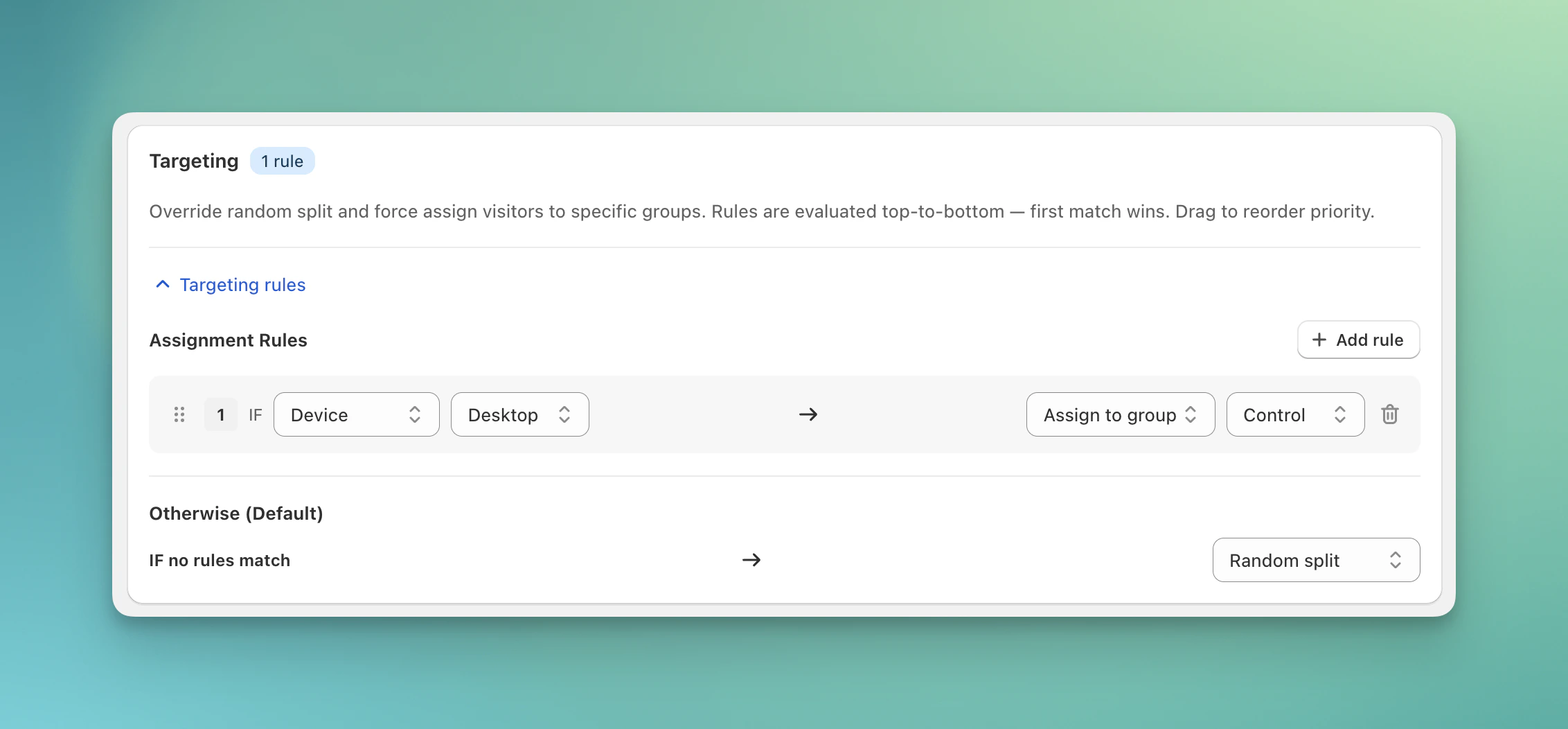 **Example:** "IF Device is Desktop → Assign to Control"
**Default:** Visitors who don't match any rule are randomly split according to your group percentages.
## Random group assignment
If a visitor passes all filters and doesn't match any targeting rules, they are randomly assigned to a test group based on your split percentages.
ABConvert uses a deterministic hash so the same visitor always lands in the same group across sessions, even if they clear cookies or return days later.
**Example:** For a 50/50 split, visitors with hash 0–49 see Group 0 and hash 50–99 see Group 1.
## Audience targeting FAQs
Even with a 50/50 split, analytics may show 52/48 or similar. This is normal for two reasons:
1. **Smaller sample = more variance**\
Audience filters reduce the visitor pool. With 100,000 visitors you'll see near-perfect 50/50. With 1,000 visitors after filtering, 48/52 is statistically normal.
2. **Short-term randomness**\
Like flipping a coin — you might get 6 heads and 4 tails in a short run. It evens out over time.
**What to do:** Let the test run longer. As sample size grows, the distribution naturally balances.
Each test assigns visitors independently. The same visitor can be in different groups across different tests — this is by design. Each test's assignment is isolated and based on its own experiment ID.
**Example:**
* Price Test A → Visitor in Group 0 (Original)
* Theme Test B → Same visitor in Group 1 (Variant)
* Shipping Test C → Same visitor in Group 2
This is not currently possible. We're planning to launch a test grouping feature that will unlock this use case — stay tuned!
Yes. You can adjust the allocation percentage at any time. However, visitors who were already excluded stay excluded.
**Example:** If you start at 50% and increase to 80%, the extra 30% comes from previously excluded visitors.
Yes, but changes only affect new, unassigned visitors. Visitors already in a group keep their original assignment.
**Best practice:** Test your filters thoroughly before launching to avoid losing attribution data.
They are permanently excluded from the test. They won't see any variant and won't appear in test analytics.
**Example:** "IF Device is Desktop → Assign to Control"
**Default:** Visitors who don't match any rule are randomly split according to your group percentages.
## Random group assignment
If a visitor passes all filters and doesn't match any targeting rules, they are randomly assigned to a test group based on your split percentages.
ABConvert uses a deterministic hash so the same visitor always lands in the same group across sessions, even if they clear cookies or return days later.
**Example:** For a 50/50 split, visitors with hash 0–49 see Group 0 and hash 50–99 see Group 1.
## Audience targeting FAQs
Even with a 50/50 split, analytics may show 52/48 or similar. This is normal for two reasons:
1. **Smaller sample = more variance**\
Audience filters reduce the visitor pool. With 100,000 visitors you'll see near-perfect 50/50. With 1,000 visitors after filtering, 48/52 is statistically normal.
2. **Short-term randomness**\
Like flipping a coin — you might get 6 heads and 4 tails in a short run. It evens out over time.
**What to do:** Let the test run longer. As sample size grows, the distribution naturally balances.
Each test assigns visitors independently. The same visitor can be in different groups across different tests — this is by design. Each test's assignment is isolated and based on its own experiment ID.
**Example:**
* Price Test A → Visitor in Group 0 (Original)
* Theme Test B → Same visitor in Group 1 (Variant)
* Shipping Test C → Same visitor in Group 2
This is not currently possible. We're planning to launch a test grouping feature that will unlock this use case — stay tuned!
Yes. You can adjust the allocation percentage at any time. However, visitors who were already excluded stay excluded.
**Example:** If you start at 50% and increase to 80%, the extra 30% comes from previously excluded visitors.
Yes, but changes only affect new, unassigned visitors. Visitors already in a group keep their original assignment.
**Best practice:** Test your filters thoroughly before launching to avoid losing attribution data.
They are permanently excluded from the test. They won't see any variant and won't appear in test analytics.