> ## Documentation Index
> Fetch the complete documentation index at: https://docs.abconvert.io/llms.txt
> Use this file to discover all available pages before exploring further.
# GA4 Integration: Track Experiments in Google Analytics
> Connect ABConvert to GA4 to receive experiment impression events and analyze test group performance alongside your other Google Analytics data.
Connecting ABConvert to Google Analytics 4 lets you analyze experiment performance alongside all of the other behavioral data you're already collecting in GA4. Once connected, ABConvert fires a custom event every time a visitor is assigned to an experiment, so you can build reports that segment any GA4 metric — sessions, revenue, engagement — by experiment and variant.
## What gets tracked
When the integration is active, ABConvert sends a `abconvert_experience_impression` event to your GA4 property each time a visitor enters an experiment. The event includes:
| Parameter | Description | Example |
| ------------------------------ | ----------------------------------------------------------------------- | --------------------- |
| `abconvert_experiment_id` | The numeric experiment ID | `1001` |
| `abconvert_experiment_name` | The experiment name | `Homepage price test` |
| `abconvert_group_index` | The assigned test group index | `1` |
| `abconvert_variant_name` | The assigned variant name | `Variant B` |
| `abconvert_exp_variant_string` | Combined experiment + group key in the format `experimentId-groupIndex` | `1001-1` |
| `abconvert_assignment_reason` | Why this assignment happened | `random_split` |
These parameters are available as event parameters in GA4 and can be used to create custom dimensions, apply them to explorations, or build audience segments.
## Setup
In Google Analytics, go to **Admin** → **Data Streams** → select your web data stream. Your Measurement ID appears at the top right of the stream details panel. It follows the format `G-XXXXXXXXXX`.
Click the copy icon next to the Measurement ID or select the full string (including the `G-` prefix).
In ABConvert, go to **Settings** and find the **GA4 Measurement ID** field. Paste your Measurement ID and click **Save**.
Run a live experiment and open **GA4 → Reports → Realtime**. You should see `abconvert_experience_impression` appearing in the event stream within a few minutes of a visitor being assigned to an experiment.
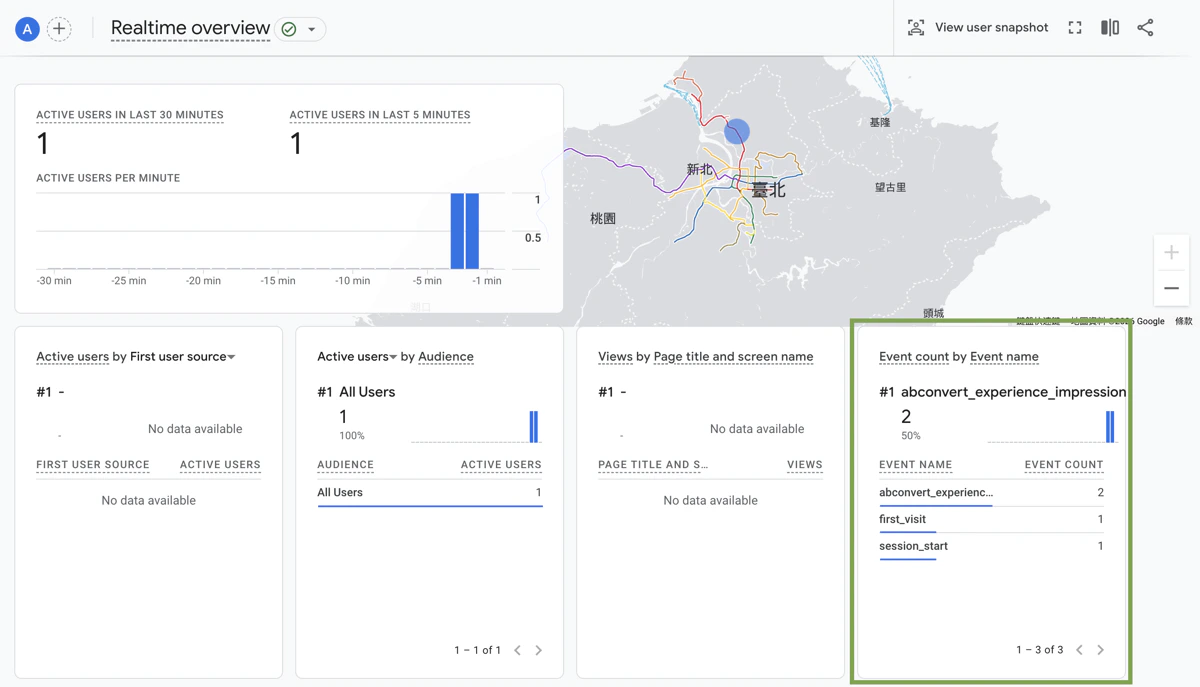 Your Measurement ID must follow the format `G-XXXXXXXXXX` (the letter G followed by a hyphen and alphanumeric characters). ABConvert validates the format when you save — if the field shows an error, double-check that you've copied the full ID from GA4.
## Building reports in GA4
Once the integration is running and impression events are flowing into GA4, you can analyze experiment data in several ways.
**Custom dimensions**
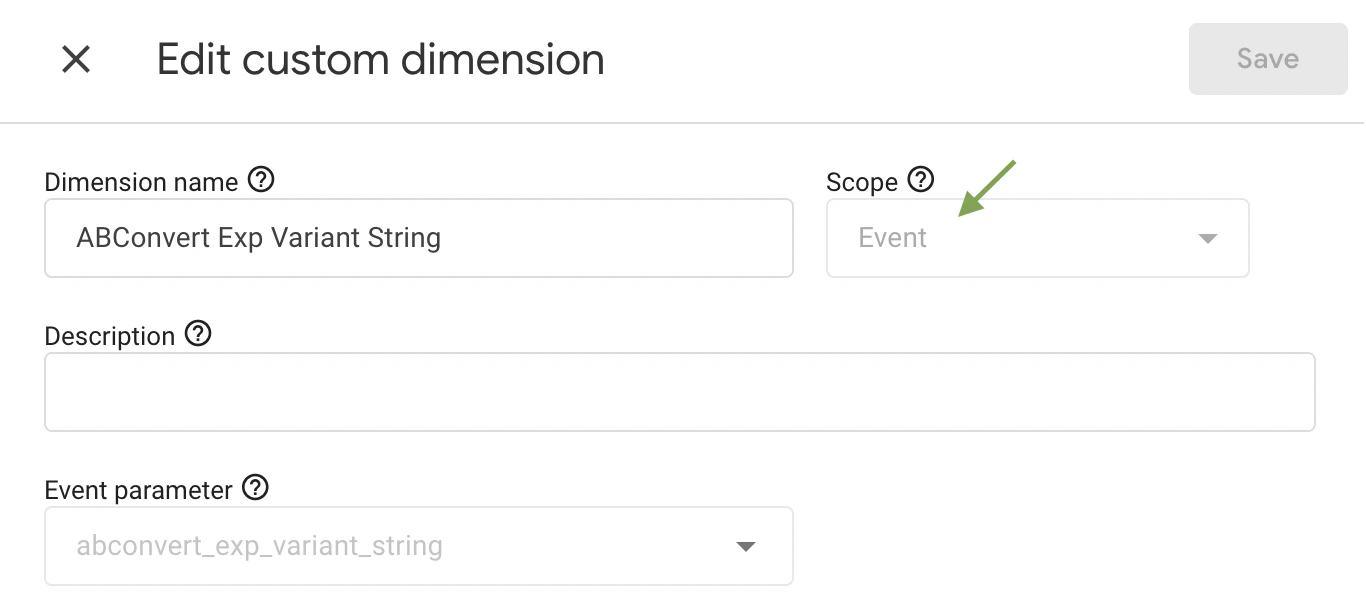
To use ABConvert event parameters in standard GA4 reports, register them as custom dimensions:
1. Go to **Admin** → **Custom definitions** → **Custom dimensions**
2. Click **Create custom dimension**
3. Set the scope to **Event**
4. Set **Event parameter** to one ABConvert parameter (for example `abconvert_experiment_name` or `abconvert_variant_name`)
5. Repeat for other parameters you want to report on
After registering, GA4 will start populating the dimension in reports going forward (historical data won't be backfilled).
Your Measurement ID must follow the format `G-XXXXXXXXXX` (the letter G followed by a hyphen and alphanumeric characters). ABConvert validates the format when you save — if the field shows an error, double-check that you've copied the full ID from GA4.
## Building reports in GA4
Once the integration is running and impression events are flowing into GA4, you can analyze experiment data in several ways.
**Custom dimensions**
To use ABConvert event parameters in standard GA4 reports, register them as custom dimensions:
1. Go to **Admin** → **Custom definitions** → **Custom dimensions**
2. Click **Create custom dimension**
3. Set the scope to **Event**
4. Set **Event parameter** to one ABConvert parameter (for example `abconvert_experiment_name` or `abconvert_variant_name`)
5. Repeat for other parameters you want to report on
After registering, GA4 will start populating the dimension in reports going forward (historical data won't be backfilled).
 **Explorations**
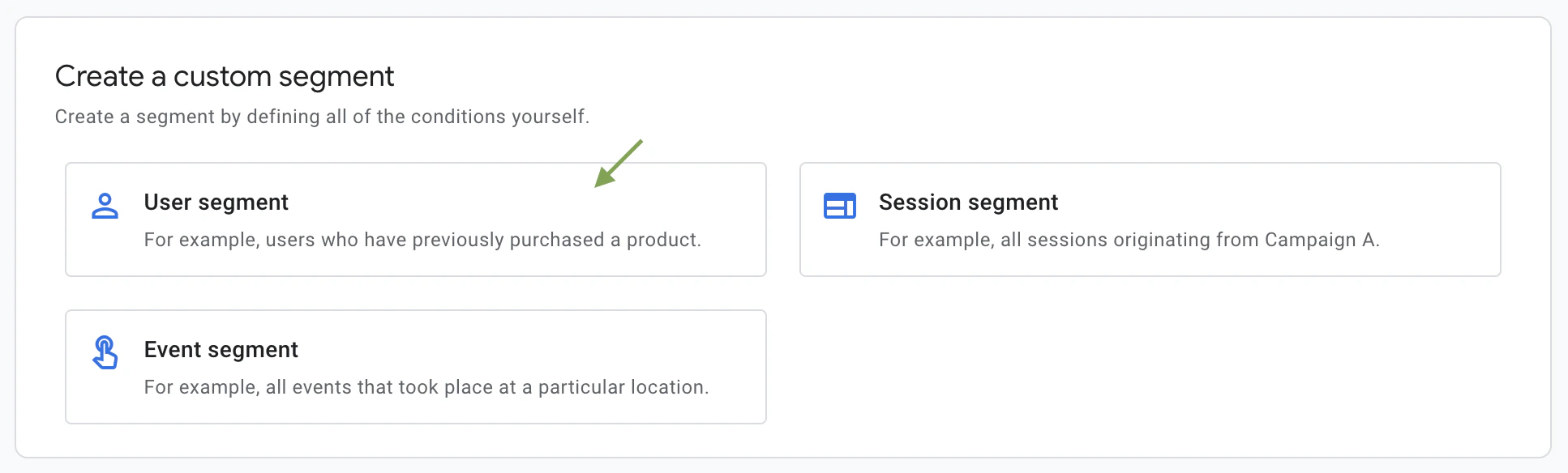
GA4 Explorations give you the most flexibility for analyzing experiment results. To compare variants correctly, create one **user segment** per test group.
In GA4, go to **Explore** and choose **Segment overlap**.
Add a **User segment** with an event condition where event name equals `abconvert_experience_impression`, then filter the same event by:
`abconvert_experiment_id = `
`abconvert_group_index = 0`
Duplicate the control segment and change `abconvert_group_index` to `1`, `2`, or other variant indexes used in your experiment.
Add business metrics like purchases, revenue, or engagement and compare segments side by side.
**Explorations**
GA4 Explorations give you the most flexibility for analyzing experiment results. To compare variants correctly, create one **user segment** per test group.
In GA4, go to **Explore** and choose **Segment overlap**.
Add a **User segment** with an event condition where event name equals `abconvert_experience_impression`, then filter the same event by:
`abconvert_experiment_id = `
`abconvert_group_index = 0`
Duplicate the control segment and change `abconvert_group_index` to `1`, `2`, or other variant indexes used in your experiment.
Add business metrics like purchases, revenue, or engagement and compare segments side by side.
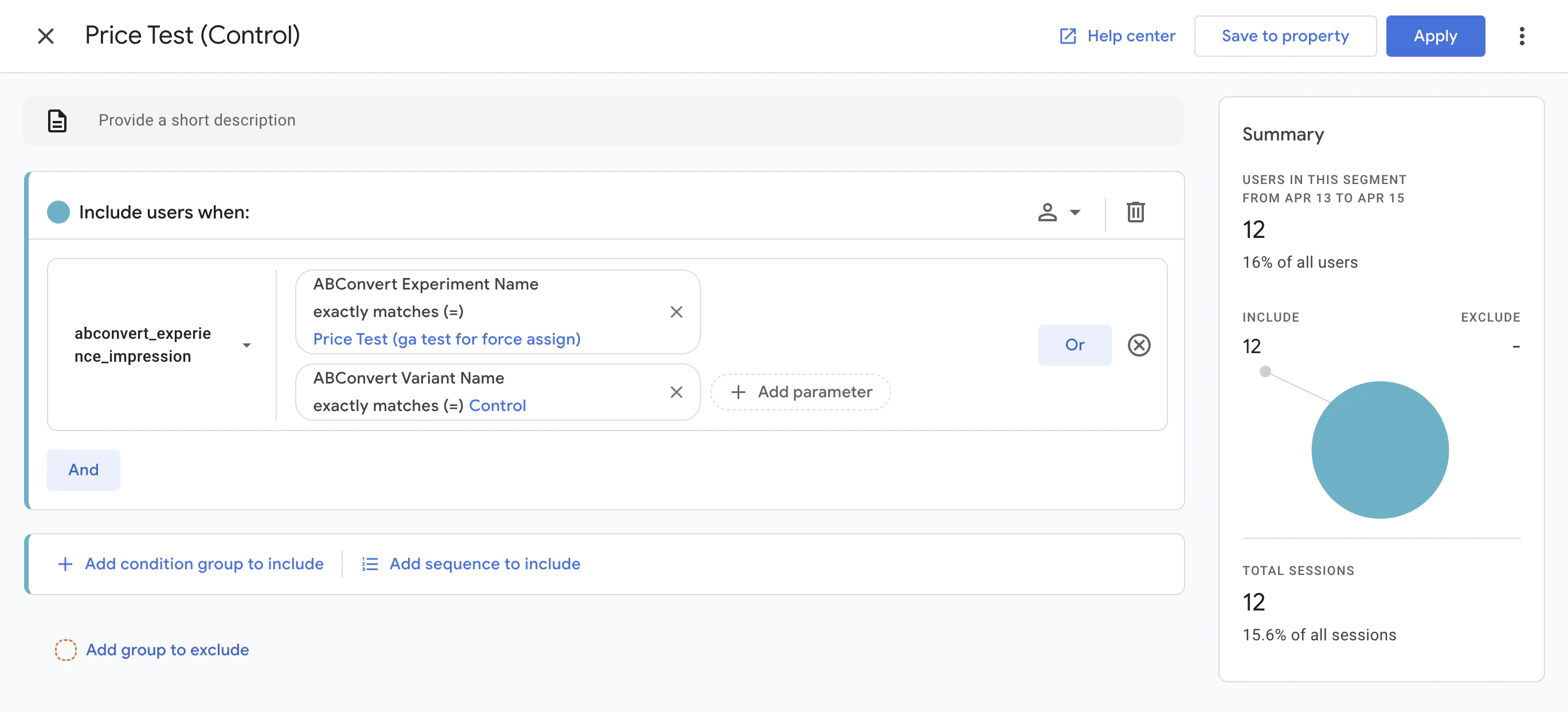 If you want a single filter field per segment, use `abconvert_exp_variant_string` (for example `1001-0` for control and `1001-1` for Variant 1).
**Funnel exploration**
Build a funnel exploration with steps for page view → add to cart → purchase, then apply variant segments as breakdowns. This lets you see exactly where in the purchase funnel each variant performs differently.
## Things to know
* GA4 impression events are fired client-side by the ABConvert script. If a visitor has an ad blocker or has opted out of tracking, the event may not be sent.
* The integration supplements ABConvert's own analytics — it does not replace them. Use ABConvert's dashboard for statistical significance calculations and conversion metrics; use GA4 for deeper behavioral and cross-channel analysis.
* There is no additional cost in ABConvert or GA4 for enabling this integration. GA4's standard event limits apply.
If you want a single filter field per segment, use `abconvert_exp_variant_string` (for example `1001-0` for control and `1001-1` for Variant 1).
**Funnel exploration**
Build a funnel exploration with steps for page view → add to cart → purchase, then apply variant segments as breakdowns. This lets you see exactly where in the purchase funnel each variant performs differently.
## Things to know
* GA4 impression events are fired client-side by the ABConvert script. If a visitor has an ad blocker or has opted out of tracking, the event may not be sent.
* The integration supplements ABConvert's own analytics — it does not replace them. Use ABConvert's dashboard for statistical significance calculations and conversion metrics; use GA4 for deeper behavioral and cross-channel analysis.
* There is no additional cost in ABConvert or GA4 for enabling this integration. GA4's standard event limits apply.