> ## Documentation Index
> Fetch the complete documentation index at: https://docs.abconvert.io/llms.txt
> Use this file to discover all available pages before exploring further.
# Use Custom Events in Analytics
> Use custom events as visitor filters, session-based funnel steps, and descriptive trigger-rate metrics in test Analytics.
Custom events appear in Analytics in three places: visitor filters, the session-based funnel, and the Custom Events results section.
## When to use custom event Analytics
Choose the view that matches what you want to learn:
| Analytics use | Question it answers | Counting unit |
| ------------------- | -------------------------------------------------------------------- | ------------- |
| Visitor filter | What did this visitor cohort do? | Visitors |
| Funnel step | How do conversion rates compare at each step of my customer journey? | Sessions |
| Custom event metric | What share of visitors triggered this event? | Visitors |
## When not to use custom event Analytics
Do not use custom event results by themselves to declare a winner. They are descriptive and do not include statistical significance. Do not use a visitor filter to claim that triggering an event caused another outcome.
## How custom event Analytics works
ABConvert attributes accepted events to the visitor's test group, then deduplicates them by visitor or session for the selected Analytics view. Your date range, **Measured by** setting, and filters define the current Analytics population.
## Before an event appears in Analytics
The event must meet all of these conditions:
* It was created before the test started.
* It remains **Active** until the test ends.
Do not archive an event while a test that uses it is running. The event becomes ineligible for that test, so its custom event results disappear from the running test.
Custom events are not linked to individual products. Set **Product group** to **All products** to use custom event metrics or custom funnel steps.
## 1. Filter Analytics by whether visitors triggered an event
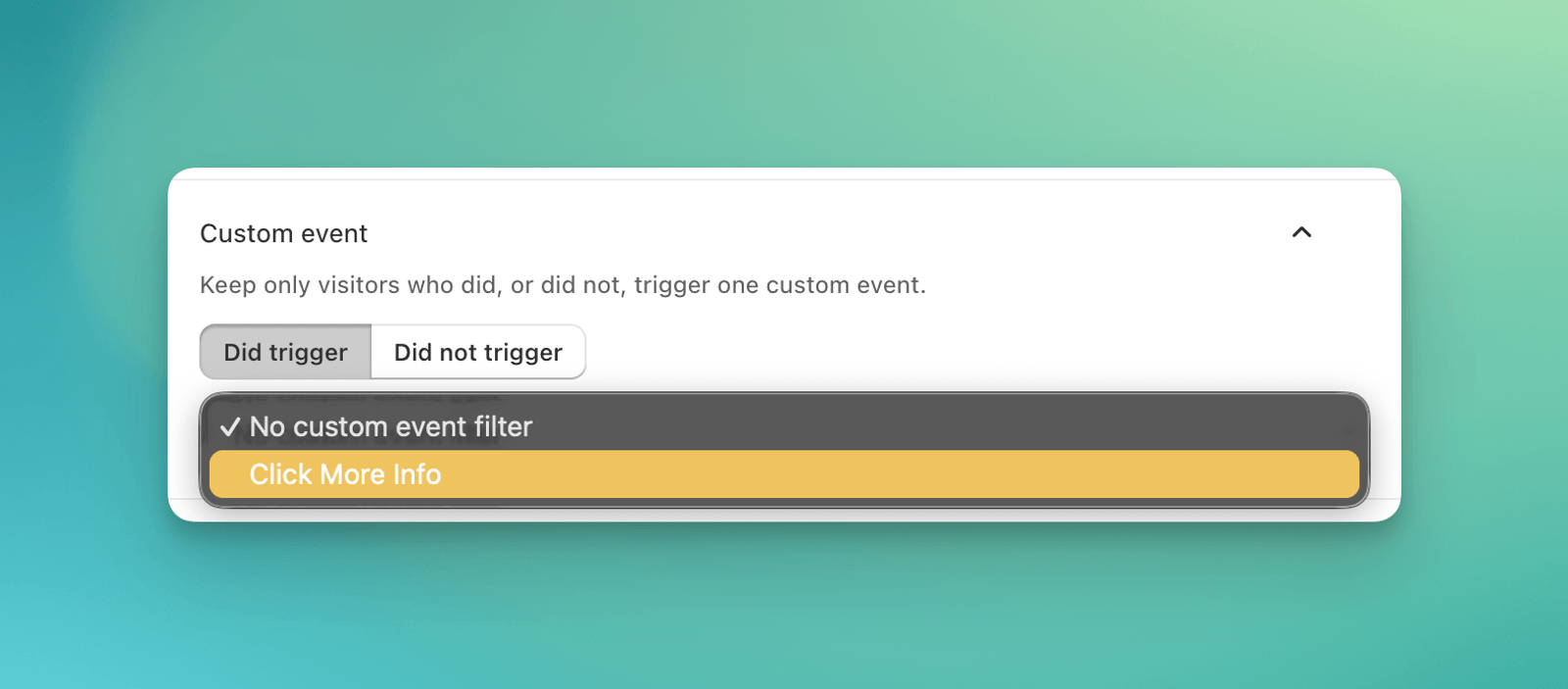
Use a custom event filter to compare the behavior of visitors who did or did not trigger one event during the selected analysis period.
1. Open **Filters** in the Analytics toolbar.
2. Find **Custom event**.
3. Choose **Did trigger** or **Did not trigger**.
4. Select one custom event.
5. Apply the filter.
You can filter by one custom event at a time. Choose **No custom event filter** to clear it.
 ### How the filter is calculated
The filter creates a visitor cohort from the current analysis period:
* **Did trigger** includes each visitor who triggered the event at least once.
* **Did not trigger** includes each eligible visitor who did not trigger the event.
ABConvert then recalculates the dashboard for that visitor cohort. The filter affects the numerator and denominator of dashboard metrics, custom event results, the funnel, engagement, and breakdowns.
The filter does not create a before-and-after sequence. It includes all activity from those visitors during the selected period, including activity before the trigger and activity from their other sessions. The selected event's own visitor trigger rate will normally become 100% with **Did trigger** and 0% with **Did not trigger**.
Treat this as exploratory segmentation. Triggering an event happens after assignment and can reflect visitor intent, so a filtered comparison does not prove that the event caused another result.
## 2. Add a custom event to the funnel
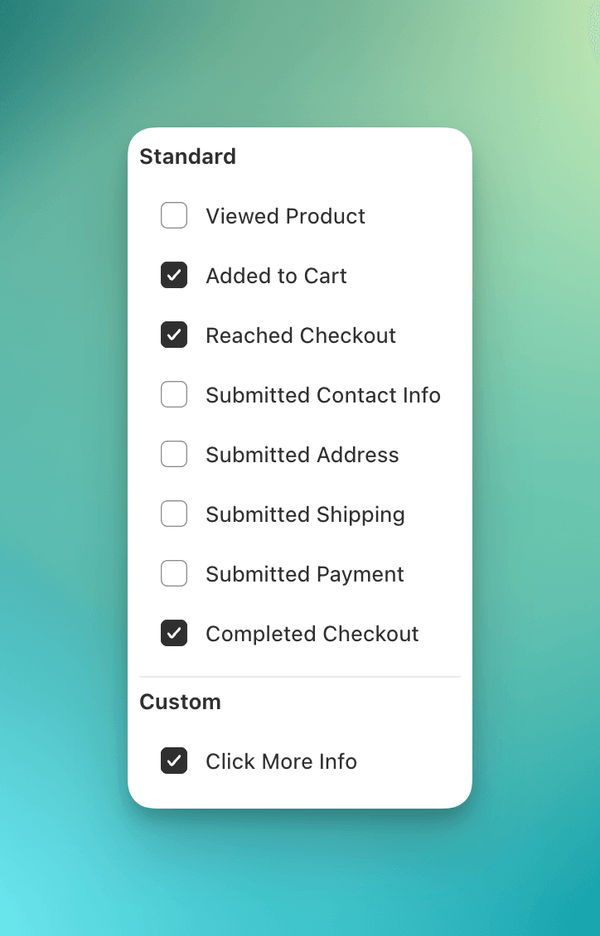
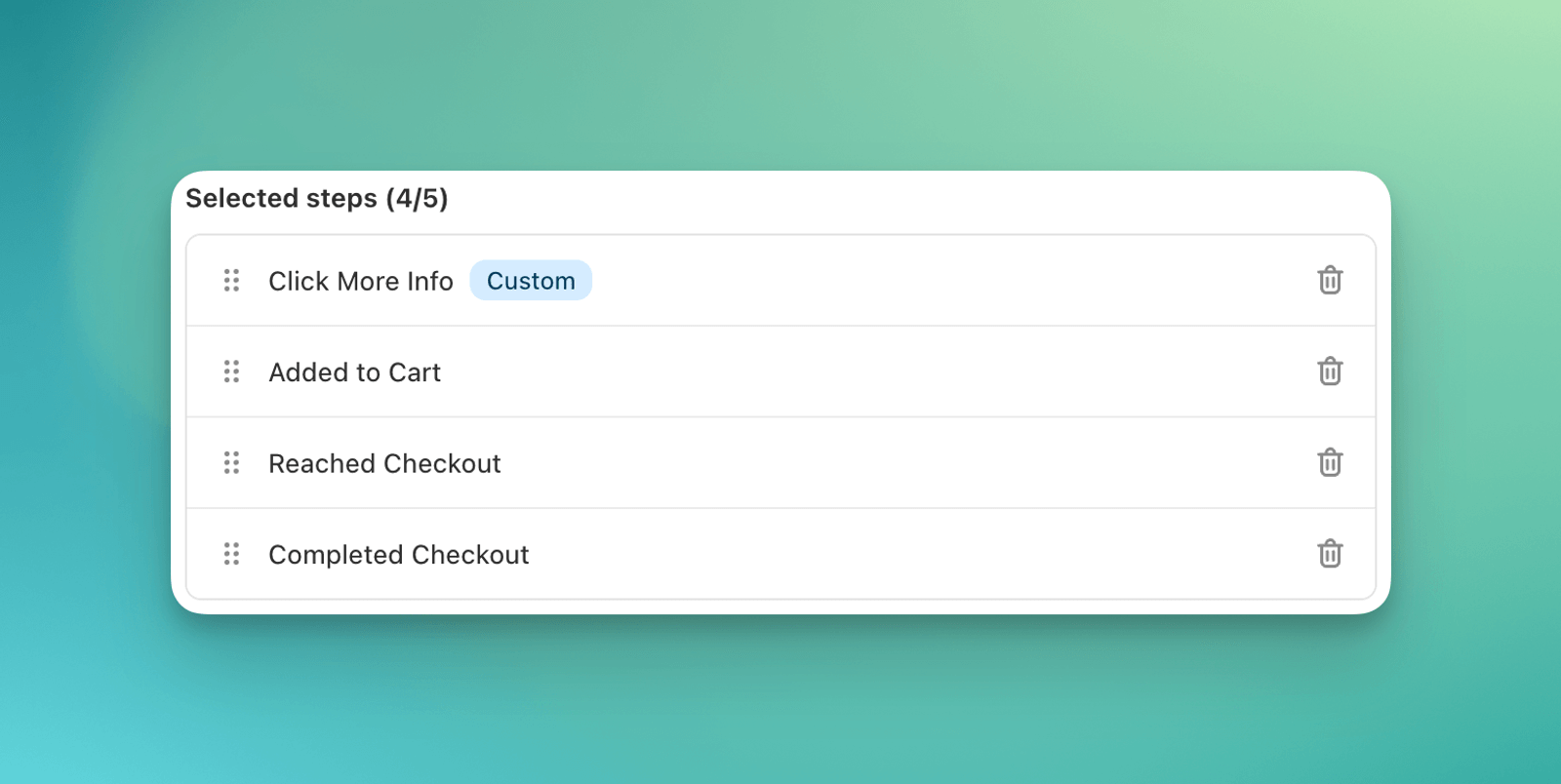
Use custom funnel steps to explore your planned customer journey and compare conversion rates at each step across test groups. For example, add a size-guide click between Product Viewed and Added to Cart to see how test groups compare at that point in the journey.
1. Open the **Funnel** tab in **Performance**.
2. Click **Customize funnel**.
3. Click **Add stage**, then select the custom event under **Custom**.
4. Reorder the selected steps if needed.
5. Click **Apply**.
You can select up to five standard and custom steps. **Sessions** remains the fixed 100% baseline.
### How the filter is calculated
The filter creates a visitor cohort from the current analysis period:
* **Did trigger** includes each visitor who triggered the event at least once.
* **Did not trigger** includes each eligible visitor who did not trigger the event.
ABConvert then recalculates the dashboard for that visitor cohort. The filter affects the numerator and denominator of dashboard metrics, custom event results, the funnel, engagement, and breakdowns.
The filter does not create a before-and-after sequence. It includes all activity from those visitors during the selected period, including activity before the trigger and activity from their other sessions. The selected event's own visitor trigger rate will normally become 100% with **Did trigger** and 0% with **Did not trigger**.
Treat this as exploratory segmentation. Triggering an event happens after assignment and can reflect visitor intent, so a filtered comparison does not prove that the event caused another result.
## 2. Add a custom event to the funnel
Use custom funnel steps to explore your planned customer journey and compare conversion rates at each step across test groups. For example, add a size-guide click between Product Viewed and Added to Cart to see how test groups compare at that point in the journey.
1. Open the **Funnel** tab in **Performance**.
2. Click **Customize funnel**.
3. Click **Add stage**, then select the custom event under **Custom**.
4. Reorder the selected steps if needed.
5. Click **Apply**.
You can select up to five standard and custom steps. **Sessions** remains the fixed 100% baseline.
 For funnel rate definitions, see [Traffic and conversion metrics](/analytics/metrics-traffic-conversion).
Your selected funnel steps are saved in the current browser for that test and **Measured by** setting. Other team members can set up their own view.
## 3. Compare visitor trigger rates by test group
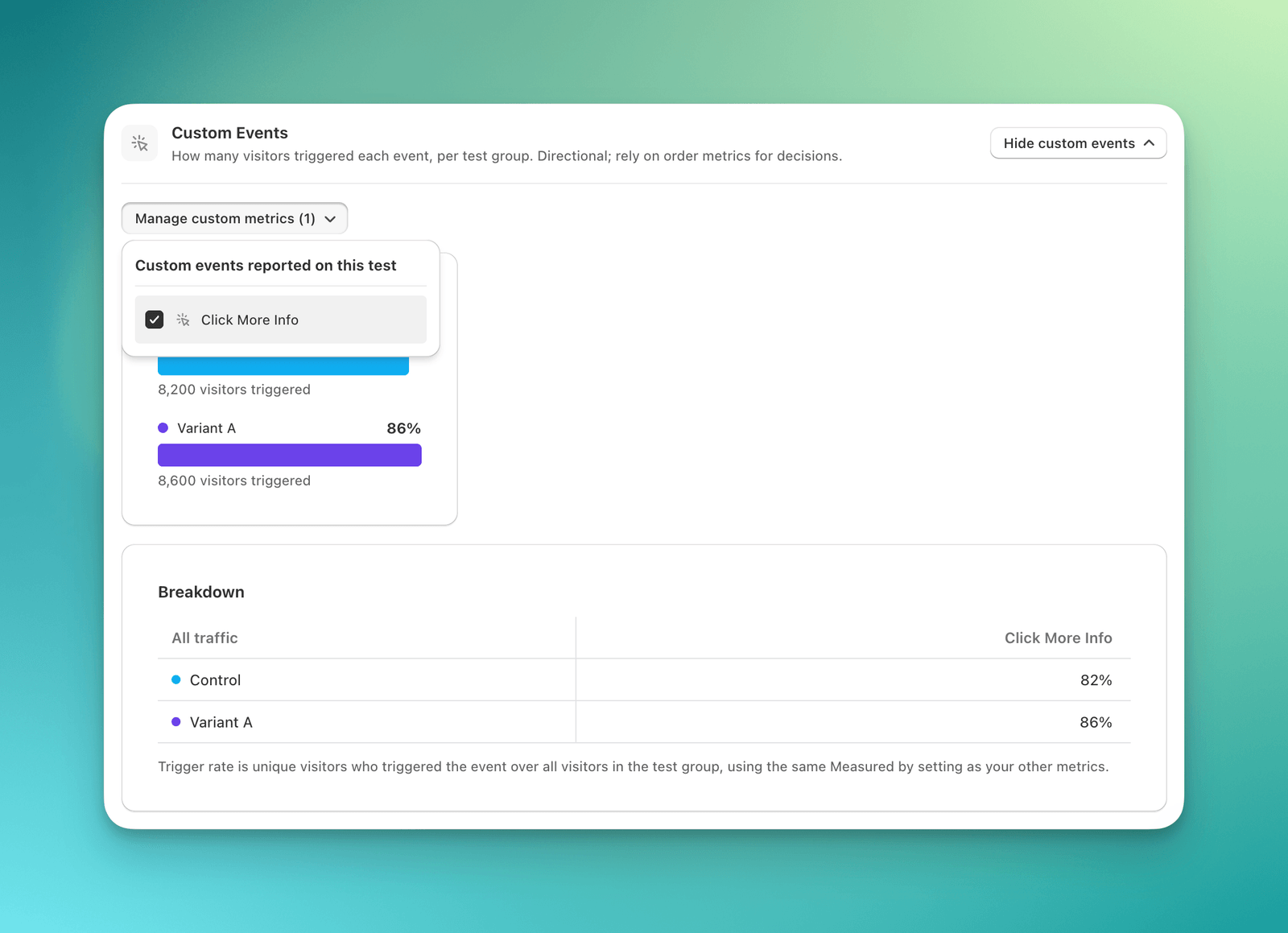
The **Custom Events** section shows how many unique visitors triggered each selected event in Control and every other test group.
1. Open the test's Analytics dashboard.
2. In the **Custom Events** section, open **Manage custom metrics**.
3. Select one or more eligible events.
4. Close the menu. Your selection is saved automatically.
For funnel rate definitions, see [Traffic and conversion metrics](/analytics/metrics-traffic-conversion).
Your selected funnel steps are saved in the current browser for that test and **Measured by** setting. Other team members can set up their own view.
## 3. Compare visitor trigger rates by test group
The **Custom Events** section shows how many unique visitors triggered each selected event in Control and every other test group.
1. Open the test's Analytics dashboard.
2. In the **Custom Events** section, open **Manage custom metrics**.
3. Select one or more eligible events.
4. Close the menu. Your selection is saved automatically.
 ### How visitor trigger rate is calculated
For each event and test group:
```text theme={null}
Trigger rate =
(Unique visitors who triggered the event
/ All visitors in the same test group)
× 100
```
The denominator follows the current **Measured by** setting, date range, and filters. Repeated triggers do not increase the unique visitor count.
In the example above:
```text theme={null}
Control: 8,200 / 10,000 = 82%
Variant A: 8,600 / 10,000 = 86%
```
Custom event results are descriptive. They do not include uplift, p-values, confidence intervals, statistical significance, or a winner. Use them to understand behavior, then rely on your primary metric and order metrics for decisions.
## Understand the three counts
The event library and Analytics can show different numbers because they answer different questions:
| Number | What it counts | Scope |
| ------------------------------------- | ------------------------------------------ | ------------------------------------------------------------------------------------------------- |
| **Triggers 24h** in the event library | Raw accepted storefront triggers | All matching storefront activity from roughly the last 24 hours, including activity outside tests |
| Custom funnel step | Distinct sessions that contained the event | Current test group, analysis period, measurement view, and filters |
| Custom event trigger rate | Distinct visitors who triggered the event | Current test group, analysis period, measurement view, and filters |
For Page view events, Analytics checks recorded page URLs against the event's saved URL rules. The library activity columns help you verify tracking. They are not used to calculate Analytics results.
## Common mistakes
* **Reading funnel steps as sequential conversion.** Every step is independent and divides by all sessions in the same test group.
* **Comparing custom event metrics under a product group.** Set **Product group** to **All products** because custom events are not linked to individual products.
* **Treating a filtered cohort as a causal result.** The filter does not require the trigger to happen before the other activity.
* **Expecting repeat triggers to increase visitor or session counts.** Analytics deduplicates by visitor or session for the relevant view.
* **Using a custom event as proof of a winner.** Custom event cards have no statistical significance calculation.
* **Comparing Triggers 24h with test results.** The library count is a raw operational signal with a different time window and population.
## FAQ
Check that the event was created before the test started and stayed active until the test ended. For a running test, keep the event active. An event archived after a test ended remains eligible for that test.
No. It divides sessions that contained that event by all sessions in the same test group. The selected order changes the display only.
No. The custom event filter supports one event at a time.
The filter keeps only visitors who triggered that event during the selected period. Its own unique visitor numerator and visitor denominator therefore describe the same cohort.
To create, verify, or archive an event, see [Set Up Custom Events](/analytics/custom-events).
### How visitor trigger rate is calculated
For each event and test group:
```text theme={null}
Trigger rate =
(Unique visitors who triggered the event
/ All visitors in the same test group)
× 100
```
The denominator follows the current **Measured by** setting, date range, and filters. Repeated triggers do not increase the unique visitor count.
In the example above:
```text theme={null}
Control: 8,200 / 10,000 = 82%
Variant A: 8,600 / 10,000 = 86%
```
Custom event results are descriptive. They do not include uplift, p-values, confidence intervals, statistical significance, or a winner. Use them to understand behavior, then rely on your primary metric and order metrics for decisions.
## Understand the three counts
The event library and Analytics can show different numbers because they answer different questions:
| Number | What it counts | Scope |
| ------------------------------------- | ------------------------------------------ | ------------------------------------------------------------------------------------------------- |
| **Triggers 24h** in the event library | Raw accepted storefront triggers | All matching storefront activity from roughly the last 24 hours, including activity outside tests |
| Custom funnel step | Distinct sessions that contained the event | Current test group, analysis period, measurement view, and filters |
| Custom event trigger rate | Distinct visitors who triggered the event | Current test group, analysis period, measurement view, and filters |
For Page view events, Analytics checks recorded page URLs against the event's saved URL rules. The library activity columns help you verify tracking. They are not used to calculate Analytics results.
## Common mistakes
* **Reading funnel steps as sequential conversion.** Every step is independent and divides by all sessions in the same test group.
* **Comparing custom event metrics under a product group.** Set **Product group** to **All products** because custom events are not linked to individual products.
* **Treating a filtered cohort as a causal result.** The filter does not require the trigger to happen before the other activity.
* **Expecting repeat triggers to increase visitor or session counts.** Analytics deduplicates by visitor or session for the relevant view.
* **Using a custom event as proof of a winner.** Custom event cards have no statistical significance calculation.
* **Comparing Triggers 24h with test results.** The library count is a raw operational signal with a different time window and population.
## FAQ
Check that the event was created before the test started and stayed active until the test ended. For a running test, keep the event active. An event archived after a test ended remains eligible for that test.
No. It divides sessions that contained that event by all sessions in the same test group. The selected order changes the display only.
No. The custom event filter supports one event at a time.
The filter keeps only visitors who triggered that event during the selected period. Its own unique visitor numerator and visitor denominator therefore describe the same cohort.
To create, verify, or archive an event, see [Set Up Custom Events](/analytics/custom-events).